1. Introduction
Thank you for choosing the KTGEE T07 Wireless Earbuds. This manual provides essential information for setting up, operating, and maintaining your earbuds. Please read it carefully before use to ensure optimal performance and longevity of your device.
The KTGEE T07 earbuds feature Bluetooth 5.3 technology, HiFi stereo sound, an LED display charging case, 48 hours of playtime, and IPX7 waterproof rating, making them suitable for sports and daily use.
2. Package Contents
- KTGEE T07 Wireless Earbuds (Left and Right)
- Charging Case with LED Display
- USB-C Charging Cable
- Multiple Sizes of Eartips (S, M, L)
- User Manual
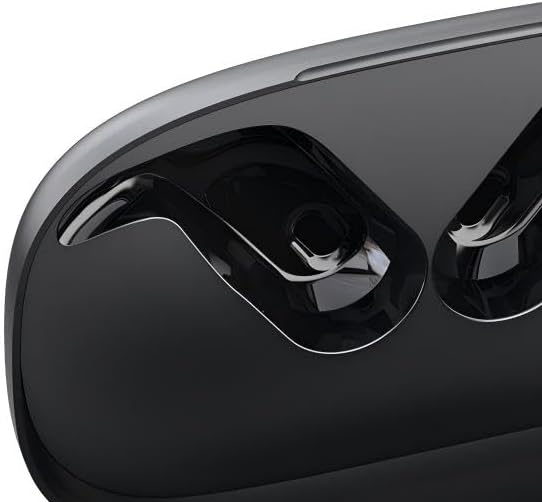
Image: The KTGEE T07 Wireless Earbuds in their charging case. The image shows the sleek design of the earbuds and the compact charging case, highlighting the product's aesthetic.
3. Product Overview
Earbud Components:
- Multi-function Button: For playback control, call management, and voice assistant activation.
- Microphone: For calls and voice commands.
- Charging Contacts: For charging inside the case.
- Ear Hook: Provides a secure fit, especially during physical activity.
- LED Indicator: Shows connection status and battery level.
Charging Case Components:
- LED Digital Display: Shows the charging case battery percentage and individual earbud charging status.
- USB-C Charging Port: For charging the case.
- Earbud Charging Slots: Securely holds and charges the earbuds.
4. Setup and First Use
4.1 Charging the Earbuds and Case
- Before first use, fully charge the charging case and earbuds.
- Place the earbuds into the charging case. Ensure they are correctly seated in their respective slots (L for left, R for right).
- Connect the USB-C charging cable to the charging port on the case and the other end to a USB power adapter (not included) or a computer's USB port.
- The LED display on the case will show the battery percentage during charging. The earbuds' LED indicators will light up to show they are charging.
- Charging time for the case is approximately 1.5 hours.
4.2 Pairing with a Bluetooth Device
- Ensure the earbuds are charged.
- Open the charging case. The earbuds will automatically power on and enter pairing mode. The LED indicator on one earbud will flash, indicating it's ready to pair.
- On your device (smartphone, tablet, laptop), enable Bluetooth.
- Search for "T07" in the list of available Bluetooth devices and select it to connect.
- Once connected, the earbud LED indicators will turn off or show a steady light (depending on model), and you will hear a confirmation tone.
- For subsequent use, the earbuds will automatically connect to the last paired device when taken out of the case, provided Bluetooth is enabled on the device.
- To pair with a new device, disconnect the earbuds from the currently paired device first.
4.3 Proper Wearing
- Choose the right size eartips for a comfortable and secure fit.
- Place the earbud into your ear canal.
- Adjust the ear hook over your ear to secure the earbud. Ensure a snug fit for optimal sound quality and stability.
5. Operating Instructions
5.1 Power On/Off
- Power On: Open the charging case, or press and hold the multi-function button on both earbuds for 3 seconds.
- Power Off: Place the earbuds back into the charging case and close the lid, or press and hold the multi-function button on both earbuds for 5 seconds.
5.2 Music Playback
- Play/Pause: Single press the multi-function button on either earbud.
- Next Track: Double press the multi-function button on the right earbud.
- Previous Track: Double press the multi-function button on the left earbud.
- Volume Up: Triple press the multi-function button on the right earbud.
- Volume Down: Triple press the multi-function button on the left earbud.
5.3 Call Management
- Answer/End Call: Single press the multi-function button on either earbud.
- Reject Call: Press and hold the multi-function button on either earbud for 2 seconds.
5.4 Voice Assistant
- Activate Voice Assistant (Siri, Google Assistant, etc.): Press and hold the multi-function button on either earbud for 2 seconds (when not on a call).
6. Maintenance and Care
- Keep the earbuds and charging case clean and dry. Use a soft, dry cloth to wipe them.
- Avoid extreme temperatures, humidity, and corrosive substances.
- Do not disassemble or attempt to repair the device yourself. This may void the warranty.
- Ensure the charging contacts on the earbuds and in the case are free from dust and debris to maintain proper charging.
- Store the earbuds in the charging case when not in use to protect them and keep them charged.
7. Troubleshooting
| Problem | Solution |
|---|---|
| Earbuds not pairing with device. |
|
| Only one earbud working. |
|
| Earbuds not charging. |
|
| Poor sound quality. |
|
8. Specifications
| Feature | Detail |
|---|---|
| Model Name | T07 |
| Connectivity Technology | Bluetooth 5.3 |
| Wireless Communication Technology | Bluetooth |
| Water Resistance Level | IPX7 (Waterproof) |
| Battery Life (Earbuds) | Up to 6 Hours |
| Total Playtime (with Charging Case) | Up to 48 Hours |
| Charging Time (Case) | Approximately 1.5 Hours |
| Control Method | Push Button |
| Ear Placement | On Ear (with ear hooks) |
| Form Factor | In Ear |
| Material | Plastic, Silicone |
| Noise Control | Sound Isolation, Noise Cancelling |
| Audio Driver Type | Balanced Armature Driver |
| Impedance | 32 Ohms |
9. Warranty and Support
KTGEE products are designed and manufactured to the highest quality standards. For warranty information and customer support, please refer to the warranty card included in your package or visit the official KTGEE website.
If you encounter any issues or have questions regarding your T07 Wireless Earbuds, please contact our customer support team for assistance.


