Introduction
This manual provides detailed instructions for the installation, operation, and maintenance of your Hodozzy Car Radio. This unit is specifically designed for Ford Ecosport models from 2013 to 2017, featuring a 9-inch In-Cell touchscreen, Android operating system, and integrated navigation capabilities. Please read this manual thoroughly before installation and use to ensure proper functionality and safety.
Key Features:
- Android Operating System (Android 15)
- 9-inch In-Cell Touchscreen (1280x720 resolution)
- 4GB RAM + 64GB ROM
- Wireless CarPlay & Android Auto
- Mirror Link (iOS/Android)
- Built-in GPS Navigation
- WiFi Connectivity
- Bluetooth Hands-free Calling & Music Streaming
- Digital Sound Processor (DSP) with 36-band EQ
- FM/RDS Radio
- Rear View Camera Input (AHD/CVBS)
- Steering Wheel Control Compatibility
- Split Screen Functionality
Setup
Package Contents
Verify that all items listed below are included in your package:
- 1 x Dash-in Kit
- 1 x Car Player (Main Unit)
- 1 x Power Cable
- 1 x GPS Antenna
- 1 x Cable for Rear View Camera
- 1 x RCA Cable
- 2 x USB Cables
- 2 x Brackets
- 4 x Screws
- 1 x User Manual (this document)
- 1 x Rear View Camera
- 1 x Microphone
- 1 x Canbus
- 1 x Installation Tool

Image: Overview of the Hodozzy car radio package contents, showing the main unit, various cables (power, RCA, USB, camera), GPS antenna, microphone, installation tools, and the included rear view camera.
Installation
Professional installation is recommended. Ensure the vehicle's battery is disconnected before beginning installation.
- Remove Original Radio: Carefully remove the existing car radio and dashboard trim.
- Connect Wiring Harness: Connect the provided power cable and Canbus to the vehicle's wiring harness.
- Special Note for SYNC Function: If your original Ford Ecosport vehicle is equipped with a SYNC function, the dedicated SYNC interface on the wiring harness must be connected. If your vehicle does not have the SYNC function, this power interface does not need to be connected and has no other function or purpose.
- Connect Peripherals: Connect the GPS antenna, rear view camera cable, USB cables, and microphone to the corresponding ports on the car radio unit.
- Mounting: Secure the car radio unit into the dashboard using the provided brackets and screws.
- Test Functionality: Before fully reassembling the dashboard, reconnect the vehicle's battery and perform a basic test of the radio's functions.
- Reassemble: Once confirmed working, reassemble the dashboard trim.

Image: Wiring diagram highlighting the connection point for vehicles equipped with the Ford SYNC function, showing the specific connector and its location on the vehicle's control panel.
Operating Instructions
User Interface and Display
The unit features a 9-inch In-Cell touchscreen with a resolution of 1280x720. The In-Cell technology provides a thinner frame, deeper blacks, and a sharper touch response. The Android operating system offers multiple user interfaces (UIs) to choose from, allowing customization of your home screen apps.
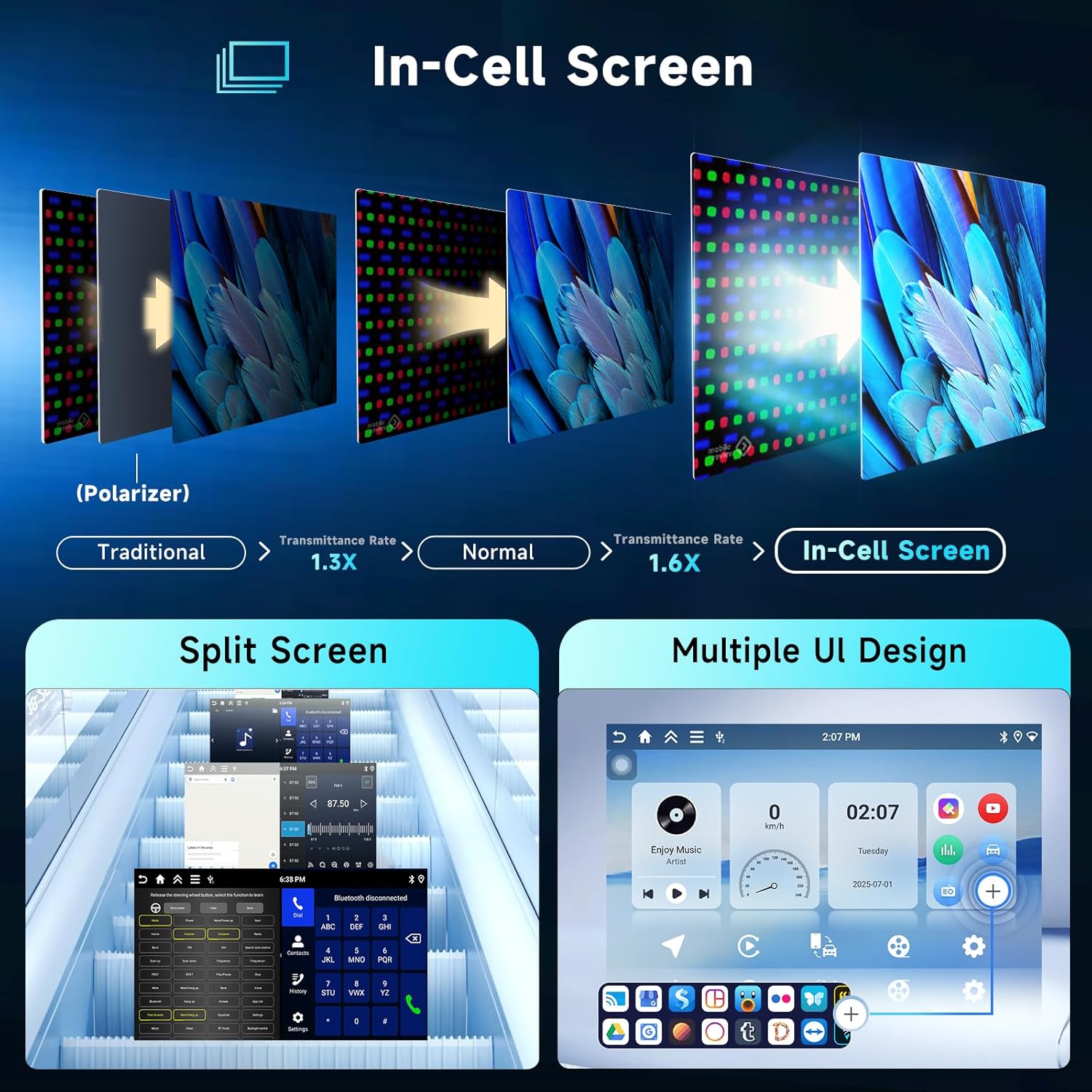
Image: Visual explanation of In-Cell screen technology benefits, demonstrating split-screen functionality and various customizable user interface designs available on the car radio.
Navigation
The car radio comes with integrated offline maps. To download map data for offline use, an internet connection is required. You can also use online navigation applications by connecting the unit to a WiFi hotspot.
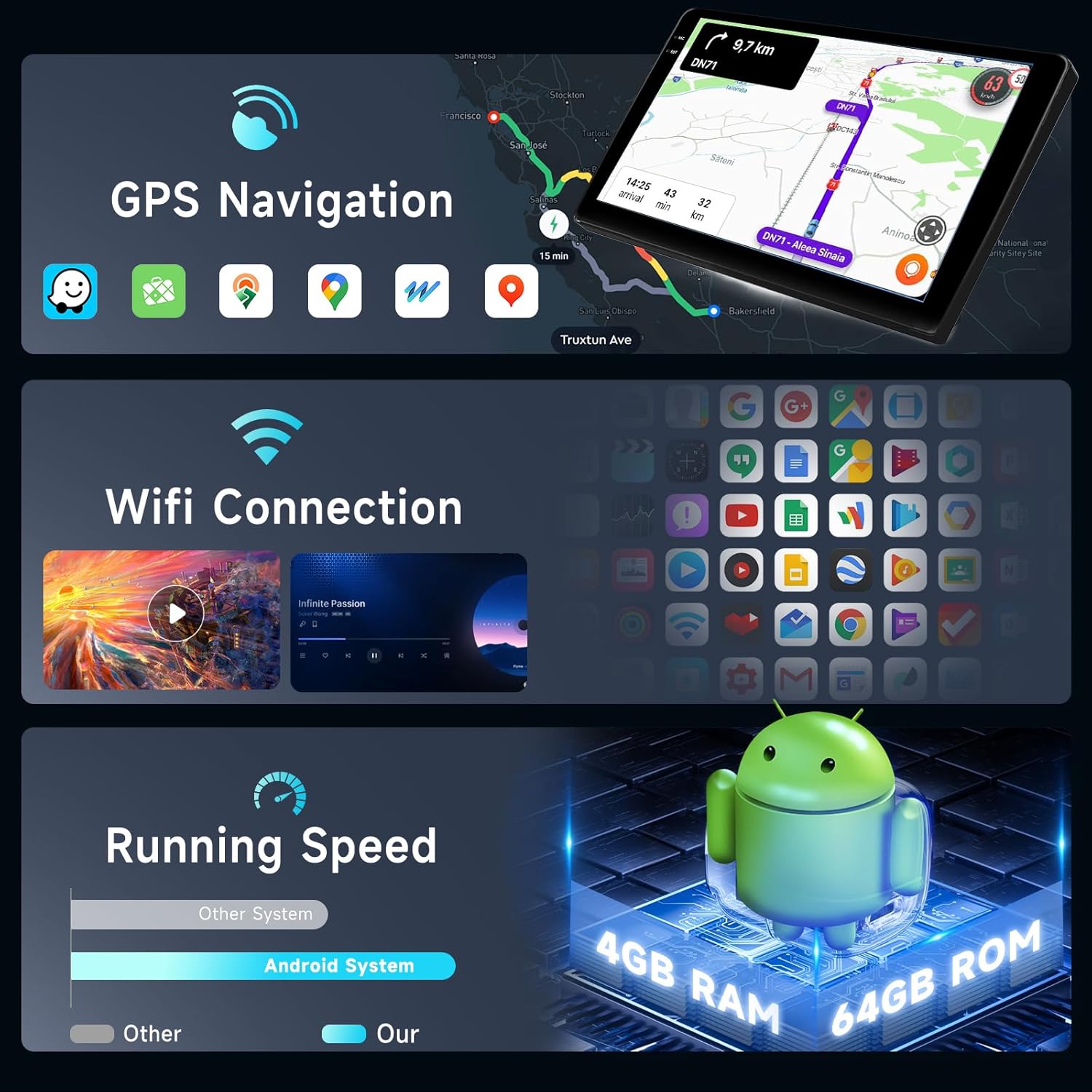
Image: Display showing GPS navigation interface with map data and a section illustrating WiFi connection status and available networks.
Connectivity
- Wireless CarPlay & Android Auto: Connect your smartphone wirelessly via Bluetooth or using a USB cable for CarPlay (iOS) or Android Auto (Android). This allows access to navigation, messages, phone calls, and music directly from your car radio screen.
- Mirror Link: Supports both wireless (Airplay for iOS) and wired (USB cable for Android) mirror link functionality, displaying your phone's screen on the car radio.
- Bluetooth: Built-in Bluetooth with A2DP supports hands-free calling, phonebook synchronization, and audio streaming from your mobile device.
- WiFi Hotspot: Connect the unit to a mobile hotspot or local WiFi network to access online features, download apps, and use online maps.

Image: Graphical representation of CarPlay, Android Auto, and Mirror Link functionalities, showing smartphone screens mirrored or integrated with the car radio display.
Audio Features
- DSP (Digital Sound Processor): The integrated DSP features a 36-band equalizer, allowing precise audio customization. Various preset styles (Rock, Pop, Jazz, Classic) are available.
- FM/RDS Radio: High-quality radio tuner for FM and RDS (Radio Data System) reception.
- Amplifier: Built-in 4 x 45W amplifier with subwoofer output.

Image: Composite image displaying the DSP equalizer interface, Bluetooth calling screen, Bluetooth music playback, a view from the rear camera, FM/RDS radio interface, and steering wheel control buttons.
Other Functions
- Rear View Camera: Supports AHD/CVBS input for the included rear view camera, providing a clear view when reversing.
- Steering Wheel Control: Compatible with your vehicle's steering wheel controls for convenient operation.
- Split Screen: Allows two applications to be displayed side-by-side on the screen simultaneously.
- USB Support: Dual USB interfaces support various audio (APE/FLAC/WAV/MP3/WMA) and video (MKV/RMVB/AVI/MP4/MDV) formats.
- Factory Default Password: The factory default password for system settings is 1234.
Maintenance
- Cleaning: Use a soft, dry cloth to clean the screen and unit. Avoid abrasive cleaners or solvents.
- Software Updates: Periodically check for software updates through the system settings or Hodozzy's official support channels to ensure optimal performance and access to new features.
- Temperature: Operate the unit within the specified temperature range (-20°C to 70°C) to prevent damage.
Troubleshooting
| Problem | Possible Cause | Solution |
|---|---|---|
| Unit does not power on. | Loose power connection, blown fuse, incorrect wiring. | Check power cable connections. Inspect vehicle's fuse box and unit's fuse. Verify wiring according to installation instructions. |
| No sound from speakers. | Volume too low, mute activated, incorrect speaker wiring, amplifier issue. | Increase volume. Check if unit is muted. Verify speaker connections. Ensure external amplifier (if used) is powered. |
| GPS signal lost or inaccurate. | GPS antenna not properly connected or obstructed, poor satellite reception. | Ensure GPS antenna is securely connected and placed in an unobstructed location (e.g., dashboard). Move to an open area for better signal. |
| Bluetooth connection issues. | Device not discoverable, incorrect pairing, interference. | Ensure Bluetooth is enabled on both devices. Delete previous pairings and re-pair. Move devices closer. Restart both devices. |
| Rear view camera not displaying. | Camera cable loose, incorrect camera input selected, camera power issue. | Check the rear view camera cable connection. Ensure the camera is receiving power. Verify the correct camera input is selected in settings. |
| Touchscreen unresponsive. | System freeze, temporary software glitch. | Restart the unit (refer to your vehicle's manual for how to safely power cycle the accessory). If issue persists, contact support. |
Specifications
| Feature | Detail |
|---|---|
| System | Android 15 |
| Chipset | RK3326S |
| MCU | G0001ALT |
| Screen Size | 9 inch In-Cell Touchscreen |
| Screen Resolution | 1280 × 720 |
| Memory | 4GB RAM + 64GB ROM |
| Radio Chip | UMW2652 |
| Output Power | 4 x 45 W (Amplifier Chip: YD7388) |
| Operating Voltage | 9V-16V |
| Operating Temperature | -20°C to 70°C |
| Radio Band | FM/RDS |
| Video Output | Supported |
| Rear View Camera Input | AHD/CVBS |
| USB Interface | Dual USB |
| Audio Formats | APE/FLAC/WAV/MP3/WMA etc. |
| Video Formats | MKV/RMVB/AVI/MP4/MDV etc. |
| Image Formats | PNG/JPEG/JPG/GIF/WBMP/BNP etc. |
| Package Dimensions | 47.7 x 28.6 x 20.7 cm |
| Item Weight | 1.1 kg |
Warranty and Support
Warranty Information
Please refer to your purchase documentation or the Hodozzy official website for detailed warranty terms and conditions applicable to your product.
Customer Support
For technical assistance, troubleshooting beyond this manual, or warranty claims, please contact Hodozzy customer support through their official website or the contact information provided with your purchase.


