
1. Introduction
The iSo Tech H59MAX Smart Bracelet is a screenless activity and health fitness tracker designed for continuous monitoring of various health metrics and activity levels. This device provides 24/7 real-time data on heart rate, blood pressure, blood oxygen saturation (SpO2), heart rate variability (HRV), and stress levels. It also offers detailed sleep analysis and supports over 170 sports modes. Data synchronization and advanced features are managed through the companion QWatch Pro application on your smartphone. This manual provides essential information for setting up, operating, and maintaining your smart bracelet.

Image: The iSo Tech H59MAX Smart Bracelet, featuring its sleek, screenless design and comfortable band.
2. What's in the Box
Verify that all the following items are included in your package:
- 1 x iSo Tech H59MAX Smart Bracelet
- 1 x Nylon Band
- 1 x Silicone Band
- 1 x USB Magnetic Charging Cable
- 1 x User Manual (this document)
3. Setup Guide
3.1 Charging the Device
Before first use, fully charge your smart bracelet. Connect the USB magnetic charging cable to the charging contacts on the back of the bracelet and to a standard USB power adapter (not included) or a computer USB port. The device will vibrate to indicate charging has begun. A full charge typically takes approximately 1.5 hours.

Image: The iSo Tech H59MAX Smart Bracelet connected to its magnetic charging cable.
3.2 Downloading the QWatch Pro App
The iSo Tech H59MAX Smart Bracelet requires the QWatch Pro application for full functionality and data synchronization. The app is compatible with iOS 9.0+ and Android 4.4+ devices.
- Scan the QR code provided in the quick start guide or search for "QWatch Pro" in the Apple App Store (for iOS) or Google Play Store (for Android).
- Download and install the application on your smartphone.
- Alternatively, you can visit the official app download page: QWatch Pro Official Download

Image: Screenshots of the QWatch Pro app interface displaying various health monitoring data alongside the smart bracelet.
3.3 Pairing the Device
Ensure your smartphone's Bluetooth is enabled before proceeding.
- Open the QWatch Pro app on your smartphone.
- Follow the on-screen instructions to create an account or log in.
- Navigate to the "Device" or "Add Device" section within the app.
- The app will search for available devices. Select "H59MAX" or the corresponding device ID when it appears.
- Confirm the pairing request on both your phone and, if prompted, by a vibration on the bracelet.
- Once paired, the app will display "Connected" and begin synchronizing data.
3.4 Wearing the Device
For accurate health monitoring, wear the smart bracelet snugly but comfortably on your wrist, approximately one finger's width above your wrist bone. The sensor on the back of the device should be in contact with your skin. You can choose between the included nylon or silicone band for optimal comfort and activity.
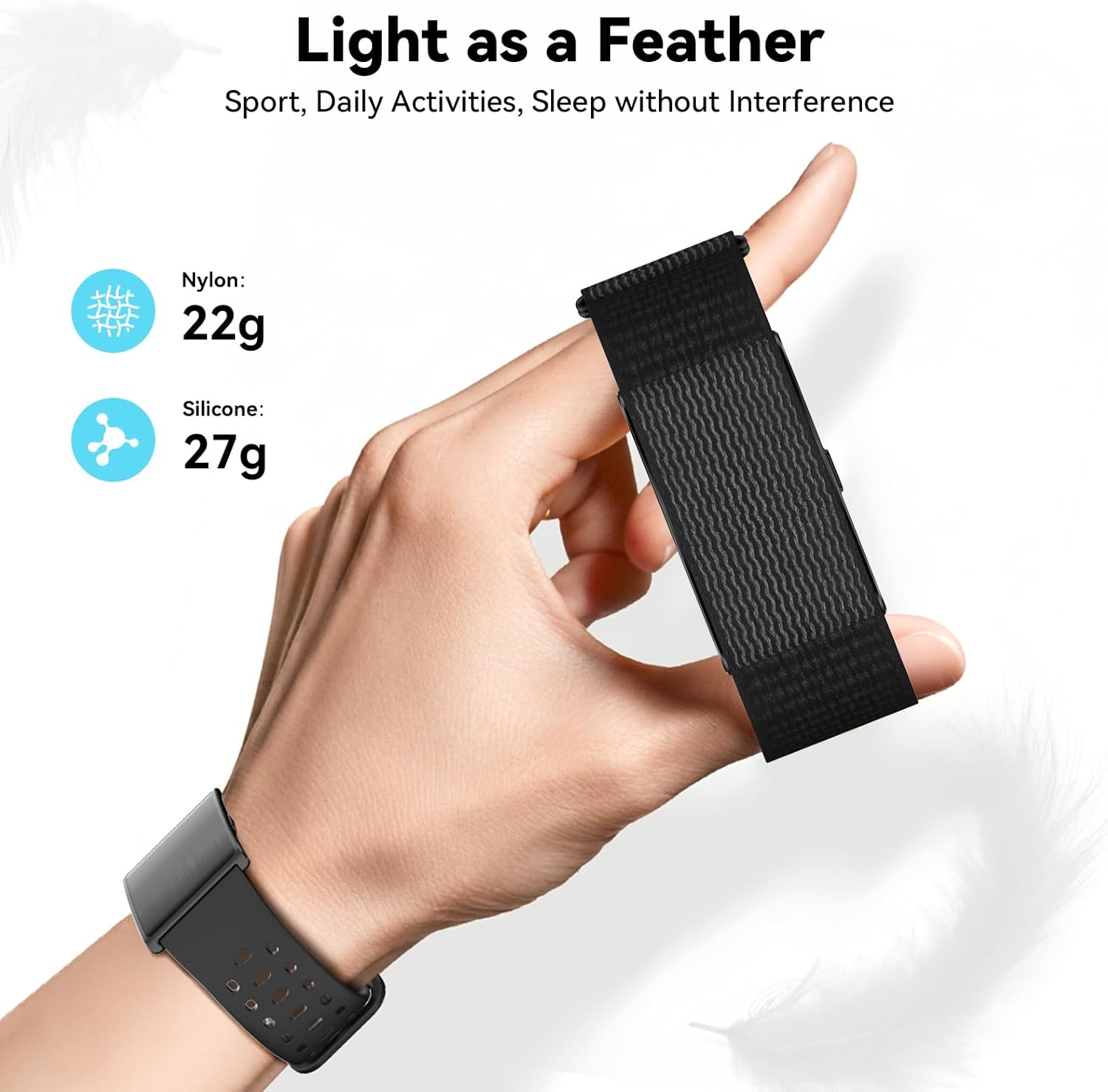
Image: A hand holding the lightweight smart bracelet, demonstrating its comfortable design.
4. Operating Instructions
The iSo Tech H59MAX Smart Bracelet operates primarily through its companion QWatch Pro app, as it features a screenless design. All data viewing, settings adjustments, and mode selections are performed within the app.
4.1 Health Monitoring
The bracelet continuously monitors various health metrics. Data is automatically synced to the QWatch Pro app.
- Heart Rate: 24/7 continuous monitoring. View real-time and historical data in the app.
- Blood Pressure: Continuous monitoring. Note: This device is not a medical device; readings are for reference only.
- Blood Oxygen (SpO2): Continuous monitoring.
- HRV (Heart Rate Variability): Monitors your heart rate variability to assess stress and recovery.
- Stress Levels: Provides insights into your daily stress patterns.
- Sleep Tracking: Automatically detects and analyzes sleep stages (light sleep, deep sleep, REM, wake-up times).
- Female Cycle Tracking: Set up and track menstrual cycles within the app.

Image: A user wearing the smart bracelet, with the QWatch Pro app displaying various health metrics like steps, HRV, and heart rate.

Image: A person sleeping while wearing the smart bracelet, accompanied by a graphic representation of sleep stages (deep, light, REM, wake up) and duration metrics.
4.2 Activity Tracking
The bracelet supports over 170 sports modes. Select your desired activity within the QWatch Pro app to begin tracking. For outdoor activities like running or hiking, the app can utilize your smartphone's GPS to record routes and provide precise exercise data analysis.
- Steps, Calories, Distance: Automatically tracks daily activity.
- Sports Modes: Manually select from a wide range of activities in the app for tailored tracking.
- GPS Tracking: For outdoor activities, ensure your phone's GPS is active and connected to the app.

Image: A man exercising while wearing the smart bracelet, with the QWatch Pro app displaying activity data such as steps, calories, distance, and a GPS-tracked route.
4.3 Smart AI Health Assistant
Leveraging built-in AI analysis, the QWatch Pro app interprets your steps, sleep, and activity data to provide personalized health advice and optimization plans. This feature helps you adjust lifestyle habits scientifically.

Image: A man stretching, with the smart bracelet on his wrist, and the QWatch Pro app displaying an AI-powered health analysis and score.
4.4 Notifications and Reminders
The smart bracelet provides silent vibration alerts for important notifications and reminders, configurable through the QWatch Pro app.
- Incoming Calls: The bracelet will vibrate to alert you of incoming calls.
- Messages & App Notifications: Receive vibration alerts for SMS messages and notifications from selected apps (e.g., WhatsApp, Facebook, Instagram).
- Silent Alarm Clock: Set alarms in the app to wake you gently with vibrations without disturbing others.
- Hydration Reminders: Configure reminders to drink water at regular intervals.
- Sedentary Reminders: Receive alerts if you have been inactive for too long.
- Camera Control: Use the bracelet as a remote shutter for your phone's camera.
- Find Device: Use the app to make your bracelet vibrate if you misplace it nearby.
- Do Not Disturb Mode: Enable this mode in the app to silence notifications during specific times.

Image: A collage of icons illustrating additional features such as Do Not Disturb mode, Apple Health sync, call alerts, message notifications, camera control, find device, alarm, and sedentary reminders.
5. Maintenance
5.1 Water Resistance
The iSo Tech H59MAX Smart Bracelet has an IP68 + 1ATM dual water resistance rating, supporting protection up to 10 meters underwater. This means it is resistant to rain, sweat, and daily hand washing splashes. It is suitable for use in various weather conditions and during high-intensity workouts.
Important Note: To extend product lifespan, avoid exposure to hot water, steam environments (e.g., hot showers, saunas), or diving activities. Water resistance is not a permanent condition and may decrease over time with normal wear.

Image: A man running in the rain, wearing the smart bracelet, illustrating its water resistance against rain, sweat, and handwashing.
5.2 Cleaning the Device
Regular cleaning helps maintain the device's performance and prevents skin irritation.
- Wipe the bracelet and bands with a soft, damp, lint-free cloth.
- For the charging contacts and sensor area, use a dry cotton swab to gently remove any dust or debris.
- Do not use harsh chemicals, abrasive cleaners, or ultrasonic cleaning devices.
- Ensure the device is completely dry before charging.
5.3 Battery Care
To maximize battery lifespan:
- Avoid fully discharging the battery frequently.
- Charge the device using the provided magnetic charging cable.
- Store the device in a cool, dry place when not in use for extended periods.
6. Troubleshooting
6.1 Device Not Turning On or Charging
- Ensure the charging cable is securely connected to both the bracelet and the power source.
- Check if the charging contacts on the bracelet and cable are clean and free of debris.
- Try a different USB power adapter or port.
- Allow the device to charge for at least 10-15 minutes before attempting to turn it on.
6.2 Unable to Pair with Smartphone
- Ensure Bluetooth is enabled on your smartphone.
- Make sure the bracelet is sufficiently charged.
- Keep the bracelet close to your smartphone during the pairing process.
- Restart both your smartphone and the QWatch Pro app.
- If previously paired, try "forgetting" the device in your phone's Bluetooth settings and re-pairing.
6.3 Inaccurate Health Data Readings
- Ensure the bracelet is worn correctly: snugly but comfortably, one finger's width above the wrist bone, with the sensor in full contact with the skin.
- Clean the sensor on the back of the device.
- Avoid excessive movement during measurements (e.g., blood pressure).
- Remember that this device is for general fitness and wellness purposes and is not a medical device. Consult a healthcare professional for medical advice.
6.4 Notifications Not Appearing
- Check if the bracelet is successfully paired and connected to the QWatch Pro app.
- Verify that notification permissions are enabled for the QWatch Pro app in your smartphone's settings.
- Ensure that specific app notifications are enabled within the QWatch Pro app settings.
- Confirm that "Do Not Disturb" mode is not active on either your phone or the bracelet (via app settings).
7. Specifications
| Feature | Detail |
|---|---|
| Model Number | H59MAX |
| Brand | iSo Tech |
| Connectivity | Bluetooth 5.0 |
| Battery Capacity | 180 mAh |
| Battery Life (Typical Use) | 45-60 days |
| Battery Life (Standby) | Up to 100 days |
| Charging Time | Approx. 1.5 hours |
| Water Resistance | IP68 + 1ATM (up to 10 meters) |
| Operating System Compatibility | iOS 9.0+ / Android 4.4+ |
| Health Monitoring | Heart Rate, Blood Pressure, SpO2, HRV, Stress, Sleep Tracking, Female Cycle Tracking |
| Activity Modes | 170+ Sports Modes |
| GPS | Via Smartphone |
| Weight (Nylon Band) | Approx. 22g (0.05 lbs) |
| Weight (Silicone Band) | Approx. 27g (0.06 lbs) |
| Manufacturer | IEDOU TECHNOLOGY SHENZHEN CO.,LTD. |
8. Warranty & Support
8.1 Warranty Information
iSo Tech products are manufactured to high quality standards. For specific warranty details, please refer to the warranty card included with your product or contact the retailer where you purchased the device. Keep your proof of purchase for warranty claims.
8.2 Customer Support
If you encounter any issues or have questions regarding your iSo Tech H59MAX Smart Bracelet, please refer to the troubleshooting section of this manual first. For further assistance, you may contact the manufacturer or retailer's customer support. You can also find more information and updates on the QWatch Pro app's official website or support sections.
QWatch Pro App Official Website: https://www.qcwireless.cn/QWatchPro/index.html


