
1. Introduction
This manual provides comprehensive instructions for the Bmax I10 Plus tablet. Designed for optimal performance and user experience, this device features the latest Android 16 operating system, a powerful 8-core T7250 CPU, and a vibrant 10.1-inch IPS display. Please read this manual thoroughly to understand the tablet's functions and ensure proper usage.

Image: The tablet screen showcasing the Android 16 operating system interface.
2. Product Overview
The Bmax I10 Plus tablet is a versatile device equipped with advanced features for entertainment, productivity, and communication.

Image: Front and back view of the Bmax I10 Plus tablet, showcasing its sleek design.

Image: An overview of the Bmax I10 Plus tablet's key features, including CPU, display, battery, and memory.
2.1 Package Contents
Upon unboxing your Bmax I10 Plus tablet, verify that all components are present:
- Bmax I10 Plus Tablet PC
- USB Type-C Cable
- Power Adapter
- User Guide
- SIM Ejector Tool (if applicable for 4G model, though product description states Wi-Fi model)

Image: The Bmax I10 Plus tablet laid out with its standard accessories: charging cable, power adapter, and user manual.
2.2 Physical Features
The tablet features a slim design with a 10.1-inch IPS display. Key physical components include:
- Display: 10.1-inch IPS incell TDDI touchscreen with 1280x800 resolution.
- Cameras: Front camera (5MP) and Rear camera (8MP).
- Ports: USB Type-C port for charging and data transfer.
- Audio: Dual speakers, 3.5mm audio jack.
- Buttons: Power button, Volume buttons.
- Card Slot: Supports up to 1TB expandable storage via a storage card.
3. Setup
3.1 Initial Power On
To power on your Bmax I10 Plus tablet, press and hold the power button located on the side of the device until the screen illuminates. The tablet will boot up, displaying the Bmax logo and then the Android welcome screen.
3.2 Language Settings
Upon first boot, you will be prompted to select your preferred language.
- On the welcome screen, tap on 'English (United States)' or the currently displayed language.
- Scroll through the list and select your desired language, for example, '日本語' (Japanese).
- Confirm your selection. The system interface will switch to the chosen language.
- Click 'Start' or '開始' to proceed with the initial setup.
Video: This video demonstrates how to set the display language to Japanese during the initial setup of a Bmax tablet.
3.3 Wi-Fi Connection
During the initial setup, you will be asked to connect to a Wi-Fi network.
- Select your preferred Wi-Fi network from the list of available networks.
- Enter the Wi-Fi password if prompted.
- Tap 'Connect'.
- If you do not wish to connect to Wi-Fi immediately, select 'Set up offline' to continue the setup process without an internet connection.
3.4 Date and Time
After connecting to Wi-Fi (or setting up offline), you will configure the date and time.
- Select your time zone.
- Adjust the date and time if they are not automatically set.
- Tap 'Next' to continue.
4. Operating Instructions
4.1 Basic Navigation
The Bmax I10 Plus tablet uses standard Android navigation gestures and controls.
- Tap: Select an item or open an application.
- Swipe: Scroll through screens or lists.
- Pinch: Zoom in or out on content like photos or web pages.
- Long Press: Access contextual menus or move icons.

Image: A hand interacting with the tablet's touchscreen, demonstrating smooth and responsive touch input.
4.2 Split Screen Functionality
The tablet supports split-screen mode, allowing you to use two applications simultaneously.
- Open the first application you wish to use.
- Access the recent apps menu (usually by swiping up from the bottom or tapping a dedicated button).
- Long-press the icon of the first app and drag it to one side of the screen.
- Select the second application from the recent apps list to fill the other half of the screen.
- Adjust the size of each app window by dragging the divider in the middle.
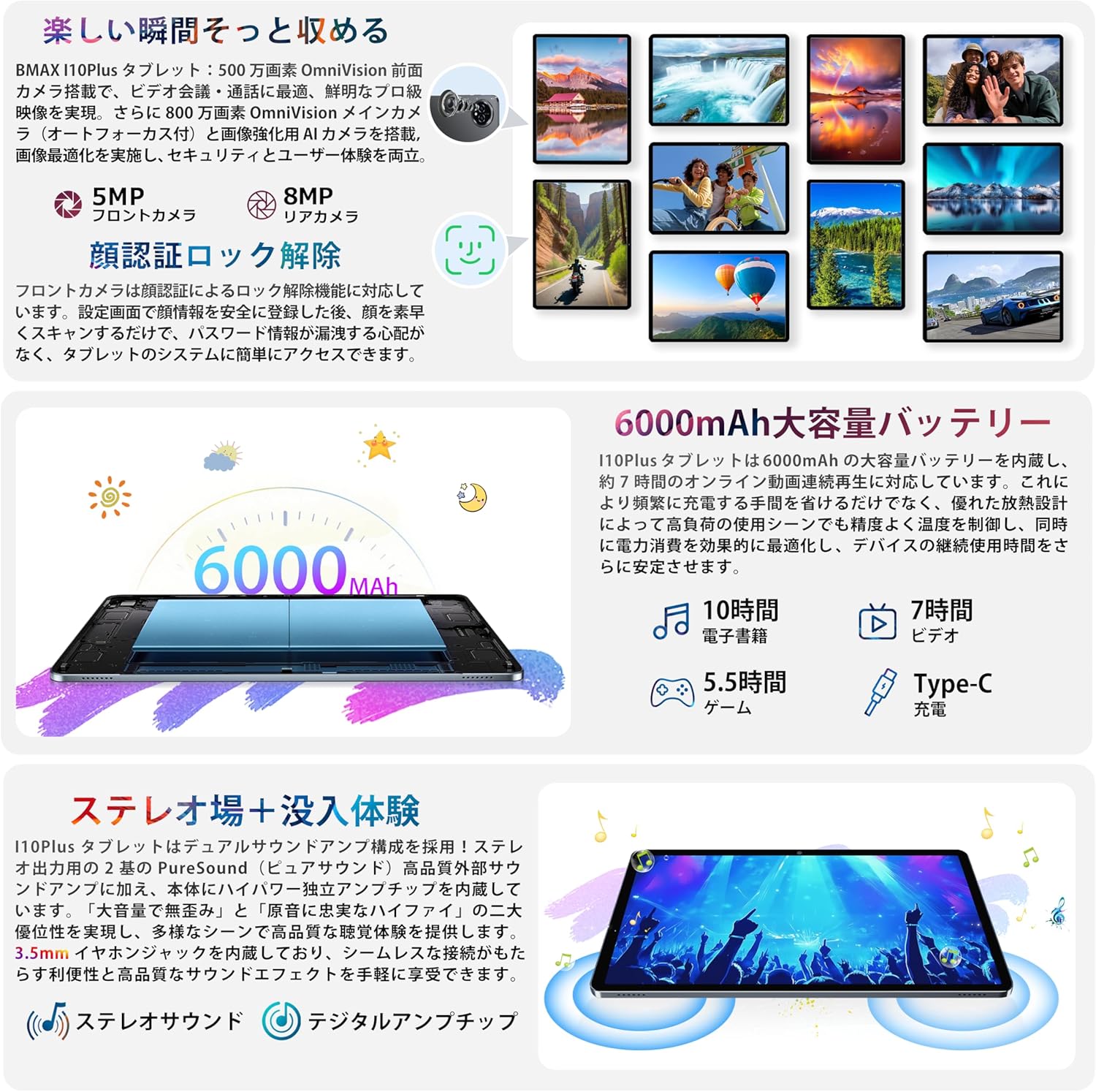
Image: The Bmax I10 Plus tablet showing two applications running side-by-side in split-screen mode, enhancing multitasking.
4.3 Face Recognition
Unlock your tablet quickly and securely using face recognition.
- Go to Settings > Security & privacy > Face unlock.
- Follow the on-screen instructions to register your face.
- Once registered, simply look at the front camera to unlock your device.

Image: The tablet screen illustrating the face recognition feature for quick and secure device unlocking.
4.4 Media Consumption
Enjoy high-quality video and audio with the tablet's IPS display and dual speakers. The device supports Widevine L1 and Netflix L1 for high-definition streaming from platforms like Amazon Prime Video, Netflix, and Hulu.
- Video Playback: Open your preferred video streaming app or gallery to watch videos.
- Reading: Use e-reader apps for a comfortable reading experience.
- Audio: Connect headphones to the 3.5mm jack or use Bluetooth audio devices for private listening.
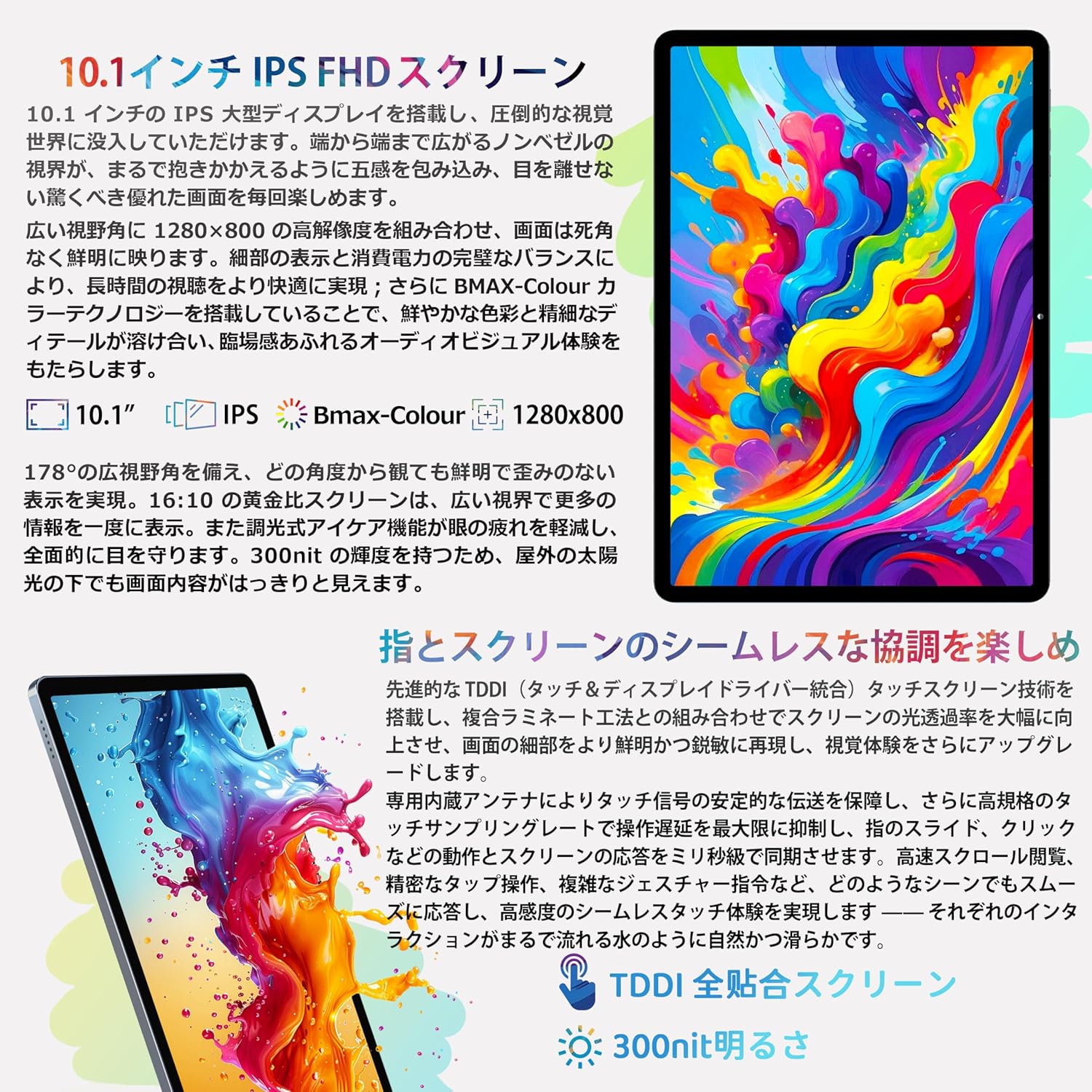
Image: A user holding the Bmax I10 Plus tablet while reading an e-book, highlighting the comfortable reading experience.

Image: The Bmax I10 Plus tablet displaying a video, showcasing its vibrant IPS screen.

Image: A person enjoying content on the Bmax I10 Plus tablet, demonstrating its use for media consumption.
Video: This video highlights various features and usage scenarios of a Bmax Android tablet, including gaming, browsing, and media playback.
4.5 Gaming
The 8-core T7250 CPU and ARM Mali-G57 GPU provide a smooth gaming experience.

Image: A user playing a game on the Bmax I10 Plus tablet, showcasing its gaming capabilities.

Image: A person engrossed in a game on the Bmax I10 Plus tablet, demonstrating its suitability for mobile gaming.
4.6 OTG Functionality
The tablet supports USB On-The-Go (OTG), allowing you to connect external USB devices such as flash drives, keyboards, or mice for enhanced functionality. Connect the OTG adapter (not included) to the Type-C port, then connect your USB device.
4.7 FM Radio
To use the FM radio feature, connect wired headphones to the 3.5mm audio jack. The headphones act as an antenna. Open the FM Radio application and scan for available stations.
4.8 Wireless Projection
The tablet supports wireless projection, allowing you to mirror your screen to a compatible display or TV.
- Ensure your tablet and the target display device are connected to the same Wi-Fi network.
- Go to Settings > Connected devices > Connection preferences > Cast.
- Select your desired display device from the list.
4.9 Parental Control
The tablet includes parental control features to ensure healthy usage for children. These features allow you to manage app access, screen time, and content filters.

Image: A child using the Bmax I10 Plus tablet, illustrating its suitability for family use with parental controls.
5. Specifications
The following table outlines the technical specifications of the Bmax I10 Plus tablet.
| Feature | Description |
|---|---|
| Brand | Bmax |
| Model Name | I10 Plus |
| Operating System | Android 16 |
| CPU | 8-core T7250 Processor |
| GPU | ARM Mali-G57 |
| RAM | 16GB (4GB physical + 12GB virtual) |
| Internal Storage (ROM) | 128GB |
| Expandable Storage | Up to 1TB via storage card |
| Screen Size | 10.1 inches |
| Display Type | IPS incell TDDI |
| Resolution | 1280x800 pixels |
| Aspect Ratio | 16:10 |
| Refresh Rate | 60Hz |
| Front Camera | 5MP |
| Rear Camera | 8MP |
| Battery Capacity | 6000mAh |
| Charging Port | USB Type-C |
| Wireless Connectivity | Wi-Fi (2.4GHz/5GHz, 802.11ac), Bluetooth 5.2 |
| Navigation | GPS, GLONASS, BDS, GALILEO |
| Dimensions (L x W x H) | 24.2 x 16.1 x 0.9 cm |
| Additional Features | OTG, FM Radio, Split Screen, G-sensor, Face Recognition, Wireless Projection |

Image: A diagram illustrating the high-performance 8-core T7250 CPU.

Image: A diagram showcasing the ARM Mali-G57 GPU for graphics processing.
6. Battery Management
The Bmax I10 Plus is equipped with a 6000mAh lithium polymer battery, providing extended usage times for work, study, and entertainment.
- Charging: Use the provided Type-C cable and power adapter to charge the tablet.
- Battery Life: Expect approximately 10 hours for e-books, 7 hours for video playback, and 5.5 hours for gaming on a full charge.
- Safety: The battery has passed safety certifications to ensure reliable operation.

Image: An internal view of the Bmax I10 Plus tablet highlighting its 6000mAh battery capacity.
7. Storage Management
The tablet comes with 128GB of internal storage (ROM) and 16GB of RAM (4GB physical + 12GB virtual memory) for smooth multitasking. Storage can be expanded up to 1TB using a storage card (not included).
- Expandable Storage: Insert a compatible storage card into the designated slot to increase available space for photos, videos, music, and applications.
- File Transfer: Use the USB Type-C cable to connect the tablet to a computer for file management, or utilize OTG functionality with a USB flash drive.

Image: A visual representation of the tablet's 16GB RAM, 128GB ROM, and 1TB expandable storage capabilities.
8. Connectivity
The Bmax I10 Plus tablet offers robust connectivity options.
- Wi-Fi: Supports 2.4GHz and 5GHz Wi-Fi (802.11ac) for stable and fast internet access.
- Bluetooth 5.2: Connect wireless headphones, speakers, and other Bluetooth-enabled accessories.
- GPS: Integrated GPS module provides accurate navigation services.

Image: The tablet highlighting its stable high-speed connectivity features, including 2.4G+5G Wi-Fi and Bluetooth 5.2.
9. Camera Usage
The tablet is equipped with a 5MP front camera and an 8MP rear camera, suitable for video calls, capturing photos, and scanning documents.
- Taking Photos: Open the Camera app and tap the shutter button to capture images.
- Video Recording: Switch to video mode in the Camera app to record videos.
- Settings: Adjust camera settings such as resolution, flash, and modes within the Camera app.
10. Maintenance
Proper maintenance ensures the longevity and optimal performance of your Bmax I10 Plus tablet.
- Cleaning: Use a soft, lint-free cloth to clean the screen and body of the tablet. Avoid abrasive cleaners or solvents.
- Software Updates: Regularly check for and install system updates to ensure your device has the latest features and security patches. Go to Settings > System > System update.
- Data Backup: Periodically back up important data to cloud storage or an external device to prevent data loss.
11. Troubleshooting
If you encounter issues with your Bmax I10 Plus tablet, refer to the following common troubleshooting steps:
- Device not turning on: Ensure the battery is charged. Connect the tablet to the charger and wait a few minutes before attempting to power it on again.
- Screen frozen: Press and hold the power button for approximately 10-15 seconds to force a restart.
- Wi-Fi connection issues: Check if Wi-Fi is enabled in settings. Restart your router and the tablet. Ensure you are within range of the Wi-Fi signal.
- Applications crashing: Clear the cache and data for the problematic app in Settings > Apps > [App Name] > Storage. If the issue persists, uninstall and reinstall the app.
- Slow performance: Close unnecessary background applications. Clear cached data regularly. Consider performing a factory reset if performance issues continue (back up your data first).
12. Safety Information
Please read and follow these safety guidelines to prevent damage to your device or injury to yourself and others.
- Do not expose the tablet to extreme temperatures, direct sunlight, or moisture.
- Avoid dropping or subjecting the tablet to severe impact.
- Use only Bmax-approved chargers and accessories.
- Do not attempt to disassemble or repair the tablet yourself. Contact customer support for assistance.
- Keep the tablet away from children and pets to prevent accidental damage or ingestion of small parts.
13. Warranty and Support
Your Bmax I10 Plus tablet comes with a 1-year warranty against manufacturer defects.
- Warranty Period: Enjoy a 1-year warranty service from the date of purchase.
- Refund Policy: Products purchased from our store are eligible for a 30-day refund policy.
- Contact Support: If you encounter any issues or have questions, please contact our customer support team via email. Our staff will respond within 24 hours.
- How to Contact: Navigate to your Amazon account, then 'Order History', and select the relevant order to contact the seller.

Image: A customer support representative, symbolizing the available support for Bmax products.

Image: Information detailing the Bmax 1-year warranty service, ensuring product quality and customer peace of mind.


