
Introduction
This manual provides essential information for setting up, operating, maintaining, and troubleshooting your HP ProStudio 4 AiO G1i All-in-One Computer. This system integrates a powerful Intel Core Ultra 5 processor, 16 GB DDR5 RAM, and a 512 GB NVMe SSD into a compact 23.8-inch Full HD display, running on Windows 11 Pro. It is designed for business use, offering advanced performance and security features.
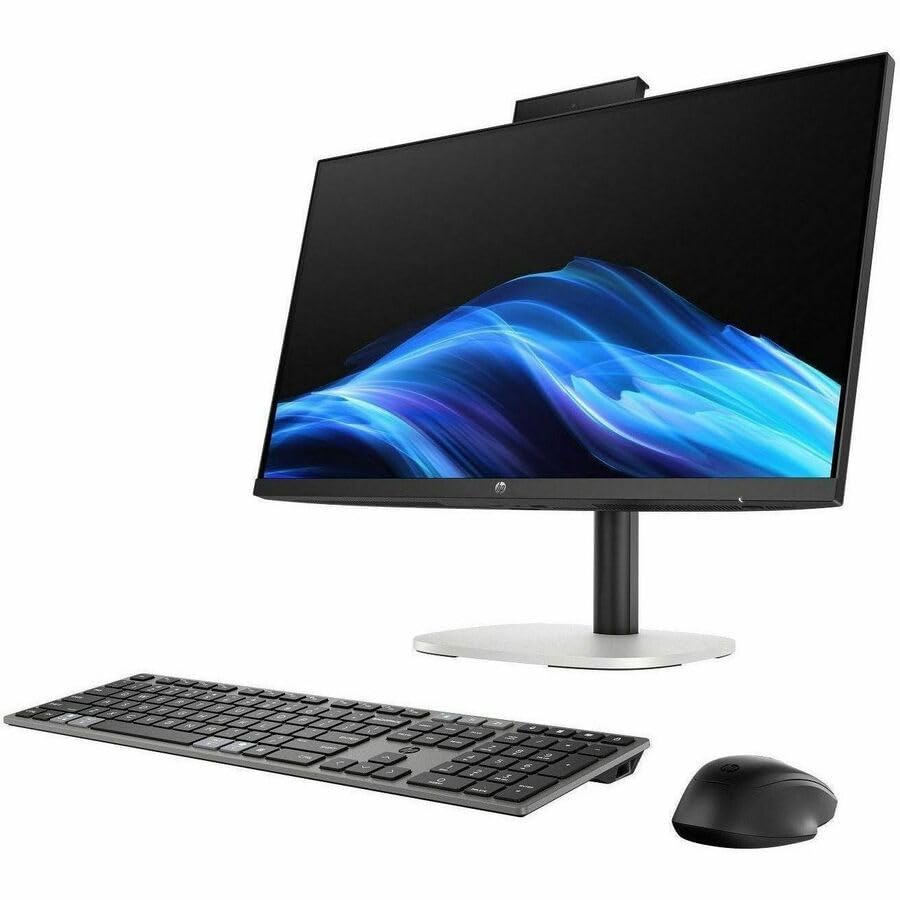
Image: Front view of the HP ProStudio 4 AiO G1i All-in-One Computer, showcasing its sleek design.
What's in the Box
Verify that all components are present in the packaging before proceeding with setup.
- HP ProStudio 4 All-in-One G1i 23.8 inch Desktop AI PC Wolf Pro Security Edition
- Power Adapter
- HP 125 v2 Wired Keyboard
- HP 125 Wired Mouse

Image: The HP ProStudio 4 AiO G1i All-in-One Computer displayed with its accompanying wired keyboard and mouse.
Setup Instructions
- Unpack the System: Carefully remove the All-in-One computer and all accessories from the packaging. Place the computer on a stable, flat surface.
- Connect Keyboard and Mouse: Plug the USB cables from the HP 125 v2 Wired Keyboard and HP 125 Wired Mouse into the available USB ports on the rear of the All-in-One computer.
- Connect Power: Connect the power adapter cable to the power input port on the rear of the computer, then plug the power adapter into a wall outlet.
- Power On: Press the power button, typically located on the side or bottom edge of the display, to turn on the computer.
- Initial Setup: Follow the on-screen instructions to complete the Windows 11 Pro initial setup, including language selection, network connection, and user account creation.

Image: Rear view of the HP ProStudio 4 AiO G1i, highlighting the various input/output ports for connecting peripherals and power.
Operating Instructions
Power On/Off
- To Power On: Press the power button. The system will boot up to the Windows 11 Pro desktop.
- To Shut Down: Click the Start button, then Power, and select "Shut down."
- To Restart: Click the Start button, then Power, and select "Restart."
- To Sleep: Click the Start button, then Power, and select "Sleep."
Using Windows 11 Pro
Your HP ProStudio 4 AiO G1i comes pre-installed with Windows 11 Pro. Familiarize yourself with the operating system's interface, including the Start menu, taskbar, and settings. For detailed information on Windows 11 Pro features, refer to the official Microsoft documentation.
AI Capabilities and vPro Technology
This system features an Intel Core Ultra 5 processor with integrated AI capabilities, designed to enhance performance for AI-driven applications and tasks. Intel vPro Technology provides hardware-enhanced security and manageability features, ideal for business environments. Consult your IT administrator for specific vPro functionalities within your organization.

Image: Two individuals interacting with the HP ProStudio 4 AiO G1i in a professional office environment, demonstrating its use in collaborative settings.
Maintenance
- Cleaning the Display: Use a soft, lint-free cloth slightly dampened with water or a non-abrasive screen cleaner. Avoid spraying liquids directly onto the screen.
- Cleaning the Chassis: Wipe the exterior surfaces with a soft, dry cloth. Do not use harsh chemicals or abrasive materials.
- Software Updates: Regularly check for and install Windows updates and HP driver updates to ensure optimal performance and security.
- Ventilation: Ensure that the ventilation openings on the computer are not blocked to prevent overheating.
Troubleshooting
Common Issues and Solutions
- No Power:
- Verify the power adapter is securely connected to both the computer and a working electrical outlet.
- Test the outlet with another device.
- No Display:
- Ensure the computer is powered on.
- Adjust the display brightness settings.
- If an external monitor is connected, ensure it is properly configured.
- Keyboard/Mouse Not Responding:
- Check USB cable connections to the computer.
- Try connecting the keyboard/mouse to different USB ports.
- Restart the computer.
- System Slowdown:
- Close unnecessary applications.
- Check for background processes consuming high resources using Task Manager.
- Ensure sufficient free space on the SSD.
- Run a system scan for malware.
Specifications
| Feature | Detail |
|---|---|
| Model Number | C72RZUT#ABA |
| Display Size | 23.8 Inches |
| Screen Resolution | 1920 x 1080 (Full HD) |
| Processor | Intel Core Ultra 5 (Tetradeca-core, 14 Core), 5 GHz |
| RAM | 16 GB DDR5 |
| Storage | 512 GB PCI Express NVMe SSD |
| Graphics | Integrated |
| Operating System | Windows 11 Pro |
| Wireless Connectivity | 802.11ax, Bluetooth |
| Dimensions (LxWxH) | 18.7 x 7.9 x 29.3 inches |
| Item Weight | 13.89 pounds |
Warranty and Support
Your HP ProStudio 4 AiO G1i All-in-One Computer is covered by HP's standard warranty. For detailed warranty information, please refer to the warranty documentation included with your product or visit the official HP support website.
For technical assistance, driver downloads, or further support, please visit the HP support website or contact HP customer service. Have your product model number (C72RZUT#ABA) and serial number ready when contacting support.


