
Introduction
Thank you for purchasing the BRIMFORD Programmable Macro Keypad with Knob. This compact and versatile device is designed to enhance your productivity and creative workflow across various applications, including video editing, music production, graphic design, and general office tasks. It offers multiple connectivity options and extensive customization features to suit your needs.
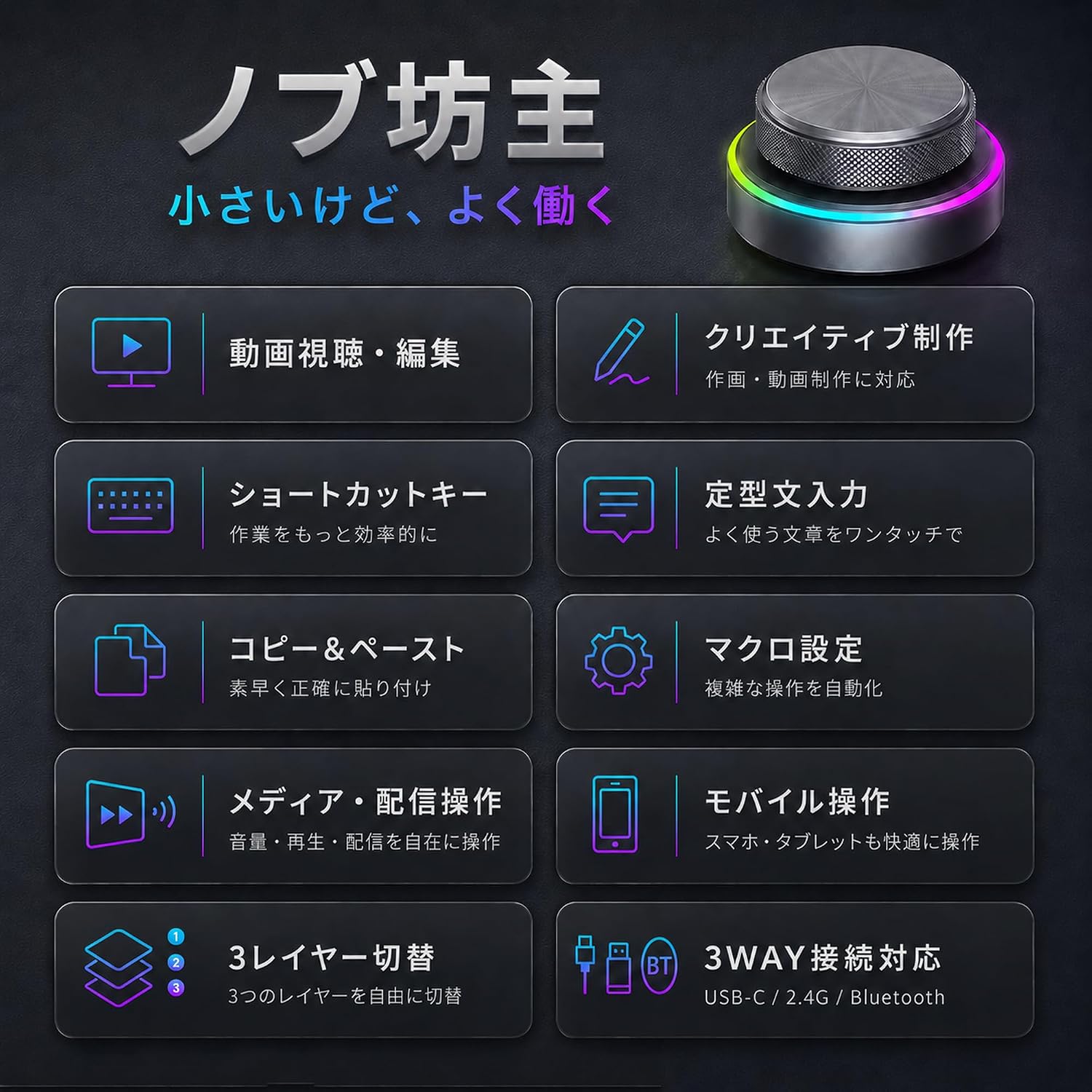
Image: Overview of the BRIMFORD Macro Keypad highlighting its various functions for video editing, shortcuts, copy/paste, macro settings, multimedia control, mobile operation, 3-layer switching, and 3-way connectivity.
Setup Instructions
1. Connectivity Options
The BRIMFORD Macro Keypad supports three connection modes:
- Wired Connection: Use the provided USB Type-C cable for a stable and high-speed connection.
- Bluetooth Connection: Ideal for portability and power saving.
- 2.4G Wireless Connection: Utilizes the included dongle for convenient wireless use.
You can switch between these modes to adapt to various usage scenarios, whether at home, in the office, or on the go. The device is compatible with PCs, laptops, tablets, and smartphones.

Image: Demonstrates the three connection modes (wired, Bluetooth, 2.4G wireless) and the compact, portable design of the macro keypad.
2. Software Installation
To fully customize the keypad's functions, you need to install the dedicated software. The software supports Windows, Mac, iOS, and Android systems. Note: For iOS/Android systems, functions must first be configured on a Windows system.
The software can be downloaded from the following address: https://drive.google.com/drive/folders/1195yodiViW6zNR6mPkFxFrdiKASAimmi
During download, a firewall warning may appear. Please proceed with the download as it is safe to use.
3. Initial Configuration (Windows)
- Connect the keypad to your computer via the USB cable.
- Launch the downloaded software. The software interface is designed to be simple and intuitive.
- Select the desired layer (1, 2, or 3) for customization.
- Click on the knob actions (e.g., rotate left, rotate right, press, press + rotate) to assign functions.
- Assign single keys, key combinations (e.g., Ctrl+C, Alt+Shift+Ctrl+S), or mouse operations.
- Click "Save settings" to apply your configurations to the device.

Image: The software interface for configuring the macro keypad, showing layer selection, action assignment, and saving settings.
4. MAC Setup Instructions
If you encounter issues installing the software on Mac, follow these steps:
- Click on the "MINI_KEYBOARD" file in the downloaded folder. If a "Cannot open" window appears, this is not a software issue.
- Click "System Preferences" at the bottom of the screen, then navigate to "Security & Privacy."
- Ensure that "App Store and identified developers" is selected. Next to the warning message, click "Open Anyway" to grant permission.
- Confirm the product is connected to your Mac via wired connection. The software can then be easily set up on Mac, similar to Windows.

Image: Step-by-step guide for installing the BRIMFORD Macro Keypad software on a Mac operating system.
Operating Instructions
1. Customizable Knob Functions
The knob on your BRIMFORD Macro Keypad offers highly customizable operations:
- Rotation: Turn the knob left or right to trigger assigned actions.
- Press: Press the knob down to activate a function.
- Press + Rotation: Combine pressing and rotating for additional actions.
Each full rotation of the knob provides 20 distinct steps, offering precise control. The tactile click feedback ensures accurate operation.
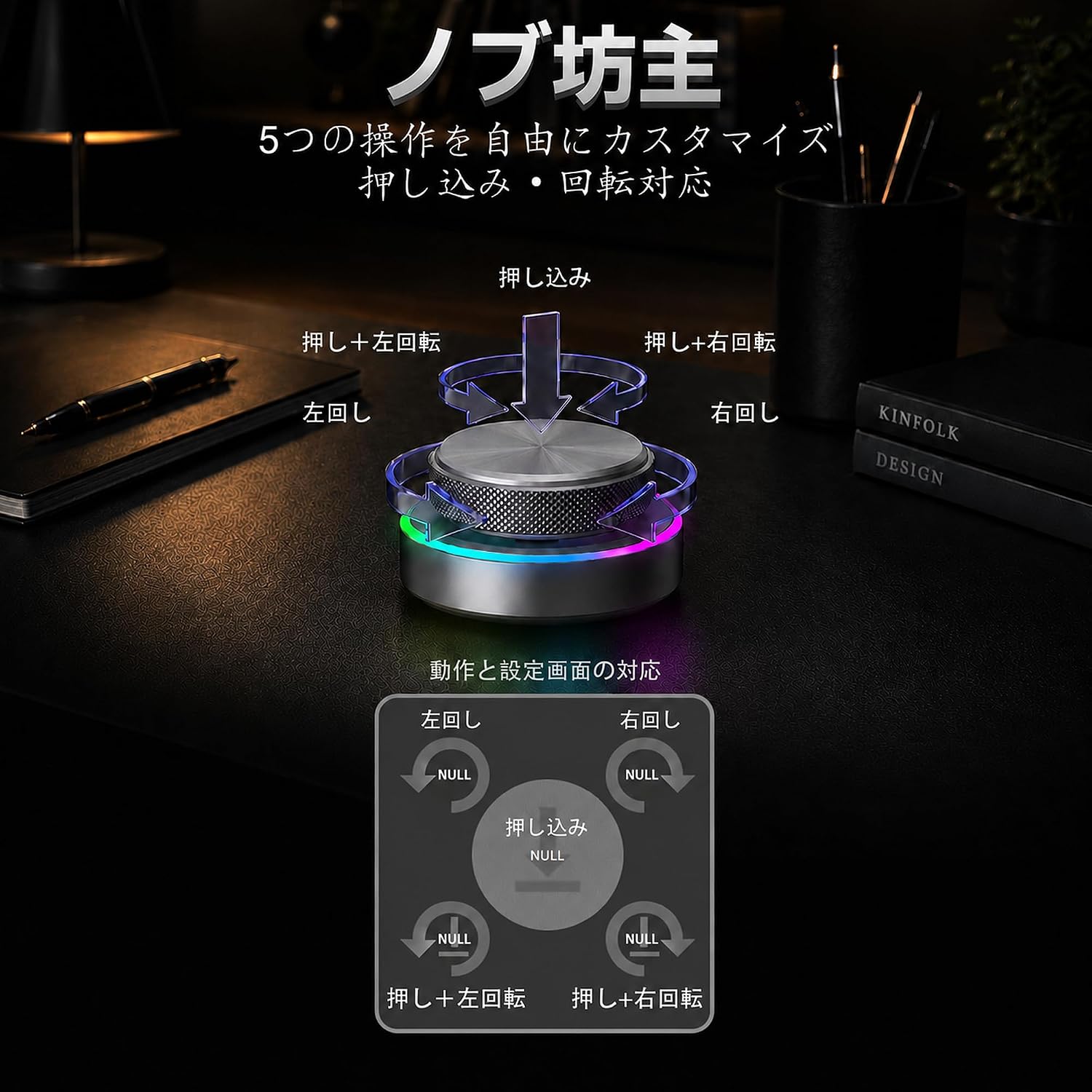
Image: Visual representation of the knob's customizable operations, including left rotation, right rotation, press, press + left rotation, and press + right rotation.
2. 3-Layer Switching
The keypad supports 3 distinct layers of settings, allowing you to configure different sets of functions for various applications or workflows. Switch between layers using the dedicated button on the side of the device. The LED indicator will change color to show the active layer (e.g., red, blue, green).
3. Macro Programming
You can program up to 18 key inputs for a single action. This includes complex key combinations like Ctrl+C, Ctrl+V, or Alt+Shift+Ctrl+S, as well as mouse operations. This feature significantly streamlines repetitive tasks in creative and office software.
4. Application-Specific Functions
The keypad is highly effective for:
- Creative Software: Excel, Procreate, Photoshop, Premiere Pro, etc. Perform complex operations smoothly.
- Multimedia Control: Adjust volume, fast forward/rewind videos, play/pause music, and switch tracks intuitively with the knob.
- Office Productivity: Automate password entry, launch specific folders, and enhance data processing efficiency.

Image: Detailed view of the keypad's programmable functions, including basic keys, multimedia controls, mouse operations, and specialized Procreate functions.
Maintenance
To ensure the longevity and optimal performance of your BRIMFORD Macro Keypad, please follow these maintenance guidelines:
- Cleaning: Use a soft, dry cloth to wipe the device. Avoid using harsh chemicals or abrasive materials.
- Charging: When using wirelessly, ensure the device is charged regularly. Connect it via the USB Type-C cable to a power source.
- Storage: Store the keypad in a cool, dry place away from direct sunlight and extreme temperatures.
- Handling: Avoid dropping the device or exposing it to excessive force, as this may damage internal components.
Troubleshooting
1. Software Installation Issues
If you encounter a firewall warning during software download or installation, please proceed as the software is safe. For Mac-specific installation issues, refer to the "MAC Setup Instructions" in the Setup section.
2. Connectivity Problems
- Wired Connection: Ensure the USB Type-C cable is securely connected to both the keypad and your computer. Try a different USB port or cable if issues persist.
- Bluetooth Connection: Make sure Bluetooth is enabled on your device and the keypad is in Bluetooth pairing mode. If previously paired, remove the device from your computer's Bluetooth settings and re-pair.
- 2.4G Wireless Connection: Ensure the 2.4G dongle is properly inserted into a USB port on your computer. The keypad should automatically connect.
3. Battery Life and Charging
In wireless mode, with the LED lights off, the battery lasts approximately 1 week (based on 8 hours/day usage). With LED lights on, it lasts about 3-4 hours. If you experience short battery life, ensure the device is fully charged. Note that charging via USB while using Bluetooth may not be possible; it is recommended to charge separately or use a wired connection during charging.
4. Functions Not Responding
- Ensure the correct layer is selected on the keypad.
- Verify that the functions are correctly assigned in the software and saved to the device.
- If using iOS/Android, confirm that the functions were initially configured on a Windows system.
- Restart the keypad and your connected device.
Specifications
| Feature | Detail |
|---|---|
| Brand | BRIMFORD |
| Model Number | BRIMFORD-DK02 |
| Connectivity Technology | Bluetooth, 2.4G Wireless, Wired (USB Type-C) |
| Compatible Devices | Smartphones, Tablets, Laptops, PCs |
| Keyboard Description | Macro |
| Recommended Uses | Illustration, Office, Sports Viewing, Design, Video Editing/Viewing, Remote Work |
| Special Features | High Customization, LED Light, 3-Mode Connectivity, Metallic Design, Compact |
| Color | Metallic Gray |
| Backlight Color Support | RGB |
| Product Dimensions (L x W x H) | 5.5 x 4.4 x 3 cm |
| Item Weight | 71 grams |
| Power Source | Battery Powered, USB Powered |
| Included Components | Knob unit, USB cable, Dongle key, Japanese instruction manual |
| Minimum OS Version Required | Windows 7 |

Image: Details of the package contents, including the knob unit, USB cable, dongle key, and Japanese instruction manual, along with product dimensions and weight.
Additional Features
1. RGB LED Backlight
The keypad features an RGB LED backlight with 5 different lighting modes. You can switch between modes via the software or directly on the device. Mode 0 turns off the lights to conserve battery. The vibrant lighting complements the metallic design, adding a stylish touch to your workspace.

Image: Illustrates the 5 different LED lighting modes available on the BRIMFORD Macro Keypad, including constant light, color gradation, rotation flicker/stop off, clockwise cycle flash, and counter-clockwise cycle flash.
2. Compact and Portable Design
With its compact size, the keypad occupies minimal desk space and can easily fit into a bag or pocket, making it convenient to carry and use in various environments such as home, office, or outdoors.
Warranty and Support
BRIMFORD offers comprehensive support for your product:
- 1-Year Manufacturer Warranty: Your product is covered by a 1-year warranty from the date of purchase.
- 24-Hour Response: Inquiries will be responded to within 24 business hours.
- TELEC Certified: This product is certified for technical standards compliance in Japan.
Contacting Support
If you have any issues or questions, please contact us through one of the following methods:
- Route 1: Go to your order history, select "Contact Seller," and describe your inquiry.
- Route 2: On the product page, click "Ask a question" next to the seller's name and describe your inquiry.

Image: Details on BRIMFORD's customer support, including 24-hour response, 1-year warranty, TELEC certification, and contact routes.