
Adobe Photoshop Elements 2026
Adobe Photoshop Elements 2026 User Manual
1. Introduction
Welcome to the Adobe Photoshop Elements 2026 User Manual. This software is designed to simplify photo editing, allowing you to make quick enhancements or create custom visual projects. Leverage the power of AI to transform your images, generate new content, and efficiently organize your photo library.
2. Setup and Installation
2.1 System Requirements
- Operating System: Windows 11, macOS
- Internet connection required for product activation and content download.
2.2 Software Activation
Adobe Photoshop Elements 2026 requires activation. Upon purchase, you will receive an online code. Follow the on-screen instructions during installation to enter your code and activate your 3-year term license. No automatic renewal is associated with this license.
3. Key Features
- Generative AI: Create new images and backgrounds or add elements to photos by typing a description.
- AI-Powered Enhancements: Easily remove distractions, replace backgrounds, touch up faces, and adjust colors.
- Editing Modes: Choose from Quick, Guided, and Advanced editing modes to suit your skill level.
- Creative Effects: Enhance photos with artistic effects, text, graphics, and animation.
- Creative Templates: Showcase photos in Photo Reels and collages, and access free Adobe Express templates for social posts, videos, and posters.
- Effortless Organization: Quick import from popular cloud services, automatic sorting, backup, tagging, curation, and face recognition.
4. Operating Instructions
4.1 Generate Image (AI)
Utilize generative AI to create new images or backgrounds based on text descriptions.

Image: Before and after using the 'Generate Image' feature to transform a winter pond scene with swans into a vibrant spring landscape with cherry blossoms and green foliage.
Video: Demonstrates how to use the 'Generate Image' feature in Photoshop Elements 2026 to create new backgrounds and elements from text prompts.
4.2 Insert Object (AI)
Add new objects to your photos seamlessly using AI.

Image: Before and after using the 'Insert Object' feature to add a colorful, vibrant coral reef to an underwater scene with a sea turtle.
Video: Illustrates the 'Insert Object' functionality in Photoshop Elements 2026, showing how to add new elements to an image and blend them naturally.
4.3 Remove Object (AI)
Effortlessly remove unwanted elements or people from your photos.
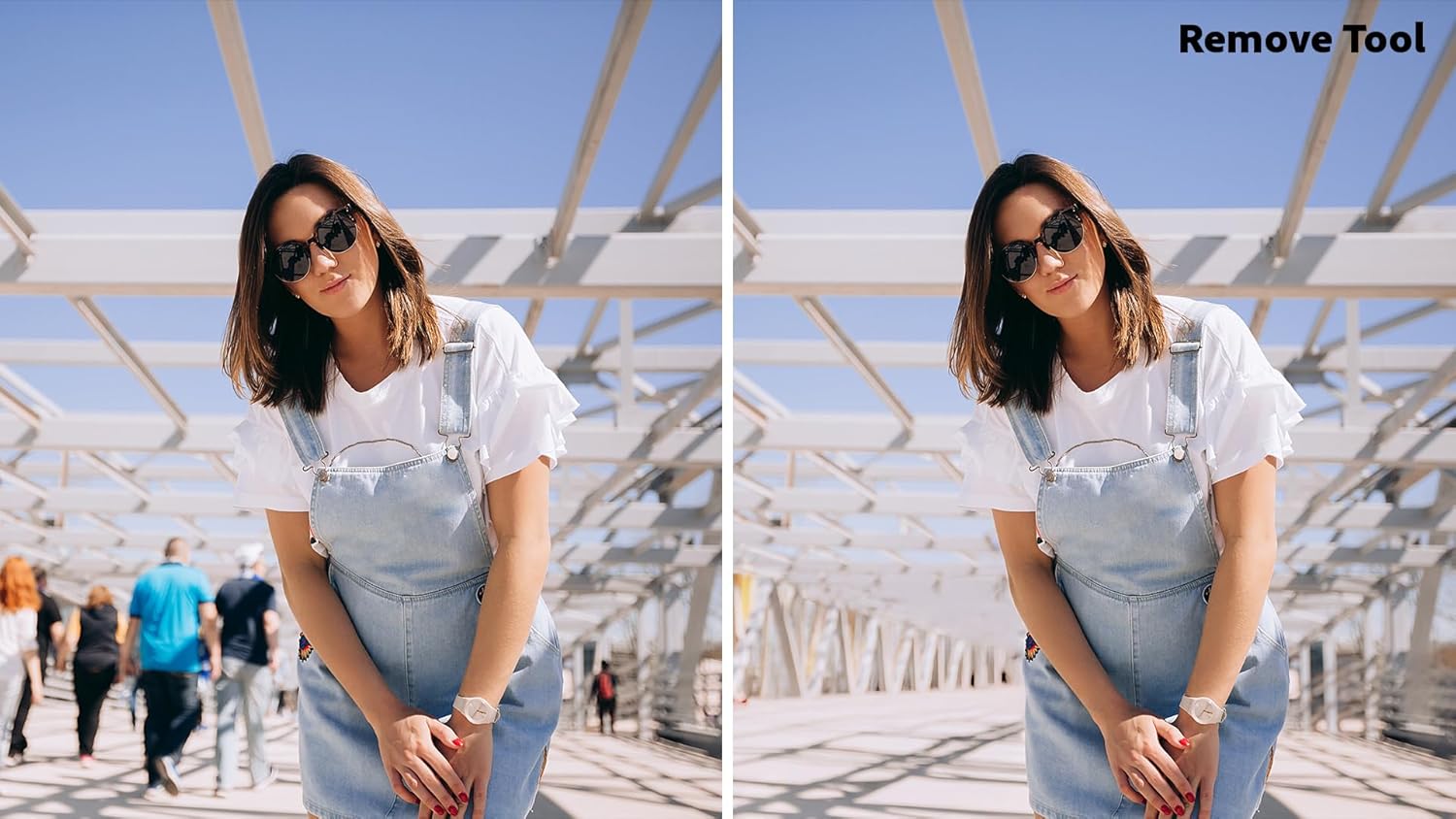
Image: Before and after using the 'Remove Tool' to eliminate background people from a photo of a woman on a bridge.
Video: Shows how to use the 'Remove Object' tool in Photoshop Elements 2026 to seamlessly erase unwanted elements or people from your photographs.
4.4 Restore Photo (AI)
Bring old or damaged photos back to life with AI-powered restoration.

Image: Before and after using the 'Restore Photo' feature to repair an old, scratched photograph of a woman and a car in a mountain setting.
Video: Demonstrates the 'Restore Photo' feature in Photoshop Elements 2026, highlighting its ability to repair damage and bring clarity to old photographs.
4.5 Organize and Share
Efficiently manage your photo library and share your creations.

Image: A collage of diverse photos showcasing the software's ability to organize and present images effectively.

Image: A display of various Adobe Express templates, demonstrating options for creating social posts, videos, and posters from your edited photos.
5. Specifications
| Attribute | Detail |
|---|---|
| Product Name | Adobe Photoshop Elements 2026 |
| Manufacturer | Adobe |
| License Term | 3-year term license from date of redemption |
| System Requirements | Windows 11, macOS |
| Activation | Online Code, Activation Required |
6. Troubleshooting
6.1 Installation Issues
If you encounter issues during download or installation, ensure your internet connection is stable and that your system meets the minimum requirements. Verify that the activation code is entered correctly. If problems persist, try restarting your computer and attempting the installation again.
6.2 Software Performance
For optimal performance, ensure your operating system and graphics drivers are up to date. Close unnecessary applications while using Photoshop Elements. If the software is slow or unresponsive, try reducing the complexity of your projects or allocating more system resources if possible.
7. Warranty and Support
7.1 License Information
Your purchase includes a 3-year term license for Adobe Photoshop Elements 2026, valid from the date of redemption. This license does not include automatic renewal.
7.2 Technical Support
For technical assistance, please visit the official Adobe support website. You can find comprehensive FAQs, tutorials, and contact options for direct support.
Related documentsPhotoshop Elements 2026


Ask a question about this manual
Ask about setup, troubleshooting, compatibility, parts, safety, or missing instructions. Manuals+ will review the question and use this page’s manual context to help answer it.