1. Introduction
This manual provides instructions for the PUSOKEI 4G LTE WiFi Router, a portable mobile hotspot designed to convert a 4G LTE signal into a WiFi network. This device supports up to 10 connected devices simultaneously and operates on a 2.4GHz wireless network frequency.
2. Package Contents
Verify that all items are present in the package:
- 1 x Portable WiFi Hotspot (PUSOKEI 4G LTE WiFi Router)
- 1 x USB Cable
- 1 x User Manual
3. Product Overview
The PUSOKEI 4G LTE WiFi Router is a compact device that provides wireless internet connectivity. It features a standard SIM card slot and an integrated 10000mAh lithium-ion battery for extended use.
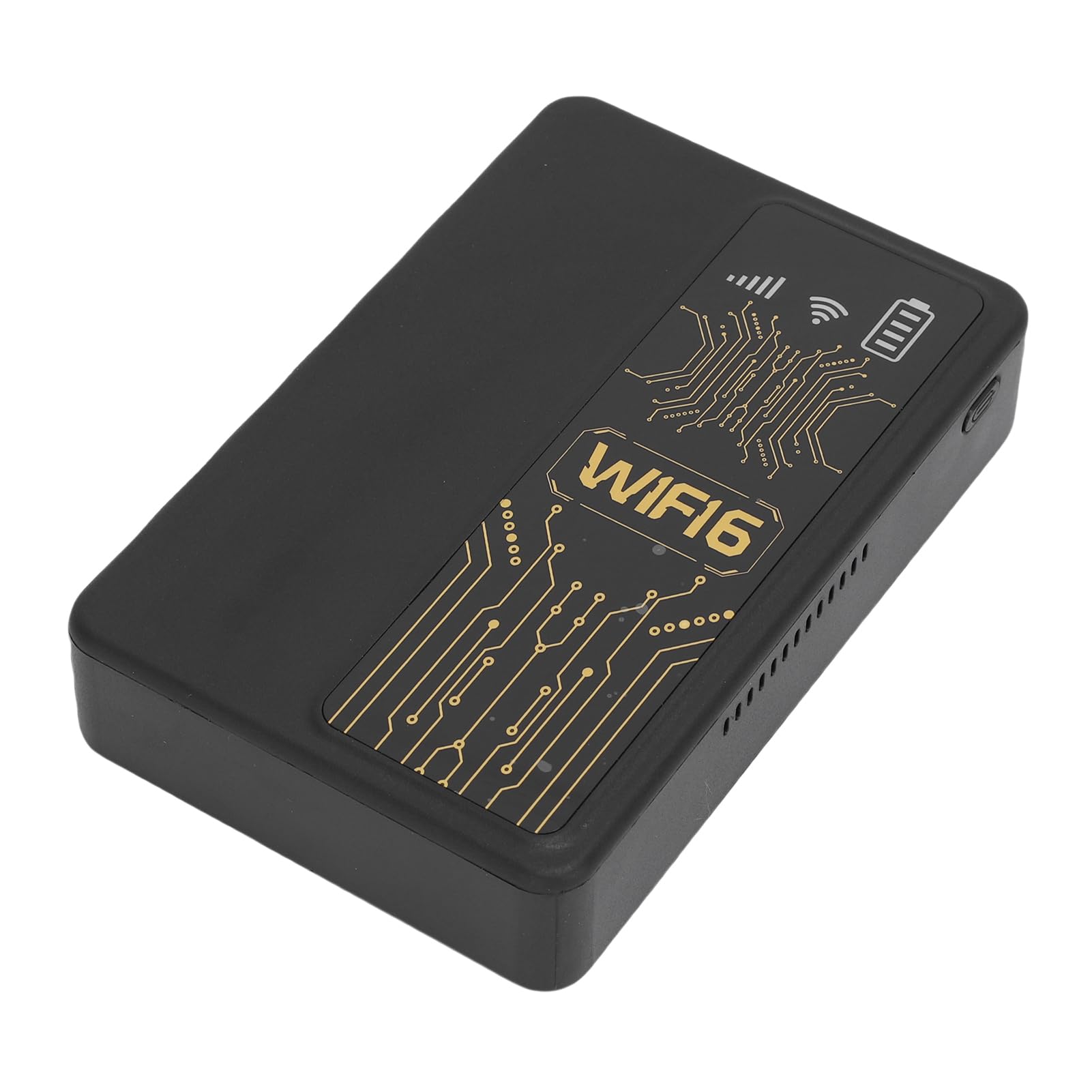
Figure 3.1: Front view of the PUSOKEI 4G LTE WiFi Router, showing the display and WiFi6 branding.
Key features include:
- 4G to WiFi Conversion: Converts 4G LTE signals into a WiFi network.
- Transmission Rate: Provides up to 300Mbps (2.4GHz) WiFi speeds.
- Device Connectivity: Supports connection for up to 10 wireless devices simultaneously.
- Network Support: Operates on 2.4GHz WiFi frequency.
- Battery: Equipped with a 10000mAh lithium-ion battery.
4. Setup
Follow these steps to set up your PUSOKEI 4G LTE WiFi Router:
- Insert SIM Card: Locate the SIM card slot on the side of the device. Insert a standard small SIM card into the slot. Ensure the SIM card is correctly oriented.
- Power On: Press and hold the power button until the device powers on. The device will automatically detect the 4G network signal.
- Network Availability: Once powered on, the device will establish a wireless network. You can then connect your WiFi-enabled devices to this network.

Figure 4.1: Side view of the router, highlighting the SIM card slot.

Figure 4.2: The router powered on and ready to provide internet access.
5. Operating Instructions
To use your PUSOKEI 4G LTE WiFi Router:
- Connect Devices: On your WiFi-enabled device (e.g., smartphone, laptop), search for available WiFi networks. Select the network name (SSID) broadcast by your PUSOKEI router.
- Enter Password: Enter the WiFi password (usually found on a label inside the device or in the quick start guide) when prompted.
- Internet Access: Once connected, your device will have internet access via the 4G LTE network. The router provides a stable connection for various online activities.
- Multiple Devices: The router can support up to 10 devices simultaneously, making it suitable for sharing internet access in various environments.
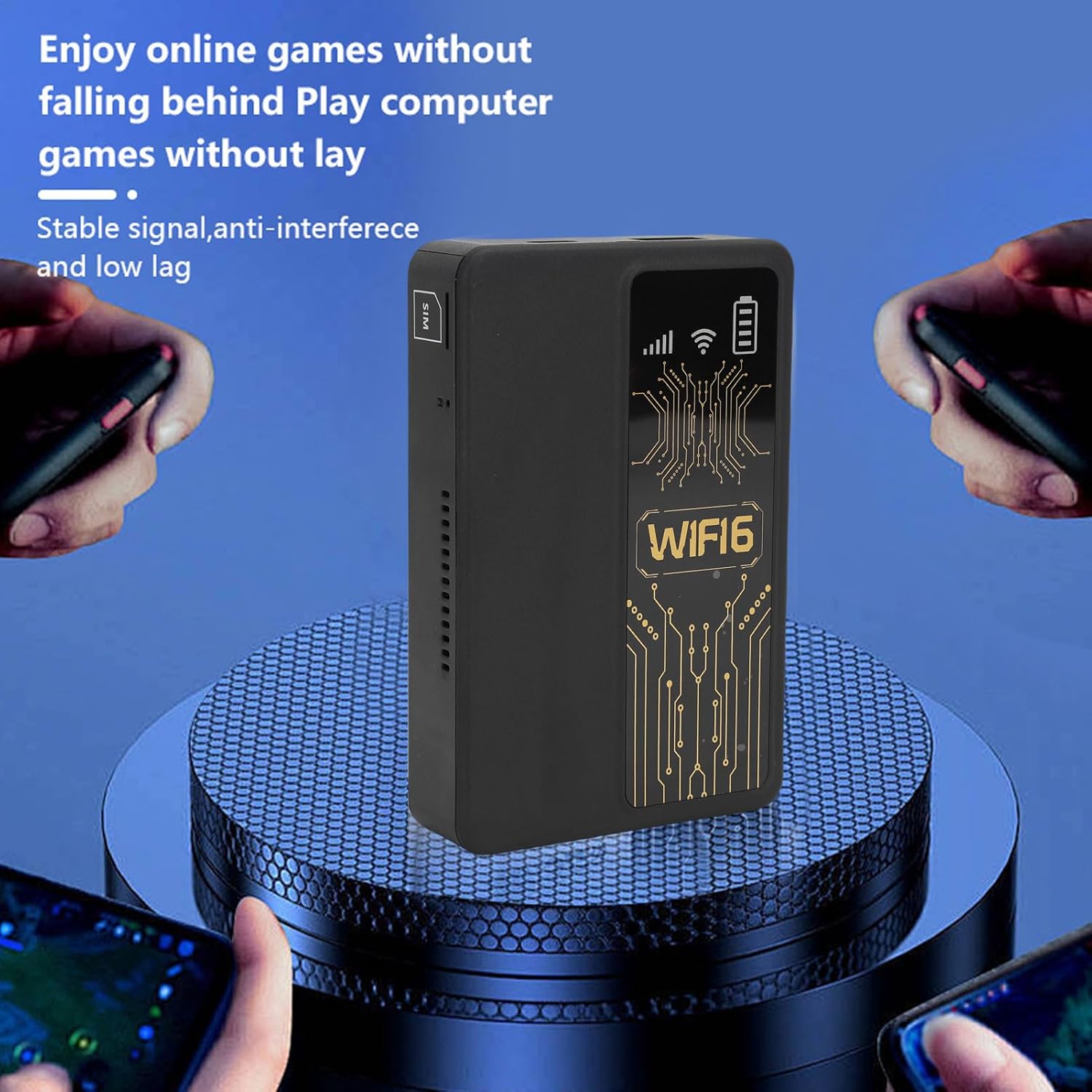
Figure 5.1: A smartphone connected to the router, showing network performance metrics.
6. Maintenance
Proper maintenance ensures the longevity and optimal performance of your router:
- Cleaning: Use a soft, dry cloth to clean the exterior of the device. Avoid using liquid cleaners or abrasive materials.
- Battery Care: The router includes a 10000mAh lithium-ion battery. For optimal battery life, avoid extreme temperatures and fully discharge and recharge the battery periodically.
- Storage: When not in use for extended periods, store the device in a cool, dry place.
- Firmware Updates: Check the manufacturer's website periodically for any available firmware updates to ensure optimal performance and security.
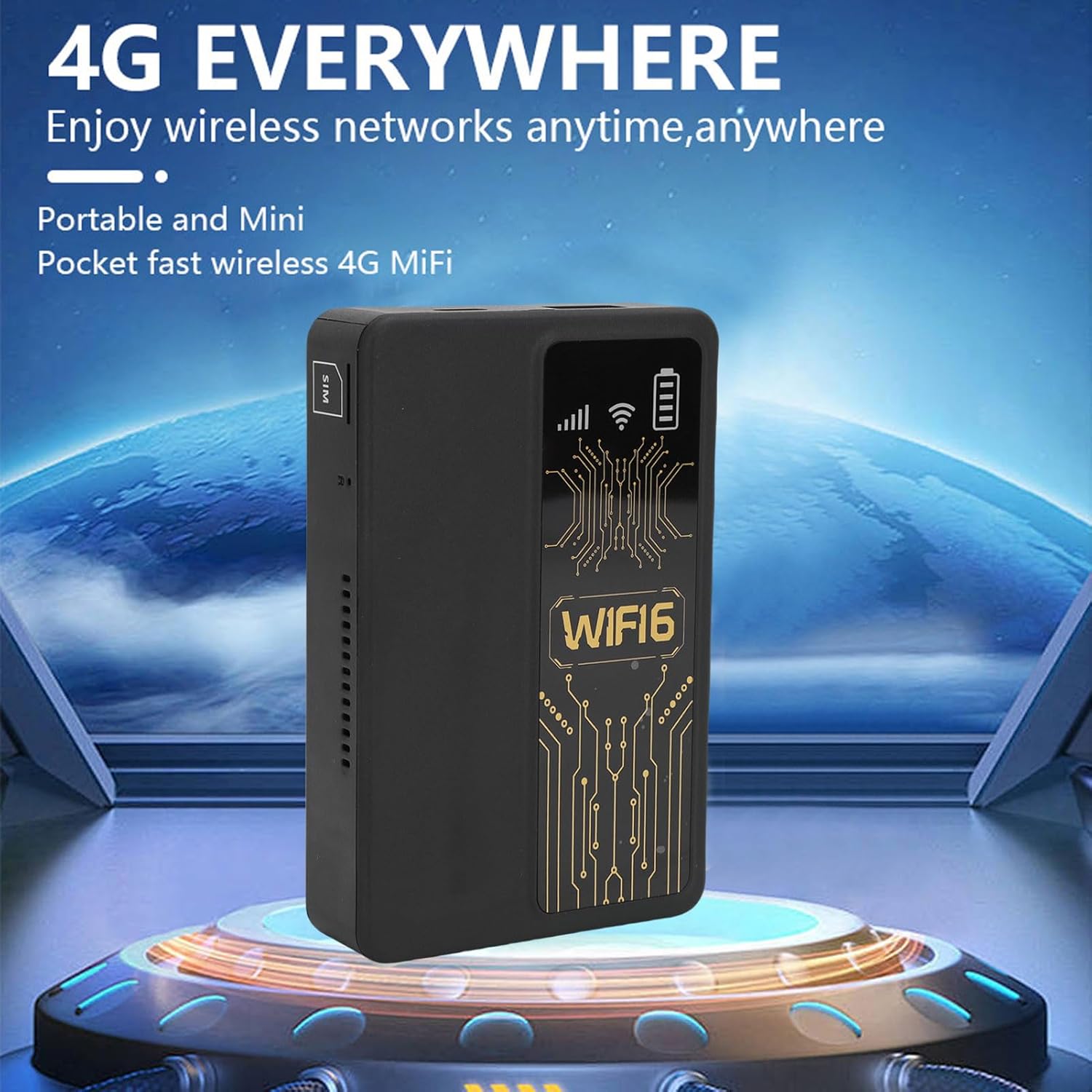
Figure 6.1: The router's internal 10000mAh battery provides extended usage time.
7. Troubleshooting
If you encounter issues with your router, refer to the following common problems and solutions:
- No Internet Connection:
- Ensure the SIM card is correctly inserted and active.
- Check if your local SIM card or 4G bands are supported (FDD-LTE B1 B3 B5 B7 B8 B20 TDD-LTE B38 B40 B41).
- Restart the router and your connected device.
- Verify that your SIM card has an active data plan.
- Slow Connection Speed:
- Move to an area with better 4G signal reception.
- Reduce the number of connected devices.
- Ensure no applications are consuming excessive bandwidth.
- Device Not Connecting to WiFi:
- Confirm you are entering the correct WiFi password.
- Ensure the router is powered on and broadcasting its WiFi signal.
- Restart both the router and the device attempting to connect.
- Router Only Displays '4G' Network:
- The device is designed to display '4G' regardless of whether a 4G or 5G SIM card is inserted. This is normal operation and does not indicate a fault.
8. Specifications
| Feature | Specification |
|---|---|
| Item Type | Portable WiFi Hotspot |
| Material | ABS |
| Applicable Region | Europe |
| Network Frequency | FDD-LTE B1 B3 B5 B7 B8 B20 TDD- B38 B40 B41 |
| Network | 4G |
| Transmission Rate | 300Mbps |
| Protocol Support | 802.11ac |
| Wireless Network Frequency | 2.4GHz |
| Built-in Firewall | Yes |
| Built-in Battery | 1 x 10000mAh Lithium Ion Battery |
| SIM Card Slot | Small SIM Card (Not Included) |
| Item Weight | 8.9 ounces |
| Package Dimensions | 5.91 x 3.54 x 1.57 inches |
9. Warranty Information
Please refer to the warranty card included with your product or contact the retailer for specific warranty terms and conditions. Keep your proof of purchase for warranty claims.
10. Customer Support
For technical assistance or further inquiries, please contact PUSOKEI customer support through the contact information provided on the product packaging or the official PUSOKEI website.