
1. Introduction and Overview
This manual provides comprehensive instructions for the installation, operation, and maintenance of your XTRONS QTB8060CC Autoradio GPS system. Please read this manual thoroughly before using the device to ensure proper functionality and to maximize your user experience. Keep this manual for future reference.
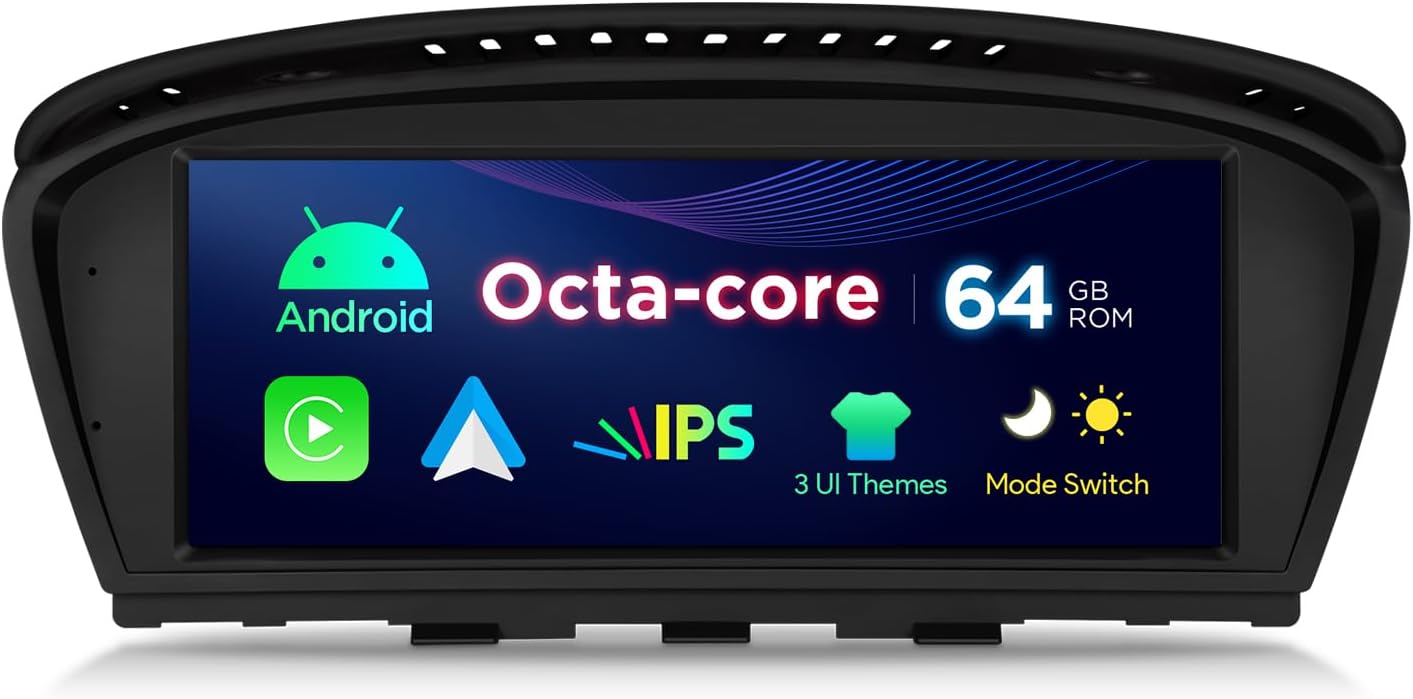
Image 1.1: Front view of the XTRONS QTB8060CC Autoradio, highlighting its key features such as Android operating system, Octa-core processor, 64GB ROM, IPS display, multiple UI themes, and a mode switch function.
2. Product Features
- Display: 8.8-inch HD IPS Touchscreen.
- Operating System: Android 14.
- Processor: Octa-core.
- Memory: 2GB RAM, 64GB ROM.
- Connectivity: Dual Wi-Fi, Bluetooth 5.0, USB support (up to 2 x 64GB).
- Navigation: Integrated GPS navigator.
- Smartphone Integration: Built-in Apple CarPlay and Android Auto.
- Mirroring: Mirror Screen functionality.
- Vehicle Integration: Supports original steering wheel controls and Canbus.
- Audio Compatibility: Compatible with Harman Kardon sound systems.
- Original System Retention: Retains original vehicle board information, radio, and CD functions.
- User Interface: Multilingual menu support.
3. Compatibility
The XTRONS QTB8060CC is specifically designed for the following BMW models:
- BMW 3 Series: E90, E91, E92, E93 (Model years 2005-2008)
- BMW 5 Series: E60, E61, E63, E64 (Model years 2005-2008)
Important: This unit is compatible only with vehicles equipped with the CCC system and an existing AUX input. Please verify your vehicle's system before installation.

Image 3.1: The XTRONS QTB8060CC unit integrated into a BMW dashboard, demonstrating its fit and the visual appearance of the 8.8-inch display.
4. Package Contents
Upon unpacking, please ensure all the following items are present:
- XTRONS QTB8060CC Head Unit
- Power Cable Harness
- GPS Antenna
- USB Cables
- AUX Cable
- External Microphone
- User Manual
- Installation Guide
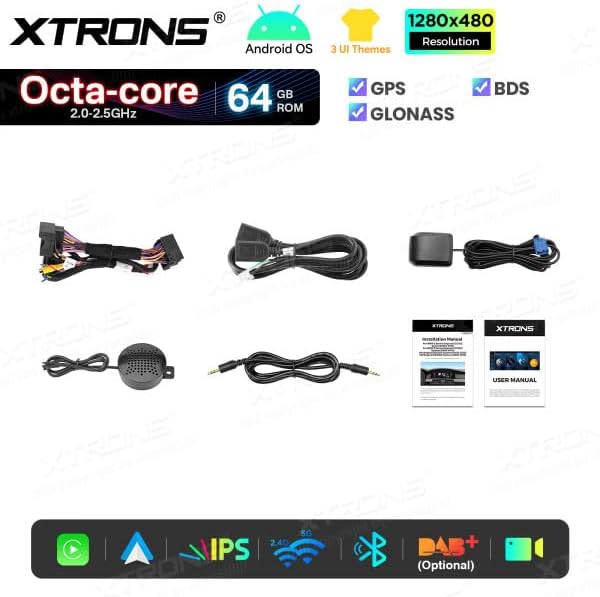
Image 4.1: A visual representation of the complete package contents for the XTRONS QTB8060CC, including the main unit and all accompanying accessories and documentation.
5. Setup and Installation
Installation of the XTRONS QTB8060CC requires technical knowledge and familiarity with automotive electrical systems. It is highly recommended to have the unit installed by a qualified professional.
5.1 Pre-Installation Checks
- Ensure your vehicle is compatible (BMW 3/5 Series 2005-2008 with CCC system and AUX input).
- Disconnect the vehicle's battery before starting any installation work.
- Verify all package contents are present and undamaged.
5.2 Installation Steps (General Guidelines)
- Carefully remove the original head unit or display from your BMW dashboard. Refer to your vehicle's service manual for specific removal procedures.
- Connect the provided wiring harness to the vehicle's existing connectors. Ensure all connections are secure.
- Connect the GPS antenna and route it to a location with a clear view of the sky (e.g., dashboard, A-pillar).
- Connect the USB cables and AUX cable, routing them to desired access points (e.g., glove compartment, center console).
- Connect the external microphone for hands-free calling. Position it near the driver for optimal voice pickup.
- Carefully mount the XTRONS QTB8060CC unit into the dashboard opening.
- Reconnect the vehicle's battery.
- Power on the unit and perform initial setup and testing.
For detailed, step-by-step installation instructions, please refer to the dedicated Installation Guide included in your package.
6. Operating Instructions
The XTRONS QTB8060CC operates on an Android system, offering a user-friendly interface similar to a tablet or smartphone. Key functions include navigation, multimedia playback, Bluetooth connectivity, and smartphone integration.
6.1 Basic Operation
- Power On/Off: The unit typically powers on with the vehicle's ignition. A long press on the power button (if available) can manually turn it off or on.
- Touchscreen: Navigate the interface by tapping, swiping, and pinching on the 8.8-inch IPS display.
- Volume Control: Use the vehicle's steering wheel controls or the on-screen volume slider.
- Home Screen: Access various applications and settings from the main home screen.
6.2 Navigation
The integrated GPS system allows for precise navigation. You can use pre-installed maps or download additional navigation apps from the Google Play Store.
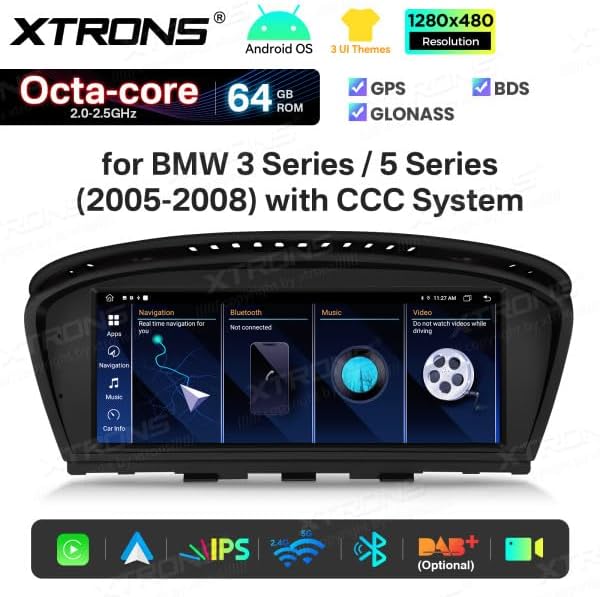
Image 6.1: The unit's display showing a navigation application in use, providing real-time route guidance and map details.
6.3 Multimedia Playback
Play audio and video files from USB drives, Bluetooth streaming, or online sources via Wi-Fi.
6.4 Bluetooth Connectivity
Pair your smartphone via Bluetooth 5.0 for hands-free calling and audio streaming.
- Go to Settings > Bluetooth.
- Enable Bluetooth on your smartphone and search for available devices.
- Select "XTRONS QTB8060CC" from the list and confirm pairing.
6.5 Apple CarPlay and Android Auto
Connect your compatible smartphone via USB or wirelessly (if supported by your phone and the unit) to access Apple CarPlay or Android Auto. This allows for safe and convenient use of phone features like navigation, music, messages, and calls directly on the unit's display.

Image 6.2: The Apple CarPlay interface displayed on the unit, showing common applications for communication, navigation, and entertainment.

Image 6.3: The Android Auto interface on the unit, featuring essential apps for navigation, communication, and media playback.
6.6 Steering Wheel Controls
The unit integrates with your vehicle's original steering wheel controls, allowing you to manage audio, calls, and other functions without taking your hands off the wheel.
7. Maintenance
To ensure the longevity and optimal performance of your XTRONS QTB8060CC, follow these maintenance guidelines:
- Cleaning the Screen: Use a soft, lint-free cloth to gently wipe the touchscreen. For stubborn smudges, slightly dampen the cloth with water or a screen-safe cleaner. Avoid harsh chemicals or abrasive materials.
- Software Updates: Periodically check for software updates via the unit's settings or the XTRONS official website. Keeping the software updated ensures optimal performance, security, and access to new features.
- Environmental Conditions: Avoid exposing the unit to extreme temperatures, direct sunlight for prolonged periods, or excessive moisture.
- Cable Connections: Periodically check all cable connections to ensure they are secure and free from damage.
8. Troubleshooting
If you encounter issues with your XTRONS QTB8060CC, refer to the following common troubleshooting steps:
- No Power:
- Check all power cable connections.
- Verify the vehicle's fuse related to the radio/multimedia system.
- Ensure the vehicle's battery is properly connected and charged.
- No Sound:
- Check volume levels on the unit and your vehicle.
- Ensure the correct audio source is selected.
- Verify speaker connections.
- For BMW CCC systems, ensure the AUX input is correctly activated and selected in the original iDrive menu.
- GPS Signal Loss:
- Ensure the GPS antenna is properly connected and has a clear view of the sky.
- Move the vehicle to an open area away from tall buildings or dense foliage.
- Bluetooth Pairing Issues:
- Ensure Bluetooth is enabled on both the unit and your smartphone.
- Delete previous pairings on both devices and try pairing again.
- Restart both the unit and your smartphone.
- Touchscreen Unresponsive:
- Restart the unit.
- Ensure the screen is clean and free from debris.
- System Slow/Freezing:
- Close unnecessary background applications.
- Perform a system restart.
- Consider a factory reset (note: this will erase all user data and settings).
If the problem persists after attempting these steps, please contact XTRONS customer support for further assistance.
9. Specifications
| Feature | Specification |
|---|---|
| Brand | XTRONS |
| Model Number | QTB8060CC |
| Color | Black |
| Operating System | Android 14 |
| Display Size | 8.8 inches |
| Display Type | HD IPS Touchscreen |
| Processor | Octa-core |
| RAM | 2GB |
| ROM | 64GB |
| Connectivity Technology | Bluetooth 5.0, USB, Dual Wi-Fi |
| Special Features | Android Auto, Apple CarPlay, GPS Navigation, Mirror Screen |
| Compatible Devices | Smartphone |
| Output Power | 180 Watts |
| Control Method | Touch |

Image 9.1: Dimensional diagram of the XTRONS QTB8060CC unit, providing key measurements for installation planning.
10. Warranty and Support
Information regarding specific warranty terms and conditions for the XTRONS QTB8060CC is not available in this document. Please refer to the warranty card included with your product or visit the official XTRONS website for detailed warranty information.
For technical support, troubleshooting assistance, or inquiries about spare parts, please contact XTRONS customer service through their official channels. Contact information can typically be found on the XTRONS website or in the product packaging.


