1. Introduction
This manual provides instructions for the setup, operation, and maintenance of your BEITONG KP70 Haptic Feedback Elite Gaming Controller. Please read this manual thoroughly before use to ensure proper functionality and to maximize your gaming experience.
2. Package Contents

Image: Overview of the BEITONG KP70 controller and its included accessories, detailing the model, dimensions, connection types, battery capacity, and contents.
Verify that all items are present in the package:
- Controller x 1
- Receiver x 1 (for 2.4G wireless connection)
- Cable x 1 (for wired connection and charging)
- Replaceable Joystick x 2
- User Manual x 1 (this document)
- Charging Dock x 1
3. Controller Layout and Features
Familiarize yourself with the various components and features of the BEITONG KP70 controller.

Image: Detailed view of the adaptive auto-sensing trigger mechanism, highlighting the high-performance chip, haptic feedback servo, high-precision gear set, auto-sensing switching mechanism, and haptic feedback triggers.
Adaptive Auto-Sensing Triggers: The triggers incorporate a high-performance chip, haptic feedback servo, and a high-precision gear set for responsive and immersive haptic feedback. An auto-sensing switching mechanism adjusts trigger response based on gameplay.

Image: Illustration of the damping adjustment joystick, showing the mechanism for adjusting resistance from 30gf (lighter) to 100gf (heavier).
Damping Adjustment Joystick: The joysticks feature a seamless damping adjustment mechanism, allowing users to customize resistance from 30gf (lighter, agile movement) to 100gf (heavier, precise control). Rotate clockwise for heavier resistance and counter-clockwise for lighter resistance.
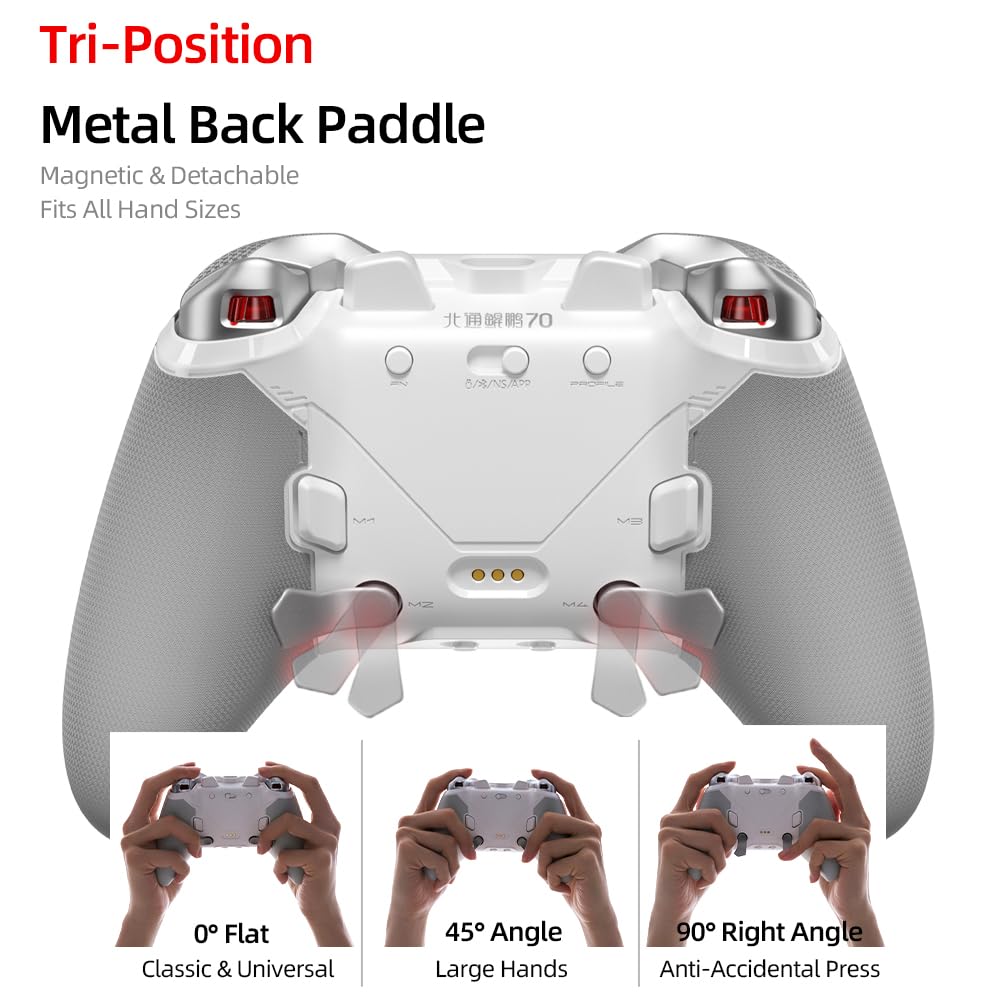
Image: View of the controller's rear, showcasing the magnetic and detachable tri-position metal back paddles and their three adjustable positions: 0° Flat, 45° Angle, and 90° Right Angle.
Tri-Position Metal Back Paddles: The controller is equipped with magnetic and detachable metal back paddles that can be adjusted to three positions: 0° Flat (classic), 45° Angle (for large hands), and 90° Right Angle (to prevent accidental presses).

Image: Comparison diagram illustrating the faster actuation and minimal delay of KP70 optical buttons (60gf actuation, 0.002s delay) compared to traditional mechanical buttons.
Optical Axis Buttons: The main action buttons utilize optical switches, providing a lighter and faster response with 60gf actuation force and an ultra-low delay of 0.002 seconds, designed for over 80 million presses.

Image: Close-up views of the controller's details, including the anti-slip pattern on the grips, the location of the 6 programmable buttons, and the motion sensing switch.
Additional Features:
- 6 Programmable Buttons: Customize button functions for personalized gameplay.
- Anti-Slip Pattern: Textured grips for enhanced comfort and control.
- Motion Sensing Switch: Enables motion control functionalities in compatible games.
- Pulse Lighting: Intelligent lighting effects linked to trigger actions.
- Smart Faceplate: Supports intelligent recognition and software customization.
- 1000Hz Polling Rate: Ensures a stable and responsive connection with ultra-low latency.
4. Setup and Connection
The BEITONG KP70 controller supports multiple connection methods: Wired, 2.4G Wireless, and Bluetooth. It is compatible with PC, NS (Nintendo Switch), NS2, iOS, and Android devices.
4.1 Wired Connection
- Connect one end of the provided USB-C cable to the controller's USB-C port.
- Connect the other end of the USB-C cable to an available USB port on your PC or compatible device.
- The controller will be automatically recognized and ready for use.
4.2 2.4G Wireless Connection (using Receiver)
- Insert the 2.4G wireless receiver into an available USB port on your PC or compatible device.
- Power on the controller.
- The controller will automatically pair with the receiver. An indicator light on the controller will confirm a successful connection.
4.3 Bluetooth Connection
- Ensure the controller is powered off.
- Press and hold the Bluetooth pairing button (refer to controller diagram for exact location) until the indicator light begins to flash rapidly, indicating pairing mode.
- On your device (PC, NS, iOS, Android), navigate to the Bluetooth settings.
- Search for available devices and select "BEITONG KP70" from the list.
- Once paired, the indicator light on the controller will become solid.
5. Operating Instructions
5.1 Power On/Off
- Power On: Press the central Home button to power on the controller.
- Power Off: Press and hold the Home button for approximately 5 seconds to power off the controller. The controller will also automatically power off after a period of inactivity.
5.2 Adjusting Joystick Damping
Image: Illustration of the damping adjustment joystick, showing the mechanism for adjusting resistance from 30gf (lighter) to 100gf (heavier).
To adjust the joystick damping:
- For heavier, more precise control: Rotate the joystick ring clockwise. This setting is suitable for aiming in precision-based games.
- For lighter, more agile movement: Rotate the joystick ring counter-clockwise. This setting is suitable for fast-paced action games.
5.3 Configuring Back Paddles
Image: View of the controller's rear, showcasing the magnetic and detachable tri-position metal back paddles and their three adjustable positions: 0° Flat, 45° Angle, and 90° Right Angle.
The metal back paddles are magnetic and detachable. They can be set to three positions:
- 0° Flat: A classic, universal position.
- 45° Angle: Recommended for users with larger hands.
- 90° Right Angle: Designed to prevent accidental presses during intense gameplay.
To adjust, gently pull the paddle away from the controller and reposition it into one of the three slots until it clicks magnetically into place.
5.4 Programming Buttons
The controller features 6 programmable buttons (including the back paddles). Refer to the controller's dedicated software (if available) or the specific programming instructions provided in the full manual for detailed steps on how to remap these buttons.
5.5 Haptic Feedback and Trigger Response

Image: Overview of new features including adaptive haptic feedback triggers, pulse lighting, and smart faceplate capabilities.
The adaptive haptic feedback triggers provide dynamic resistance and vibration based on in-game actions. This feature is automatically managed by the controller's internal mechanisms. The pulse lighting effect is linked to trigger actions, providing visual feedback.
6. Charging the Controller
The BEITONG KP70 controller is equipped with a 1500mAh battery. To charge the controller:
- Connect the provided USB-C cable to the controller's USB-C port.
- Connect the other end of the cable to a USB power source (e.g., PC, USB wall adapter).
- Alternatively, place the controller on the included charging dock. Ensure the charging pins align correctly.
- The charging indicator light on the controller will illuminate during charging and turn off or change color when fully charged.
A full charge typically takes approximately 2-3 hours. Avoid using non-standard chargers or cables to prevent damage.
7. Maintenance
- Cleaning: Use a soft, dry cloth to clean the controller. For stubborn dirt, a slightly damp cloth can be used, but ensure no moisture enters the controller's openings. Do not use harsh chemicals or abrasive cleaners.
- Storage: Store the controller in a cool, dry place away from direct sunlight and extreme temperatures.
- Battery Care: For optimal battery life, avoid fully discharging the controller frequently. If storing for an extended period, charge the battery to approximately 50% every few months.
- Cable Care: Avoid bending or twisting the charging cable excessively to prevent internal damage.
8. Troubleshooting
8.1 Controller Not Powering On
- Ensure the controller is sufficiently charged. Connect it to a power source and allow it to charge for at least 30 minutes before attempting to power on again.
- Try pressing and holding the Home button for a longer duration (up to 10 seconds) to force a power cycle.
8.2 Connection Issues (Wireless/Bluetooth)
- 2.4G Wireless: Ensure the receiver is securely plugged into a USB port. Try a different USB port. Re-pair the controller by following the 2.4G wireless connection steps.
- Bluetooth: Ensure Bluetooth is enabled on your device. Forget the controller from your device's Bluetooth settings and attempt to pair again. Ensure the controller is in pairing mode (rapidly flashing indicator light).
- Interference: Move closer to your device and away from other wireless devices that might cause interference.
8.3 Buttons or Joysticks Not Responding
- Connect the controller via a wired connection to rule out wireless issues.
- Restart the controller and your device.
- Ensure no debris is obstructing the buttons or joysticks.
- If using a PC, ensure controller drivers are up to date.
8.4 Charging Problems
- Ensure the USB-C cable is securely connected to both the controller and the power source.
- Try a different USB-C cable and/or power adapter.
- If using the charging dock, ensure the controller is seated correctly and the charging pins are making contact.
9. Specifications
Image: Detailed product information table for the BEITONG KP70 controller, including model number, dimensions, connection types, battery capacity, and package contents.
| Feature | Detail |
|---|---|
| Model | BTP-KP70B |
| Dimension | 156 x 107 x 63mm |
| Connection | Wired / 2.4G Wireless / Bluetooth |
| Battery | 1500mAh |
| Compatibility | PC, NS, NS2, iOS, Android |
| Polling Rate | 1000Hz |
| Joystick Damping | 30-100gf Adjustable |
| Optical Buttons | 60gf Actuation, 0.002s Delay, 80M+ Presses |
10. Warranty and Support
For warranty information and technical support, please refer to the warranty card included with your product or visit the official BEITONG website. You may also contact BEITONG customer service directly for assistance with product issues or inquiries.
BEITONG Official Website: BEITONG Store on Amazon


