
AMZLOC D2
AMZLOC Smart Deadbolt Door Lock D2 User Manual
Model: D2
Introduction
This manual provides comprehensive instructions for the installation, setup, operation, and maintenance of your AMZLOC Smart Deadbolt Door Lock (Model D2). This smart lock offers multiple unlocking methods, including fingerprint, passcode, Bluetooth app control, card, and traditional key access, enhancing security and convenience for your home or office.

Image: AMZLOC Smart Deadbolt Door Lock with various unlocking options shown, including fingerprint, passcode, fob, keys, and app control.
Product Features
- 5-in-1 Keyless Entry: Offers fingerprint, passcode, Bluetooth app, card, and traditional key unlocking methods.
- APP and Bluetooth Control: Manage and unlock the smart lock within a 10-meter range using the TUYA app. Store up to 100 fingerprints and 250+ user codes. Create and share one-time, permanent, scheduled, or recurring access codes.
- Smart Automation: Customize auto-lock timing (5-900 seconds) via the app. Lock or unlock from the inside by rotating the knob in 1 second.
- Enhanced Security: Features 3D Fingerprint technology, low battery alerts, silent mode, an alarm after 5 wrong attempts, and anti-peep passcode protection.
- Durable Design: Built with a backlight alloy body, IP65 waterproof rating, and operates in temperatures from -4°F to 158°F.
- Easy Installation: Designed for quick DIY installation in approximately 15 minutes, compatible with most standard door types (2-1/8" (54mm) door holes).
- Versatile Use: Suitable for entry doors, bedroom doors, storeroom doors, garage doors, and office doors in single/multi-family households, Airbnb, and rental properties.

Image: A family standing near a door with the AMZLOC Smart Deadbolt, illustrating the 5-in-1 unlocking capabilities including fingerprint, passcode, fob, keys, and app control.
Package Contents
Please verify that all components are present before beginning installation.
- Exterior Smart Lock Unit
- Interior Smart Lock Unit
- Deadbolt Mechanism
- Mounting Plate
- 2 x Key Cards
- 2 x Traditional Keys
- 4 x AA Batteries
- Installation Screws and Hardware
- Drilling Template
- User Manual
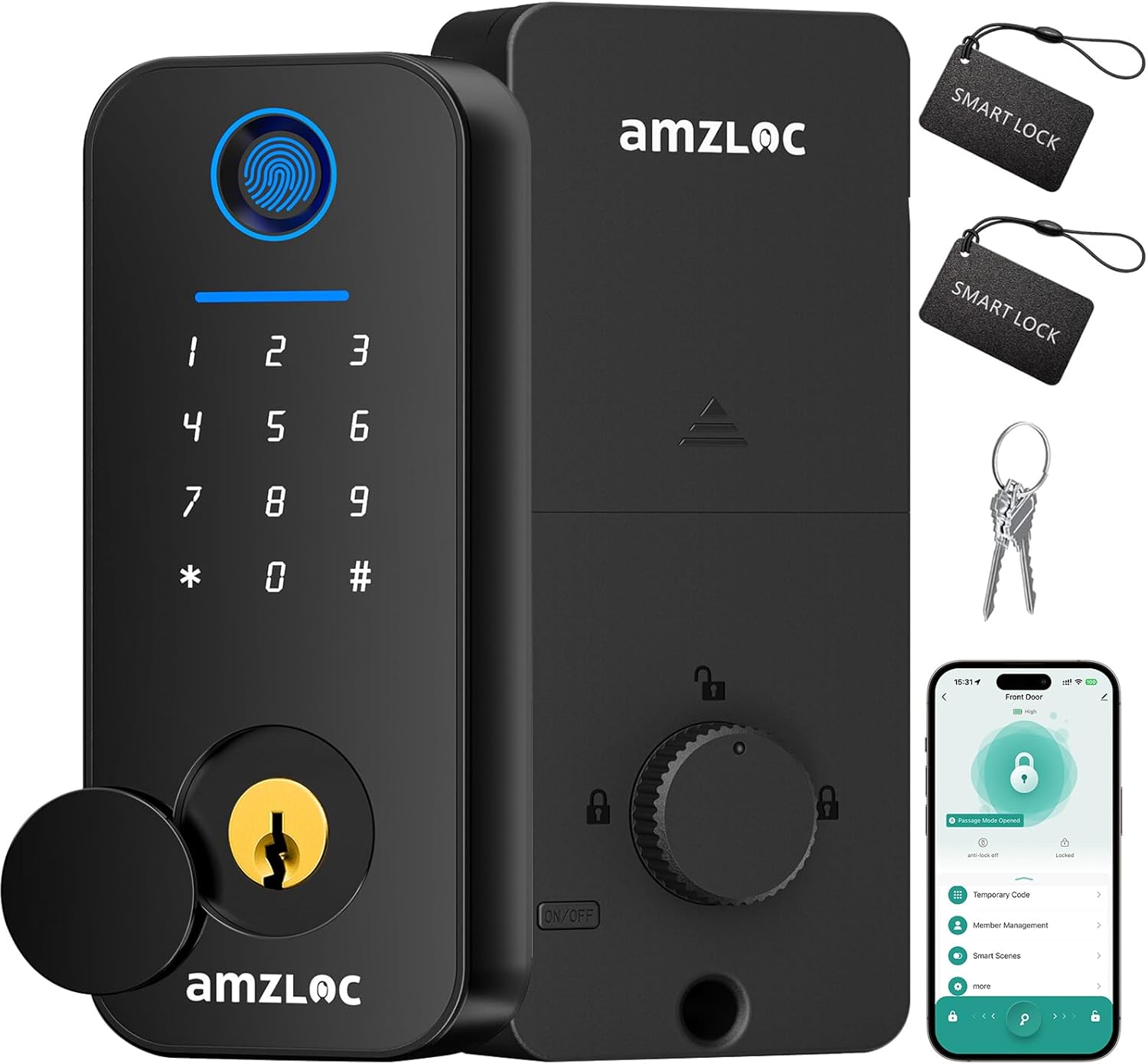
Image: All components of the AMZLOC Smart Deadbolt Door Lock laid out, including the exterior and interior lock units, key cards, traditional keys, and installation hardware.
Installation Guide
The AMZLOC Smart Deadbolt is designed for easy DIY installation. Ensure your door meets the standard specifications (2-1/8" or 54mm door hole diameter, 1-3/8" to 2" or 35mm to 50mm door thickness).
Door Compatibility and Preparation
- Verify your door's dimensions using the provided drilling template.
- Ensure the door bore hole is 2-1/8 inches (54mm) in diameter.
- Confirm door thickness is between 1-3/8 inches (35mm) and 2 inches (50mm).

Image: Diagram showing door size reference and compatibility, including bore hole diameter, backset, and door thickness measurements. It also shows the correct and incorrect orientation for the latch during installation.
Step-by-Step Installation
- Remove Existing Hardware: Carefully remove your old deadbolt and any associated hardware.
- Install Deadbolt Latch: Insert the new deadbolt latch into the door edge. Ensure the 'UP' marking on the latch is facing upwards. Secure it with screws.
- Install Exterior Unit: Feed the wire cable and tailpiece through the door hole. Align the exterior unit with the deadbolt and door.
- Install Mounting Plate: Secure the mounting plate to the interior side of the door, ensuring the wire cable passes through the plate.
- Connect Interior Unit: Connect the wire cable from the exterior unit to the interior unit.
- Attach Interior Unit: Mount the interior unit onto the mounting plate and secure it with screws.
- Insert Batteries: Open the battery cover on the interior unit and insert the 4 AA batteries (included).
- Test Operation: Manually test the deadbolt to ensure smooth operation.
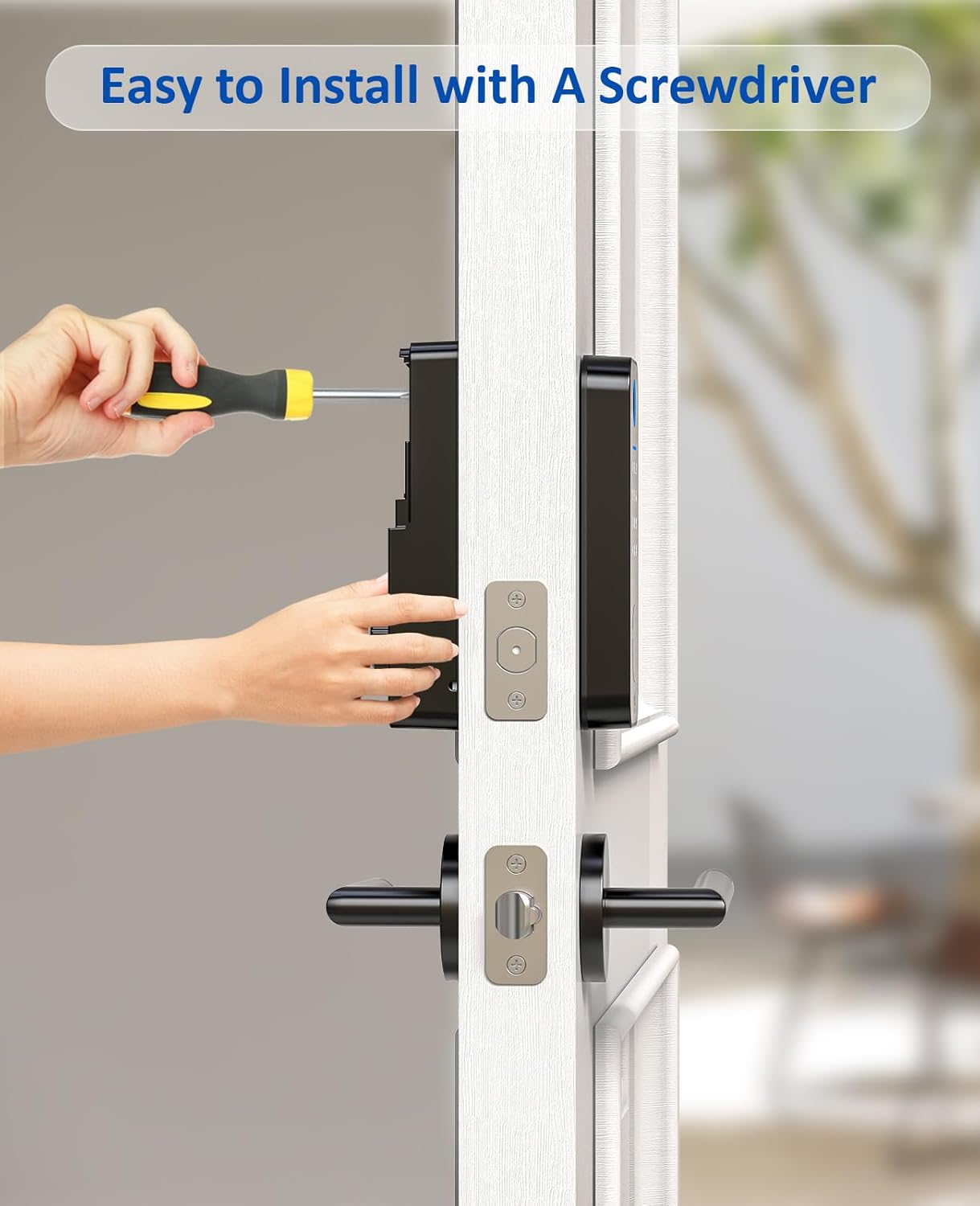
Image: A person installing the AMZLOC Smart Deadbolt Door Lock using a screwdriver, highlighting the ease of installation.
Video: Official AMZLOC video demonstrating the installation steps for the smart deadbolt lock.
Setup and Programming
1. App and Bluetooth Connection
- Download the TUYA app from your smartphone's app store.
- Enable Bluetooth on your phone.
- Open the TUYA app, register or log in, and follow the on-screen instructions to add your AMZLOC Smart Deadbolt.
- Ensure your phone is within 10 meters of the lock during pairing.

Image: A smartphone displaying the TUYA app interface for controlling the AMZLOC Smart Deadbolt, showing options like auto-lock timers, view history, manage users, keyless entry, set access schedules, and create codes.
2. Adding Fingerprints
- In the TUYA app, navigate to 'Member Management' and select 'Add Fingerprint'.
- Follow the app's prompts to place your finger on the fingerprint sensor multiple times until successfully registered.
- You can store up to 100 unique fingerprints.
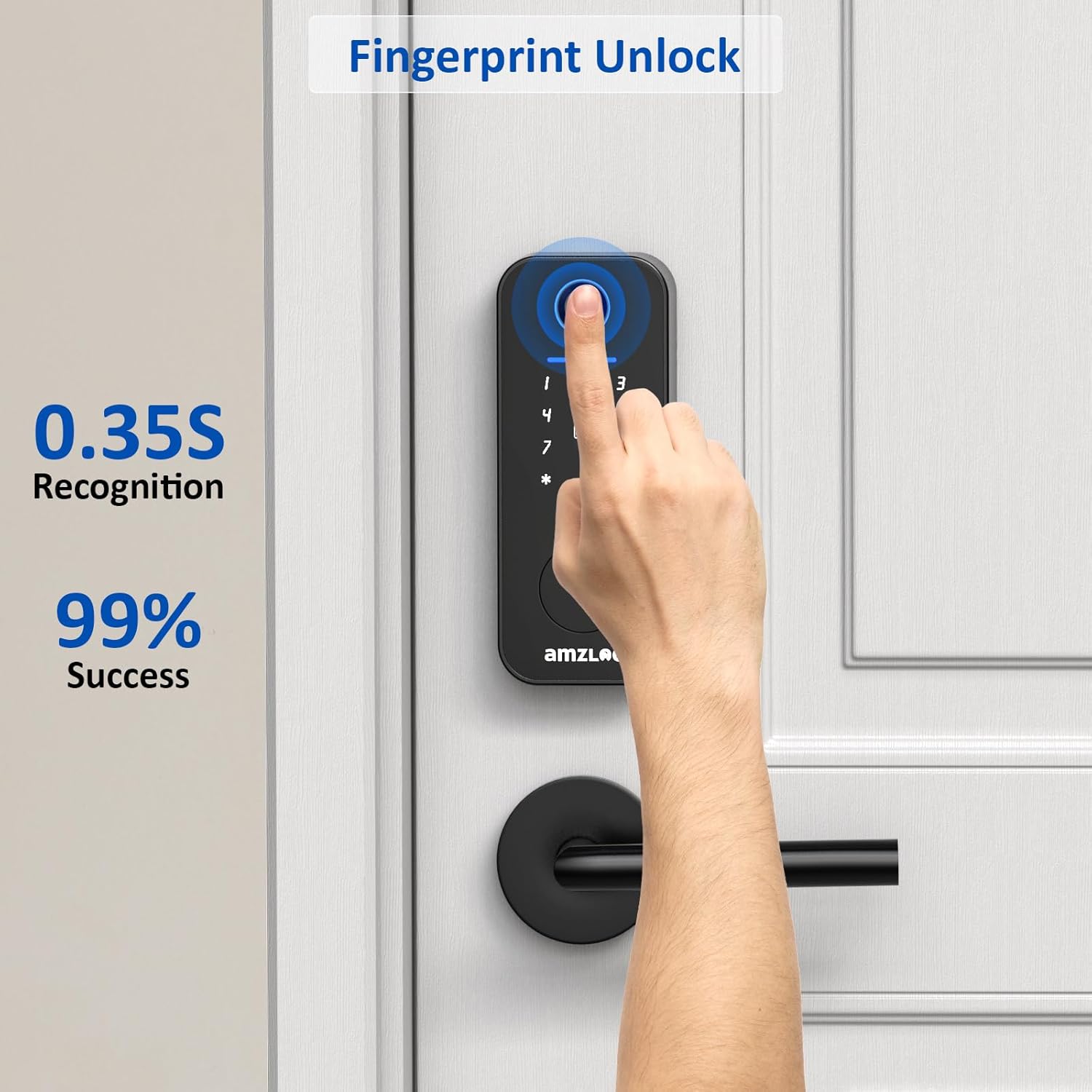
Image: A hand using the fingerprint sensor on the AMZLOC Smart Deadbolt, with text indicating 0.35s recognition and 99% success rate.
3. Setting Passcodes
- From the 'Member Management' section in the app, choose 'Add Code'.
- Enter your desired 6-8 digit passcode. You can create permanent, one-time, or time-limited codes.
- The lock supports anti-peep passcode protection, allowing you to enter random digits before or after your actual code to prevent others from guessing it.
- Up to 250+ user codes can be stored.

Image: The AMZLOC Smart Deadbolt keypad with a hand entering a code, illustrating the digital electronic lock with passcode functionality.
4. Adding Key Cards
- In the TUYA app, select 'Add Card' under 'Member Management'.
- Hold the provided key card against the card reader area on the exterior unit until the app confirms successful addition.
5. Auto-Lock Settings
- Access the auto-lock settings in the TUYA app.
- Set the desired auto-lock delay between 5 and 900 seconds.

Image: A family entering a home with boxes, showing the auto-lock feature of the AMZLOC Smart Deadbolt for hassle-free security.
Operating Instructions
Unlocking the Door
- Fingerprint: Place your registered finger on the sensor. The lock will unlock if the fingerprint is recognized.
- Passcode: Enter your 6-8 digit passcode on the keypad, optionally surrounded by random digits for anti-peep protection, then press '#'.
- Key Card: Tap your registered key card on the card reader area.
- Bluetooth App: Open the TUYA app, select your lock, and tap the unlock icon.
- Traditional Key: Insert the physical key into the keyhole and turn to unlock.
Locking the Door
- Auto-Lock: If enabled, the lock will automatically engage after the set delay.
- Manual Lock (Exterior): Press and hold the '#' key on the keypad for 2 seconds.
- Manual Lock (Interior): Rotate the knob on the interior unit to the locked position.
- Bluetooth App: Open the TUYA app, select your lock, and tap the lock icon.
Maintenance
Battery Replacement
- The lock will provide low battery alerts via the app and on the lock itself.
- To replace batteries, remove the interior unit's battery cover.
- Replace all four AA batteries with new ones, ensuring correct polarity.
- Reattach the battery cover.
Cleaning
- Wipe the exterior and interior units with a soft, damp cloth.
- Avoid using abrasive cleaners or solvents that could damage the finish or electronic components.
Weather Resistance
The AMZLOC Smart Deadbolt has an IP65 waterproof rating, making it suitable for outdoor use. However, prolonged exposure to extreme weather conditions should be minimized to ensure longevity.

Image: The AMZLOC Smart Deadbolt installed on a door, with icons indicating IP65 waterproof rating and operating temperatures from -4°F to 158°F, highlighting its suitability for various environments.
Troubleshooting
- Lock not responding: Check battery levels. Replace batteries if low. Ensure the lock is properly installed and connected.
- Fingerprint not recognized: Ensure your finger is clean and dry. Try re-registering your fingerprint in the app.
- Passcode not working: Verify the correct passcode is entered. Ensure anti-peep digits are not interfering. Check if the passcode has expired (for temporary codes).
- App connectivity issues: Ensure Bluetooth is enabled on your phone and you are within range (10 meters). Restart the app or your phone.
- Auto-lock not engaging: Check auto-lock settings in the TUYA app to ensure it's enabled and the delay time is set correctly.
- Factory Reset: If persistent issues occur, you can perform a factory reset. Refer to the detailed instructions in the included manual for this procedure.
Specifications
| Feature | Detail |
|---|---|
| Brand | AMZLOC |
| Model Number | D2 |
| Lock Type | Deadbolt, Keypad |
| Unlocking Methods | Fingerprint, Passcode, Bluetooth APP, Card, Key |
| Material | Alloy Steel, Aluminum |
| Special Features | Anti-Peeping Password, Auto-Lock, Fingerprint, Fob Unlock, One-Touch Lock |
| Connectivity Protocol | Bluetooth |
| Smart Home Compatibility | Smart Home Compatible (TUYA APP) |
| Item Dimensions (L x W x H) | 2.56 x 0.98 x 5.91 inches |
| Item Weight | 2.5 Pounds |
| Power Source | 4 x AA Batteries |
| Waterproof Rating | IP65 |
| Operating Temperature | -4°F to 158°F |
| Fingerprint Capacity | Up to 100 |
| User Code Capacity | Up to 250+ |
Warranty and Support
AMZLOC is committed to your satisfaction. For any questions, technical assistance, or warranty claims, please contact our customer support team.
- Customer Service: Available 24/7 via email.
- Warranty: Please refer to the product packaging or contact customer support for specific warranty details.

Image: AMZLOC customer support information, highlighting lifetime service and 24/7 support.
Ask a question about this manual
Ask about setup, troubleshooting, compatibility, parts, safety, or missing instructions. Manuals+ will review the question and use this page’s manual context to help answer it.