1. Introduction
Welcome to the user manual for your new Samsung Galaxy A16 5G. This guide is designed to help you understand and utilize all the features of your smartphone, from initial setup to advanced functionalities. Whether you are a new smartphone user or looking to explore hidden tips, this manual provides clear, step-by-step instructions to enhance your experience.
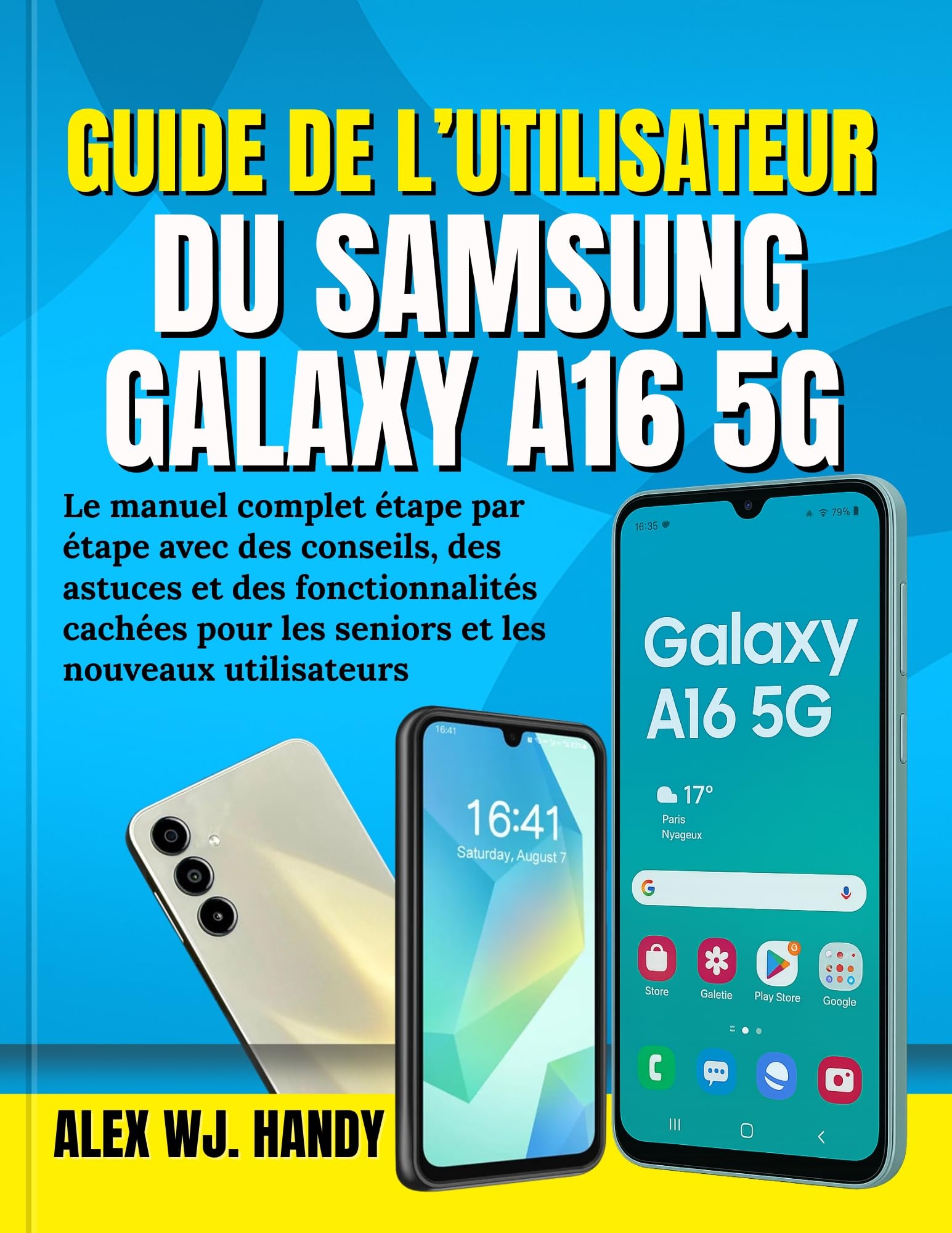
This image displays the Samsung Galaxy A16 5G smartphone. One phone is shown from the rear, highlighting its camera module and a subtle textured finish. Another phone is shown from the front, displaying its screen with the time '16:41' and 'Saturday, August 7', along with a weather widget showing '17° Paris Nyageux' and various app icons like Store, Play Store, and Google. A third phone is partially visible on the right, also showing the 'Galaxy A16 5G' branding on its screen.
2. Getting Started: Initial Setup
2.1. Unboxing and Device Overview
Before you begin, ensure all components are present in the box:
- Samsung Galaxy A16 5G Smartphone
- USB-C Cable
- SIM Ejection Pin
- Quick Start Guide (if included)
2.2. Inserting SIM Card and microSD Card
- Locate the SIM card tray on the side of your device.
- Insert the SIM ejection pin into the small hole on the tray to open it.
- Place your Nano-SIM card(s) and/or microSD card into the tray with the gold contacts facing down.
- Gently push the tray back into the slot until it clicks into place.
2.3. First Power On and Basic Configuration
- Press and hold the Power button until the Samsung logo appears.
- Follow the on-screen prompts to select your language, connect to a Wi-Fi network, and accept the terms and conditions.
- Sign in with your Google account or create a new one to access the Google Play Store and other services.
- Set up your screen lock (PIN, pattern, password, or biometrics) for security.
3. Operating Your Samsung Galaxy A16 5G
3.1. Navigation and User Interface
Your Galaxy A16 5G uses an intuitive touch interface. Swipe, tap, and pinch to navigate. The Home screen provides quick access to your favorite apps and widgets.
- Home Button: Swipe up from the bottom of the screen (or tap the virtual button) to return to the Home screen.
- Recent Apps: Swipe up and hold (or tap the virtual button) to view recently used applications.
- Back Button: Swipe from the left or right edge (or tap the virtual button) to go back to the previous screen.
3.2. Making Calls and Sending Messages
To make a call, open the Phone app, enter the number, and tap the call icon. To send a message, open the Messages app, tap the new message icon, enter the recipient and your message, then send.
3.3. Managing Contacts
The Contacts app allows you to store and organize contact information. You can add new contacts, edit existing ones, and group them for easier management.
3.4. Using Applications
Download new applications from the Google Play Store. To manage your installed apps, go to Settings > Apps. You can uninstall, force stop, or clear data for any application.
3.5. Camera Features
Open the Camera app to capture photos and videos. Swipe left or right to switch between modes like Photo, Video, Portrait, and more. Tap the shutter button to take a picture or the record button to start/stop video recording.
4. Advanced Features and Customization
4.1. Personalizing Your Device
Customize your Galaxy A16 5G to suit your preferences:
- Wallpaper: Change your Home and Lock screen backgrounds via Settings > Wallpaper and style.
- Widgets: Long-press on an empty area of your Home screen to add widgets for quick information access.
- Themes: Download and apply themes from the Galaxy Themes store to change the overall look and feel of your device.
4.2. Battery Optimization Tips
Extend your battery life with these tips:
- Enable Power saving mode via Settings > Battery and device care > Battery.
- Reduce screen brightness and set a shorter screen timeout.
- Disable Wi-Fi, Bluetooth, and GPS when not in use.
- Restrict background data usage for less critical apps.
4.3. Security and Privacy
Protect your device and data:
- Set up a secure screen lock (PIN, pattern, password, fingerprint, or face recognition).
- Regularly update your device software.
- Review app permissions in Settings > Apps.
- Use Samsung Knox for enhanced security features.
5. Device Maintenance
5.1. Software Updates
Keep your device's software up to date to ensure optimal performance and security. Go to Settings > Software update > Download and install to check for and apply available updates.
5.2. Cleaning Your Device
Use a soft, lint-free cloth to gently clean your screen and device body. Avoid harsh chemicals or abrasive materials that could damage the finish.
5.3. Battery Care
To prolong battery lifespan, avoid extreme temperatures and try to keep the battery charge between 20% and 80% for daily use. Avoid leaving the phone plugged in for extended periods after it's fully charged.
6. Troubleshooting Common Issues
This section addresses common problems you might encounter with your Galaxy A16 5G.
- Device Not Turning On: Ensure the battery is charged. Connect to a charger and try powering on after a few minutes. If unresponsive, perform a force restart by holding the Power and Volume Down buttons simultaneously for about 7-10 seconds.
- Apps Crashing or Freezing: Clear the app's cache and data via Settings > Apps > [App Name] > Storage. If the issue persists, uninstall and reinstall the app.
- Poor Network Connection: Check if Airplane mode is off. Restart your device. Verify your SIM card is properly inserted. Contact your network provider if the issue continues.
- Battery Draining Quickly: Review battery optimization tips in Section 4.2. Check battery usage in Settings > Battery and device care > Battery to identify power-hungry apps.
- Screen Unresponsive: Restart your device. If the screen remains unresponsive, consider visiting a service center.
7. Technical Specifications
Please note that specific technical specifications can vary by region and carrier. For the most accurate and up-to-date information, refer to Samsung's official website or your device's packaging.
| Feature | Description (General) |
|---|---|
| Model | Samsung Galaxy A16 5G |
| Display | Large HD+ or FHD+ display |
| Processor | Octa-core processor |
| RAM | Multiple GB options |
| Storage | Multiple GB options, expandable via microSD |
| Camera | Multi-lens rear camera, single front camera |
| Battery | High-capacity Li-Po battery |
| Operating System | Android with One UI |
| Connectivity | 5G, Wi-Fi, Bluetooth, GPS, USB-C |
8. Warranty Information and Support
Your Samsung Galaxy A16 5G comes with a limited warranty. For detailed warranty terms and conditions, please refer to the warranty card included with your device or visit the official Samsung support website for your region. For technical assistance, software updates, or service inquiries, please contact Samsung Customer Service or visit an authorized service center.
Official Samsung Support: www.samsung.com/support/