
Introduction
The James Donkey 830 Triple Mode Gaming Headset offers versatile connectivity options including wired, 2.4G wireless, and Bluetooth 5.4, adapting to various usage scenarios. It features a 750 mAh battery for extended performance, 50mm neodymium drivers for 360° surround sound, a detachable microphone, and a lightweight 258g design with sound-isolating ear pads for superior comfort and audio quality. This manual provides detailed instructions for setup, operation, maintenance, and troubleshooting to ensure optimal use of your headset.
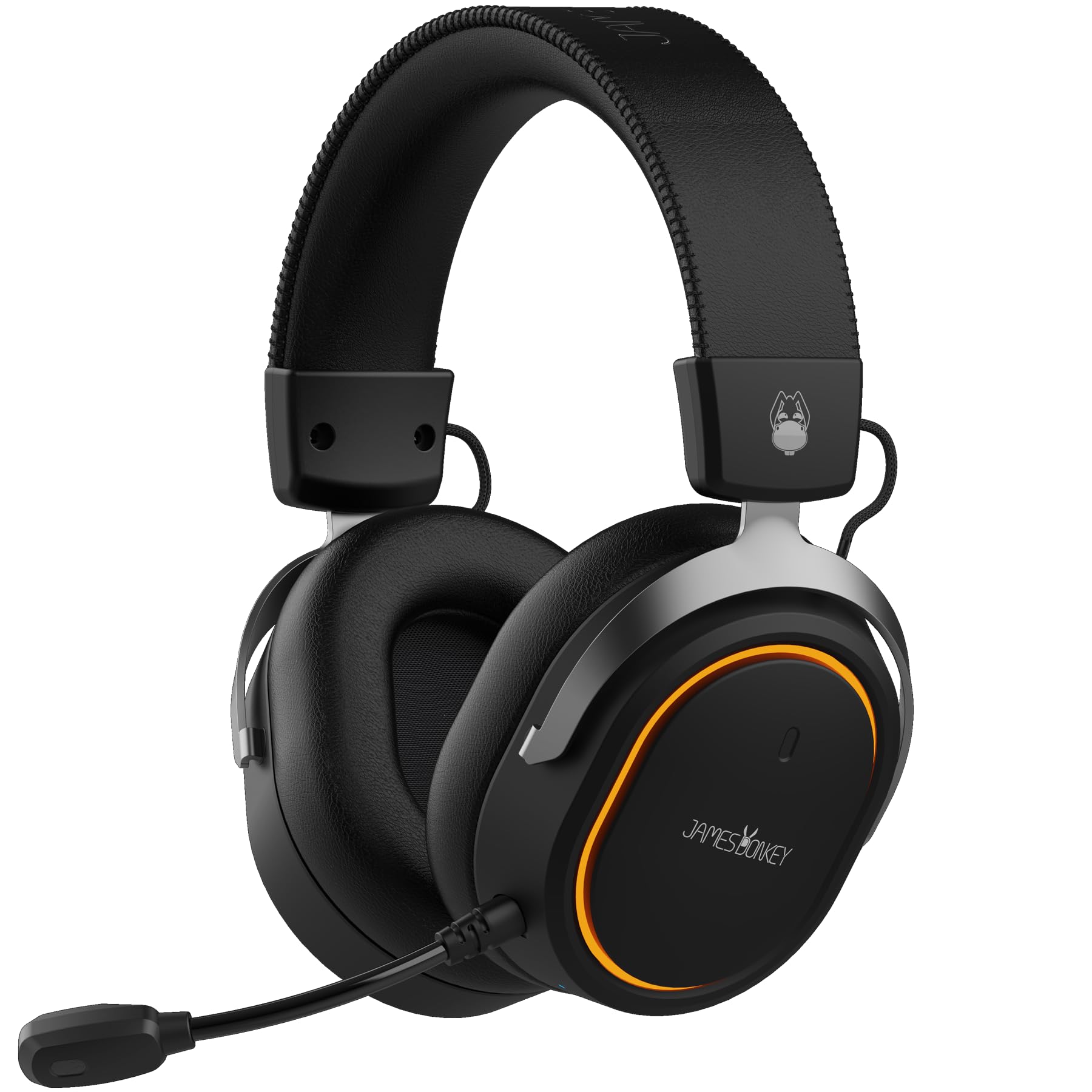
Image: The James Donkey 830 Triple Mode Gaming Headset, showcasing its design and illuminated earcups.
Product Overview
Familiarize yourself with the key components and features of your James Donkey 830 headset.

Image: A detailed view of the James Donkey 830 headset, highlighting its triple mode connectivity (wired, wireless, Bluetooth) and elegant design.
Key Features:
- Triple Connectivity: Wired (USB), 2.4G Wireless, and Bluetooth 5.4.
- Long-lasting Battery: 750 mAh capacity for extended usage.
- Immersive Audio: 50mm neodymium drivers delivering 360° surround sound.
- Detachable Microphone: Flexible and suitable for both gaming and music.
- Lightweight Design: Weighs only 258 grams for prolonged comfort.
- Adjustable Headband: Customizable fit for various head sizes.
- Sound-Isolating Ear Pads: Designed to block external noise for enhanced focus.
- Wide Compatibility: Works seamlessly with PCs, consoles, phones, and tablets.

Image: Side view of the headset, illustrating the placement of controls and ports on the earcup.
Setup
1. Initial Charging
Before first use, fully charge the headset. Connect the included USB charging cable to the headset's charging port and a power source (e.g., computer USB port or USB wall adapter). The LED indicator will show charging status and turn off or change color when fully charged. A full charge takes approximately 2 hours.
2. Attaching the Microphone
The James Donkey 830 features a detachable microphone. Align the microphone's connector with the port on the left earcup and gently push it in until it clicks into place. Ensure it is securely connected for optimal voice pickup. To remove, gently pull the microphone straight out.

Image: Close-up of the detachable microphone, illustrating its flexible design and connection point.
3. Adjusting the Headband
Adjust the headband to fit comfortably on your head. Extend or retract the earcups until they rest gently over your ears and the headband sits securely without excessive pressure. The adjustable design ensures comfort during long gaming sessions.

Image: Illustration of the adjustable headband mechanism, demonstrating how to customize the fit for comfort.
Operating Modes
The James Donkey 830 offers three distinct connectivity modes:
1. Wired Mode (USB)
For a stable, zero-latency connection, use the headset in wired mode. Connect the USB cable directly from the headset to your PC, console, or other compatible device. The headset will automatically switch to wired mode and draw power from the connected device.
2. 2.4G Wireless Mode
For low-latency wireless gaming, use the 2.4G wireless mode.
- Insert the 2.4G USB dongle into a USB port on your PC or console.
- Turn on the headset. It should automatically connect to the dongle.
- If connection is not automatic, press and hold the mode button on the headset until the indicator light shows 2.4G pairing mode, then ensure the dongle is properly inserted.
3. Bluetooth 5.4 Mode
For mobile devices and general wireless use, connect via Bluetooth 5.4. This technology provides faster, more stable, and longer-range connections.

Image: An illustration highlighting the advanced Bluetooth 5.4 technology integrated into the headset, ensuring fast and stable wireless connections.
- Turn on the headset and switch to Bluetooth mode (refer to the headset's control layout for the mode button). The indicator light will flash, indicating pairing mode.
- On your device (phone, tablet, PC), go to Bluetooth settings and search for available devices.
- Select "James Donkey 830" from the list to pair.
- Once paired, the indicator light will become solid.

Image: The James Donkey 830 headset displayed in a multi-device setup, demonstrating its compatibility with PCs, consoles, phones, and tablets.
Audio Experience
The James Donkey 830 is engineered to provide an immersive audio experience with its 50mm neodymium drivers and 360° surround sound capability. This allows for precise sound localization in games and rich, detailed audio for music and media.

Image: Visual representation of the 360° surround sound feature, indicating immersive audio from all directions.
Maintenance
Proper maintenance ensures the longevity and performance of your headset.
- Cleaning: Use a soft, dry cloth to wipe the earcups and headband. For stubborn dirt, a slightly damp cloth can be used, but ensure no moisture enters the speaker grilles or ports. Do not use harsh chemicals or abrasive cleaners.
- Storage: When not in use, store the headset in a cool, dry place, away from direct sunlight and extreme temperatures. Avoid placing heavy objects on the headset.
- Cable Care: Avoid sharp bends or kinks in the cables. Store cables neatly to prevent damage.
Troubleshooting
If you encounter issues with your James Donkey 830 headset, refer to the following common solutions:
- No Sound / Low Volume:
- Check the volume controls on the headset and your connected device.
- Ensure the headset is properly connected (wired, 2.4G dongle, or Bluetooth paired).
- Verify that the correct audio output device is selected in your device's sound settings.
- Recharge the headset if using wireless modes.
- Microphone Not Working:
- Ensure the detachable microphone is securely plugged into the headset.
- Check if the microphone mute button on the headset is engaged.
- Verify that the correct microphone input device is selected in your device's sound settings.
- Test the microphone with another application or device.
- Wireless Connection Issues (2.4G/Bluetooth):
- Ensure the headset is in the correct mode (2.4G or Bluetooth).
- For 2.4G, ensure the USB dongle is firmly inserted and recognized by your device.
- For Bluetooth, unpair and re-pair the headset with your device.
- Move closer to the connected device to rule out range issues.
- Avoid interference from other wireless devices.
- Headset Not Turning On:
- Charge the headset fully.
- Ensure the power button is pressed and held for a few seconds to power on.
Specifications
| Brand | JamesDonkey |
| Model Name | James Donkey 830 |
| Model Number | MFMFJMS0002 |
| Connectivity Technology | Wired (USB), 2.4G Wireless, Bluetooth 5.4 |
| Form Factor | Over-Ear |
| Color | Black |
| Driver Size | 50mm Neodymium |
| Sound Experience | 360° Surround Sound |
| Microphone | Detachable, Flexible |
| Battery Capacity | 750 mAh |
| Battery Life (LEDs off) | Approx. 20 hours |
| Battery Life (LEDs on) | Approx. 12 hours |
| Charging Time | Approx. 2 hours |
| Weight | 258 grams |
| Compatibility | PC, Console, Phone, Tablet |
| Included Components | User Manual |
Warranty and Support
Warranty Information
The James Donkey 830 Triple Mode Gaming Headset comes with a 2-year warranty from the date of purchase. This warranty covers manufacturing defects and ensures the product meets its specified performance standards under normal use. Please retain your proof of purchase for warranty claims.
Customer Support
For technical assistance, warranty claims, or any questions regarding your James Donkey 830 headset, please contact JamesDonkey customer support. Refer to the official JamesDonkey website or your purchase documentation for specific contact details.