
1. Introduction
Thank you for choosing the OTVOC DGBook 15.6-inch Laptop. This manual provides essential information for setting up, operating, maintaining, and troubleshooting your new device. Please read it thoroughly to ensure optimal performance and longevity of your laptop.
The OTVOC DGBook is designed for balanced performance, ideal for everyday tasks, studying, business, and entertainment. It features a 15.6-inch Full HD IPS display, an Intel Core m3-8100Y processor, 4GB RAM (upgradable), and a 128GB SSD (expandable up to 2TB).
2. What's in the Box
- OTVOC DGBook Laptop
- User Manual
- Charger
Video Description: This video demonstrates the unboxing process of the OTVOC DGBook laptop, showing the contents included in the package.
3. Setup and First Use
3.1 Initial Power On
- Connect the charger to the laptop and a power outlet.
- Open the laptop lid.
- Press the power button located on the keyboard.
- Follow the on-screen instructions to complete the Windows 11 setup process. This includes selecting your region, connecting to Wi-Fi, and creating a user account.
Video Description: This video provides a general introduction to the OTVOC DGBook, showcasing its features and initial boot-up process.
3.2 Reinstalling the Operating System
If you need to reinstall the operating system, follow these steps:
- Power on the device and immediately press F7 repeatedly to enter the boot menu.
- Select Enter Setup to access the BIOS settings.
- Navigate to the Security tab using the arrow keys.
- Select Secure Boot and change it from Disabled to Enabled.
- Press Esc to return to the Security main page, then select Save Changes and Exit to save settings and reboot.
- Before proceeding, connect the system installation USB drive.
- After reboot, press F7 multiple times to enter the boot menu.
- Select the second option (USB device) to boot from the installation drive.
- The system installation will begin. This process is estimated to take 8 minutes.
- When prompted, safely remove the USB drive. The laptop will automatically restart.
- The system will perform initial setup, estimated to take 6 minutes.
- After logging in, click OK on the System Preparation Tool window to exit Audit Mode. The laptop will restart into the Windows Out-of-Box Experience (OOBE).
Video Description: This video guides you through the process of reinstalling the operating system on your OTVOC DGBook laptop, including BIOS settings and USB boot.
4. Hardware Overview
4.1 Ports and Connectivity
The OTVOC DGBook offers a comprehensive suite of ports for all your connectivity needs:
- 2x USB 3.0 ports
- 1x Multi-function Type-C port (for charging & data)
- 1x HDMI port
- 1x TF card slot
- 1x DC-in port
- 1x Headphone jack

Image Description: A detailed view of the OTVOC DGBook laptop's side profiles, highlighting the placement and types of available ports for external device connections.
4.2 Keyboard and Touchpad
The laptop features a full-size keyboard with a dedicated numeric keypad for efficient data entry. The spacious, precision touchpad ensures seamless navigation.

Image Description: An overhead view of the OTVOC DGBook laptop, showcasing its full-size keyboard with a numeric keypad and a large, responsive touchpad for comfortable typing and navigation.
4.3 Display
Experience clear visuals on the 15.6-inch FHD IPS screen with 1920x1080 resolution, offering wide viewing angles and accurate colors.

Image Description: The OTVOC DGBook laptop with its screen laid flat at 180 degrees, demonstrating its flexible hinge design suitable for sharing content or presentations.
4.4 Webcam with Privacy Shutter
The integrated 2MP camera is suitable for video calls and online learning. A physical privacy slider is included to block the lens when not in use, ensuring your privacy.

Image Description: A close-up view of the OTVOC DGBook laptop's 2MP webcam, illustrating the physical privacy shutter in both open and closed positions for enhanced user privacy.
5. Upgrades and Maintenance
5.1 RAM Upgrade
The laptop comes with one 4GB DDR3 RAM module installed and an additional empty slot. You can easily upgrade the RAM to boost performance by adding another module or replacing the existing one. The maximum supported RAM is 16GB.
Video Description: This video demonstrates the steps to upgrade the RAM in your OTVOC DGBook laptop, showing how to access the memory slots and install new modules.

Image Description: An internal view of the OTVOC DGBook laptop's motherboard, highlighting the dual-channel SO-DIMM RAM slots and illustrating the process of upgrading memory modules.
5.2 SSD Storage Expansion
The laptop includes a 128GB SATA SSD. An easy-upgrade slot allows you to add a larger 2.5" SATA SSD, expanding your storage up to 2TB for all your files and media.
Video Description: This video demonstrates how to replace or upgrade the SSD in your OTVOC DGBook laptop, detailing the steps for accessing and installing a new solid-state drive.

Image Description: An illustration of the OTVOC DGBook laptop's internal layout, highlighting the easy-upgrade SATA SSD bay and showing how to expand storage from 128GB up to 2TB.
5.3 Cooling System
The laptop features an integrated cooling fan to maintain optimal performance and prevent overheating during demanding workloads, ensuring quiet operation.
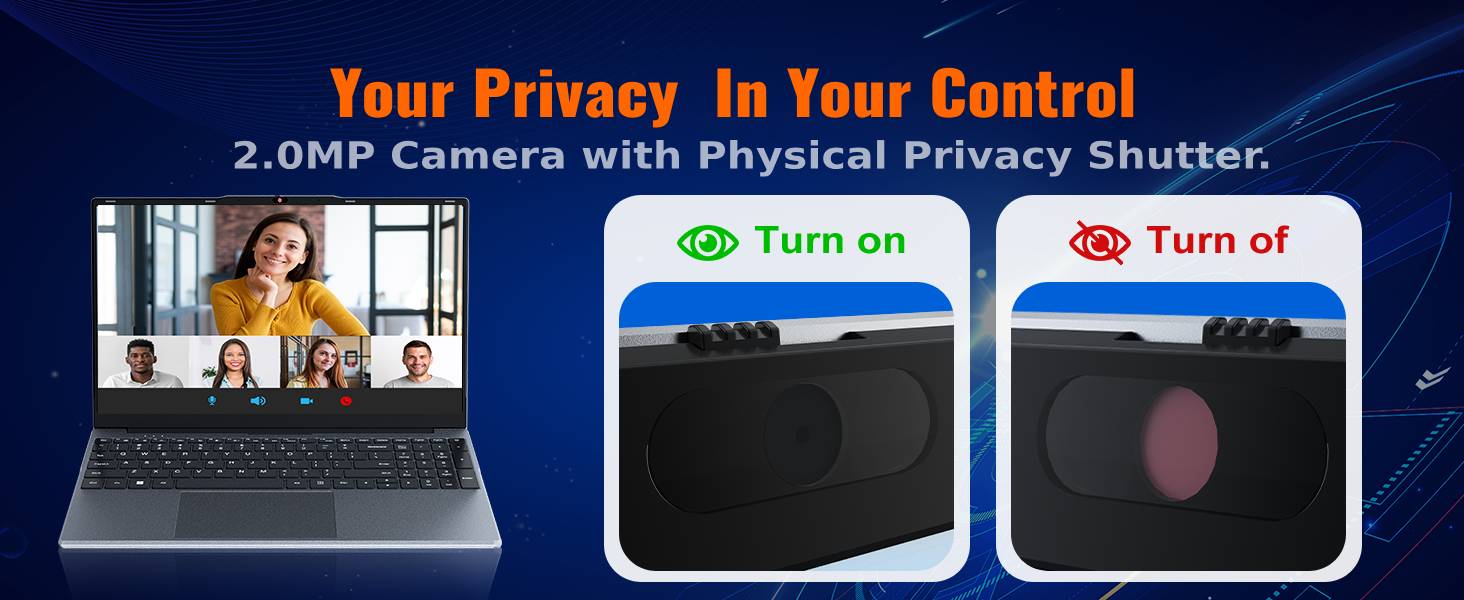
Image Description: An animated diagram illustrating the active cooling system of the OTVOC DGBook laptop, showing the internal fan and airflow designed to maintain sustained performance and prevent overheating.
6. Specifications
| Feature | Detail |
|---|---|
| Screen Size | 15.6 Inches |
| Screen Resolution | 1920 x 1080 pixels (FHD IPS) |
| Processor | Intel Core m3-8100Y (Up to 3.4GHz) |
| RAM | 4GB DDR3 (Upgradable to 16GB) |
| Storage | 128GB SATA SSD (Expandable up to 2TB) |
| Graphics | Intel UHD Graphics 615 (Integrated) |
| Operating System | Windows 11 Home |
| Connectivity | 802.11a/b/g/n/ac Wireless, Bluetooth 5.0 |
| Ports | 2x USB 3.0, 1x Type-C, 1x HDMI, 1x TF Card, 1x DC-in, 1x Headphone Jack |
| Webcam | 2MP with Privacy Slider |
| Battery Life | Approx. 4 hours (38Wh) |
| Weight | 1.57 kg (3.46 lbs) |
| Dimensions | 14.08 x 9.03 x 0.76 inches |
7. Troubleshooting
7.1 Common Issues
- Laptop not powering on: Ensure the charger is securely connected and the power outlet is functional. Try a different outlet.
- Slow performance: Check for background applications, update drivers, or consider upgrading RAM/SSD.
- Wi-Fi connectivity issues: Restart your router and laptop. Check network settings and ensure Wi-Fi drivers are up to date.
- Screen display problems: Adjust brightness settings. If the issue persists, contact support.
For more detailed troubleshooting or issues not listed here, please refer to the support section below.
8. Warranty and Support
8.1 Warranty Information
Your OTVOC DGBook laptop comes with a 30-day money-back guarantee and a 1-year replacement warranty against manufacturing issues.
8.2 Contacting Support
For any questions, technical assistance, or warranty claims, please contact the seller through Amazon:
- Go to Amazon.com and log in to your account.
- Click on the "Returns & Orders" section, located in the top right corner of the homepage.
- Find the order containing your OTVOC DGBook laptop, and click on the "Contact Seller" button next to it.
- Enter your inquiry details and click "Send" to submit your message.
Alternatively, you can click on the seller name below the "Add to Cart" button on the product page, then contact us via email by clicking "Ask a Question" in the top right corner.
We typically reply to customer messages within 12 hours, and no more than 24 hours.