1. Introduction
This manual provides detailed instructions for the installation, operation, and maintenance of your WEILAILIFE AHD Recorder. This 8-channel, 5-megapixel (5MP) Digital Video Recorder (DVR) system includes a built-in 4TB hard disk drive, offering high-resolution video surveillance and remote monitoring capabilities. It is designed to provide reliable security for your home or business.
Key features include:
- 5MP Ultra-High Resolution: Captures clear video at 2592 x 1944 pixels, ensuring detailed surveillance.
- Super Night Vision: Equipped with IR-LEDs for automatic infrared mode activation in low light, providing clear visibility up to 20 meters at night.
- IP67 Weather Resistance: Durable construction designed to withstand extreme weather conditions (-40°C to 60°C), suitable for both indoor and outdoor use.
- H.265 Video Compression: Advanced compression technology that allows for more than double the recording time compared to H.264, while maintaining video quality.
- Free Mobile App: Remote viewing and control via the "Honestview" or "Eseecloud" app for iOS and Android devices, with no monthly fees.
2. Setup Guide
2.1 Package Contents
Before beginning installation, please verify that all components are present:
- WEILAILIFE 5MP HD-Analog 8-Channel Network Video Recorder with 4TB HDD (x1)
- DVR Power Supply (x1)
- HDMI Cable (x1)
- 1m LAN Cable (x1)
- Remote Control (x1)
- USB Mouse (x1)
- Instruction Manual (x1)
2.2 Hardware Connection
Follow these steps to connect your DVR system:
- Connect Cameras: Attach up to 8 AHD cameras (sold separately) to the "VIDEO IN" ports (V1-V8) on the back of the DVR.
- Connect Monitor: Use the provided HDMI cable to connect the DVR to a monitor or TV. Alternatively, use a VGA cable for VGA-compatible displays.
- Connect Mouse: Plug the USB mouse into one of the USB ports on the back of the DVR.
- Connect Network: For remote viewing, connect the DVR to your router using the provided LAN cable.
- Connect Power: Plug the DVR power supply into the DC12V port and then into a power outlet. The system will power on automatically.
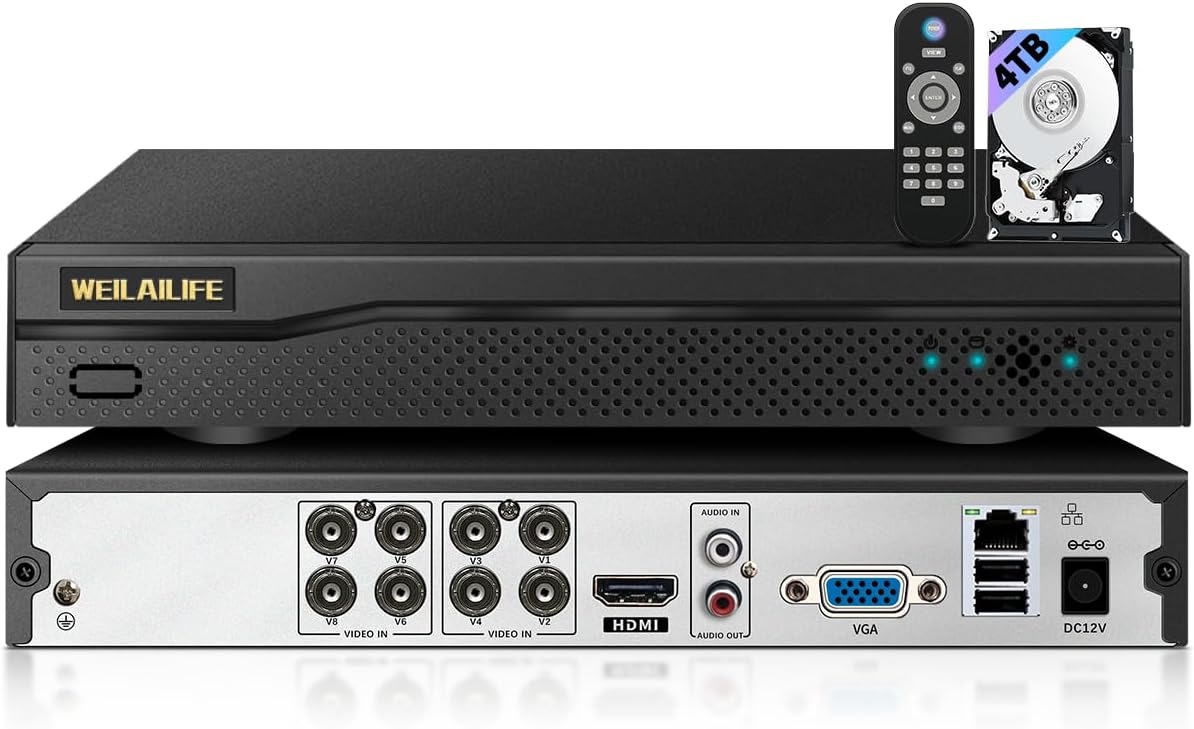
Image: Front and rear view of the WEILAILIFE AHD Recorder, illustrating the various connection ports for cameras, display, network, and power, along with the included remote control and 4TB hard drive.
2.3 Remote Monitoring Setup
To access your security system remotely:
- Download App: Download the free "Honestview" or "Eseecloud" app from the App Store (iOS) or Play Store (Android) on your smartphone or tablet.
- Install App: Follow the on-screen instructions to install the application.
- Login/Register: Open the app and create an account or log in if you already have one.
- Add Device: Follow the app's instructions to add your DVR device. This typically involves scanning a QR code on the DVR or manually entering its ID.
- View Live Feed: Once connected, you can view live camera feeds and manage settings from your mobile device.

Image: Illustration of remote monitoring capabilities, showing the security camera feed accessible on various devices including smartphones, tablets, and computers via the dedicated mobile application.
3. Operating Instructions
3.1 Basic Recording
The DVR is pre-configured to record continuously. The 4TB hard drive provides ample storage, and older footage will be automatically overwritten when the disk is full, ensuring continuous recording.
3.2 Motion Detection and Alerts
The system supports motion detection, which can trigger alerts and recording. You can customize motion detection areas to focus on specific zones and avoid false alarms from irrelevant movements.
- Setting Detection Areas: Access the DVR's menu using the USB mouse. Navigate to the motion detection settings and define the specific areas you wish to monitor. Areas outside the defined zone will be ignored.
- Alert Notifications: When motion is detected, the system can send push notifications to your mobile app and/or email alerts. Ensure your network connection is stable for timely notifications.

Image: A visual representation of the motion detection feature, showing a person being detected by a camera, triggering both an app notification and an email alert.
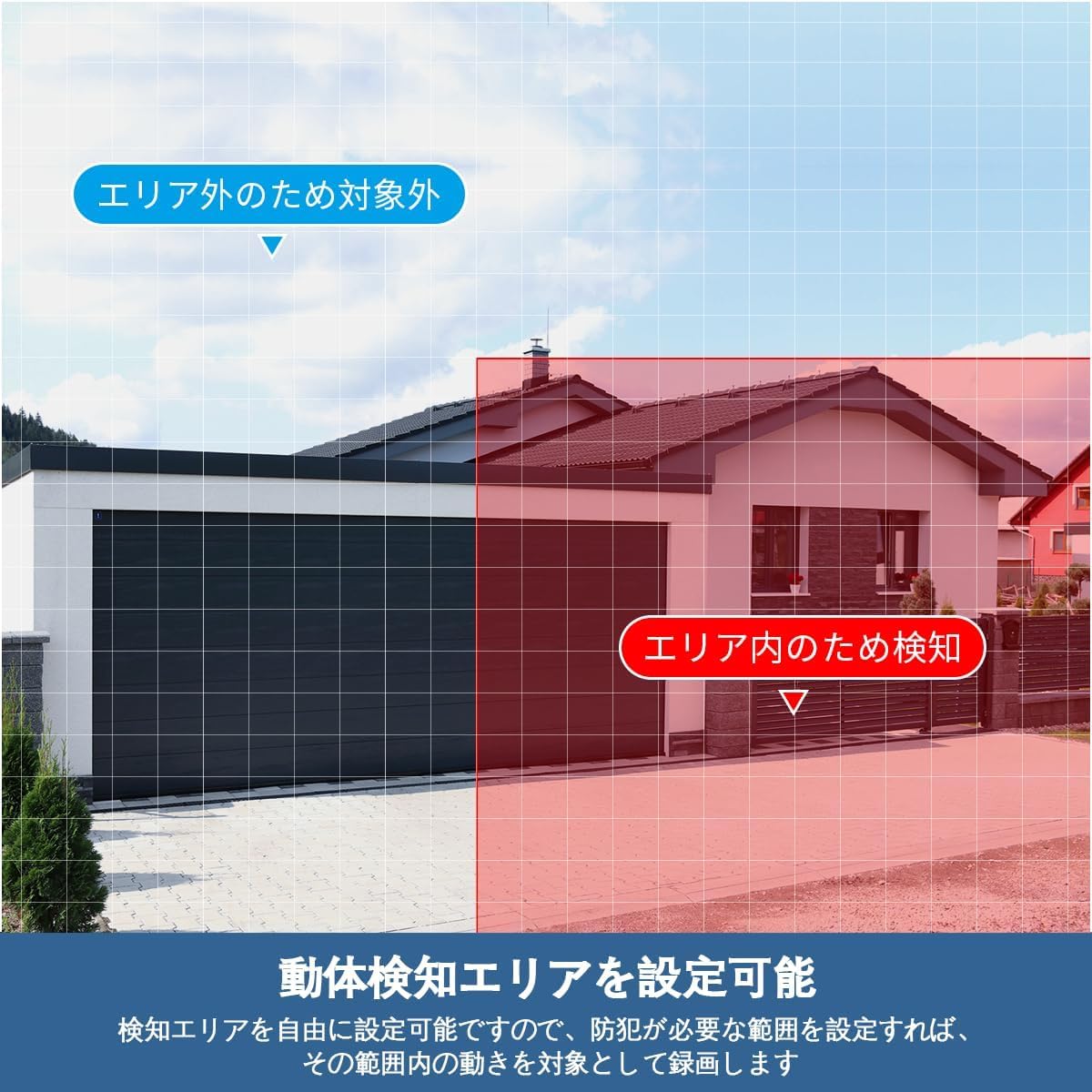
Image: An example of setting a motion detection area, highlighting how users can specify regions for active surveillance while ignoring others.
3.3 Day/Night Vision
The cameras automatically switch between day (color) and night (infrared black and white) modes based on ambient light conditions. This ensures continuous surveillance regardless of the time of day.

Image: A split image demonstrating the automatic day/night switching capability, with one side showing a clear color image during the day and the other showing a clear black-and-white infrared image at night.
3.4 Remote Control Operation
The included remote control allows for convenient navigation and control of the DVR system when connected to a monitor.

Image: A user operating the DVR system with a remote control, displaying multiple camera feeds on a television screen, demonstrating the ease of control.
4. Maintenance
4.1 Hard Drive Management
The DVR utilizes H.265 compression technology to maximize storage efficiency on the 4TB hard drive. When the hard drive reaches its capacity, the system automatically overwrites the oldest data to ensure continuous recording without manual intervention.
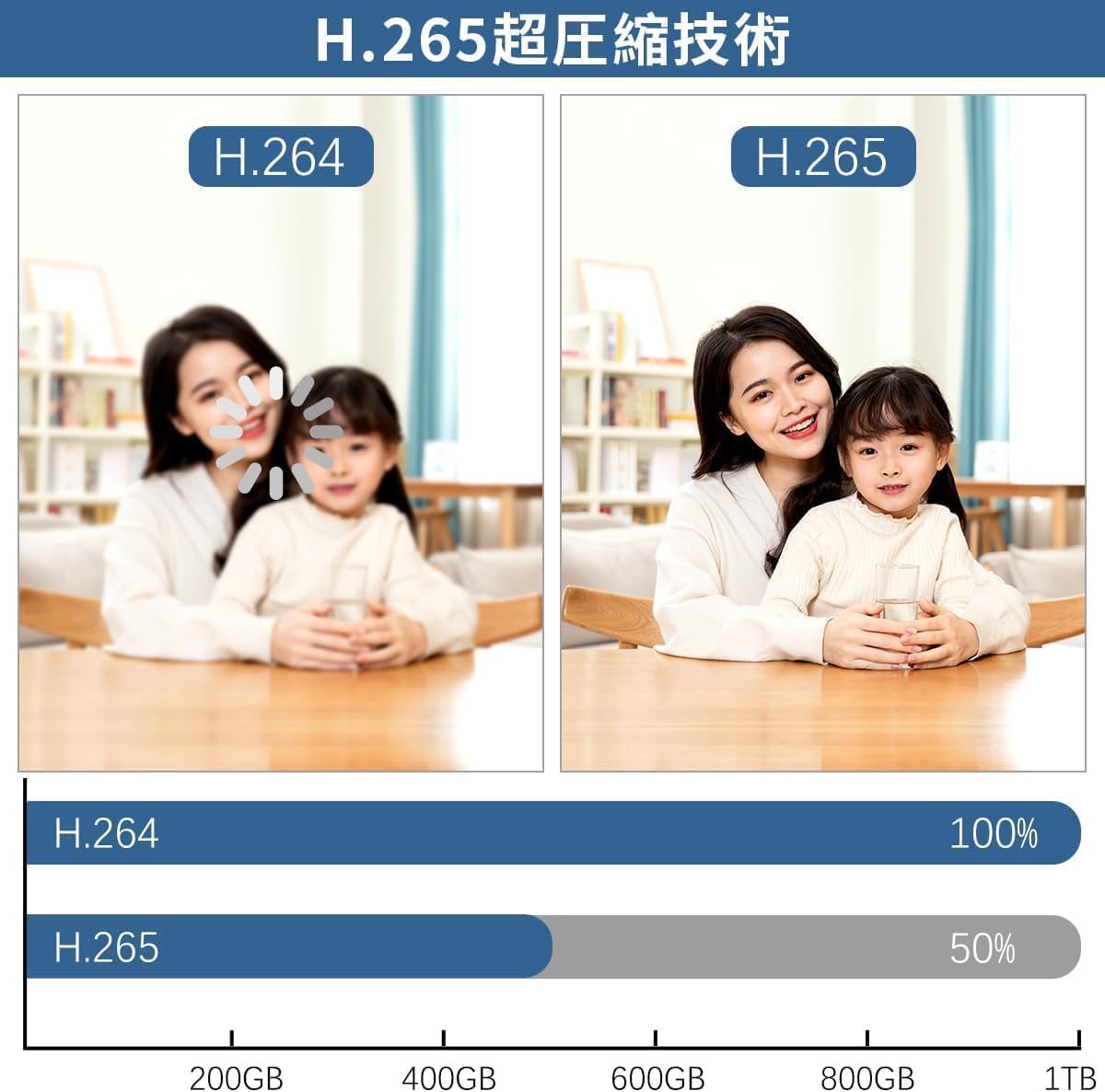
Image: A comparison illustrating the efficiency of H.265 video compression, demonstrating that it requires significantly less storage space (approximately 50% less) than H.264 for equivalent video quality.
4.2 Weather Resistance
The cameras are rated IP67 for dust and water resistance, allowing them to operate reliably in various weather conditions, including rain and snow. Regular cleaning of the camera lenses with a soft, damp cloth is recommended to ensure clear image quality.

Image: The IP67 waterproof and dustproof rating of the camera, depicted functioning effectively under various weather conditions such as rain, snow, and direct sunlight, highlighting its robust design.
5. Troubleshooting
If you encounter issues with your WEILAILIFE AHD Recorder, please refer to the following common solutions:
- No Video Display:
- Ensure the DVR is powered on and the power adapter is securely connected.
- Check HDMI/VGA cable connections between the DVR and the monitor.
- Verify that the monitor input source is correctly selected (e.g., HDMI1, VGA).
- Confirm that cameras are properly connected to the DVR's video input ports.
- No Recording:
- Check the hard drive status in the DVR's system settings to ensure it is detected and functioning.
- Verify recording schedules and settings in the DVR menu.
- Remote Access Issues:
- Ensure the DVR is connected to the internet via the LAN cable and your router.
- Check your network connection and router settings.
- Confirm that the "Honestview" or "Eseecloud" app is updated to the latest version.
- Re-add the device in the app if connection issues persist.
- Motion Detection Not Working:
- Review motion detection settings in the DVR menu, including sensitivity and detection areas.
- Ensure the camera lens is clean and free from obstructions.
If these steps do not resolve your issue, please contact customer support.
6. Specifications
| Feature | Specification |
|---|---|
| Brand | WEILAILIFE |
| Model Number | WEILAI-AHDNVR4TB |
| Video Resolution | 5 Megapixels (2592 x 1944) |
| Channel Count | 8 Channels |
| Storage Capacity | 4 TB HDD (Built-in) |
| Video Compression | H.265 |
| USB Ports | 2 |
| Compatible Devices | Cameras, Smartphones, Tablets, TVs, Laptops |
| Color | Black |
| Product Dimensions | 26 x 7 x 18 cm |
7. Warranty and Support
WEILAILIFE is committed to providing high-quality products and excellent customer service. Your WEILAILIFE AHD Recorder comes with a 24-month quality warranty.
For any inquiries, issues, or support needs during consideration or use, please do not hesitate to contact us. Our dedicated support team is available to assist you.
Contact Information:
- Email Support: info-jp@weilailifetech.com (Japanese language support available, 24-hour response time)
- Japan Office Address: Rose Avenue Inage Tendai 1F, Tendai 5-8-9, Inage Ward, Chiba City, Chiba Prefecture, Japan


