Introduction
This manual provides detailed instructions for the installation, operation, and maintenance of your Neideso N900-4CH Dash Cam. This advanced 4-channel 4K dash camera features dual HDR sensors (IMX675 and IMX307), an AI Driver Monitoring System (DMS), built-in GPS, 5G Wi-Fi, and 24-hour parking mode with 360° motion detection radar. Please read this manual thoroughly before using the device to ensure proper functionality and safety.
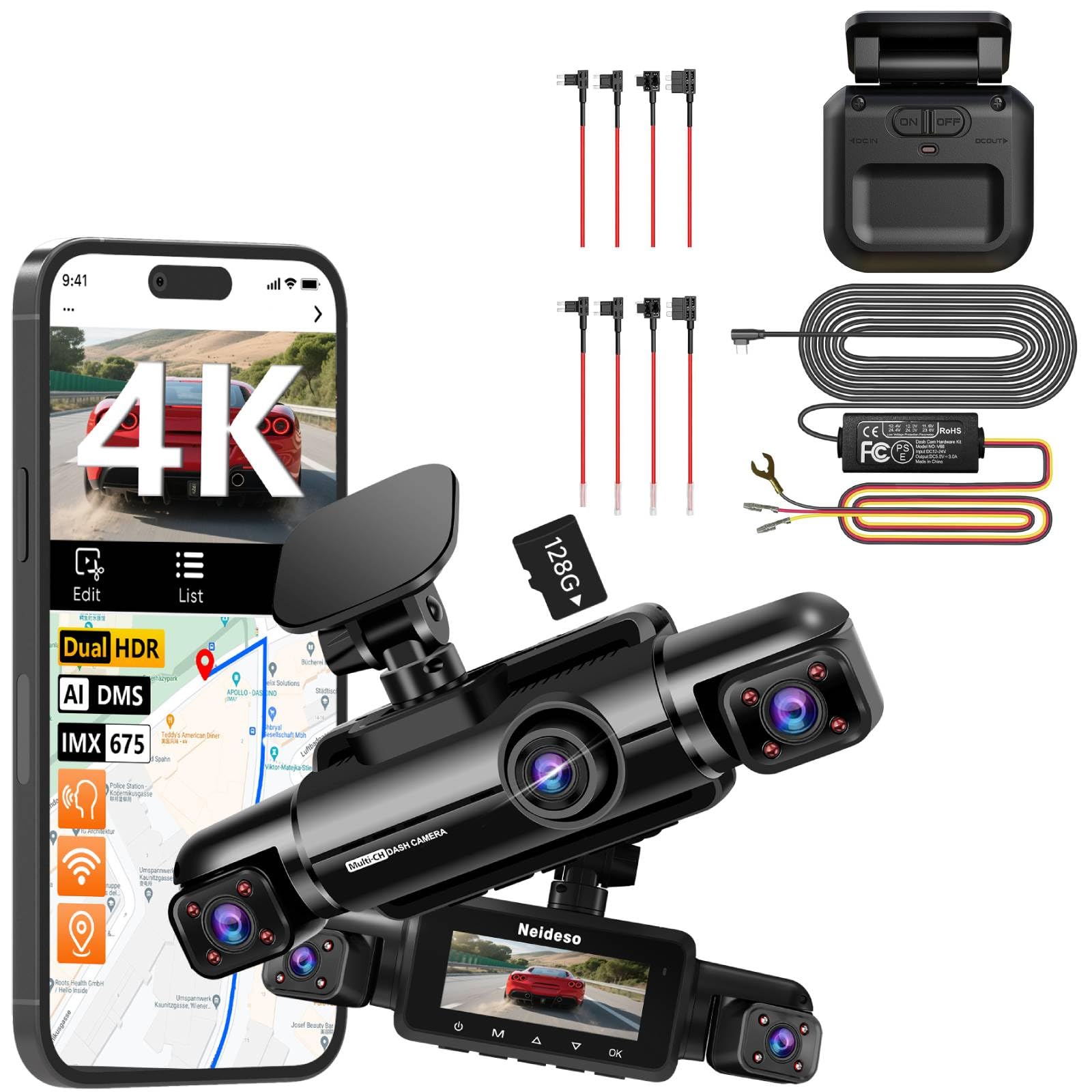
Image: Overview of the Neideso N900-4CH Dash Cam's 4-channel recording capabilities, including front 4K, left/right 1080P, and rear 1080P cameras.
Setup and Installation
Follow these steps to properly set up your Neideso N900-4CH Dash Cam.
1. SD Card Insertion
Insert the provided 128GB SD card into the designated slot on the dash cam. Ensure the card is inserted correctly until it clicks into place. It is recommended to format the SD card within the dash cam settings before first use.
2. Mounting the Dash Cam
Securely mount the main dash cam unit to your vehicle's windshield, typically near the rearview mirror, ensuring a clear view of the road ahead. Position the left and right cameras to cover the interior or exterior as desired. Install the rear camera on the rear windshield.
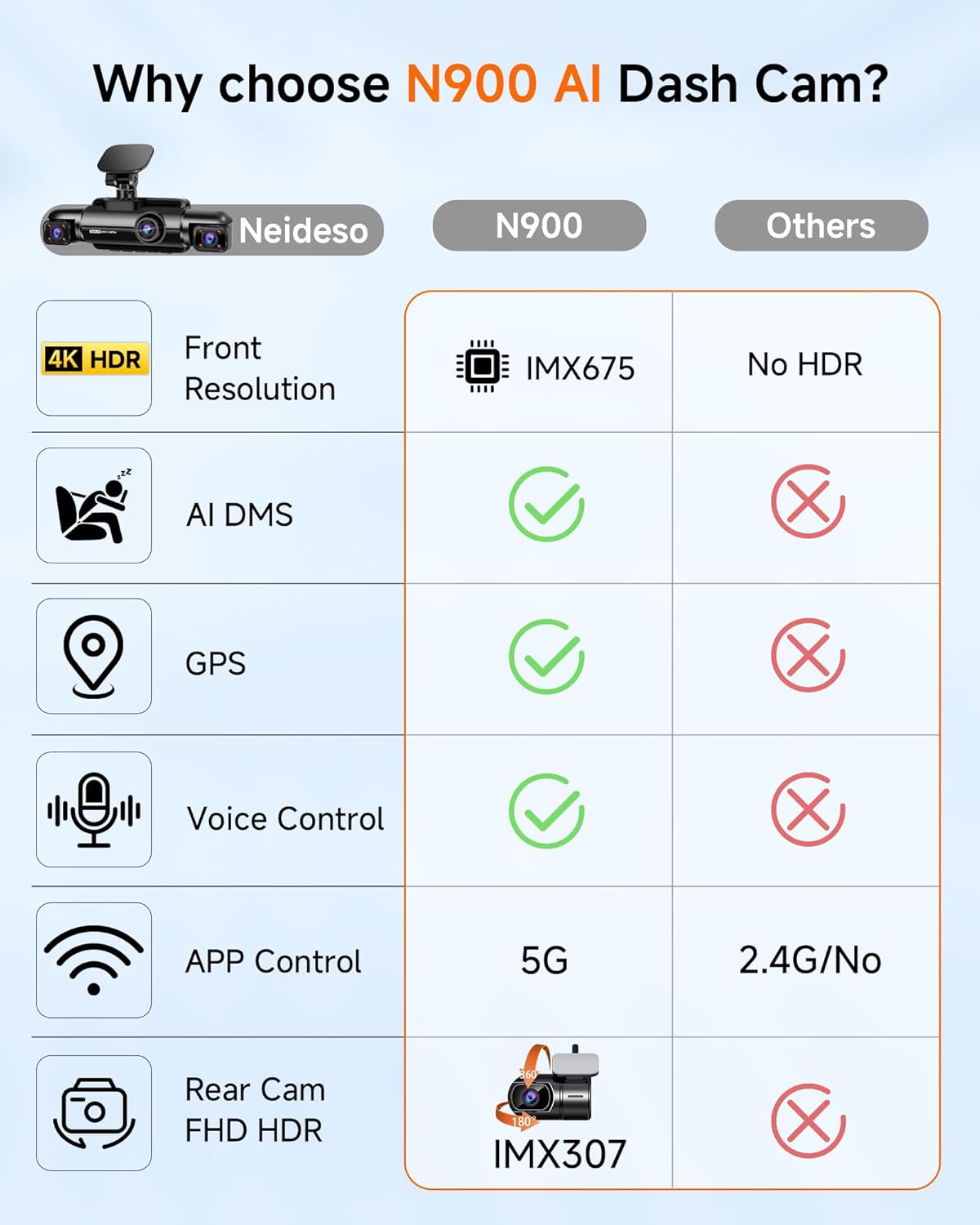
Image: The main unit of the Neideso N900-4CH Dash Cam, showing its compact design and camera lenses.
3. Power Connection (Hardwire Kit)
For 24-hour parking monitoring and continuous power, connect the included Type-C Hardwire Kit. This kit provides low voltage protection and enables the 360° motion detection radar for parking surveillance. Consult a professional for hardwire installation if you are unfamiliar with vehicle electrical systems.

Image: The 360-degree radar detection module, which is part of the hardwire kit for enhanced parking surveillance.
4. GPS Module
The built-in GPS module automatically tracks your vehicle's location, speed, and routes. Ensure the dash cam has a clear view of the sky for optimal GPS signal reception.
5. 5G Wi-Fi and App Control
Download the dedicated Neideso app on your smartphone. Turn on the dash cam's Wi-Fi (via voice command or menu) and connect your phone to the dash cam's 5G Wi-Fi network. This allows for live view, video playback, downloading recorded footage, and adjusting settings.
Operating Instructions
1. Basic Recording
Once powered on, the dash cam will automatically begin recording. The front camera records in 4K (3584x2688P) using the IMX675 sensor, while the left, right, and rear cameras record in 1080P. All channels feature HDR for improved image quality in varying light conditions.
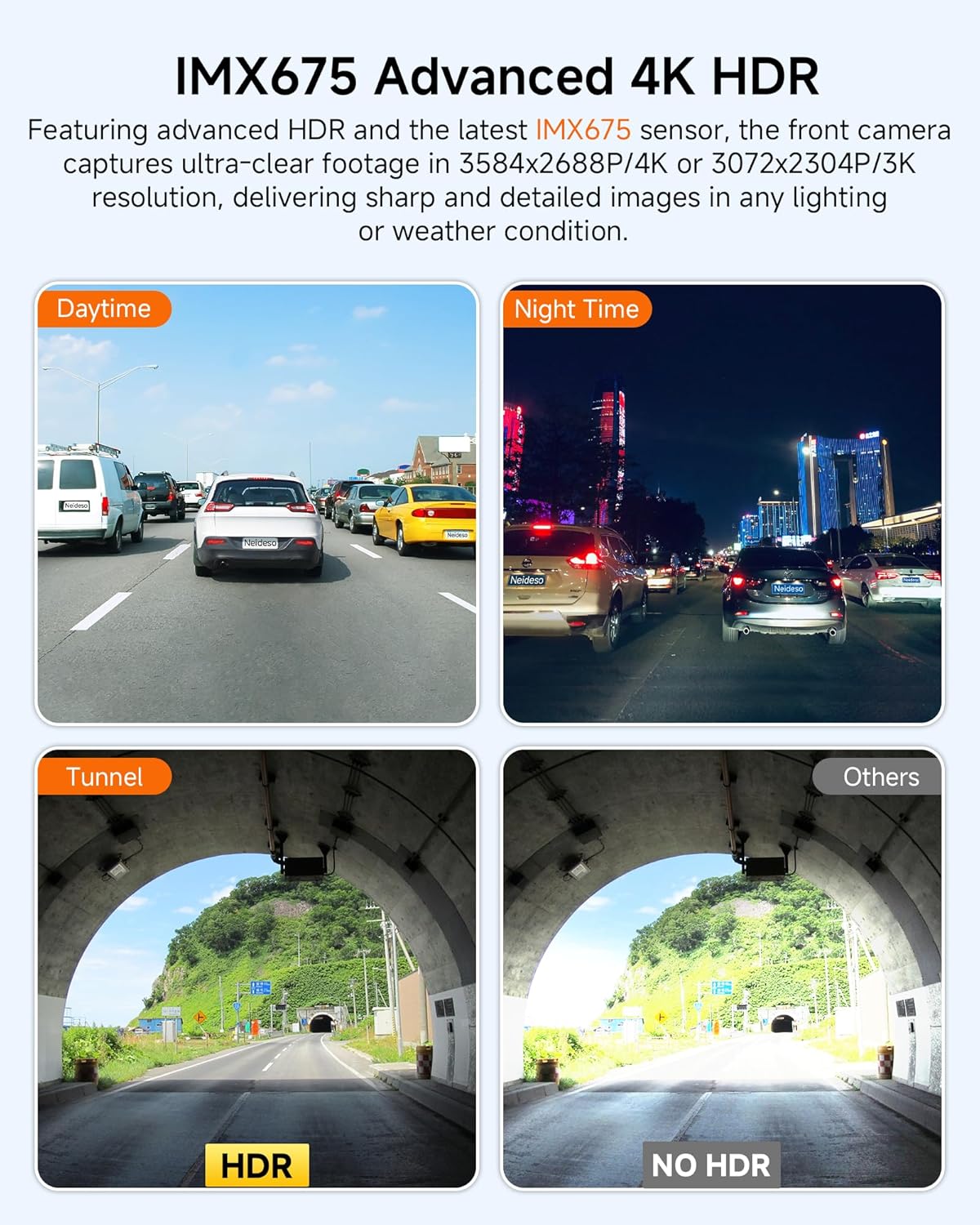
Image: Demonstrates the advanced 4K HDR capabilities of the front camera with the IMX675 sensor, showing clear footage in various lighting conditions including daytime, nighttime, and tunnels.
2. Driver Monitoring System (DMS)
The N900 features an AI-powered Driver Monitoring System to enhance safety. The DMS monitors driver behavior and provides audible warnings for:
- Distracted driving detection
- Yawning detection
- Driver absence detection
- Phone call detection
- Smoking detection
Note: The DMS requires the camera to face the driver and the vehicle's hourly speed to reach a set value for activation. Individual detection features can be enabled or disabled.

Image: Visual representation of the Driver Monitoring System (DMS) detecting driver behavior, with icons indicating various alerts like phone calls, yawning, and distraction.
3. 24-Hour Parking Mode with Radar Detection
When the vehicle is parked and the engine is off, the dash cam automatically switches to parking mode. The 360° radar detection system monitors the area around your car. If motion is detected within 3-4 meters, the camera will quickly activate and record a 1-minute video, providing continuous surveillance.
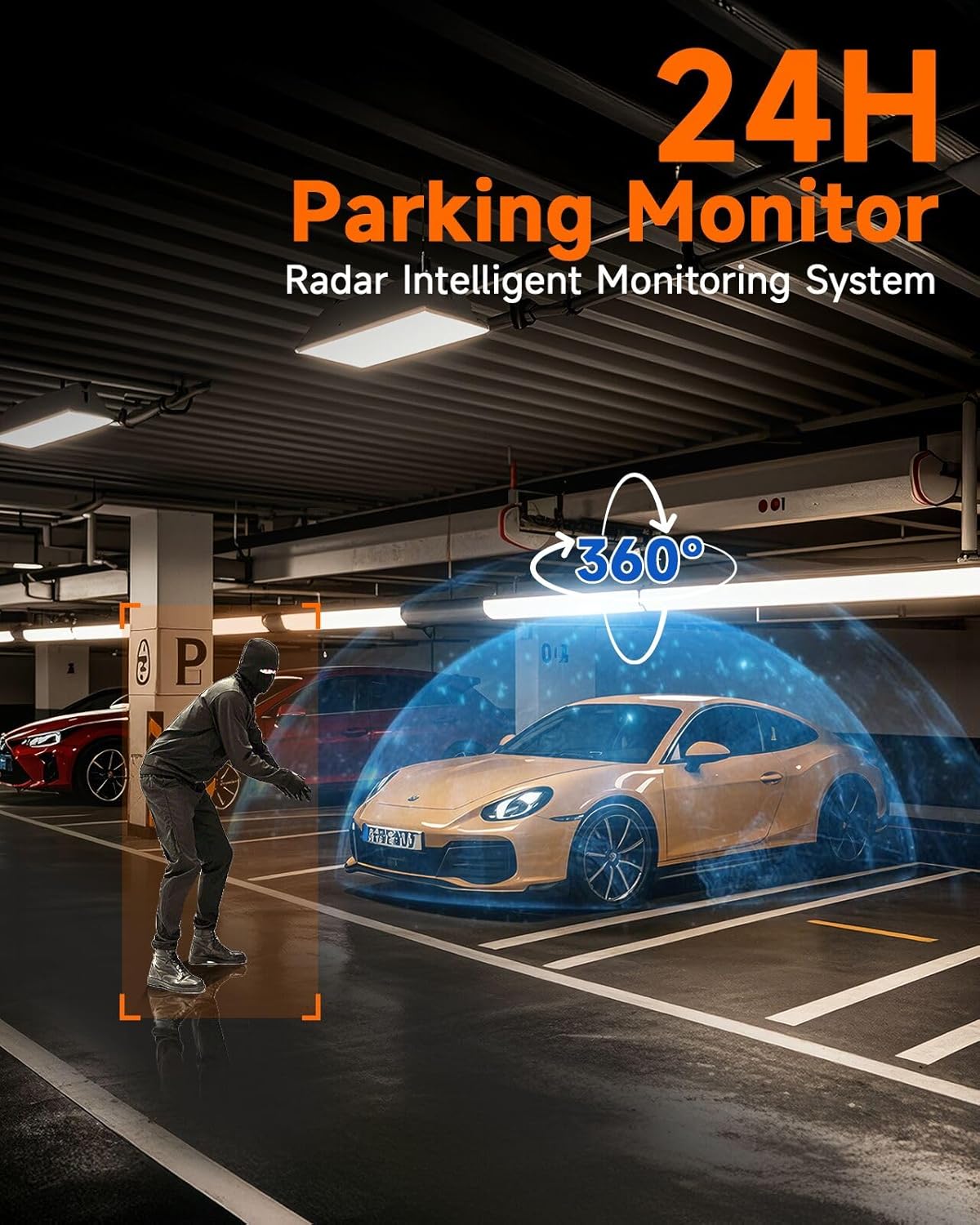
Image: Illustration of the 24-hour parking monitor system using radar detection to identify and record events around a parked vehicle.
4. Super Night Vision
The dash cam is equipped with the IMX675 (front) and IMX307 (rear) sensors, dual HDR, and 8 LED infrared lights for the left and right cameras. This combination ensures clear recording in low-light conditions, preventing overexposure and capturing details like license plates and pedestrians at night.

Image: Comparison demonstrating the superior night vision capabilities of the Neideso dash cam (left) versus other cameras (right) in various scenarios (front, left/right, rear).
5. Voice Control
Operate your dash cam hands-free using simple voice commands. Available commands include:
- "Take photo"
- "Turn on/off screen"
- "Turn on audio"
- "Turn on WiFi"
- "Video start"

Image: An in-car view illustrating various voice commands that can be used to control the dash cam, such as "Take photo" and "Turn on WiFi".
Maintenance
1. SD Card Formatting
Regularly format the SD card (at least once a month) through the dash cam's settings menu to ensure optimal performance and prevent data corruption. Back up any important footage before formatting.
2. Cleaning the Lenses
Gently clean the camera lenses with a soft, lint-free cloth to remove dust or smudges. Avoid using abrasive cleaners that could scratch the lens surface.
Troubleshooting
- Dash Cam not powering on: Ensure the power cable is securely connected and the vehicle's power outlet is functional. Check the hardwire kit connection if used.
- Recording issues: Format the SD card. Ensure the SD card is properly inserted and not full. Check for any error messages on the screen.
- Poor video quality: Clean the camera lenses. Ensure the protective film has been removed from the lenses. Check settings for resolution.
- GPS not working: Ensure the dash cam has a clear view of the sky. Allow a few minutes for GPS signal acquisition.
- Wi-Fi connection problems: Ensure Wi-Fi is enabled on the dash cam. Restart both the dash cam and your smartphone. Check the Wi-Fi range (6-7 meters).
- DMS alerts not functioning: Verify the camera is facing the driver. Ensure the vehicle speed meets the activation threshold. Check DMS settings in the menu.
- Parking mode not activating: Ensure the hardwire kit is correctly installed and providing continuous power. Check parking mode settings.
Specifications
| Brand | Neideso |
| Model Name | N900 |
| Connectivity Technology | Wi-Fi |
| Special Features | 360 Degree, AI, Built-In GPS, Motion Sensing, Night Vision |
| Video Capture Resolution | 4K (3584 x 2688) |
| Field Of View | 360 Degrees |
| Auto Part Position | Front Inside, Rear Inside |
| Color | Black |
| Manufacturer | Neideso |
| Vehicle Service Type | Car, Van |
What's in the Box
- 128GB SD Card
- Hardwire Kit
- WiFi Adapter
- Neideso N900-4CH Dash Cam Unit (Front, Left, Right, Rear Cameras)
Warranty and Support
For warranty information and technical support, please refer to the official Neideso website or contact Neideso customer service directly. Keep your purchase receipt for warranty claims.


