
1. Introduction
Thank you for choosing the Roinvou Android Car Radio. This manual provides comprehensive instructions for the installation, operation, and maintenance of your new multimedia system. Designed specifically for Fiat Bravo models from 2007 to 2014, this unit integrates advanced features such as Android OS, wireless CarPlay, Android Auto, GPS navigation, Bluetooth connectivity, and a rear view camera for an enhanced driving experience.
Please read this manual thoroughly before installation and use to ensure proper function and safety. Keep this manual for future reference.
2. Safety Information
- Professional Installation Recommended: Due to the complexity of car electrical systems, professional installation is highly recommended to prevent damage to the unit or your vehicle.
- Driving Safety: Do not operate the unit in a way that distracts you from driving. Always prioritize road safety.
- Power Supply: Ensure the unit is connected to a 12V DC power supply with negative grounding.
- Avoid Moisture: Do not expose the unit to water or excessive moisture.
- Temperature: Operate the unit within recommended temperature ranges to avoid malfunction.
3. Package Contents
Verify that all items listed below are included in your package:
- Roinvou Android Car Radio Unit (9-inch Touch Screen)
- Power Cable
- CANBUS Decoder
- RCA Cable Set
- Rear View Camera Input Cable
- GPS Antenna
- Dual USB Cable
- AHD Rear View Camera
- External Microphone
- Installation Tool Kit
- User Manual (this document)
4. Setup and Installation
This section outlines the general steps for installing your Roinvou Android Car Radio. For detailed wiring diagrams and specific vehicle instructions, consult a professional installer or refer to the included wiring schematic.
4.1 Pre-Installation Check
- Disconnect the vehicle's battery before starting any electrical work.
- Ensure the car radio is compatible with your Fiat Bravo (2007-2014 models).
- Verify all package contents are present.
4.2 Installation Steps
- Remove Original Radio: Carefully remove the existing car radio and trim panel from your Fiat Bravo.
- Connect Wiring Harness: Connect the provided power cable and CANBUS decoder to the vehicle's wiring harness. Ensure all connections are secure.
- Connect Peripherals: Attach the GPS antenna, dual USB cables, external microphone, and RCA cables as needed.
- Rear View Camera Installation: Install the AHD rear view camera at the back of your vehicle and route its cable to the car radio unit. Connect the camera input cable to the designated port on the radio.
- Mount the Unit: Securely mount the Roinvou Android Car Radio into the dashboard opening.
- Test Functionality: Reconnect the vehicle's battery and power on the unit to test all functions (radio, GPS, Bluetooth, camera, etc.) before fully reassembling the dashboard.
- Reassemble: Once all functions are verified, reassemble the dashboard trim.

Image: Comparison of the Fiat Bravo dashboard before and after installing the Roinvou Android Car Radio, showing the integrated 9-inch touch screen.

Image: Rear view of the car radio unit, highlighting the different connection ports for power, USB, GPS, and camera input.
5. Operating Instructions
5.1 Android System and Storage
The unit runs on the latest Android system, featuring 4GB RAM and 64GB internal storage for stable and smooth performance. The 9-inch 2.5D touch screen supports split-screen functionality, allowing you to run two applications simultaneously, such as navigation and music playback.
5.2 Wireless CarPlay and Android Auto
Connect your smartphone wirelessly via Bluetooth to access CarPlay (for iOS devices) or Android Auto (for Android devices). This feature allows seamless integration of your phone's music, navigation, calls, and other compatible apps directly onto the car radio screen.

Image: Display of the car radio interface demonstrating Wireless CarPlay and Android Auto, with icons for popular applications and voice control features.
5.3 Mirror Link Function
The Mirror Link function allows you to display your mobile phone's screen content directly onto the car radio's display. For iOS devices, connect via WiFi. For Android devices, connect via USB or WiFi. This enables you to enjoy videos and other content on the larger screen.
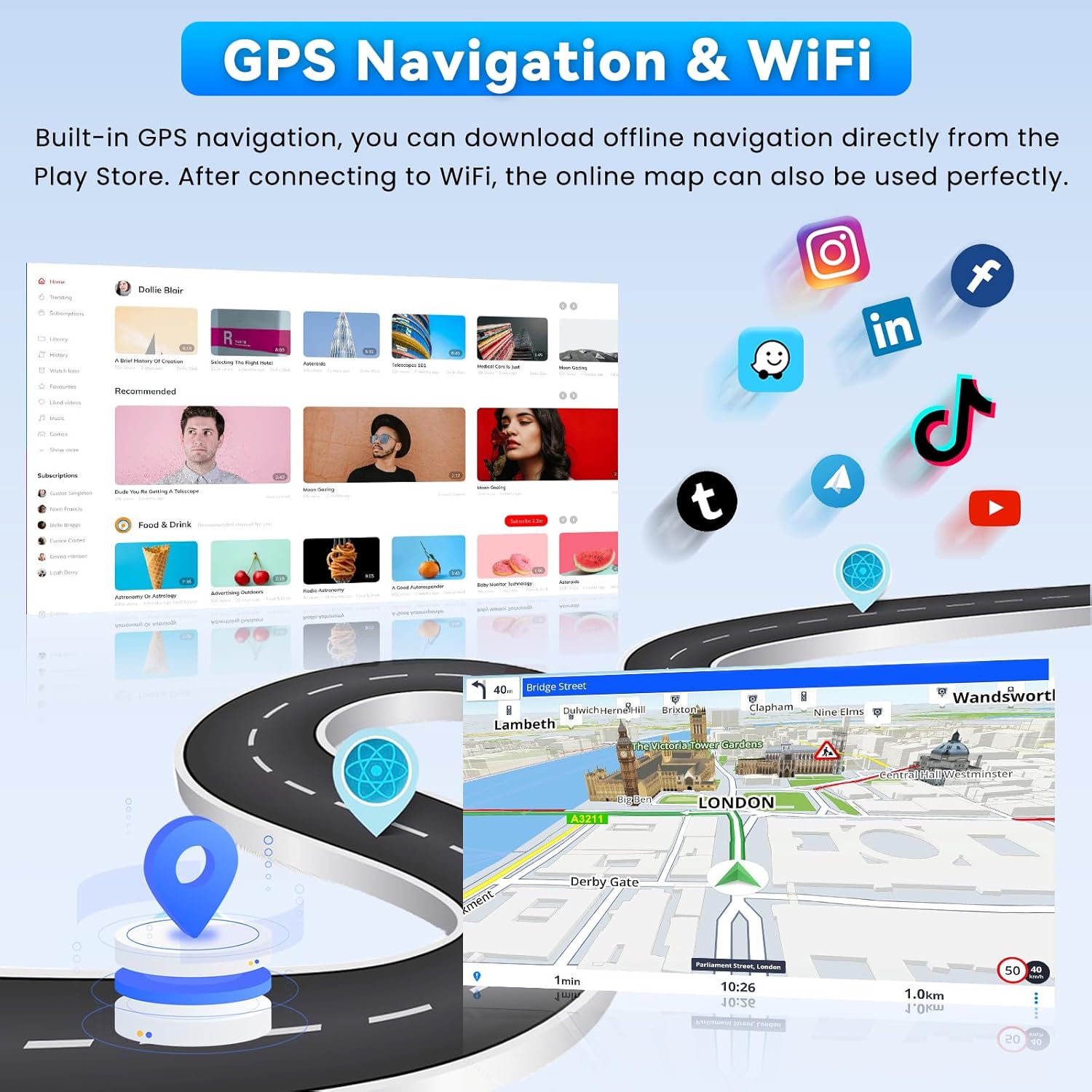
Image: Illustration of the Mirror Link feature, showing a smartphone screen mirrored onto the car radio display.
5.4 WiFi and GPS Navigation
Connect the unit to a WiFi network to access online maps, stream videos (e.g., YouTube), download applications, and browse the internet. The high-definition touch screen supports both online and offline navigation. Offline navigation maps can be purchased and downloaded directly from the Play Store.

Image: The car radio displaying GPS navigation maps and various online applications accessible via WiFi.
5.5 Bluetooth Connectivity
The built-in Bluetooth function enables hands-free calling and wireless music streaming. Pair your smartphone with the car radio for safe and convenient communication and entertainment while driving.
5.6 FM/RDS Radio and 32-Band Equalizer
Enjoy clear FM/RDS radio reception. The unit displays station information, music tracks, and traffic messages directly on the screen. Customize your audio experience with the 32-band audio equalizer, allowing precise adjustment of sound frequencies for powerful bass, clear mids, or bright treble. Multiple user interface designs are available for personalization.
5.7 Steering Wheel Control (SWC) and Rear View Camera
The integrated steering wheel control allows you to manage audio, calls, and navigation functions directly from your steering wheel, ensuring safe and convenient operation. The included AHD rear view camera provides a wide viewing angle, high waterproof rating, and good night vision, offering a clear image in various environments for safer reversing.

Image: Display showing the steering wheel control configuration options and a clear view from the AHD backup camera.
6. Maintenance
- Screen Cleaning: Use a soft, lint-free cloth to clean the touch screen. Avoid abrasive cleaners or solvents.
- Software Updates: Periodically check for software updates to ensure optimal performance and access to new features. Updates can typically be found on the manufacturer's website or through the unit's system settings.
- General Care: Keep the unit free from dust and extreme temperatures.
7. Troubleshooting
If you encounter issues with your Roinvou Android Car Radio, refer to the following common troubleshooting steps:
| Problem | Possible Cause | Solution |
|---|---|---|
| No Power | Loose power connection, blown fuse, vehicle battery issue. | Check power cable connections. Inspect vehicle fuses. Ensure battery is charged. |
| No Sound | Speaker wires disconnected, volume too low, incorrect audio output settings. | Verify speaker wire connections. Increase volume. Check audio settings on the unit. |
| GPS Not Working | GPS antenna not connected, poor satellite signal, outdated maps. | Ensure GPS antenna is properly connected and has a clear view of the sky. Update maps if necessary. |
| Bluetooth Connection Issues | Device not in pairing mode, incorrect pairing code, interference. | Ensure your phone's Bluetooth is on and in pairing mode. Re-pair the devices. Clear other Bluetooth devices. |
| Rear Camera Not Displaying | Camera cable loose, camera faulty, incorrect wiring for reverse trigger. | Check camera cable connections. Verify reverse trigger wire is correctly connected. |
If these steps do not resolve the issue, please contact Roinvou customer support for further assistance.
8. Specifications
| Feature | Description |
|---|---|
| Manufacturer | Roinvou |
| Model Number | B0FS1M3BGX |
| Package Dimensions | 26.3 x 17.3 x 10.5 cm; 1.65 kg |
| Connectivity Technology | Bluetooth, USB, FM Radio, WiFi |
| Controller Type | Android |
| Special Features | CarPlay, Android Auto, Mirror Link, WiFi, GPS, Bluetooth, 32 EQ, FM/RDS, User Interface, SWC, Touch Screen |
| Compatible Devices | Smartphone |
| Connector Type | RCA, USB |
| Surround Sound Channel Configuration | 4 |
| Video Encoding | APE/FLAC/WAV/MP3/WMA |
| Power Output | 45 Watts |
| Number of Channels | 4 |
9. Warranty and Support
Roinvou products are designed for reliability and performance. This product comes with a standard manufacturer's warranty. Please refer to the warranty card included in your package for specific terms and conditions, or visit the official Roinvou website for more details.
For technical support, troubleshooting assistance, or warranty claims, please contact Roinvou customer service through the contact information provided on our official website or your purchase platform. When contacting support, please have your model number (B0FS1M3BGX) and purchase date ready.


