

1. Introduction
Thank you for choosing the Roinvou 4+64G Android 15 Car Radio. This manual provides detailed instructions for the installation, operation, and maintenance of your new car multimedia system. This unit is specifically designed for Opel Meriva B models manufactured between 2009 and 2014, offering a seamless upgrade to your vehicle's infotainment capabilities.
Key features include a 9-inch 2.5D touchscreen, Android 15 operating system with 4GB RAM and 64GB storage, Wireless Carplay, Android Auto, Mirrorlink, integrated WiFi, GPS navigation, Bluetooth, 32-band equalizer, FM/RDS radio, steering wheel control (SWC) support, and a reversing camera input.

Image: Roinvou Car Radio installed in an Opel Meriva B dashboard, showing the before and after appearance, confirming fitment for the specified model years.
2. Setup and Installation
Proper installation is crucial for optimal performance. If you are unsure about any steps, it is recommended to seek professional assistance.
2.1 Package Contents
Before starting, verify that all components are present in the package:
- Roinvou Car Radio for Opel Meriva B (2009-2014)
- Power Cable
- Canbus Decoder
- Radio Antenna
- Original USB Cable
- RCA Cable
- Reversing Camera Input Cable
- GPS Antenna
- Double USB Cable
- Reversing Camera
- External Microphone
- Installation Tool and Accessories

Image: Diagram showing the dimensions of the 9-inch head unit and a visual representation of all included accessories in the package list.
2.2 Compatibility Check
Ensure your car's central control panel matches the compatible option. This product supports Option A as shown in the diagram below.

Image: Comparison of two car central control panel designs (Option A and Option B) with a checkmark indicating compatibility with Option A for the Roinvou car radio.
2.3 Wiring Connections
Refer to the wiring diagram for connecting the various cables:
- Power Cable: Connects to the vehicle's power supply.
- RCA Cable: For audio/video input/output connections.
- USB Cable: For data transfer and device charging.
- Camera Input: For connecting the reversing camera.
- Radio Antenna: For FM/RDS radio reception.
- GPS Antenna: For navigation functionality.

Image: Detailed diagram of the car radio's rear panel showing numbered ports for power, RCA, USB, camera input, radio antenna, and GPS antenna, alongside a general wiring harness illustration.
2.4 Reversing Camera Wiring
Important: The reverse input cable must be plugged in even if the reverse camera is not being used. Otherwise, it will affect Bluetooth and WiFi signal reception.
- Red Cable (1): Connects to the positive terminal of the car's reverse light cable.
- Black Cable (2): Connects to the negative terminal of the car's reverse light cable.
There is no need to connect the other two red extension cables (3 and 4).

Image: Technical diagram illustrating the connections for the reversing camera and Canbus wiring, showing specific cable connections to the car's reverse light system.
2.5 Steering Wheel Control (SWC)
Depending on whether your vehicle uses a CANBUS decoder, follow the appropriate instructions:
- Without CANBUS Decoder: Please connect the plugs or the steering wheel control wires (Key1/Key2) in the power cable to the corresponding port or wire of your original car. Then, go to "SteeringWheel Key" in the settings to manually match and activate the button functions.
- With CANBUS Decoder: Please connect the Canbus before powering on the machine. Then, follow this path: Apps > Settings > Factory Settings (8888/8317) > Vehicle > Automotive type to make SWC work properly. First, select the brand of the Canbus decoder, then select the matching model and year according to the actual situation.

Image: Instructions for connecting steering wheel controls, detailing steps for vehicles with and without a CANBUS decoder, including a visual of the steering wheel and control buttons.
3. Operating Instructions
3.1 Android System & Display
The unit runs on the latest Android system with 4GB RAM and 64GB storage, ensuring stable and smooth operation. The 9-inch 2.5D QLED touchscreen offers a 1280x720P HD resolution for clear visuals.
Split Screen Functionality: This feature allows you to run two applications simultaneously on the same screen, enhancing multitasking capabilities.

Image: Infographic demonstrating the three-panel homepage display and the split-screen functionality, showing two apps running concurrently on the car radio's screen.
3.2 Wireless Carplay & Android Auto & Mirrorlink
Connect your smartphone wirelessly via Bluetooth to access music, navigation, messages, and more through Carplay or Android Auto. The Mirror Link function allows you to project your mobile phone screen content onto the car radio display for a larger viewing experience.

Image: Infographic illustrating wireless CarPlay and Android Auto connectivity, showing a smartphone connected to the car's infotainment system with various app icons.
3.3 WiFi & GPS & Bluetooth
- WiFi: Connect to a WiFi network to use online maps, stream videos, browse YouTube, download apps, and more.
- GPS: Supports online and offline navigation. Offline maps can be purchased and downloaded directly from the Play Store.
- Bluetooth: Integrated Bluetooth 5.1 enables hands-free calling and music playback, ensuring a smooth and distraction-free experience.

Image: Split image showing the Bluetooth 5.1 app interface on the left and a driver using the hands-free calling feature in a car on the right.
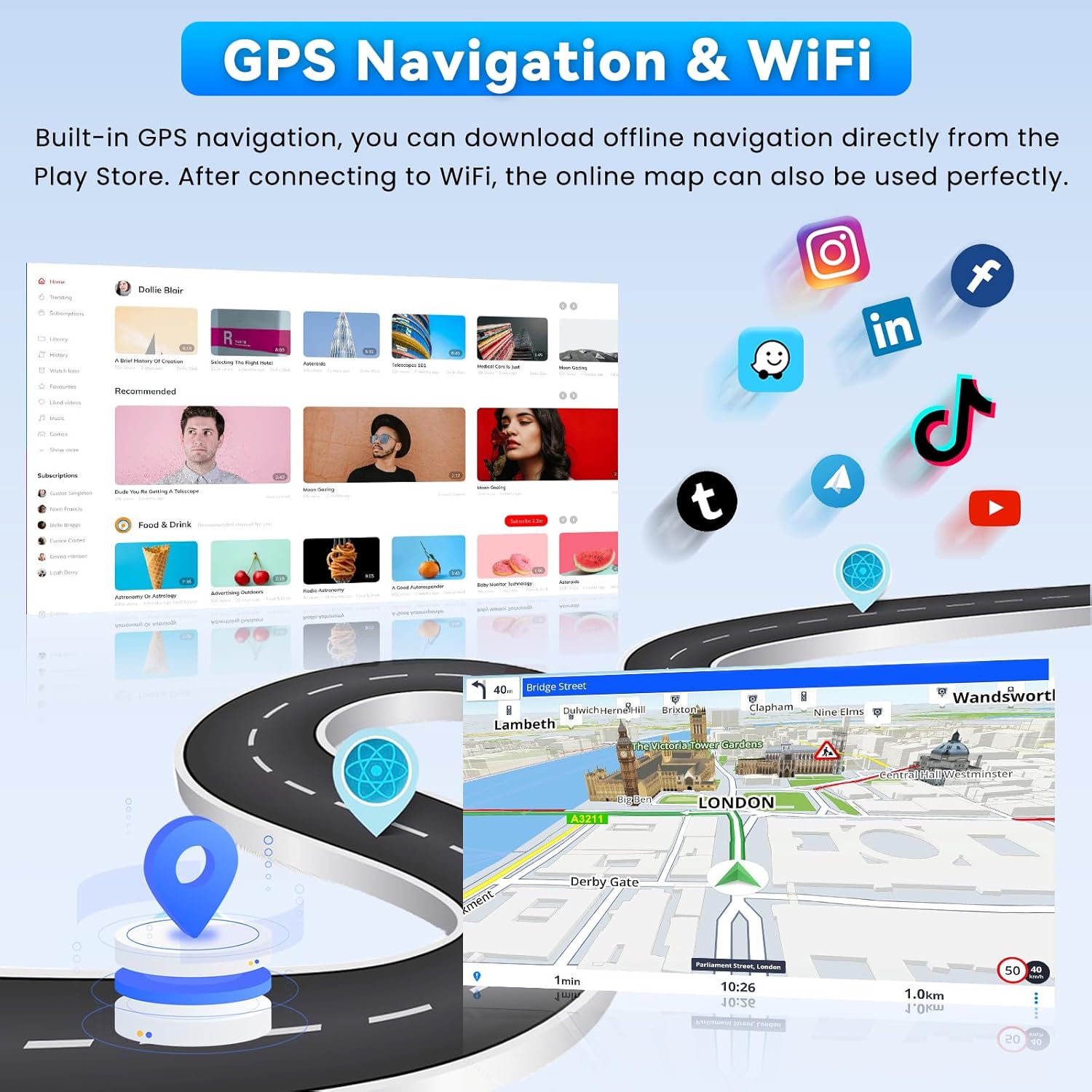
Image: Display showing GPS navigation with a map of London, surrounded by various app icons like Instagram, Facebook, TikTok, and YouTube, highlighting online connectivity.
3.4 FM/RDS Radio & 32-Band Equalizer
- FM/RDS: The FM/RDS receiver provides clear radio reception and displays station information, song titles, and traffic news directly on the screen.
- 32-Band Equalizer: Adjust audio frequencies precisely to optimize sound according to your preferences, whether for powerful bass, clear mids, or crisp highs. Multiple UI designs are available for selection.

Image: Car radio display showing the FM/RDS radio interface with digital tuning, frequency display, and touchscreen controls for station selection and audio visualization.

Image: Car radio display showing the 32-band equalizer settings, audio spectrum, and controls for customizing sound preferences.
3.5 Steering Wheel Control & Reversing Camera
- Steering Wheel Control (SWC): Operate audio functions, calls, and navigation directly from your steering wheel for safe and convenient control.
- Reversing Camera: The included AHD reversing camera provides a wide viewing angle, high waterproof coefficient, and good night vision, ensuring a clear image in various environments.

Image: Display showing steering wheel control functions (Previous, Next, Hang Up, Answer, Volume+, Volume-) and a view from the AHD backup camera assisting with parking.
4. Maintenance
To ensure the longevity and optimal performance of your Roinvou car radio, follow these general maintenance guidelines:
- Cleaning: Use a soft, dry cloth to clean the touchscreen and exterior surfaces. Avoid abrasive cleaners or solvents that could damage the display or finish.
- Software Updates: Periodically check for and install available software updates to ensure you have the latest features and bug fixes. These can usually be found in the system settings or on the Roinvou support website.
- Environmental Conditions: Avoid exposing the unit to extreme temperatures, direct sunlight for prolonged periods, or excessive moisture.
- Cable Connections: Ensure all wiring connections remain secure. Loose connections can lead to intermittent issues.
5. Troubleshooting
If you encounter issues with your Roinvou car radio, refer to the following common problems and solutions:
- Unit Overheating or Rebooting: Ensure adequate ventilation around the unit. In some cases, especially in hot climates or during intense usage, an additional cooling fan might be necessary. Contact customer support for recommendations if this issue persists.
- Bluetooth Connection Issues: If Bluetooth frequently reconnects or fails to connect, ensure the reverse input cable is properly plugged in, even if a reversing camera is not used, as this can affect Bluetooth and WiFi signal reception. Check your phone's Bluetooth settings and try re-pairing the device.
- No Power: Check all power cable connections and ensure the vehicle's fuse for the radio is intact.
- No Sound: Verify speaker connections, check volume levels, and ensure the audio output mode is correctly configured in the settings.
- GPS Signal Loss: Ensure the GPS antenna is properly installed and has a clear view of the sky. Check GPS settings within the unit.
- Steering Wheel Controls Not Working: Re-check the CANBUS decoder connection or manual wiring for Key1/Key2. Ensure the SWC settings are correctly configured in the unit's menu (refer to section 2.5).
For persistent issues or problems not listed here, please contact Roinvou customer support.
6. Specifications
| Feature | Specification |
|---|---|
| Brand | Roinvou |
| Model Number | B0FS1JVV7N |
| Operating System | Android 15 |
| Memory (RAM) | 4GB |
| Storage (ROM) | 64GB |
| Screen Size | 9 Inch |
| Display Resolution | 1280x720P |
| Connectivity Technology | Bluetooth, USB, FM RDS, WiFi |
| Special Features | Carplay, Android Auto, Mirror Link, WiFi, GPS, Bluetooth, 32EQ, FM/RDS, UI, SWC, Touchscreen |
| Compatible Devices | Smartphone |
| Connector Type | RCA, USB |
| Audio Output Mode | Stereo |
| Number of Audio Channels | 4 |
| Output Power | 45 Watts |
| Video Encoding | APE/FLAC/WAV/MP3/WMA |
| Internet Services | YouTube |
| Country of Origin | China |
7. Warranty and Support
7.1 Product Warranty
The Roinvou car radio comes with a 24-month warranty from the date of purchase. This warranty covers manufacturing defects and malfunctions under normal use. Please retain your proof of purchase for warranty claims.
7.2 Customer Support
Roinvou is committed to providing excellent customer service. We offer lifetime online support for all inquiries, with a guaranteed response within 24 hours. If you have any questions regarding installation, operation, or troubleshooting, please do not hesitate to contact us.
You can reach our support team via email at: roinvouservices@163.com

Image: Graphic detailing 24-hour customer support, including steps to contact the seller and the support email address.