
1. Safety Information
Please read all instructions carefully before installation and use. Failure to follow these instructions may result in damage to the product or other components.
- Ensure your computer is powered off and unplugged from the wall outlet before installation.
- Handle components with care to avoid damage.
- Keep out of reach of children.
- Do not attempt to modify the cooler or its components.
- Use only the provided mounting hardware.
2. Package Contents
Verify that all items are present in your package:
- Ocypus Gamma A40 BK CPU Air Cooler (Heatsink and Fan assembly)
- Mounting tool
- Mounting hardware for Intel LGA 115X/1200/1700/1851
- Mounting hardware for AMD AM4/AM5
- Thermal paste packet

Image: Included accessories for the Ocypus Gamma A40 BK CPU Air Cooler, showing various mounting brackets, screws, and a thermal paste packet.
3. Specifications
| Model | Ocypus Gamma A40 BK |
| Product Dimensions (L x W x H) | 105mm x 93mm x 133mm (4.13"L x 3.66"W x 5.24"H) |
| Cooling Method | Air |
| Heat Pipes | 4 x Φ6mm Copper Direct Touch |
| Fan Size | 100mm |
| Fan Speed | 600-2400 ±10% RPM (PWM controlled) |
| Air Flow Capacity | 41 CFM |
| Air Pressure | 2.2mm H2O |
| Noise Level | ≤29.5 dB(A) |
| Power Connector Type | 3-Pin (PWM) |
| Voltage | 12 Volts (DC) |
| Wattage | 1.2 watts |
| TDP Support | Up to 200W |
| Compatible Sockets | Intel LGA 115X/1200/1700/1851, AMD AM4/AM5 |
| Material | Aluminum, Copper, Plastic |
| Item Weight | 13.7 ounces |
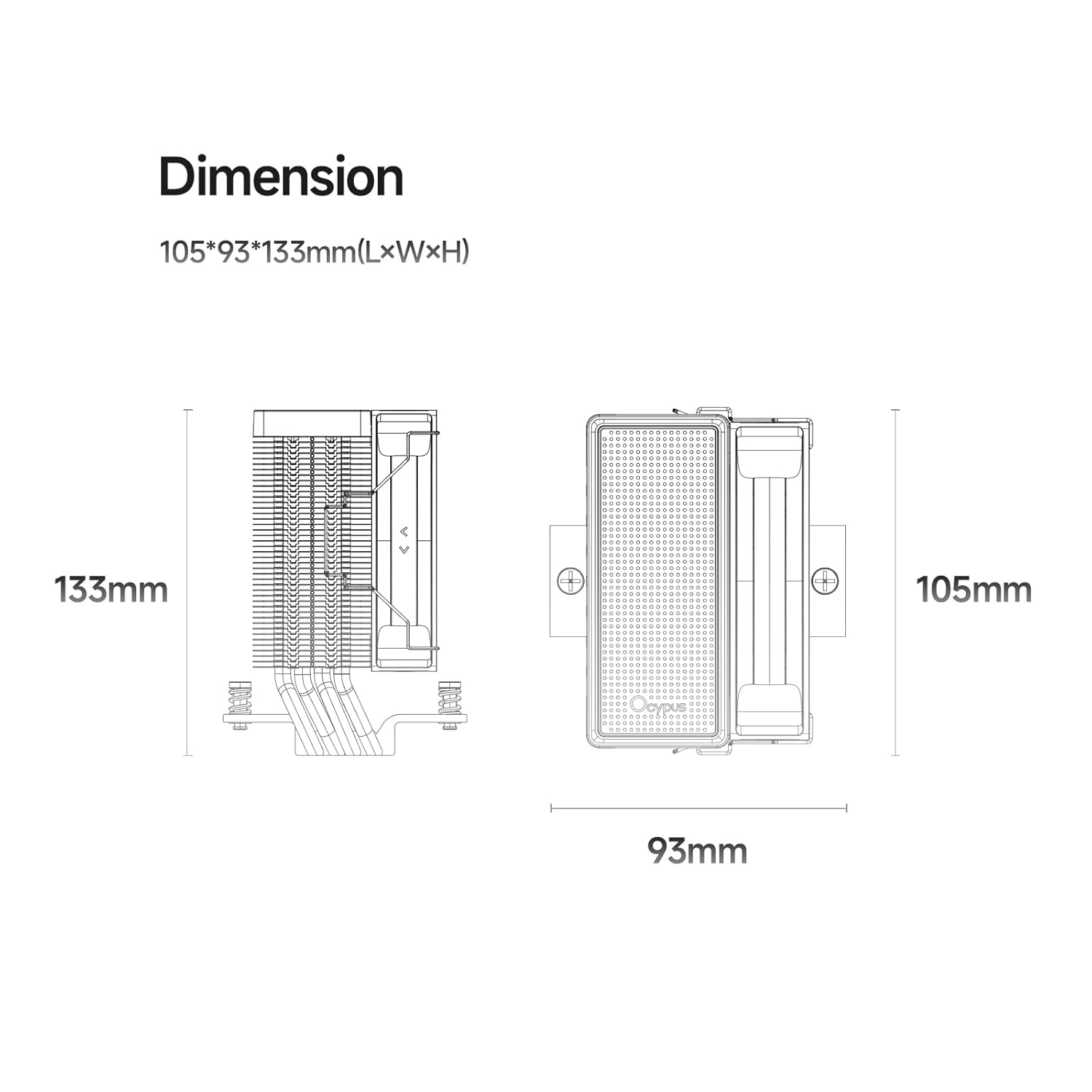
Image: Detailed dimension diagram of the Ocypus Gamma A40 BK CPU Air Cooler, showing its height of 133mm, length of 105mm, and width of 93mm.

Image: Close-up view of the CPU cooler's base, highlighting the four Φ6mm copper direct touch heat pipes, indicating a TDP support of up to 200W.

Image: Diagram illustrating the specifications of the 100mm high-performance, low-noise fan, including 41 CFM air flow, 2.2mm H2O air pressure, ≤29.5 dB(A) noise, 600-2400 ±10% PWM speed, and a 4-pin connector.
4. Installation Guide
This section provides general installation steps. Refer to your motherboard manual for specific details regarding CPU socket preparation.
4.1 Prepare Your System
- Power off your computer and unplug it from the power outlet.
- Open your computer case to access the motherboard and CPU socket.
- Remove any existing CPU cooler. Clean the CPU surface thoroughly to remove old thermal paste using isopropyl alcohol.
4.2 Apply Thermal Paste
Apply a small amount of thermal paste (pea-sized dot or a thin line) to the center of your CPU's Integrated Heat Spreader (IHS). The pressure from the cooler will spread it evenly.
4.3 Install Mounting Hardware
Select the appropriate mounting brackets for your CPU socket (Intel or AMD).

Image: Illustration of the CPU cooler being installed onto a motherboard, demonstrating the ease of installation with all-metal mounting hardware.
For Intel LGA 115X/1200/1700/1851:
- Attach the Intel backplate to the rear of the motherboard, aligning the holes with the CPU socket.
- Secure the Intel mounting standoffs through the motherboard from the front.
- Place the Intel mounting brackets onto the standoffs and secure them with the provided screws.
For AMD AM4/AM5:
- Remove the existing plastic retention modules from the motherboard, but keep the original backplate.
- Attach the AMD mounting standoffs to the original backplate.
- Place the AMD mounting brackets onto the standoffs and secure them with the provided screws.
4.4 Mount the Cooler
- Carefully place the heatsink assembly onto the CPU, ensuring the heat pipes make direct contact with the thermal paste.
- Align the cooler's mounting holes with the brackets.
- Using the provided mounting tool, alternately tighten the screws in a diagonal pattern until the cooler is firmly seated. Do not overtighten.
- Connect the 3-pin PWM fan cable to the CPU_FAN header on your motherboard.
Video: An overview of the Ocypus Gamma A40 Series CPU Air Cooler, demonstrating its design and features. This video provides a visual guide to the product's components and aesthetics.
Video: A detailed look at the Ocypus Gamma A40 Series CPU Air Cooler, showcasing its construction, heat pipe design, and fan. This video helps users understand the physical aspects of the cooler.
5. Operating Instructions
Once installed, the Ocypus Gamma A40 BK CPU Air Cooler operates automatically based on your motherboard's fan control settings.
- Automatic Fan Control: The 3-pin PWM fan will adjust its speed (600-2400 RPM) according to the CPU temperature, as managed by your motherboard's BIOS/UEFI settings. This ensures optimal cooling performance while minimizing noise.
- Monitoring: You can monitor CPU temperatures and fan speeds using motherboard utility software or within the BIOS/UEFI.
- Initial Startup: During the first few hours of operation, the thermal paste will "cure" and achieve its full thermal conductivity. Monitor temperatures during this period.

Image: The Ocypus Gamma A40 BK CPU Air Cooler installed inside a computer case, demonstrating its compact fit and appearance.
6. Maintenance
Regular maintenance ensures optimal performance and longevity of your CPU cooler.
- Dust Cleaning: Periodically (every 3-6 months, depending on environment) clean dust from the heatsink fins and fan blades using compressed air. Ensure the fan is held stationary during cleaning to prevent over-spinning.
- Fan Inspection: Check the fan for any signs of wear, unusual noises, or obstructions.
- Thermal Paste Reapplication: If you remove the cooler for any reason, it is recommended to clean off the old thermal paste from both the CPU and the cooler base and apply new thermal paste before reinstallation.
7. Troubleshooting
| Problem | Possible Cause | Solution |
|---|---|---|
| High CPU Temperatures |
|
|
| Fan Not Spinning |
|
|
| Unusual Fan Noise |
|
|
8. Warranty and Support
Ocypus products are designed and manufactured to the highest quality standards. For warranty information and technical support, please refer to the official Ocypus website or contact their customer service directly.
Keep your proof of purchase for warranty claims.
Manufacturer: Ocypus
Website: Ocypus Store on Amazon (for general product information)