
1. Introduction
This manual provides comprehensive instructions for the VECHTEL Android 15 Car Radio, model 4 Core 4G+128G. This advanced multimedia system is designed to enhance your driving experience with features such as a 9-inch Incell HD touchscreen, wireless CarPlay and Android Auto, GPS navigation, Bluetooth, Wi-Fi, and FM/RDS radio. Please read this manual carefully before installation and operation to ensure proper use and to maximize the product's capabilities.
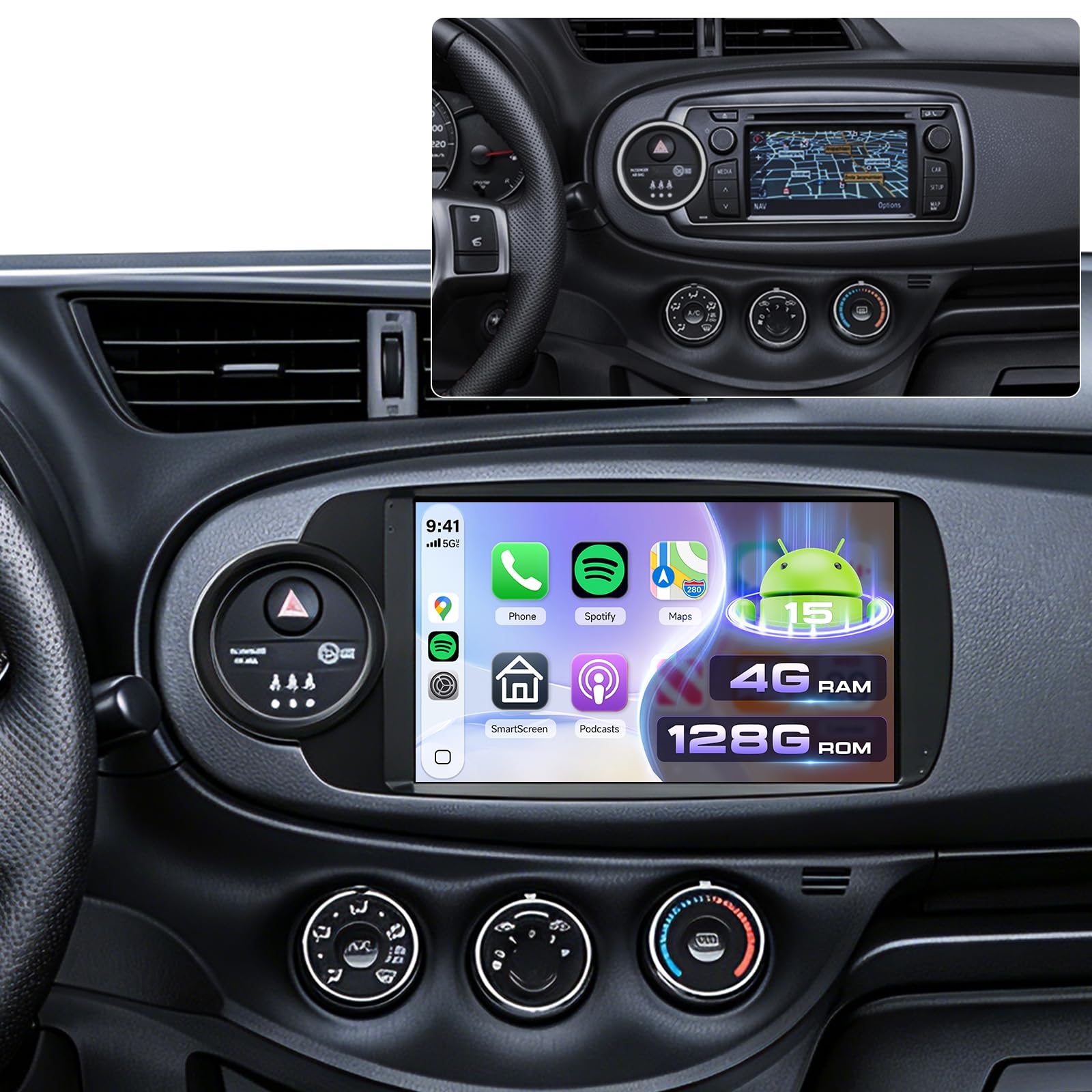
Image 1.1: VECHTEL Android 15 Car Radio main unit. This image shows the front view of the car radio with its 9-inch Incell HD touchscreen display.
2. Vehicle Compatibility
This car radio is specifically designed for Toyota Yaris models manufactured between 2012 and 2017. It is compatible with vehicles equipped with a silver climate knob ring as standard, including versions with a factory CD radio and small screen, as well as those with large touchscreens. This unit is not suitable for vehicles that do not have the silver climate knob ring.
Before purchasing or installing, verify your vehicle's model year and dashboard configuration. It is recommended to send a photo of your central dashboard to the seller for confirmation if unsure.
3. Safety Information
- Professional Installation Recommended: Due to the complexity of automotive electrical systems, professional installation is highly recommended to prevent damage to the unit or your vehicle.
- Power Supply: Connect the unit only to a 12V DC negative ground power supply.
- Wiring: Ensure all wiring connections are secure and correctly matched to avoid short circuits or malfunctions. Refer to the wiring diagram provided with the product.
- Driving Safety: Do not operate the unit's complex functions or watch videos while driving. Always prioritize road safety.
- Temperature: Avoid exposing the unit to extreme temperatures or direct sunlight for prolonged periods.
- Cleaning: Use a soft, dry cloth for cleaning the screen and unit. Avoid abrasive cleaners or solvents.
4. Setup and Installation
This section provides general guidance for installation. Specific wiring diagrams and mounting instructions are typically included in a separate guide or with the product packaging. Always consult those specific documents for detailed steps.
4.1. Pre-Installation Checks
- Disconnect Battery: Before starting any electrical work, disconnect the vehicle's negative battery terminal to prevent electrical shorts.
- Verify Components: Ensure all components listed in your product's packing list are present.
- Dashboard Removal: Carefully remove the existing car radio and dashboard trim panels according to your vehicle's service manual.
4.2. Wiring Connections
Connect the wiring harness from the VECHTEL unit to your vehicle's wiring. Pay close attention to:
- Power Wires: Constant 12V (yellow), Accessory 12V (red), Ground (black).
- Speaker Wires: Match positive and negative terminals for each speaker.
- Antenna: Connect the radio antenna.
- GPS Antenna: Mount the GPS antenna in a location with a clear view of the sky (e.g., dashboard, under windshield).
- USB Ports: Route the USB extension cables to an accessible location.
- Rear Camera Input: Connect the rear camera video input and trigger wire if installing a camera.
- Steering Wheel Control Wires: Connect SWC wires if your vehicle supports them.
4.3. Mounting the Unit
Secure the VECHTEL unit into the dashboard opening using the provided mounting brackets and screws. Ensure it is firmly seated and does not obstruct any vehicle controls.
4.4. Initial Power-On and Configuration
- Reconnect the vehicle's battery.
- Turn on the vehicle's ignition. The unit should power on automatically.
- Follow the on-screen prompts for initial setup, including language selection, time zone, and Wi-Fi connection.
- Test all functions: radio, Bluetooth, GPS, USB, and steering wheel controls.
5. Operating Instructions
5.1. Touchscreen and Android 15 Interface
The unit features a responsive 9-inch Incell HD touchscreen. Navigate the Android 15 operating system by tapping, swiping, and pinching. The home screen provides access to frequently used applications and widgets. You can customize the home page display with optional layouts.
5.2. Wireless CarPlay and Android Auto
This unit supports wireless connections for both Apple CarPlay and Android Auto, allowing seamless integration of your smartphone's features.
- Ensure Bluetooth and Wi-Fi are enabled on your smartphone.
- On the car radio, open the "CarPlay" or "Android Auto" application.
- Follow the on-screen instructions to pair your phone via Bluetooth. Once paired, the system will automatically establish a Wi-Fi connection for CarPlay/Android Auto.
- You can now access navigation, music, calls, and messages directly from the car radio's screen, often with advanced voice control via Siri or Google Assistant.
5.3. GPS Navigation
The integrated GPS module allows for both offline and online navigation.
- Offline Maps: Pre-installed maps or maps downloaded via Wi-Fi can be used without an internet connection. Access them through the designated "Navigation" app.
- Online Maps: Connect to Wi-Fi or a mobile hotspot to use online navigation applications (e.g., Google Maps, Waze) downloaded from the Play Store.
5.4. Bluetooth Connectivity
Use Bluetooth for hands-free calling and audio streaming.
- Go to the "Bluetooth" application on the car radio.
- Enable Bluetooth on your phone and search for available devices.
- Select the car radio's Bluetooth name (e.g., "VECHTEL Car Radio") from your phone's list and pair.
- Confirm the pairing code on both devices.
- Once connected, you can make/receive calls and play music wirelessly.
5.5. Wi-Fi and App Installation
Connect the unit to a Wi-Fi network or mobile hotspot to access the internet and download applications.
- Navigate to "Settings" > "Network & Internet" > "Wi-Fi".
- Select your desired Wi-Fi network and enter the password.
- Once connected, open the "Play Store" app to download and install various applications (e.g., streaming services, utility apps).
5.6. FM/RDS Radio
Access local radio stations with clear audio quality.
- Open the "Radio" application.
- Use the scan function to automatically find and save available stations.
- Tune manually or select from your saved presets. RDS (Radio Data System) provides additional information like station name and traffic updates where available.
5.7. USB Connectivity
The unit includes dual USB ports for media playback and device charging.
- Connect USB drives containing audio or video files.
- Access files through the "File Manager" or a dedicated media player app.
5.8. Rear Camera Display
If a compatible rear camera is installed and connected, the display will automatically switch to the camera view when the vehicle is put into reverse gear.
5.9. Steering Wheel Controls (SWC)
The unit supports integration with your vehicle's existing steering wheel controls. Configuration may be required:
- Go to "Settings" > "Steering Wheel Controls" (or similar).
- Follow the on-screen instructions to map your vehicle's steering wheel buttons to the corresponding functions on the car radio.
5.10. Split Screen Function
The split-screen feature allows you to run two applications simultaneously on the 9-inch display.
- Open the first application you wish to use.
- Press and hold the "Recent Apps" button (or swipe up from the bottom and hold, depending on Android version) to enter split-screen mode.
- Select the second application from the recent apps list or app drawer.
5.11. EQ Settings
Adjust audio output to your preference using the Equalizer (EQ) settings.
- Access the "EQ" or "Sound Settings" application.
- Choose from preset sound modes or manually adjust frequency bands to customize the audio profile.
6. Maintenance
- Screen Cleaning: Use a soft, lint-free cloth, slightly dampened with water or a screen cleaner, to gently wipe the touchscreen. Avoid excessive pressure.
- Software Updates: Periodically check for software updates via the unit's settings menu or the manufacturer's website to ensure optimal performance and access to new features.
- General Care: Keep the unit free from dust and debris. Avoid spilling liquids on the unit.
7. Troubleshooting
This section addresses common issues you might encounter. For more complex problems, contact customer support.
- No Power:
- Check all power connections (12V constant, accessory, ground).
- Verify vehicle's fuse for the radio.
- Ensure the vehicle battery is connected and charged.
- No Sound:
- Check volume level and mute settings.
- Verify speaker wire connections.
- Ensure the correct audio source is selected.
- GPS Signal Lost/Inaccurate:
- Ensure the GPS antenna is properly connected and has a clear view of the sky.
- Move the vehicle to an open area away from tall buildings or dense foliage.
- Bluetooth Connection Issues:
- Ensure Bluetooth is enabled on both the car radio and your phone.
- Delete previous pairings on both devices and try pairing again.
- Restart both devices.
- CarPlay/Android Auto Not Connecting:
- Verify Wi-Fi and Bluetooth are active on your phone.
- Ensure your phone's operating system is up to date.
- Check app permissions for CarPlay/Android Auto on your phone.
8. Specifications
| Brand | VECHTEL |
| Model | 4 Core 4G+128G |
| Operating System | Android 15 |
| RAM | 4 GB |
| ROM (Internal Storage) | 128 GB |
| Screen Size | 9 inches Incell HD Touchscreen |
| Connectivity Technology | Bluetooth, USB, Wi-Fi |
| Special Features | Integrated Bluetooth, Wireless CarPlay, Wireless Android Auto, GPS Navigation, Touchscreen, Integrated Wi-Fi |
| Audio Output Mode | Stereo |
| Surround Sound Channel Configuration | 4.1 |
| Video Encoding | H.264, H.265/HEVC |
| Product Dimensions | 6.4D x 19.9W x 11.6H cm |
| Output Power | 45 Watts |
| Number of Channels | 4 |
9. Warranty and Support
For warranty information, please refer to the documentation included with your product or contact the retailer where the product was purchased. VECHTEL provides customer support for technical assistance and troubleshooting.
If you encounter issues not covered in this manual, or require further assistance, please contact VECHTEL customer service through the platform of purchase or visit the official VECHTEL store page for contact details.
Online Support: Visit the VECHTEL Store on Amazon