
1. Introduction
The AYANEO Pocket ACE is a high-performance handheld retro video game console designed for an immersive gaming experience. Powered by the Snapdragon G3x Gen 2 platform and running Android 13, it offers a blend of classic and modern mobile gaming capabilities. This manual provides essential information for setting up, operating, and maintaining your device.
2. Product Overview
Familiarize yourself with the physical components and controls of your AYANEO Pocket ACE.
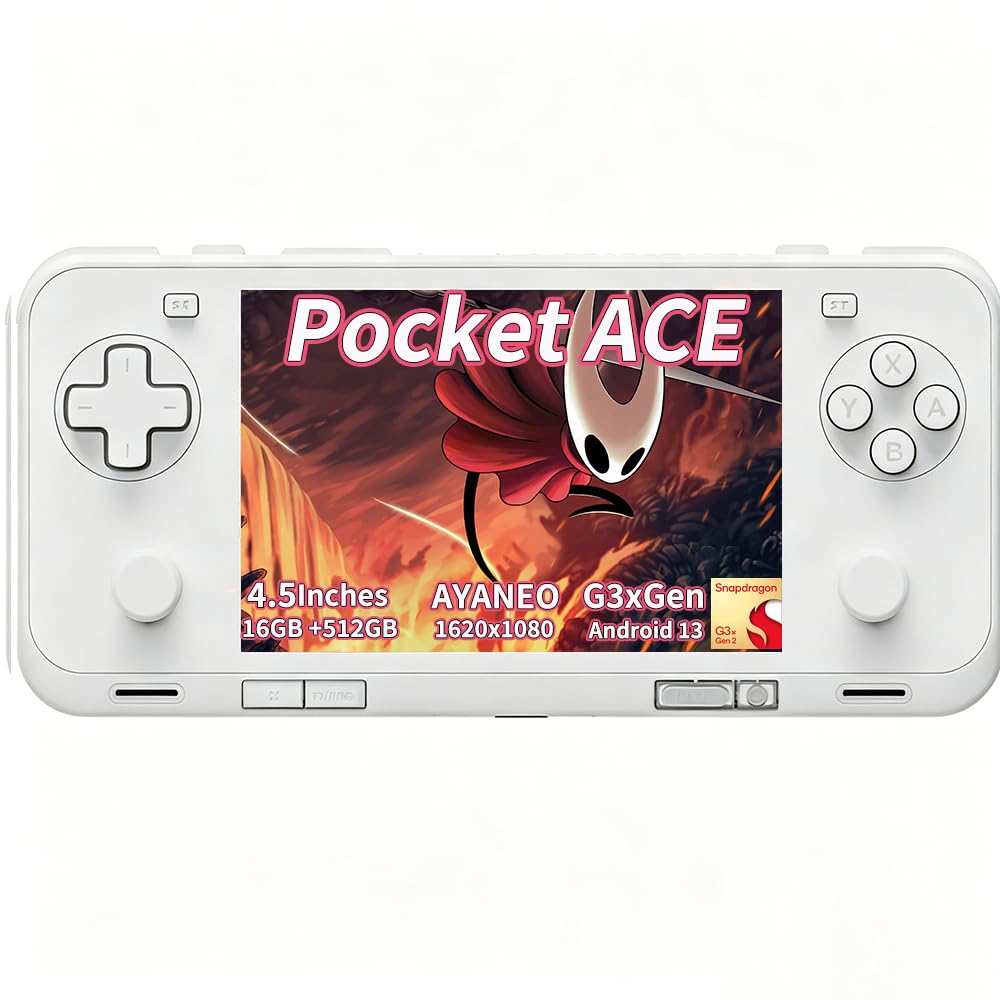
Figure 2.1: Front view of the AYANEO Pocket ACE, showcasing the display and primary controls.

Figure 2.2: Back view of the AYANEO Pocket ACE, highlighting the cooling vents and AYANEO branding.
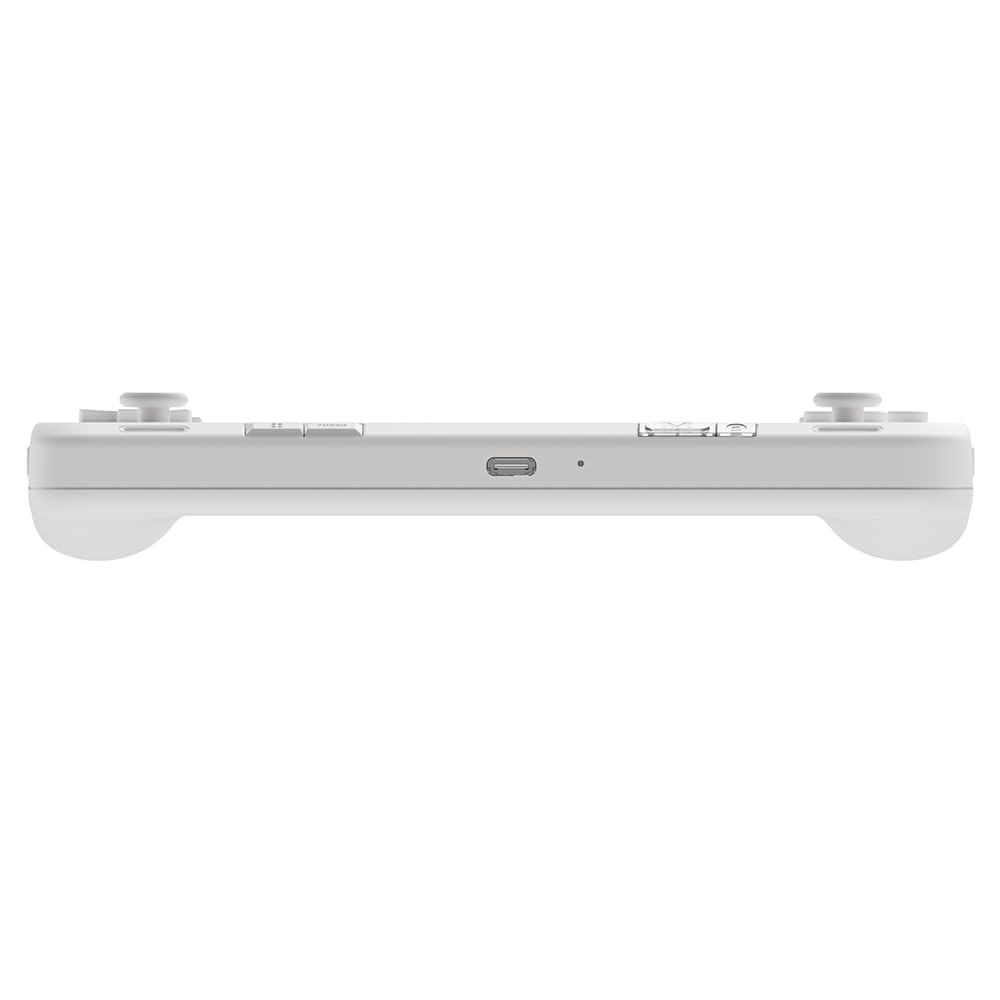
Figure 2.3: Top view of the AYANEO Pocket ACE, showing the USB-C port, volume buttons, and power button.

Figure 2.4: Side view of the AYANEO Pocket ACE, illustrating the Micro SD card slot for expandable storage.
Controls and Ports:
- Display: 4.5-inch IPS touch screen (1620x1080 resolution, 3:2 aspect ratio).
- Left Side: D-pad, Left Analog Stick, L1/L2 buttons.
- Right Side: A/B/X/Y buttons, Right Analog Stick, R1/R2 buttons.
- Top: USB-C port, Volume Up/Down, Power button (with integrated fingerprint sensor).
- Bottom: Cooling vents, additional function buttons.
- Side: Micro SD card slot.
3. Initial Setup
Follow these steps to set up your AYANEO Pocket ACE for the first time:
- Charge the Device: Before first use, fully charge the device using the provided USB-C cable and a compatible 40W PD charger.
- Power On: Press and hold the Power button until the AYANEO logo appears on the screen.
- Initial Configuration: Follow the on-screen prompts to select your language, connect to a Wi-Fi network, and complete the Android 13 setup process.
- System Updates: It is recommended to check for and install any available system updates to ensure optimal performance and access to the latest features. Navigate to Settings > System > System Update.
4. Operating Instructions
4.1 Power Management
- Power On: Press and hold the Power button for 2-3 seconds.
- Power Off: Press and hold the Power button for 2-3 seconds, then select 'Power Off' from the menu.
- Restart: Press and hold the Power button for 2-3 seconds, then select 'Restart' from the menu.
- Sleep Mode: Briefly press the Power button to put the device into sleep mode. Press it again to wake the device.
4.2 Basic Navigation
The AYANEO Pocket ACE features a responsive touchscreen for navigation. You can also use the D-pad and analog sticks to navigate menus and select options.
4.3 Gaming
The device is optimized for both retro and modern Android games. Launch games from the home screen or through the AYASpace application.
Video 4.1: Official product video demonstrating the AYANEO Pocket ACE's gaming performance, features, and user interface.
4.4 AYASpace Software
AYASpace is the proprietary management software for your AYANEO Pocket ACE. It allows you to:
- Manage your game library.
- Adjust performance modes (Saving, Balance, Game, Max) to optimize for battery life or raw power.
- Customize key mappings for various games.
- Access quick settings and system information.

Figure 4.1: Screenshot of AYASpace showing different performance modes available for selection.
5. Charging and Battery
The AYANEO Pocket ACE is equipped with a 6000mAh battery and supports 40W PD fast charging. To charge the device, connect the USB-C cable to the console's USB-C port and a compatible power adapter.
- A full charge provides extended gameplay sessions.
- The battery indicator on the screen will show the current charge level.
6. Cooling System
The device features an advanced cooling system with an ultra-thin fan and a large copper heat spreader to maintain optimal performance during intensive gaming. The fan speed can be adjusted via AYASpace settings.

Figure 6.1: Illustration of the cooling system and various adjustable settings for joysticks, triggers, and fan speed.
7. Customization and Features
The AYANEO Pocket ACE offers several features for a personalized gaming experience:
- Hall Effect Joysticks and Triggers: Experience precise control and zero latency with Hall effect components.
- HD Haptic Feedback: A wide-frequency linear motor provides immersive vibration feedback, enhancing gameplay.
- Gyro Support: Utilize motion sensing for assisted aiming in compatible games.
- Key Remapping: Customize button functions through AYASpace to suit your preferences.
- Fingerprint Power Button: Securely unlock your device with a touch.
8. Specifications
| Feature | Description |
|---|---|
| Model Name | Pocket ACE |
| Platform | Android 13 |
| Processor | Qualcomm Snapdragon G3x Gen 2 |
| Display | 4.5-inch IPS Touch Screen, 1620x1080 resolution, 3:2 aspect ratio, 550 nits brightness, 130% sRGB |
| RAM | 16GB LPDDR5X |
| Storage | 512GB UFS 4.0 |
| Battery | 6000mAh, 40W PD Fast Charging |
| Connectivity | Bluetooth 5.3, Wi-Fi |
| Controls | Hall Effect Joysticks, Hall Effect Linear Triggers, D-pad, A/B/X/Y buttons, L1/L2/R1/R2 buttons, Gyro Sensor |
| Haptics | Wide-frequency Linear Motor |
| Cooling | Ultra-thin fan, Large copper heat spreader |
9. Troubleshooting
If you encounter issues with your AYANEO Pocket ACE, consider the following common solutions:
- Device Not Powering On: Ensure the device is fully charged. If the battery is completely depleted, it may take a few minutes of charging before it can power on.
- Wi-Fi Connectivity Issues: Verify your Wi-Fi password and network settings. Try restarting your router and the Pocket ACE. Ensure the device's time and timezone settings are correct, as incorrect settings can sometimes cause SSL errors or connectivity problems.
- Unresponsive Controls: Check if the device is in a specific performance mode that might affect input. Restarting the device can often resolve temporary control issues.
- Software Glitches: Perform a system update. If the issue persists, a factory reset may be necessary (back up your data first).
- Overheating: Ensure the cooling vents are not obstructed. Adjust fan speed settings in AYASpace to a higher mode if needed.
For persistent issues, please refer to the official AYANEO support resources.
10. Safety Information
Please read and follow these safety guidelines to prevent damage to your device or injury to yourself:
- Do not expose the device to extreme temperatures, direct sunlight, or moisture.
- Avoid dropping or subjecting the device to strong impacts.
- Use only approved chargers and accessories.
- Do not attempt to disassemble or repair the device yourself. This may void your warranty and cause damage.
- Keep the device away from children and pets.
- Take breaks during extended gaming sessions to prevent eye strain and repetitive stress injuries.
11. Warranty and Support
Your AYANEO Pocket ACE comes with a manufacturer's warranty. Please refer to the warranty card included in your product packaging or visit the official AYANEO website for detailed warranty terms and conditions.
For technical support, product inquiries, or service requests, please contact AYANEO customer service through their official channels. Keep your purchase receipt and product serial number handy when contacting support.
