
Fafeicy ZN-MT32
Fafeicy ZN-MT32 Indoor Air Quality Monitor User Manual
Model: ZN-MT32 | Brand: Fafeicy
Introduction
This manual provides detailed instructions for the operation and maintenance of your Fafeicy ZN-MT32 Indoor Air Quality Monitor. This device is designed to accurately measure various indoor air quality parameters, including Carbon Dioxide (CO2), Total Volatile Organic Compounds (TVOC), Formaldehyde (HCHO), Particulate Matter (PM2.5, PM10), temperature, and humidity, to help you maintain a healthy living environment.
Safety Information
- Do not expose the device to extreme temperatures or direct sunlight.
- Avoid contact with water or other liquids.
- Do not attempt to disassemble or repair the device yourself.
- Keep out of reach of children.
- Use only the provided USB Type-C cable for charging.
Package Contents
- 1 x Air Quality Meter
- 1 x USB Type-C Cable
- 1 x User Manual
Product Overview
Device Layout

Image: Front and back view of the Fafeicy ZN-MT32 Air Quality Monitor. The front features a color display, while the back shows ventilation grilles and mounting holes.
Display Interface

Image: Close-up of the 2.8-inch TFT color display, showing real-time readings for temperature, humidity, AQI, PM2.5, PM1.0, PM5.0, PM0.5, PM10, PM0.3, CO2, HCHO, C6H6, and TVOC.
Specifications
| Feature | Specification |
|---|---|
| Model | ZN-MT32 |
| Item Type | Air Quality Meter |
| Temperature Range | 0-70℃ |
| Display | LCD screen and backlight |
| Operating Voltage | DC5V 1A TYPE C USB |
| Operating Current | 180mA |
| Sensors | PM2.5 infrared sensor, semiconductor sensor |
| Battery | 1 x 3.7V rechargeable li ion battery 2000mAh |
| Size | Approx. 90 x 70 x 35mm / 3.54 x 2.76 x 1.38in |
| Material | ABS |
| Color | Black |
Setup
Charging the Device
Before first use, fully charge the device using the provided USB Type-C cable. Connect the cable to the device's charging port and a standard USB power adapter (DC5V 1A). The battery indicator on the display will show charging status. A full charge provides up to 7 hours of continuous operation.
Powering On/Off
Press and hold the power button (typically located on the side) to turn the device on or off. The display will illuminate upon startup.
Operating Instructions
The device features a multi-functional button for navigation and settings adjustments. The following describes the button's functions based on the number of clicks:
- Main Interface Navigation: Single click the button on the main interface to switch between Celsius and Fahrenheit temperature units.
- Sound Control: Double click the button to turn the device's sound notifications on or off.
- Calibration Interface: Triple click the button to enter the calibration interface. Refer to advanced settings for specific calibration procedures.
- Screen Off Mode: Quadruple click the button to enter screen off mode. In this mode, the display will turn off to save power. Single click again to reactivate the screen.
- Curve Interface: Quintuple click the button to enter the curve interface, which displays historical data trends. Single click within this interface to switch between different pollutant curves. Quintuple click again to return to the main interface.
- PM2.5 Comparison Interface: Sextuple click the button to enter the PM2.5 comparison interface. Double click to record the first group of 30-second evaluation data. Double click again to record the average data of two 30-second groups. Quintuple click to return to the main interface.
- Temperature Adjustment Interface: Septuple click the button to enter the temperature adjustment interface. Single click to increase the temperature by 1 degree Celsius. Double click to decrease the temperature by 1 degree Celsius. Quintuple click to exit, or the interface will exit automatically after five seconds of inactivity.
Understanding the Display
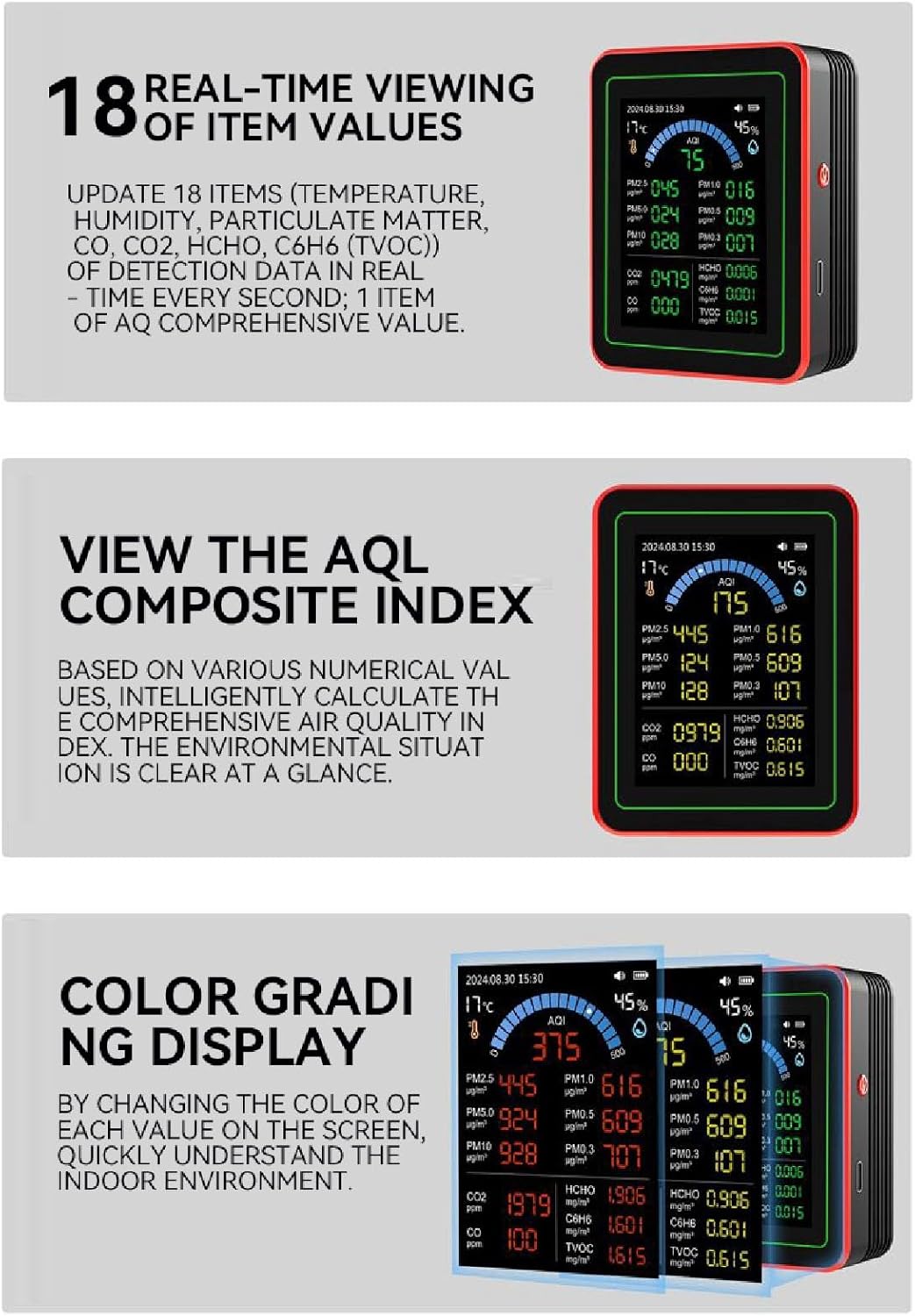
Image: The display showing 18 real-time air quality parameters including temperature, humidity, AQI, and various particulate matter and gas concentrations.
The 2.8-inch TFT color display provides real-time readings for 18 different air quality parameters. These include:
- Temperature and Relative Humidity
- Air Quality Index (AQI)
- Particulate Matter: PM2.5, PM1.0, PM5.0, PM0.5, PM10, PM0.3 (measured in µg/m³)
- Gases: Carbon Dioxide (CO2 in ppm), Formaldehyde (HCHO in mg/m³), Benzene (C6H6 in mg/m³), Total Volatile Organic Compounds (TVOC in mg/m³)

Image: The display illustrating color grading for different air quality levels, where colors change based on the concentration of pollutants to provide an immediate visual assessment.
The display utilizes a color-based indicator system to provide an immediate assessment of air quality. Different colors represent varying levels of pollutant concentration, allowing for quick environmental understanding.
Data Tracking and Export

Image: The air quality monitor connected via USB to a computer, demonstrating its capability for data export and long-term tracking of air quality trends.
The device supports long-term tracking of concentration trends for key pollutants (PM2.5, HCHO, TVOC, CO2) for up to 365 days. Data can be exported to a computer for detailed analysis and record-keeping, facilitating real-time tracking and timely formulation of solutions.

Image: The display showing a "Particle detection" screen with a comparison table, illustrating data evaluation and analysis features for particulate matter.
Maintenance
- Cleaning: Wipe the device with a soft, dry cloth. Do not use abrasive cleaners, solvents, or harsh chemicals.
- Storage: Store the device in a cool, dry place away from direct sunlight when not in use for extended periods.
- Battery Care: To prolong battery life, avoid fully discharging the battery frequently. Recharge when the battery level is low.
Troubleshooting
Device Not Turning On
- Ensure the device is fully charged. Connect it to a power source using the USB Type-C cable and allow it to charge for at least 30 minutes before attempting to power on again.
- Press and hold the power button for several seconds.
Inaccurate Readings
- Ensure the device is placed in an open area, away from direct airflow, vents, or immediate sources of pollutants (e.g., cooking fumes, cleaning products, open windows).
- Allow the device to stabilize for a few minutes after powering on, especially when moved to a new environment.
- Consider performing a calibration if available in the settings (refer to the "Calibration Interface" in Operating Instructions).
Display Not Responding
- If the screen is off, single click the button to reactivate it (Screen Off Mode).
- If the device is unresponsive, try a soft reset by holding the power button for an extended period (e.g., 10-15 seconds) until it restarts or turns off.
Warranty and Support
Fafeicy products are designed for reliability and performance. For specific warranty information or technical support, please refer to the contact details provided with your purchase documentation or visit the official Fafeicy website. Please retain your purchase receipt as proof of purchase for warranty claims.
Ask a question about this manual
Ask about setup, troubleshooting, compatibility, parts, safety, or missing instructions. Manuals+ will review the question and use this page’s manual context to help answer it.