
1. Introduction
This manual provides instructions for the Miroddi MF59 Smart Trifold Wallet. This wallet integrates a tracking module compatible with Apple Find My, offers RFID blocking, and supports wireless charging. Please read this manual thoroughly before using your new wallet to ensure proper function and longevity.
2. Setup
2.1. Initial Charging
Before first use, ensure your Miroddi MF59 Smart Trifold Wallet is fully charged. The wallet features wireless charging capability.
- Place the wallet on a compatible wireless charging pad (not included).
- A red LED indicator will illuminate to show that charging is in progress.
- The LED will turn green when the wallet is fully charged.
- A full charge provides approximately 4 months of battery life.

Image: The Miroddi MF59 wallet wirelessly charging. A red light indicates charging, and a green light indicates a full charge.
2.2. Pairing with Apple Find My
The Miroddi MF59 wallet can be tracked using the Apple Find My app on iOS devices. Android devices are not supported for this feature.
- Ensure Bluetooth is enabled on your iOS device.
- Open the Apple Find My app.
- Navigate to the "Items" tab and tap "Add New Item," then select "Other Supported Item."
- Short press the power button located inside the wallet once to make it discoverable.
- Your device will search for the "Miroddi MF59 Card Holder." Select it to connect.
- Follow the on-screen prompts to name your wallet and complete the pairing process.

Image: Step-by-step guide on how to pair the Miroddi MF59 wallet with the Apple Find My application.
3. Operating Instructions
3.1. Card and Cash Storage
The Miroddi MF59 wallet is designed for efficient organization of your cards and cash.
- It features 1 exterior card slot and 6 interior card slots, including 1 ID window.
- The wallet can hold up to 10 cards and some cash.
- The leather material will soften over time, making card insertion and removal easier.
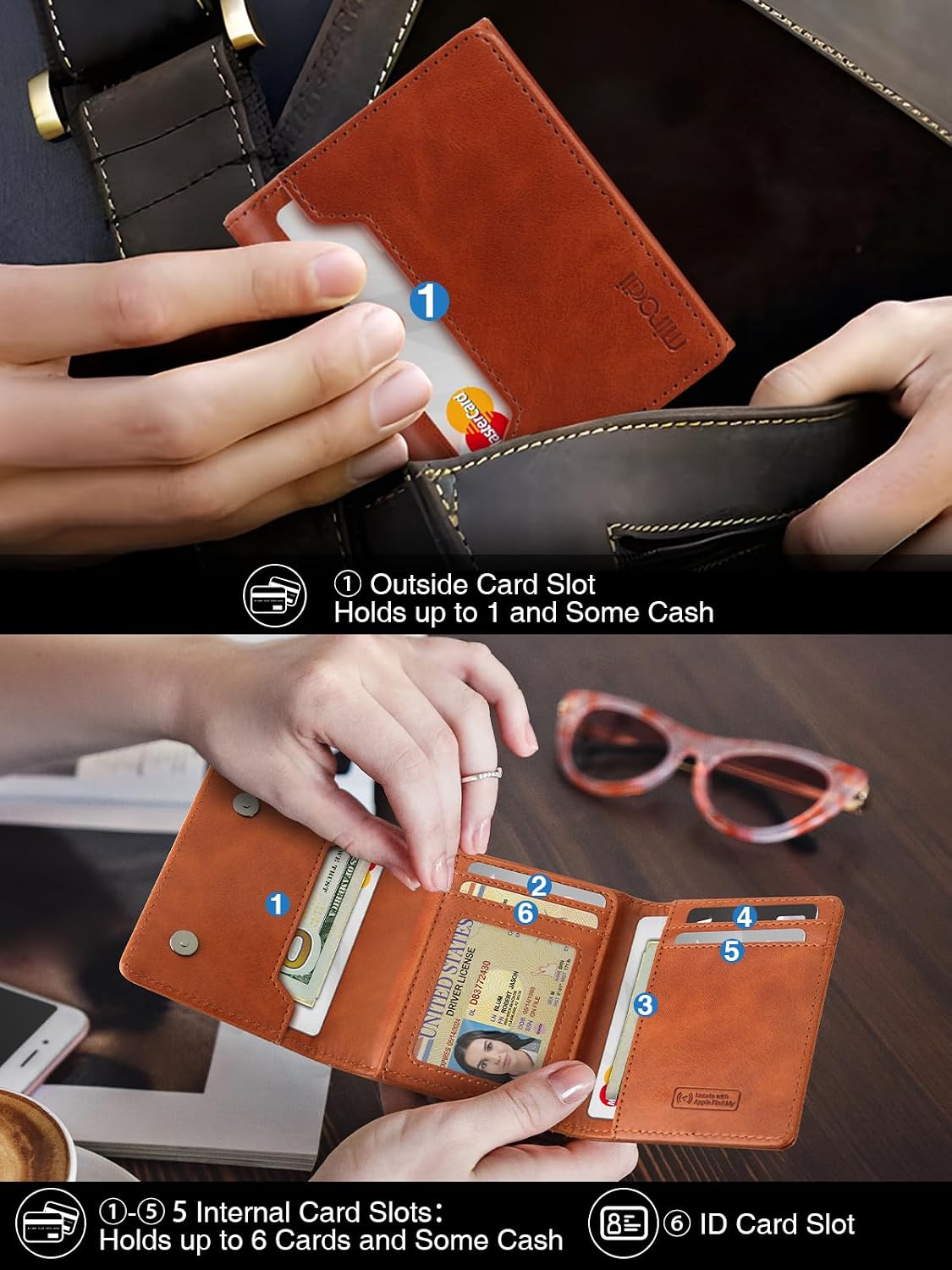
Image: Illustration of the wallet's card capacity, highlighting the exterior and interior card slots, including an ID window.
3.2. Using Apple Find My Features
Once paired, you can utilize the following features through the Apple Find My app:
- Locate Wallet: View the wallet's last known location on a map.
- Play Sound: Within Bluetooth range (approximately 160 feet / 50 meters), you can activate a sound from the wallet to help locate it quickly.
- Left-Behind Notification: Receive an alert on your iOS device if you leave your wallet behind and it disconnects from your device's Bluetooth range.

Image: Using the 'Play Sound' feature in the Find My app to locate the wallet within Bluetooth range.

Image: An example of a 'Left-Behind Notification' received on a smartphone when the wallet is out of range.
3.3. RFID Blocking
The Miroddi MF59 wallet is equipped with advanced RFID blocking technology to protect your credit cards and personal information from unauthorized scanning and electronic theft.
- The integrated RFID blocking material safeguards your cards from data skimming.
- An anti-degaussing lining also protects your cards against demagnetization.

Image: Visual representation of the RFID blocking feature, preventing unauthorized scanning of cards.
3.4. Magnetic Closure
The wallet features a magnetic closure mechanism to keep it securely closed and your contents safe.
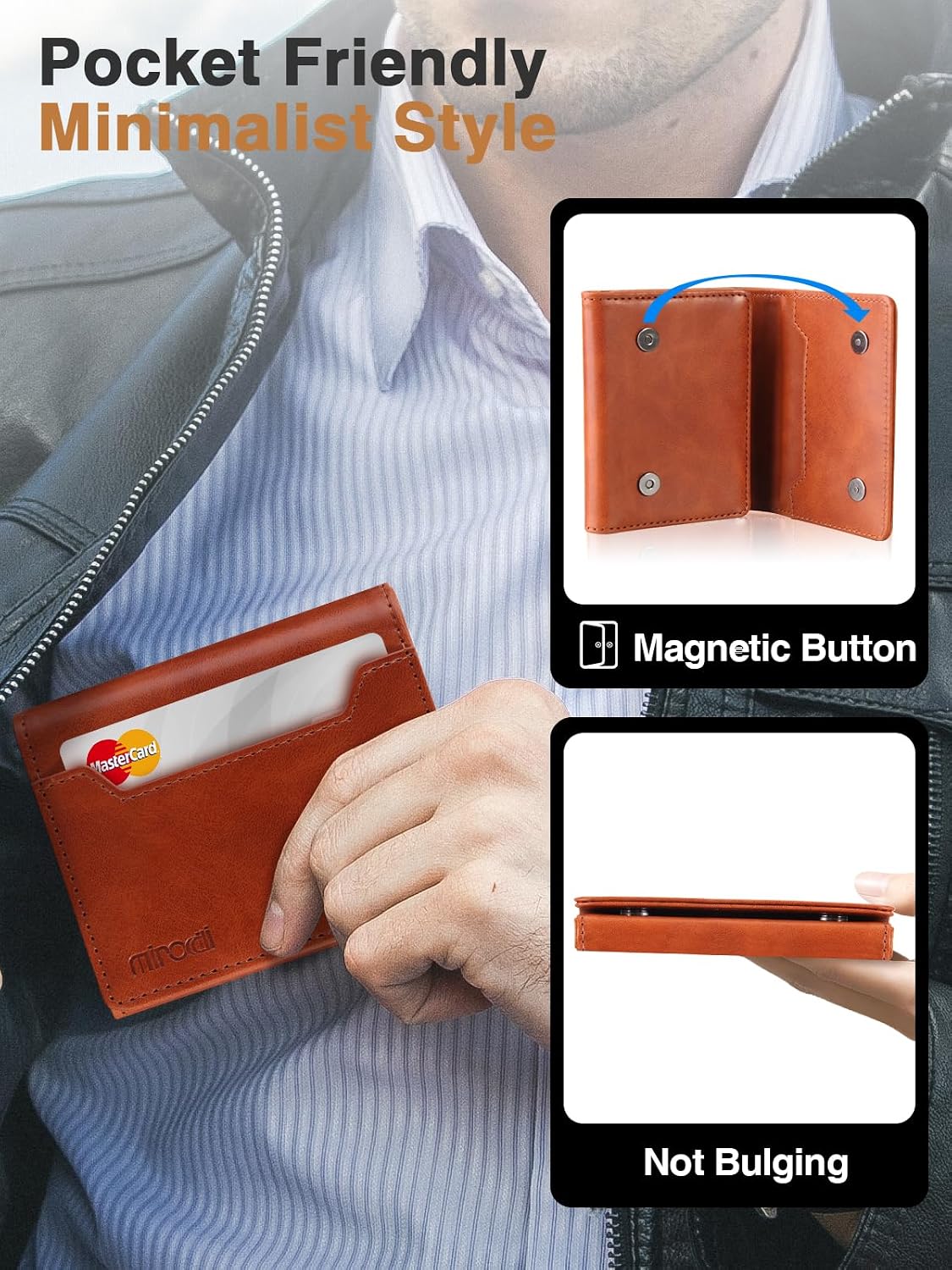
Image: The magnetic button closure and the slim design of the wallet, suitable for front pocket carry.
3.5. Product Overview Video
Video: An overview of the Miroddi Credit Card Wallet, demonstrating its capacity, features, and wireless charging capability.
4. Maintenance
4.1. Leather Care
The Miroddi MF59 wallet is made from high-quality leather. Proper care will help maintain its appearance and durability.
- Wipe with a soft, dry cloth to remove dust and dirt.
- Avoid prolonged exposure to direct sunlight, heat, and moisture.
- If the wallet gets wet, gently blot it dry with a clean cloth and allow it to air dry naturally. Do not use artificial heat.
- For deeper cleaning or conditioning, use a leather-specific cleaner or conditioner, following the product's instructions.
4.2. Battery Maintenance
To ensure optimal performance of the tracking module:
- Recharge the wallet when the battery indicator shows low power.
- Avoid completely draining the battery for extended periods.
- Store the wallet in a cool, dry place if not in use for a long time.
5. Troubleshooting
5.1. Wallet Not Connecting to Find My App
- Check Battery: Ensure the wallet is charged. A low battery can prevent connection.
- Bluetooth: Verify that Bluetooth is enabled on your iOS device.
- Proximity: Make sure the wallet is within Bluetooth range (approx. 160 feet / 50 meters) of your device during pairing or when trying to play a sound.
- Restart: Try restarting your iOS device and pressing the wallet's power button again to re-enter pairing mode.
5.2. Wireless Charging Not Working
- Charger Compatibility: Ensure your wireless charging pad is compatible with Qi-standard devices.
- Placement: Adjust the wallet's position on the charging pad to ensure proper alignment with the charging coils.
- Obstructions: Remove any foreign objects between the wallet and the charging pad.
- Power Source: Check if the charging pad is properly connected to a power source.
5.3. Cards Are Too Tight in Slots
- New Wallet: New leather wallets can be stiff. The material will soften with regular use, making card insertion and removal easier over time.
- Card Quantity: Avoid overfilling slots beyond the recommended capacity to prevent stretching the leather or damaging cards.
6. Specifications
| Feature | Detail |
|---|---|
| Brand | Miroddi |
| Model Number | MF59 |
| Material | Leather |
| Color | Brown |
| Form Factor | Tri-Fold |
| Card Slots | 7 (1 exterior, 6 interior including 1 ID window) |
| Special Features | Apple Find My compatibility, RFID Protected, Wireless Charging, Magnetic Closure |
| Battery Life | Up to 4 months on a single charge |
| Dimensions (D x W x H) | 4.13" x 3.54" x 0.9" |
7. Warranty and Support
For warranty information, technical support, or any inquiries regarding your Miroddi MF59 Smart Trifold Wallet, please refer to the official Miroddi brand store or contact customer service through the retailer where the product was purchased.
You can visit the Miroddi Store at: Miroddi Official Store