
1. Product Overview
The LEVN Wireless Headset (Model HS010 V4) is designed for clear communication in professional environments. It features AI noise cancellation, dual connectivity (Bluetooth and USB Dongle), and a comfortable design for extended wear. This manual provides essential information for setup, operation, and maintenance.
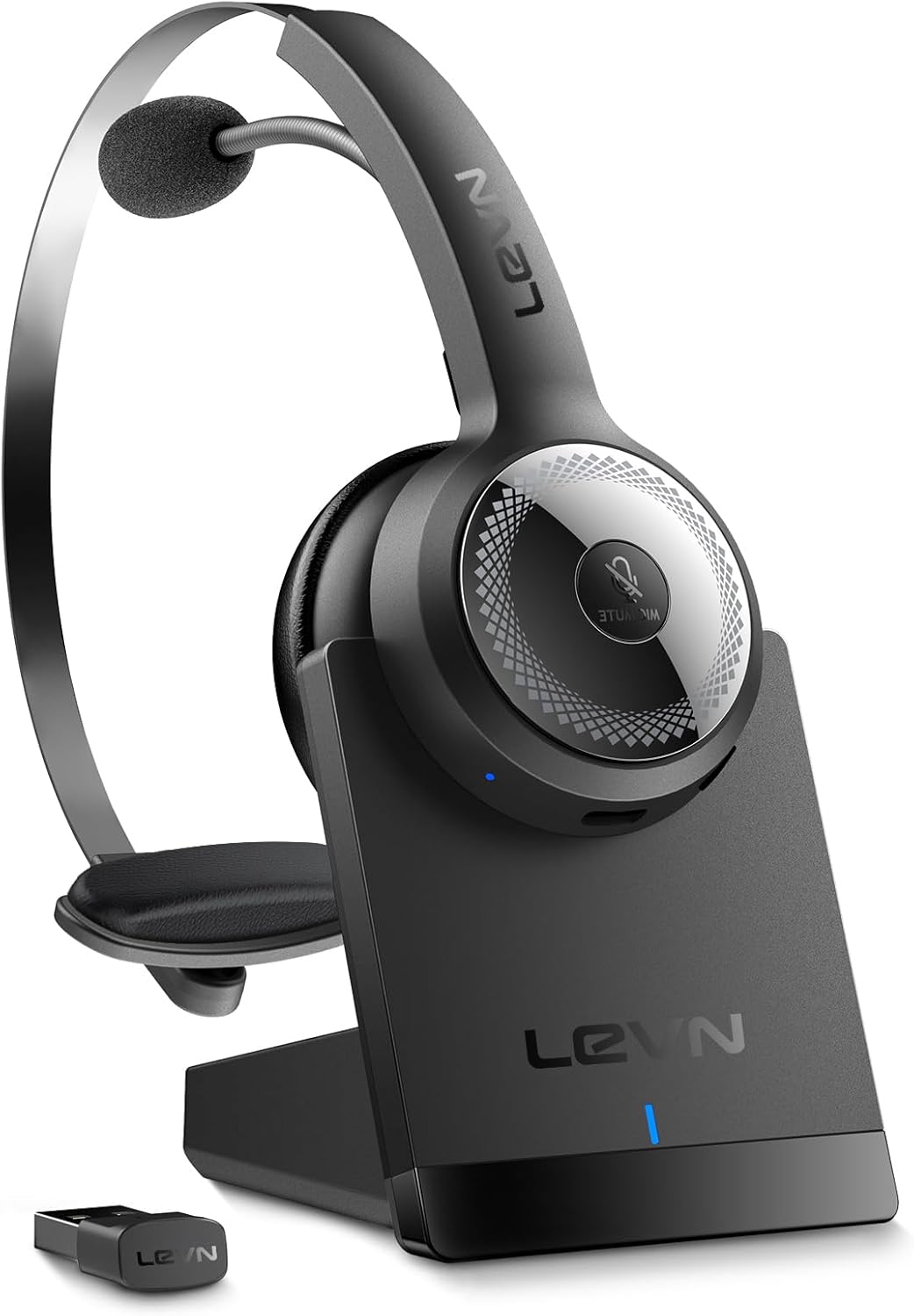
Image: The LEVN Wireless Headset, Model HS010 V4, in black, showcasing its sleek design and microphone boom.
2. What's in the Box
- LEVN Wireless Headset (Black)
- Charging Base
- USB Dongle
- Type-C Charging Cable
- User Manual

Image: The LEVN Wireless Headset, its charging base, and the USB dongle laid out on a surface, indicating the included components.
3. Setup
3.1 Charging the Headset
Before first use, fully charge your headset. The headset supports two charging methods:
- Using the Charging Base: Place the headset onto the charging base. Ensure the contact points align. The indicator light on the base will show charging status.
- Using the Type-C Cable: Connect the Type-C charging cable directly to the headset's charging port and to a USB power source.
A full charge takes approximately 2 hours and provides up to 45 hours of continuous talk time.

Image: The LEVN Wireless Headset docked in its charging base, with a USB-C cable connected to the base for power.
3.2 Connecting to Devices
The headset offers dual connectivity options: Bluetooth and USB Dongle.
3.2.1 Bluetooth Connection
- Ensure the headset is charged and powered on.
- Activate Bluetooth on your device (e.g., smartphone, tablet).
- Search for available Bluetooth devices and select "LEVN HS010 V4".
- Once paired, the headset will indicate a successful connection.
3.2.2 USB Dongle Connection (for computers without built-in Bluetooth)
- Plug the included USB Dongle into an available USB port on your computer.
- The computer will automatically recognize the dongle.
- Power on your LEVN Wireless Headset.
- The headset and dongle will automatically pair. The LED indicator on the USB Dongle will turn solid blue when connected.
- For optimal performance with conferencing software (e.g., Zoom, Teams), ensure "LEVN HS010 V4" is selected as the default audio input (microphone) and output (speaker) device in your computer's sound settings and the application's settings.

Image: The headset demonstrating dual connectivity, showing a USB dongle plugged into a laptop and a Bluetooth connection icon for a smartphone.
4. Operating Instructions
4.1 Basic Controls
The headset features intuitive controls for managing calls and audio.

Image: A close-up of the headset's earcup, highlighting the microphone mute button and other call control functions.
- Power On/Off: Use the dedicated power button.
- Volume Control: Adjust volume using the +/- buttons on the earcup.
- Mute/Unmute: Press the dedicated mute button for instant privacy during calls.
- Answer/End Call: Press the multi-function button once (mobile phones only).
- Reject Call: Press the multi-function button twice (mobile phones only).
4.2 Microphone Adjustment
The 270° rotatable microphone allows for flexible positioning on either the left or right ear, ensuring optimal voice pickup.

Image: The headset highlighting its adjustable headband, 270° rotatable boom microphone, and soft, breathable leather ear cushions for comfort.
4.3 AI Noise Cancellation
The advanced Environmental Noise Cancellation (ENC) technology actively isolates your voice from background distractions, ensuring clear communication in various environments like busy offices or home settings. An intelligent pre-scanning algorithm adapts to your surroundings to maintain voice clarity.
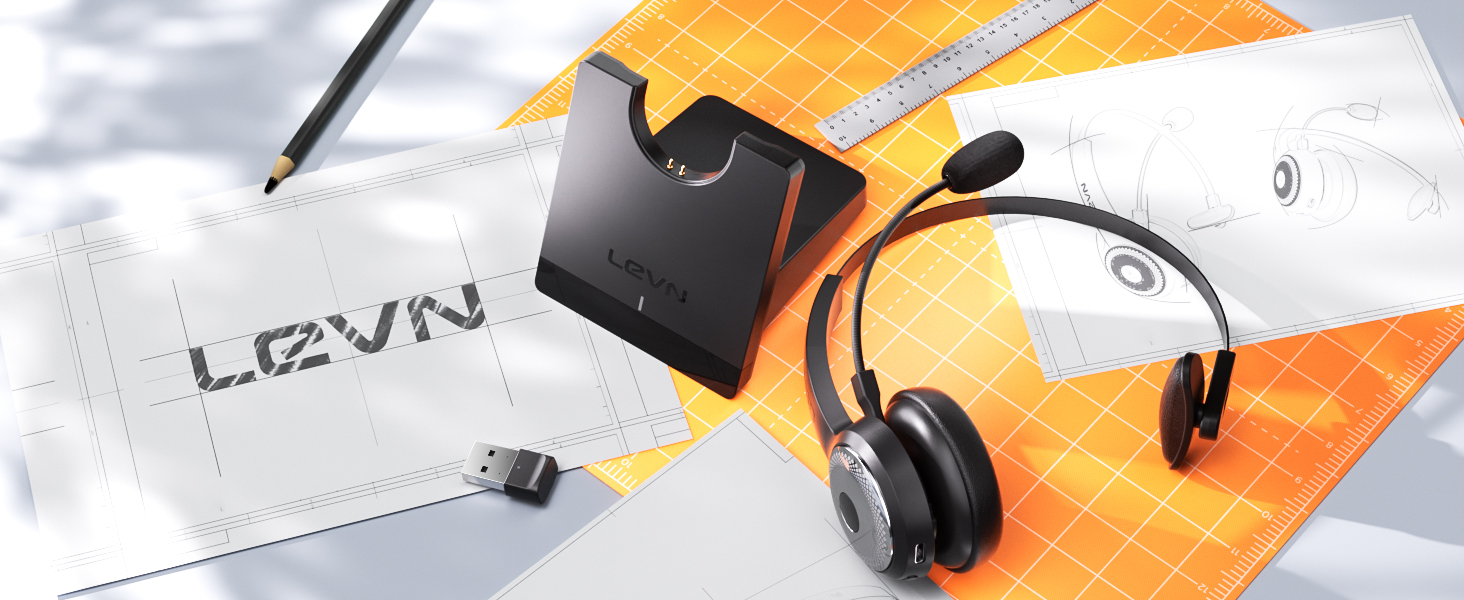
Image: A visual representation of the headset's AI noise cancellation actively filtering out background noise for clearer calls.
4.4 Compatibility
The headset is compatible with popular meeting platforms such as Zoom, Microsoft Teams, Skype, Google Meet, and more, ensuring seamless integration into your workflow.

Image: The headset positioned among icons representing various compatible communication and streaming platforms, emphasizing its wide compatibility.
4.5 Product Video
Video: An official product video showcasing the LEVN Wireless Headset with Mic for Work, highlighting its features and benefits.
5. Maintenance
5.1 Cleaning
- Wipe the headset and charging base with a soft, dry cloth.
- Do not use abrasive cleaners or solvents.
- Keep the charging contacts on the headset and base clean and free of debris.
5.2 Storage
- Store the headset in a cool, dry place away from direct sunlight and extreme temperatures.
- When not in use, it is recommended to store the headset on its charging base.
5.3 Battery Care
- Avoid fully discharging the battery frequently to prolong its lifespan.
- Charge the headset regularly, even if not in constant use.
6. Troubleshooting
If you encounter issues with your LEVN Wireless Headset, refer to the following common solutions:
- No Power: Ensure the headset is fully charged. Check the charging cable and power source.
- Cannot Pair/Connect:
- Ensure the headset is in pairing mode (refer to device-specific instructions if needed).
- Turn off and on Bluetooth on your device.
- If using the USB Dongle, ensure it is properly inserted and recognized by the computer.
- Try restarting both the headset and the connected device.
- No Audio/Poor Audio Quality:
- Check the volume levels on both the headset and your connected device.
- Ensure the headset is selected as the default audio output device in your computer's sound settings or application settings.
- Move closer to your connected device to ensure you are within the Bluetooth range (33 feet).
- Microphone Not Working:
- Ensure the microphone is not muted.
- Check that the headset is selected as the default audio input device in your computer's sound settings or application settings.
- Adjust the microphone boom closer to your mouth.
If the issue persists, please contact LEVN customer support for further assistance.
7. Specifications
| Brand | LEVN |
| Model Name | HS010 V4 Black |
| Connectivity Technology | Wireless (Bluetooth 5.2, USB) |
| Noise Control | Active Noise Cancellation (AI ENC) |
| Battery Life (Talk Time) | Up to 45 hours |
| Charging Time | 2 Hours |
| Bluetooth Range | 33 Feet (10 meters) |
| Microphone | 270° Rotatable Boom Mic |
| Ear Placement | On Ear |
| Material | Plastic, Memory-Protein Ear Cushions |
| Item Weight | 79 Grams (2.79 ounces) |
| Product Dimensions | 18.6 x 6.7 x 1 inches |
8. Warranty and Support
8.1 Warranty Information
For detailed warranty information regarding your LEVN Wireless Headset, please refer to the official LEVN website or the warranty card included with your product. Warranty terms and conditions may vary by region and purchase date.
8.2 Customer Support
If you require technical assistance, have questions about product features, or need to report an issue, please contact LEVN customer support through their official website or the contact information provided in your product packaging.

