
1. Product Overview
The Thermaltake 6.0 Inch LCD Screen Kit is an accessory designed to enhance your Thermaltake chassis. It provides a customizable display for graphics, videos, and real-time system monitoring data. This kit supports the TT RGB PLUS 3.0 software for extensive customization and control.
Key Features:
- Display: 6.0-inch LCD with 1480x720p resolution.
- Customization: Supports preloaded graphics, custom images (JPG, GIF, PNG), and videos (MP4, MOV, AVI) up to 30MB each.
- Monitoring: Real-time display of CPU, GPU, RAM data, including frequency, load, and temperatures.
- Software: Controlled via TT RGB PLUS 3.0 software.
- Connectivity: Type-C to USB (9-Pin) connection.
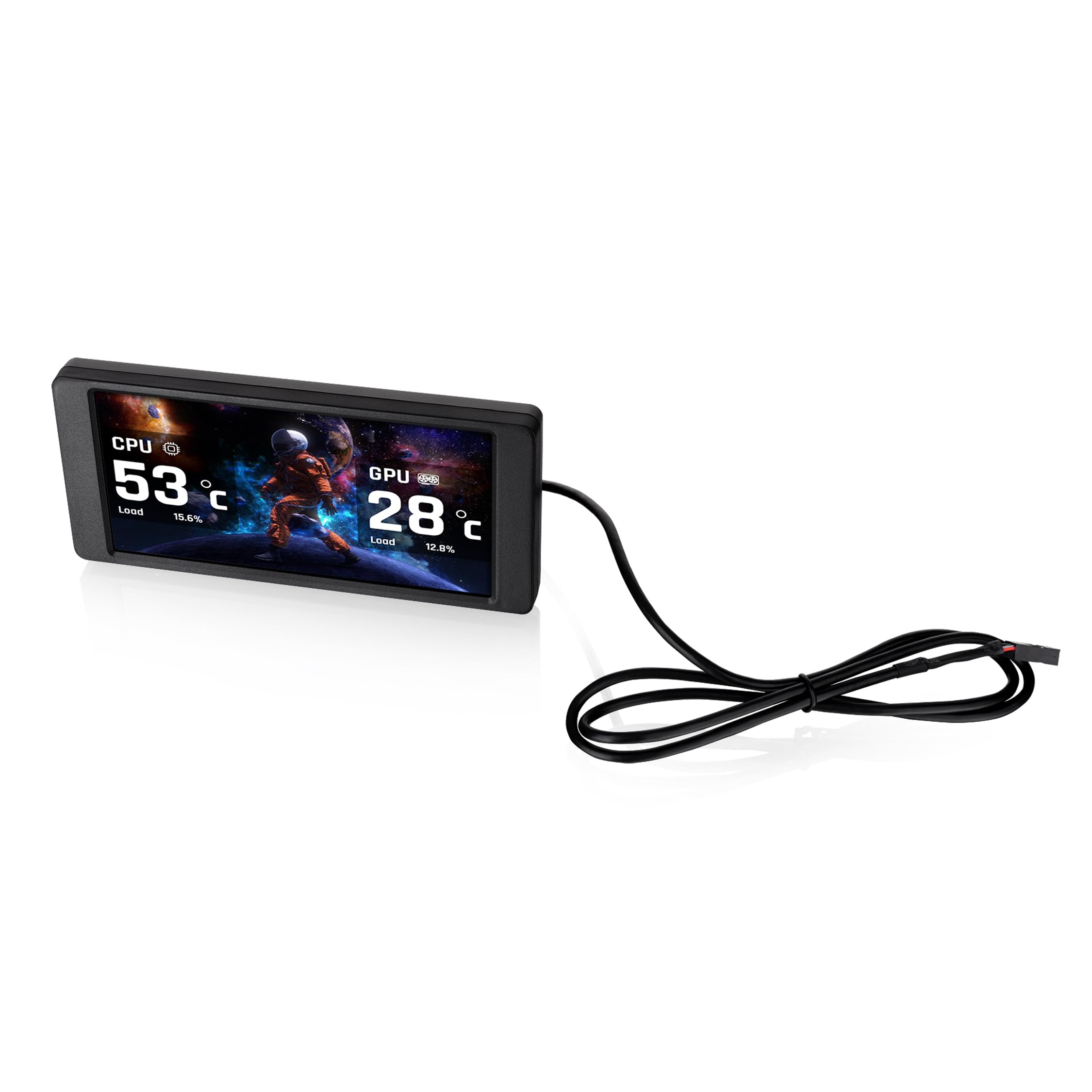
Image 1.1: The Thermaltake 6.0 Inch LCD Screen Kit and its Type-C to USB connection cable.
2. Setup and Installation
Follow these steps to properly install your Thermaltake 6.0 Inch LCD Screen Kit.
2.1. Compatibility Check
Before installation, ensure your chassis is compatible with a standalone screen kit. Refer to your chassis manual or the Thermaltake website for compatibility information.
2.2. Physical Installation
- Carefully position the 6.0 Inch LCD Screen Kit within your Thermaltake chassis. This kit is designed as an expansion accessory and may require specific mounting points or custom fitting depending on your case model.
- Secure the screen kit in place using appropriate mounting hardware (not included, if custom fitting is required).

Image 2.1: Rear view of the LCD Screen Kit, highlighting the Type-C connection port.
2.3. Cable Connection
- Connect the provided Type-C cable to the Type-C port on the back of the LCD Screen Kit.
- Connect the other end of the cable (USB 9-Pin connector) to an available USB 2.0 header on your motherboard.
2.4. Software Installation
- Download the latest version of the TT RGB PLUS 3.0 software from the official Thermaltake website (www.thermaltake.com).
- Install the software by following the on-screen instructions.
- Restart your computer after installation to ensure all drivers and software components are properly loaded.
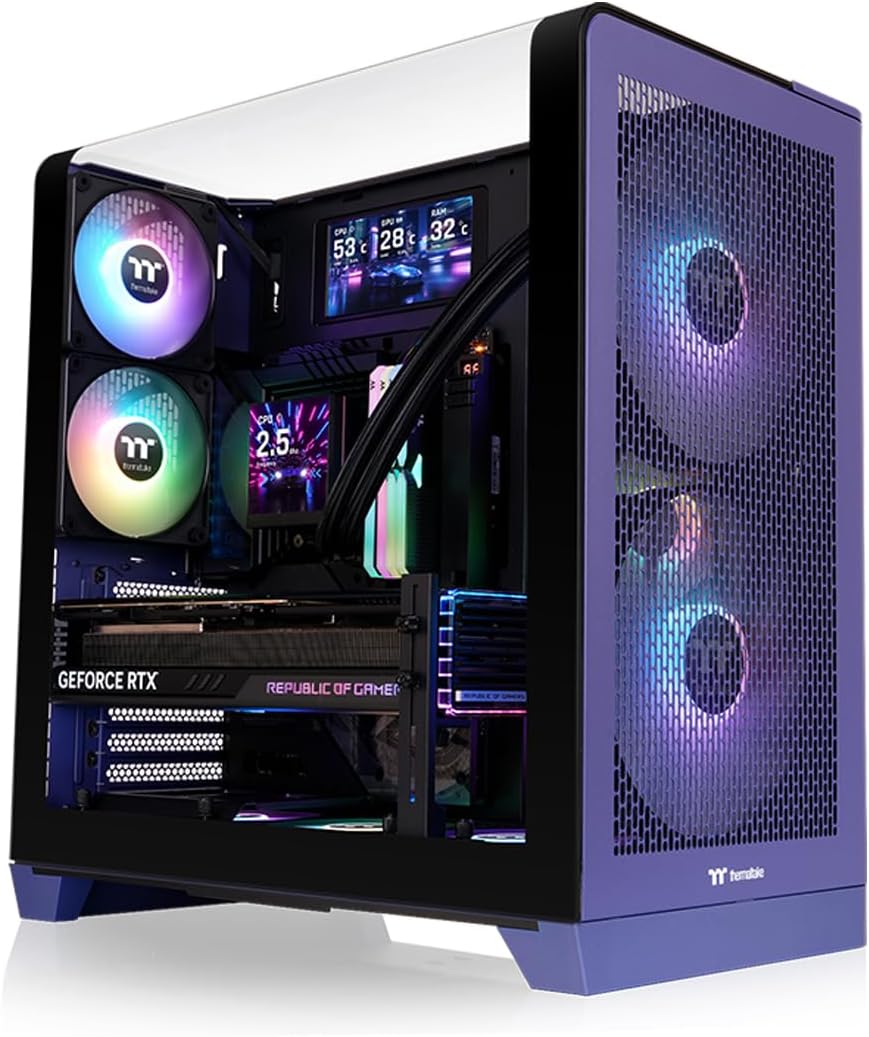
Image 2.2: The LCD Screen Kit integrated into a PC build, displaying real-time system information.
3. Operating Instructions
The Thermaltake 6.0 Inch LCD Screen Kit is controlled and customized through the TT RGB PLUS 3.0 software.
3.1. Launching the Software
After installation, launch the TT RGB PLUS 3.0 software from your desktop shortcut or Start Menu.
3.2. Customizing the Display
Within the TT RGB PLUS 3.0 software, navigate to the LCD Screen Kit section. Here you can configure various display options:
- Background Graphics: Choose from six default background styles or upload your own custom images. Supported formats include JPG, GIF, and PNG.
- Video Playback: Upload and play custom videos in MP4, MOV, and AVI formats. Each file can be up to 30MB.
- Real-Time Monitoring: Select which system parameters to display, such as CPU temperature, load, and frequency; GPU temperature, load, and frequency; and RAM usage.
- Time and Weather: Configure the display to show current time and local weather information.

Image 3.1: The TT RGB PLUS 3.0 software interface, showing options for customizing the LCD display.
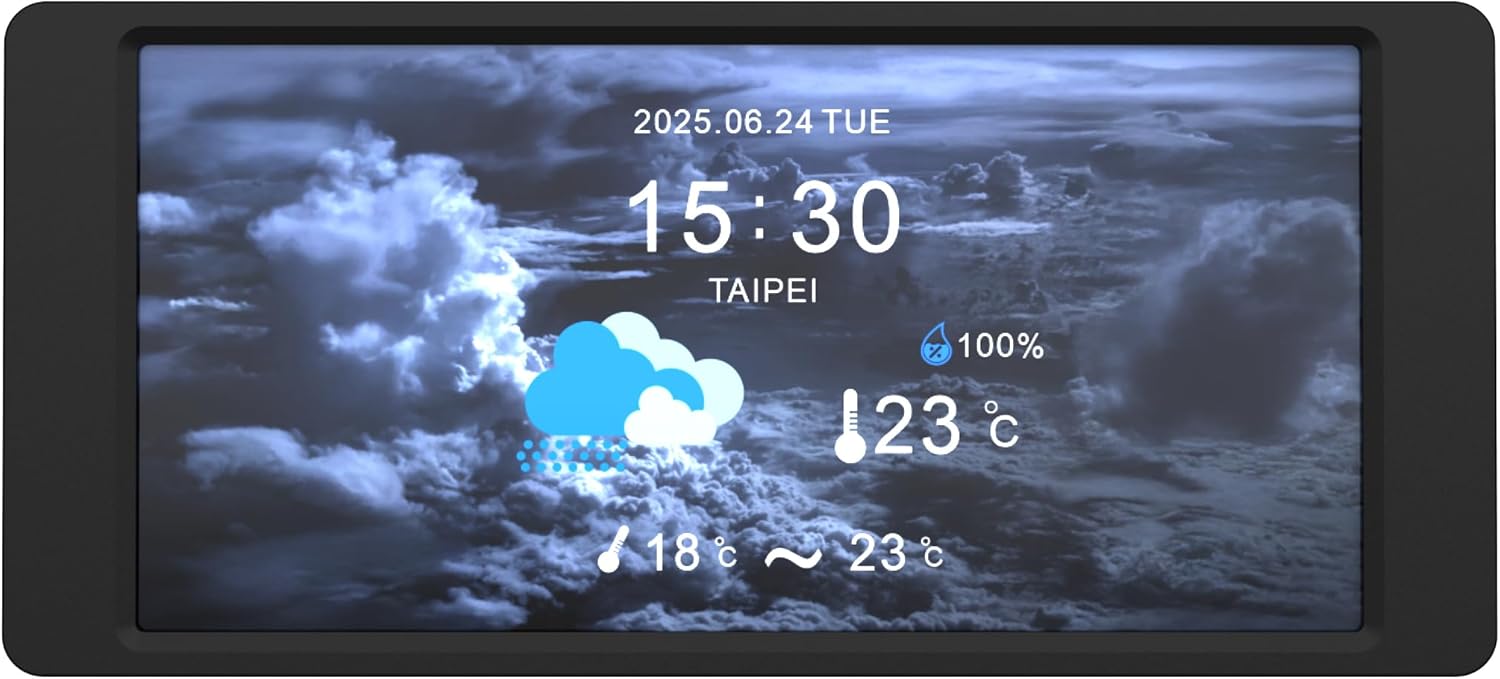
Image 3.2: The LCD Screen Kit displaying time and weather information.
4. Maintenance
Proper maintenance ensures the longevity and optimal performance of your LCD Screen Kit.
4.1. Cleaning the Screen
- Gently wipe the screen surface with a soft, lint-free cloth.
- For stubborn smudges, slightly dampen the cloth with water or a screen-safe cleaning solution. Do not spray liquid directly onto the screen.
- Avoid using harsh chemicals, abrasive materials, or alcohol-based cleaners, as these can damage the screen finish.
4.2. Software Updates
Regularly check the Thermaltake website for updates to the TT RGB PLUS 3.0 software. Software updates often include performance improvements, bug fixes, and new features.
5. Troubleshooting
If you encounter issues with your LCD Screen Kit, refer to the following troubleshooting tips.
5.1. Screen Not Displaying / No Power
- Ensure the Type-C to USB (9-Pin) cable is securely connected to both the LCD Screen Kit and the motherboard's USB header.
- Verify that your computer is powered on and the operating system has loaded.
- Check your motherboard's BIOS/UEFI settings to ensure the USB header is enabled.
5.2. Software Issues (Freezing, Incorrect Display)
- Update Software: Ensure you are running the latest version of TT RGB PLUS 3.0 software. Outdated software can cause instability.
- Restart Software: Close and restart the TT RGB PLUS 3.0 application.
- Reinstall Software: If issues persist, uninstall and then reinstall the TT RGB PLUS 3.0 software.
- System Resources: The software may consume system resources. If you experience performance slowdowns, monitor your system's RAM usage and close unnecessary background applications.
5.3. Custom Content Not Displaying
- Verify that your custom images or videos are in the supported formats (JPG, GIF, PNG for images; MP4, MOV, AVI for videos).
- Ensure the file size does not exceed 30MB per file.
- Check the TT RGB PLUS 3.0 software settings to confirm the custom content is correctly selected and applied.
6. Specifications
| Feature | Specification |
|---|---|
| Brand | Thermaltake |
| Model Number | AC-079-OO1NAN-A1 |
| Model Name | 6.0 inch LCD Screen Kit |
| Screen Size | 6 Inches |
| Resolution | 1480x720p |
| Aspect Ratio | 16:9 |
| Screen Finish | Glossy |
| Contrast Ratio | 2000:1 |
| Display Type | LCD |
| Item Weight | 0.22 Kilograms |
| Connectivity Technology | USB Type C |
| Additional Features | Real-Time System Data Display, Customizable Graphics |
| UPC | 840480304836 |
7. Warranty and Support
7.1. Warranty Information
This Thermaltake 6.0 Inch LCD Screen Kit is covered by a 3-Year Manufacturer Warranty. Please retain your proof of purchase for warranty claims. For detailed warranty terms and conditions, refer to the official Thermaltake website or contact customer service.
7.2. Technical Support
For further technical assistance, software downloads, or to report issues, please visit the official Thermaltake support website:
You may also contact Thermaltake customer service directly through the contact information provided on their website.


