
Important Safety Information
Read all instructions before operating the television. Keep these instructions for future reference. Follow all warnings and instructions marked on the product.
- Electrical Safety: Do not overload wall outlets or extension cords. This can result in fire or electric shock. Ensure the power cord is not walked on or pinched.
- Placement: Place the TV on a stable, flat surface. Do not block ventilation openings. Avoid placing the TV in direct sunlight or near heat sources.
- Cleaning: Unplug the TV before cleaning. Use a soft, dry cloth. Do not use liquid cleaners or aerosol cleaners.
- Water and Moisture: Do not use this product near water, such as a bathtub, washbowl, kitchen sink, or laundry tub.
- Servicing: Do not attempt to service this product yourself. Refer all servicing to qualified service personnel.
What's in the Box
Verify that all components listed below are included in your package.
- 1N LED TV
- 1N Stand (for table-top installation)
- 1N Remote Control
- 2N AAA Batteries

TV Overview
Front View
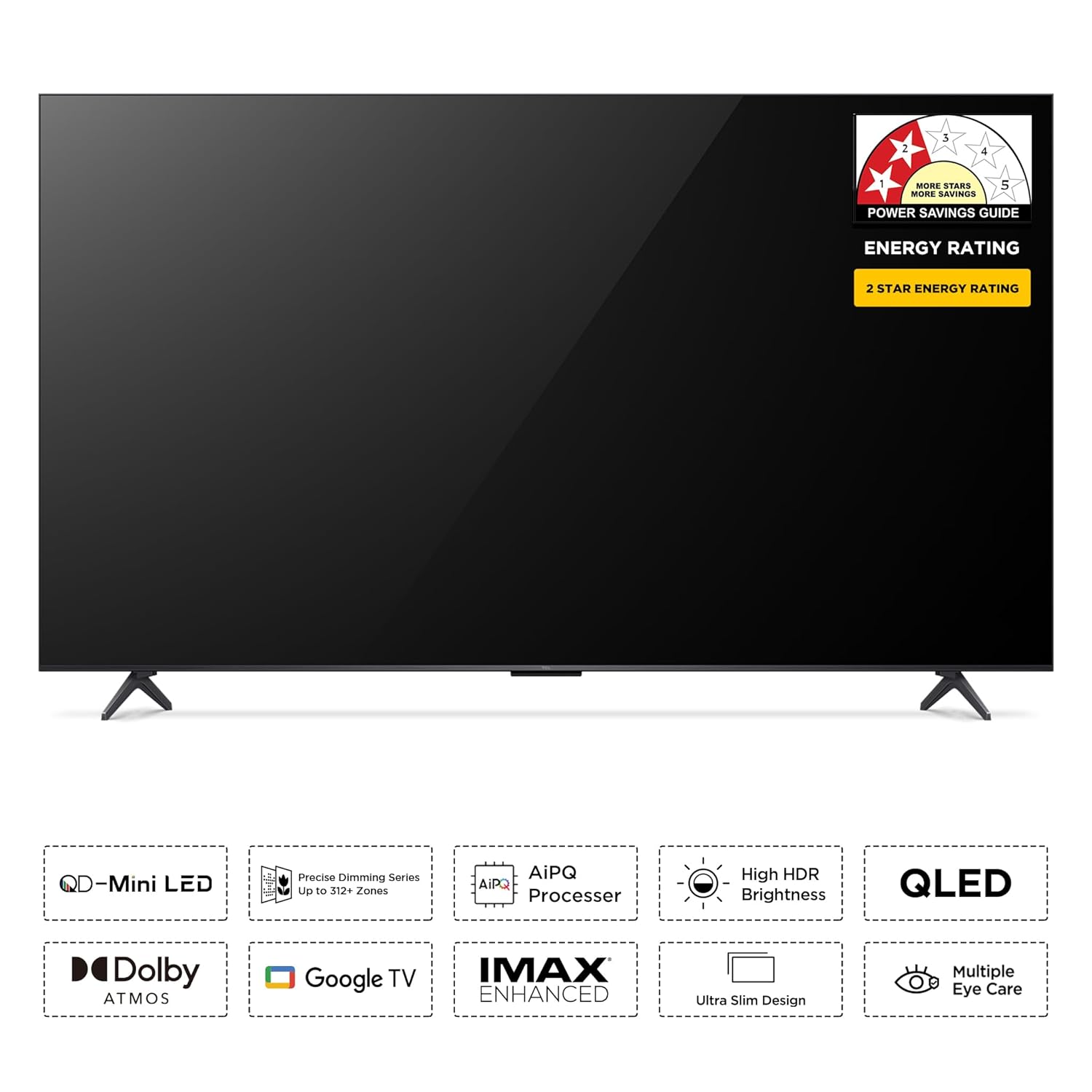
The TCL 65C6KS features a metallic bezel-less design, providing an immersive viewing experience. The front panel includes the display and a small indicator light, typically located at the bottom center.
Rear View and Ports
The rear panel of the TV houses various input and output ports for connecting external devices.

- 1. USB 2.0: For connecting USB storage devices.
- 2. LAN: Ethernet port for wired network connection.
- 3. USB 3.0: For connecting USB storage devices, offering faster data transfer.
- 4. HDMI 1: High-Definition Multimedia Interface input.
- 5. HDMI 2 (Service port): High-Definition Multimedia Interface input.
- 6. HDMI 3 (eARC/ARC): High-Definition Multimedia Interface input with Audio Return Channel support.
- 7. Cable/Antenna Input: For connecting a coaxial cable from an antenna or cable TV.
- 8. Satellite Input: For connecting a satellite dish.
- 9. AV IN Adapter: For connecting older devices using composite video and stereo audio cables.
- 10. Digital Audio Out (Optical): For connecting to an external audio system with an optical input.
Remote Control
The provided remote control allows you to navigate the TV's features and settings. It includes dedicated buttons for popular streaming services and Google Assistant.

- Power Button: Turns the TV on or off.
- Google Assistant Button: Activates voice control for commands and searches.
- Navigation Pad: For menu navigation.
- Volume Up/Down: Adjusts the sound level.
- Channel Up/Down: Changes TV channels.
- Quick Access Buttons: Direct access to Netflix, Prime Video, YouTube, and other applications.
Setup
Step 1: Attaching the Stand or Wall Mounting
Before powering on your TV, decide whether to use the included table-top stand or a wall mount (sold separately).
Table-Top Stand Installation
- Carefully place the TV face-down on a soft, flat surface to prevent screen damage.
- Align the stand brackets with the screw holes on the bottom of the TV.
- Secure the stand using the screws provided in the accessory bag.
Wall Mounting
The TV supports VESA standard wall mounts (300 x 300 mm). A wall mount is not included and must be purchased separately. Follow the instructions provided with your specific wall mount kit for safe installation. Ensure the wall can support the TV's weight (approximately 17 kg without stand).

Step 2: Connecting Peripherals
- Power Connection: Connect the power cord to the TV's power input and then to a wall outlet.
- HDMI Devices: Connect Blu-ray players, gaming consoles, or set-top boxes to the HDMI ports.
- USB Devices: Insert USB drives for media playback into the USB ports.
- Antenna/Satellite: Connect your antenna or satellite cable to the respective input.
- Network Connection: For internet access, connect an Ethernet cable to the LAN port or connect wirelessly via Wi-Fi during initial setup.
Step 3: Initial Power On and Setup Wizard
- Plug in the TV and press the Power button on the remote control.
- The TV will guide you through the initial setup wizard. Follow the on-screen prompts to select your language, connect to a Wi-Fi network, and sign in with your Google account.
- Complete the channel scan if you are using an antenna or cable connection.
Operating Your TV
Basic Functions
- Power On/Off: Press the Power button on the remote.
- Volume Adjustment: Use the Volume Up/Down buttons.
- Channel Selection: Use the Channel Up/Down buttons or the number pad.
- Input Source: Press the 'Input' button to select between HDMI, AV, TV, etc.
Google TV Features
Your TCL 65C6KS TV runs on Google TV, offering a personalized and integrated smart TV experience.

- App Access: Navigate to the 'Apps' section to find and launch pre-installed applications like Netflix, Prime Video, YouTube, and more.
- Voice Control: Press the Google Assistant button on your remote and speak commands to search for content, control smart home devices, or get information.
- Screen Mirroring: Cast content from your smartphone or tablet to the TV using built-in Chromecast or Airplay 2.
- Personalized Recommendations: Google TV learns your preferences and suggests movies and shows from your subscriptions.
Picture Settings
The TCL 65C6KS features advanced display technologies for superior picture quality.
- QD-Mini LED Panel: Combines Quantum Dot and Mini LED technologies for enhanced brightness, color volume, and contrast.
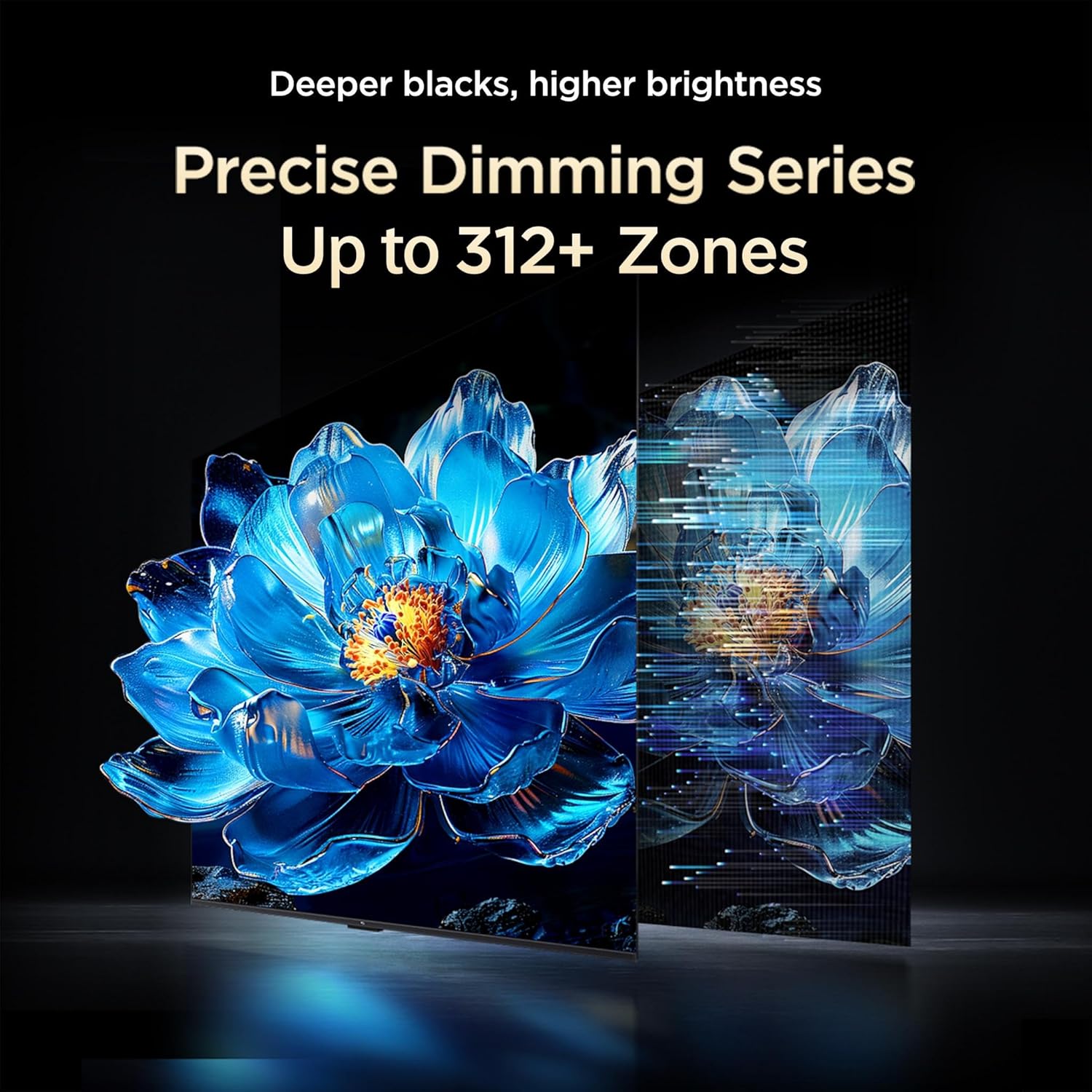
- Precise Dimming Zones: With up to 312+ local dimming zones, the TV can precisely control backlight for deeper blacks and brighter highlights.
- HDR10+ Support: Delivers a wider range of colors and contrast, making bright scenes brighter and dark scenes richer.
- AiPQ Processor: TCL's proprietary processor optimizes picture quality through AI algorithms for scene recognition, contrast, color, clarity, and HDR enhancement.



Audio Settings
Experience immersive sound with the TV's integrated audio system.
- Dolby Audio & Dolby Atmos: Provides rich, clear, and powerful sound, creating a theatrical audio experience with three-dimensional audio.
- ONKYO 2.1ch Hi-Fi System with Subwoofer: Integrated ONKYO speakers and a dedicated subwoofer deliver powerful and immersive audio with deep bass.
- DTS Virtual:X: Virtualized 3D sound technology that creates an enveloping audio experience.
- Bluetooth Audio: Connect Bluetooth headphones for private listening.


Gaming Features
The TV is equipped with features to enhance your gaming experience.
- Game Master: Optimizes display and audio settings for smoother gaming.
- AMD FreeSync Pro: Reduces screen tearing and stuttering for fluid gameplay.
Maintenance
Cleaning Your TV
- Screen: Gently wipe the screen with a soft, lint-free cloth. For stubborn marks, slightly dampen the cloth with water or a specialized screen cleaner (ensure it's safe for TV screens). Do not spray liquid directly onto the screen.
- TV Body: Use a soft, dry cloth to wipe the TV's frame and back panel. Avoid abrasive cleaners or solvents.
Software Updates
Your TV may receive software updates periodically to improve performance and add new features. Ensure your TV is connected to the internet to receive these updates. You can usually check for updates in the TV's settings menu under 'System' or 'About'.
Troubleshooting
If you encounter issues with your TV, refer to the following common solutions:
| Problem | Possible Solution |
|---|---|
| No Power | Check if the power cord is securely plugged into the TV and the wall outlet. Ensure the wall outlet is functioning. |
| No Picture, But Sound is Present | Check the input source. Ensure the connected device is powered on and functioning correctly. Try a different HDMI cable. |
| No Sound, But Picture is Present | Check the volume level. Ensure the TV is not muted. Check audio output settings if using external speakers. |
| Remote Control Not Working | Replace the batteries. Ensure there are no obstructions between the remote and the TV's IR sensor. |
| Cannot Connect to Wi-Fi | Ensure your Wi-Fi router is on and working. Re-enter the Wi-Fi password. Try restarting the TV and router. |
Specifications
Key technical specifications for the TCL 65C6KS TV.
| Feature | Detail |
|---|---|
| Screen Size | 65 Inches (164 cm) |
| Display Technology | QD-Mini LED |
| Resolution | 4K Ultra HD (3840 x 2160) |
| Refresh Rate | 60 Hz |
| Processor | 64-bit Quad Core Processor, AiPQ Processor |
| RAM | 2 GB |
| ROM | 16 GB |
| Operating System | Google TV |
| Connectivity | Wi-Fi 5, Bluetooth 5.0, Ethernet |
| HDMI Ports | 3 (including 1 eARC/ARC) |
| USB Ports | 1 (USB 3.0) |
| Audio Output | 40 Watts, Dolby Audio, ONKYO 2.1ch Hi-Fi System, Subwoofer, DTS Virtual:X |
| HDR Support | HDR10+ |
| Viewing Angle | 178 Degrees |
| Power Consumption | 250 Watts |
| Annual Energy Consumption | 305 kWh/Year (2 Star Energy Rating) |
| Dimensions (with stand) | 29.6D x 144.7W x 89.5H Centimeters |
| Weight (with stand) | 17.2 Kilograms |
| VESA Mount Standard | 300 x 300 mm |

Warranty and Support
Your TCL 65C6KS TV comes with a manufacturer's warranty and dedicated support.
- Warranty Period: 2-year warranty provided by the manufacturer from the date of purchase. A 6-month warranty is provided for the remote control.
- Warranty Claims: Warranty claims can be processed using your Amazon e-invoice.
- Contact Support: For assistance, contact TCL customer support at 180-0102-0622 / 180-0419-0622 or email indiasupport@tcl.com. Please provide the product's model name and seller's details from your invoice.
- Online Resources: Additional user manual content and product details may be available on the official TCL website.


