
1. Introduction
Thank you for choosing the INFIYA K1 2K Window Camera. This manual provides detailed instructions for setting up, operating, and maintaining your camera to ensure optimal performance and home security. Please read this manual thoroughly before use and retain it for future reference.
2. What's in the Box
Verify that all components are present in your package:
- 1 x INFIYA K1 Camera
- 1 x Power Adapter
- 1 x Type-C Power Cable
- Magnetic Stickers
- Cable Clips
- 1 x Quick Start Guide

Image: Contents of the INFIYA K1 camera box.
3. Product Overview
Familiarize yourself with the main components of your INFIYA K1 camera:

Image: Labeled diagram of the INFIYA K1 camera components.
- Indicator Light: Shows camera status.
- Lens: Captures 2K resolution video.
- Magnetic Part: For easy window mounting.
- Reset Button: Used for factory reset or pairing.
- TF Card Slot: For local storage (supports up to 128GB, card not included).
- Speaker: For two-way audio communication.
- Type-C Power Cable: Connects the camera to the power adapter.
4. Setup Guide
4.1 Physical Installation (Drill-Free)
The INFIYA K1 camera features a magnetic design for easy, drill-free installation on any interior window.
- Clean the Window: Ensure the glass surface is clean and dry to prevent condensation issues.
- Apply Magnetic Sticker: Peel off the protective film from the magnetic sticker and firmly attach it to the desired location on your window.
- Attach Camera: Align the camera with the magnetic sticker and attach it. The magnetic connection will hold it securely.
- Power On: Connect the Type-C power cable to the camera and plug the power adapter into an electrical outlet.

Image: Step-by-step physical installation of the camera.
4.2 App Connection and Wi-Fi Configuration
To access your camera's features, you need to connect it to the Wansview Cloud App.
- Download App: Download the Wansview Cloud App from your smartphone's app store (available for Android and iOS).
- Register Account: Open the app and register a new account or log in if you already have one.
- Add Device: Follow the in-app instructions to add a new device. Select the INFIYA K1 model.
- Connect to Wi-Fi: Ensure your camera is powered on and near your Wi-Fi router (within 3 feet for initial setup). The K1 camera supports dual-band Wi-Fi (2.4Ghz & 5Ghz). Follow the app prompts to connect the camera to your home Wi-Fi network.

Image: App connection and Wi-Fi configuration steps.
5. Operation
5.1 Live View and 2K Resolution
Once connected, access the live feed through the Wansview Cloud App. The INFIYA K1 provides sharp 2K resolution video, capturing clear details of your outdoor environment through the window, optimized to reduce glare and reflection.
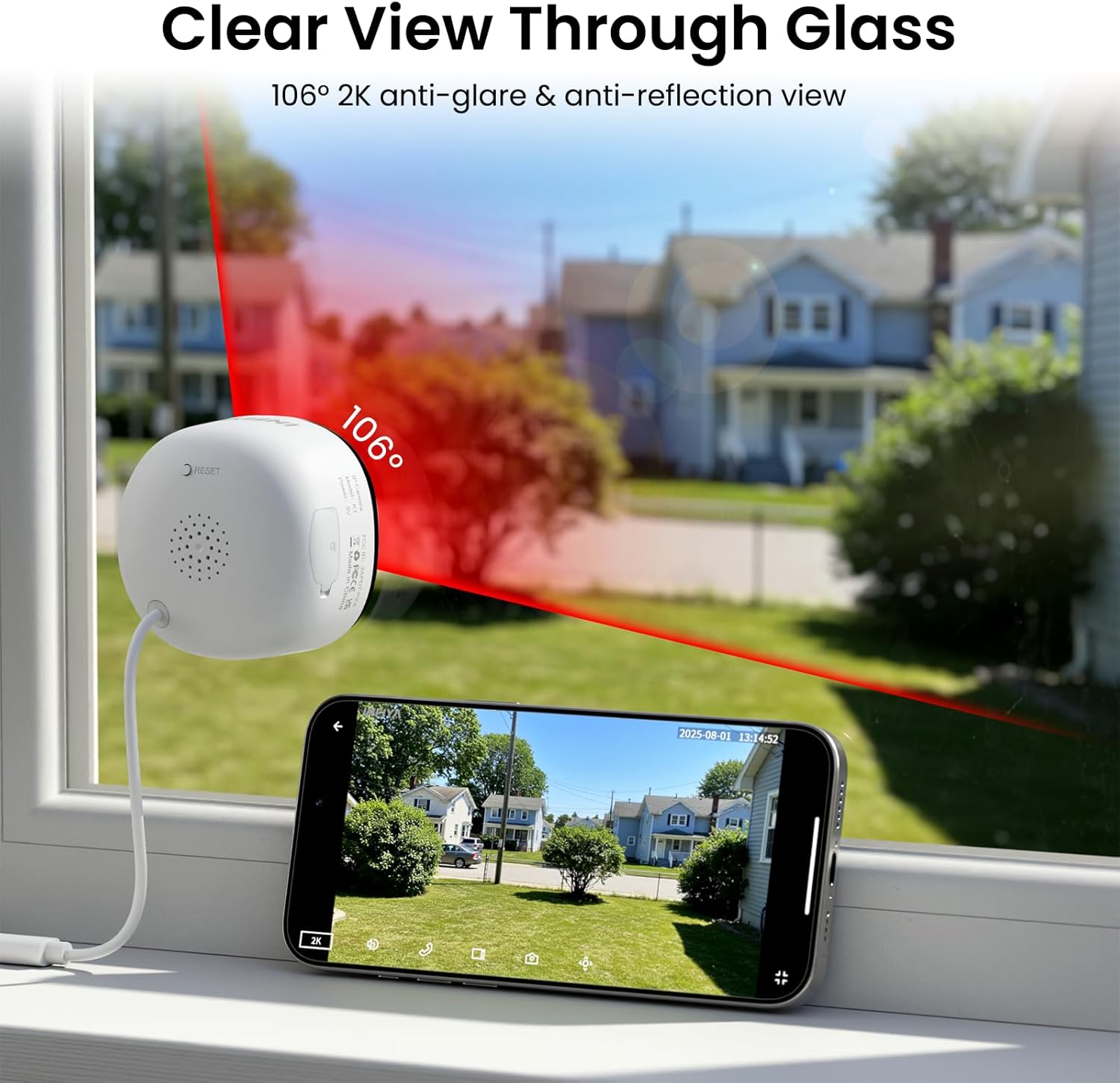
Image: Clear 2K view through glass from the camera.
5.2 Full-Color Night Vision
The camera features advanced Black Light Color Technology, enabling vivid full-color footage even in low-light conditions (e.g., starlight/moonlight). This allows for better identification of details at night compared to traditional infrared black and white night vision.

Image: Comparison of night vision capabilities.
5.3 Motion & Human Detection with Alerts
The INFIYA K1 camera utilizes AI-powered human detection to minimize false alarms. When human activity is detected, the camera activates a three-layer alert system:
- Immediate app notifications to your phone.
- An optional siren (can be configured in the app).
- Automatic video clip recording of the event.
You can customize detection zones and sensitivity levels within the app.
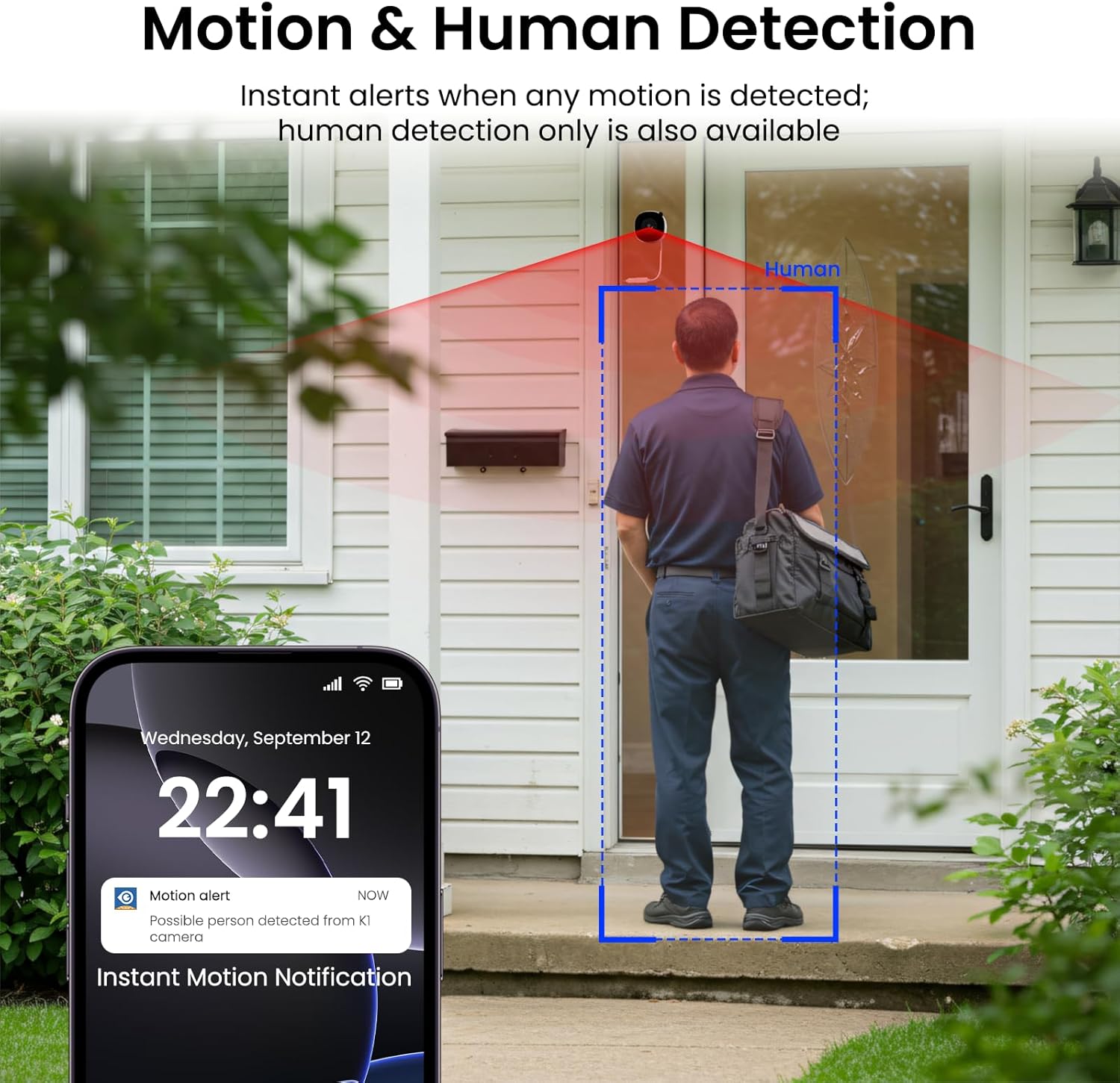
Image: Motion and human detection in action.
5.4 Two-Way Audio
The integrated speaker and microphone allow for two-way communication. You can speak through the camera to visitors or deter intruders directly from your smartphone app.
5.5 Multi-User Sharing & Multi-Device Support
Share camera access with family members through the app. The camera also supports integration with multiple devices and smart home platforms like Alexa and Google Assistant for convenient voice control and viewing.

Image: Multi-user sharing feature.

Image: Multi-device support with smart assistants.
6. Storage Options
The INFIYA K1 camera offers flexible recording and storage solutions:
6.1 Local Storage (TF Card)
Insert a TF (microSD) card (up to 128GB, not included) into the camera's slot for continuous 24/7 recording. The camera features a smart overwrite function that automatically manages storage space by cycling old footage.
6.2 Cloud Storage (Optional)
For enhanced security and accessibility, you can opt for cloud storage. All videos uploaded to the cloud are encrypted. Cloud plans offer various features and storage durations, as detailed in the app.

Image: Local and cloud storage options.
6.3 Recording Modes Comparison

Image: Comparison table of recording modes.
7. Specifications
Detailed technical specifications for the INFIYA K1 camera:
| Feature | Detail |
|---|---|
| Model Name | K1 |
| Brand | INFIYA |
| Connectivity Technology | Wireless (Wi-Fi) |
| Wi-Fi Frequency | 5Ghz & 2.4Ghz |
| Video Capture Resolution | 3 MP (2K) |
| Viewing Angle | 105 Degrees |
| Night Vision | Color Night Vision (Black Light Color Technology) |
| Night Vision Range | 29.5 Feet |
| Detection Features | Motion and Human Detection |
| Alert Type | Motion Only (Configurable) |
| Audio | Two-Way Talk |
| Storage Options | TF Card (up to 128GB), Cloud Storage (Optional) |
| Power Source | Corded Electric (5V, 5 Watt-hours) |
| Mount Type | Window Mount (Magnetic) |
| Compatible Devices | Alexa/Google Assistant |
| Item Dimensions | 2.41 x 1.57 x 2.41 inches |
| Indoor Outdoor Usage | Indoor (for window monitoring) |
8. Troubleshooting
If you encounter issues with your INFIYA K1 camera, refer to the following common problems and solutions:
- Camera Not Connecting to Wi-Fi:
- Ensure the camera is within range of your router.
- Verify your Wi-Fi password is correct.
- Check if your router supports 2.4Ghz or 5Ghz, and ensure the camera is attempting to connect to a compatible band.
- Try resetting the camera using the reset button and re-attempting the setup process.
- Poor Video Quality:
- Ensure the camera lens is clean.
- Check your internet connection speed; a stable connection is crucial for 2K streaming.
- Verify the camera is positioned correctly on the window to minimize glare or reflections.
- Motion Alerts Not Working:
- Confirm motion detection is enabled in the app settings.
- Adjust the detection sensitivity and detection zones.
- Ensure app notifications are enabled on your smartphone.
- No Recording to TF Card:
- Ensure a TF card is properly inserted into the slot.
- Check if the TF card is formatted correctly (usually FAT32). Format it via the app if necessary.
- Verify that continuous recording or event recording to TF card is enabled in the app settings.
For further assistance, please refer to the in-app help section or contact INFIYA customer support.
9. Safety Information
Please observe the following safety guidelines to ensure safe operation and prevent damage to your device:
- Use only the provided power adapter and cable.
- Do not expose the camera to extreme temperatures, humidity, or direct water.
- Avoid placing the camera near strong magnetic fields.
- Keep the camera out of reach of children and pets.
- Do not attempt to disassemble or repair the camera yourself. Contact qualified personnel for service.
- Ensure the camera is securely mounted to prevent it from falling.
10. Warranty and Support
Your INFIYA K1 camera comes with a standard manufacturer's warranty. Please refer to the warranty card included in your package or visit the official INFIYA website for detailed warranty terms and conditions.
For technical support, product inquiries, or warranty claims, please contact INFIYA customer service through the contact information provided in the app or on the official website.


