
1. Introduction
This manual provides detailed instructions for the ANBERNIC RG476H handheld game console. Please read this manual thoroughly before using the device to ensure proper operation and to maximize your gaming experience.

Image 1.1: Overview of the ANBERNIC RG476H handheld game console, showcasing its full-screen design and available colors.
2. Product Overview
2.1 Key Features
- Operating System: Android 13 with built-in game frontend.
- Processor: Dimensity T820 (6nm EUV 5G SoC chip, 8-core: 1*A76@2.7GHz + 3*A76@2.3GHz + 4*A55@2.1GHz).
- Display: 4.7-inch LTPS in-cell OCA full lamination touchscreen, 1280x960 resolution, up to 120Hz refresh rate.
- Memory & Storage: 8GB LPDDR4X RAM, 128GB UFS2.2 ROM, expandable up to 2TB via TF card.
- Connectivity: WiFi (2.4G/5G 802.11a/b/g/n/ac), Bluetooth 5.0.
- Controls: Dual Hall joysticks, 6-axis gyroscope, Hall triggers, vibration motor.
- Battery: 5000mAh Lithium-ion battery, providing up to 7 hours of continuous use.
- Cooling: Active cooling system with high-speed fan and heat pipe.
- Output: HDMI output, USB Type-C with 1080p DisplayPort output (supports dual-screen display for NDS/3DS games).
- Additional Features: RGB joystick lighting with multiple effects, FOTA wireless upgrades, online multiplayer, streaming, wireless screen projection, 3.5mm stereo headphone jack, power-saving settings.
2.2 Components and Controls
Familiarize yourself with the physical components and controls of your RG476H console.

Image 2.1: Technical diagram illustrating the layout of buttons, ports, and internal components of the RG476H.
- Left Joystick: For directional control in games.
- Right Joystick: For camera control or other directional inputs.
- D-Pad: For precise directional input.
- A/B/X/Y Buttons: Standard action buttons.
- L1/L2/R1/R2 Buttons: Shoulder and trigger buttons.
- Start/Select Buttons: Game control functions.
- Function Key: For system-specific actions.
- Return Button: For navigating back in menus.
- TF Card Slot: For external storage expansion.
- USB Type-C Port: For charging, data transfer, and DisplayPort output.
- 3.5mm Headphone Jack: For audio output.
- Microphone: For voice input.
- Speakers: Dual stereo speakers located at the bottom.
- Power Button: To turn the device on/off or put it to sleep.
- Volume Up/Down: To adjust audio levels.
3. Setup
3.1 Initial Charging
Before first use, fully charge your RG476H console.
- Connect the provided USB Type-C cable to the console's charging port.
- Connect the other end of the cable to a compatible 5V/2A power adapter (not included) or a USB port on a computer.
- The charging indicator light will illuminate. A full charge typically takes approximately 3 hours.
3.2 Powering On/Off
- To Power On: Press and hold the Power button until the screen lights up.
- To Power Off: Press and hold the Power button, then select "Power Off" from the on-screen options.
- To Sleep/Wake: Briefly press the Power button to put the device into sleep mode or wake it up.
3.3 TF Card Installation (Optional)
To expand storage for games and media, you can install a TF (microSD) card. The device supports up to 2TB.

Image 3.1: The TF card slot for storage expansion, shown alongside other features.
- Locate the TF card slot on the device.
- Insert the TF card gently into the slot until it clicks into place.
- To remove, push the TF card inward until it clicks, then release. It will spring out.
4. Operating Instructions
4.1 Navigation and User Interface
The RG476H runs on Android 13, providing a familiar and intuitive interface.
- Use the joysticks or D-pad to navigate through menus and select options.
- The touchscreen allows for direct interaction with the Android interface.
- The built-in game frontend organizes your games for easy access.
4.2 Playing Games
The console supports a wide range of Android games and up to 30 types of simulator games.
- Access the game frontend from the main menu.
- Select your desired game from the list.
- Use the physical controls (joysticks, D-pad, A/B/X/Y, L/R buttons) for gameplay.
- For simulator games, you may need to configure controls within the emulator settings.
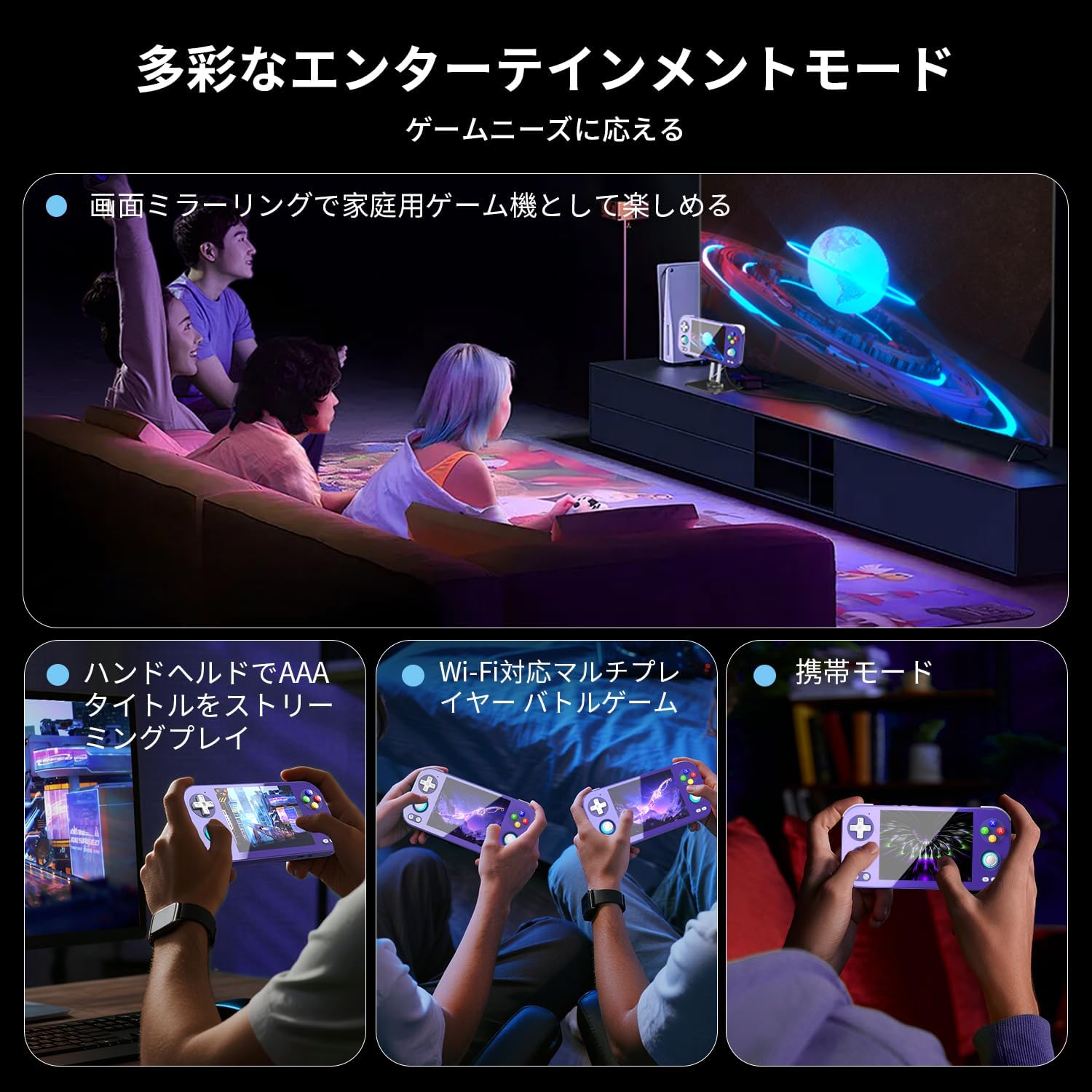
Image 4.1: The RG476H supports various entertainment modes, including handheld play, Wi-Fi multiplayer, and screen mirroring to a TV.
4.3 Advanced Features
- Moonlight Streaming: Supports Moonlight Streaming for playing PC games on your console. Refer to Moonlight documentation for setup.
- HDMI Output: Connect the console to a TV or monitor via HDMI for a larger display.
- USB Type-C DisplayPort: Use a compatible USB-C to DisplayPort cable for 1080p video output. This feature also supports dual-screen display for NDS/3DS games.
- Wi-Fi & Bluetooth: Connect to Wi-Fi networks for online gaming, updates, and browsing. Pair Bluetooth accessories like headphones or controllers.
- RGB Joystick Lighting: Customize the RGB lighting effects of the joysticks (e.g., constant light, breathing, rainbow, marquee, chase, gaming mode) and adjust brightness through system settings.
- ANBERNIC AI Assistant: Utilize the built-in AI features for real-time translation, game assistance, and other smart functions.

Image 4.2: The ANBERNIC AI Assistant offers features like AI Square, real-time translation, game assistance, and image processing.
5. Maintenance
5.1 Cleaning
- Use a soft, dry cloth to clean the console's exterior.
- For the screen, use a microfiber cloth specifically designed for electronics. Do not use abrasive cleaners or solvents.
- Keep ports free of dust and debris.
5.2 Software Updates
The RG476H supports FOTA (Firmware Over-The-Air) wireless upgrades.
- Ensure your device is connected to Wi-Fi.
- Navigate to System Settings and check for available updates.
- Follow the on-screen prompts to download and install updates. Ensure the device has sufficient battery life or is connected to power during updates.
6. Troubleshooting
6.1 Common Issues and Solutions
| Issue | Possible Cause / Solution |
|---|---|
| Device does not power on. | Battery may be depleted. Connect to charger and try again. Ensure power button is pressed and held sufficiently. |
| Screen is unresponsive. | Perform a soft reset by holding the power button for 10-15 seconds. If issue persists, ensure the screen is clean and free of obstructions. |
| Games are lagging or performing poorly. |
|
| Wi-Fi or Bluetooth not connecting. |
|
| No sound from speakers. | Check volume settings. Ensure headphones are not connected if you expect sound from speakers. |
7. Specifications
| Feature | Detail |
|---|---|
| Model | RG476H |
| Processor | Unisoc T820, 6nm EUV 5G SoC |
| GPU | Quad-core Mali-G57, 850MHz |
| RAM | 8GB LPDDR4X |
| Storage | 128GB UFS2.2 (Expandable via TF card up to 2TB) |
| Display | 4.7-inch LTPS in-cell OCA full lamination touchscreen, 1280x960 resolution, up to 120Hz refresh rate |
| Operating System | Android 13 |
| Connectivity | 2.4G/5G WiFi 802.11a/b/g/n/ac, Bluetooth 5.0 |
| Battery | 5000mAh Lithium-ion, up to 7 hours usage |
| Audio | High-quality dual stereo speakers, 3.5mm stereo headphone jack |
| Sensors | 6-axis gyroscope, Hall joysticks, Hall triggers, Vibration motor |
| Ports | USB Type-C (charging, data, 1080p DisplayPort output), TF card slot |
| Dimensions | 21.1 x 11.1 x 4.2 cm |
| Weight | 470 g |
8. Warranty and Support
For warranty information and technical support, please refer to the official ANBERNIC website or contact your retailer. Keep your proof of purchase for warranty claims.
Manufacturer: ANBERNIC
Website: www.anbernic.com (Example link, actual link may vary)


