1. Introduction
This manual provides detailed instructions for the installation, operation, and maintenance of your Hodozzy 10 Inch 6G+128G Double Din Car Stereo. Please read this manual thoroughly before using the product to ensure correct operation and to prevent damage.
2. Safety Information
- Always consult a professional for installation if you are unsure about any steps. Incorrect installation can lead to damage to the device or your vehicle.
- Do not operate the device in a way that distracts you from driving. Always prioritize road safety.
- Avoid exposing the unit to extreme temperatures, direct sunlight for prolonged periods, or excessive moisture.
- Use only approved accessories and cables.
- Do not attempt to disassemble or modify the unit. This will void the warranty and may cause damage.
3. Package Contents
Verify that all items are present in the package before installation.

Image: Hodozzy car stereo dimensions and package contents. This image provides the physical dimensions of the 10-inch car stereo unit and lists the accessories included in the package.
- Hodozzy 10 Inch Car Stereo Unit
- Power Cable
- 4/6 Pin USB Cable
- Rear Camera Input Cable
- RCA Cable
- Mounting Brackets
- GPS Antenna
- User Manual
- Microphone
- Backup Camera
4. Product Overview
The Hodozzy 10 Inch 6G+128G Double Din Car Stereo features a large IPS touch screen, an 8-core processor, 6GB RAM, and 128GB ROM, running on Android 15. It supports Wireless CarPlay, Android Auto, GPS navigation, DSP audio processing, WiFi, Bluetooth, Steering Wheel Control (SWC), and a backup camera with optional 360° panoramic view.

Image: Hodozzy car stereo personalized features. This image highlights user customization options such as the split-screen display and the responsive 10-inch IPS anti-fingerprint touch screen.
5. Installation Guide
5.1 Pre-installation Checks
- Ensure your vehicle's dashboard has a double din slot.
- Disconnect the vehicle's battery before starting any electrical work.
- Gather all necessary tools (screwdrivers, wire strippers, electrical tape, etc.).
5.2 Wiring Diagram
Refer to the following diagram for proper wiring connections. Incorrect wiring can damage the unit or vehicle electrical system.

Image: Hodozzy car stereo detailed wiring diagram. This image provides a comprehensive diagram of all wiring connections for the car stereo.
5.3 Rear Camera Installation
Connect the backup camera as shown in the diagram below. Ensure the reversing trigger wire is correctly connected to enable automatic camera display when reversing.

Image: Hodozzy car stereo reversing camera installation diagram. This diagram illustrates the correct wiring procedure for installing the reversing camera.
- Red Cable (A): Connect to the positive pole of the car's reversing light cable.
- Black Cable (B): Connect to the negative pole of the car's reversing light cable.
- Reversing Trigger Wire (Pink Color): Connect this wire to the red cable (A) which extends from the video input wire.
5.4 General Installation Steps
- Remove the factory radio from your vehicle.
- Connect the power harness, speaker wires, and other necessary cables according to the wiring diagram.
- Install the GPS antenna in a location with a clear view of the sky.
- Connect the backup camera and its trigger wire if applicable.
- Mount the Hodozzy unit into the double din slot using the provided brackets.
- Reconnect the vehicle's battery and test all functions.
6. Operating Instructions
6.1 Power On/Off
- Power On: Turn your vehicle's ignition to the ACC or ON position. The unit will power on automatically.
- Power Off: Turn your vehicle's ignition to the OFF position. The unit will power off.
6.2 Basic Navigation (Touch Screen)
The unit features a responsive 10-inch IPS touch screen. Navigate through menus and applications by tapping, swiping, and pinching gestures similar to a smartphone or tablet.
6.3 Wireless CarPlay & Android Auto
Connect your compatible iPhone or Android smartphone wirelessly to access navigation, music, messages, and more directly on the car stereo display.

Image: Hodozzy car stereo displaying Wireless CarPlay, Android Auto, and Mirror Link features. This image illustrates the seamless integration of Wireless CarPlay and Android Auto.
- Ensure Bluetooth and Wi-Fi are enabled on your smartphone.
- On the car stereo, open the CarPlay or Android Auto application.
- Follow the on-screen prompts to pair your device.
6.4 Mirror Link
The Mirror Link function allows you to mirror your smartphone's screen onto the car stereo display. This feature supports both Android and iOS devices.
- Open the 'Mirror Link' app on the car stereo.
- Follow the specific instructions for your phone's operating system (Android/iOS) to establish the connection.
6.5 GPS Navigation
The unit comes with a built-in GPS module and antenna for accurate navigation. You can download offline maps for use without an internet connection.

Image: Hodozzy car stereo displaying offline maps for GPS navigation. This image shows the unit's capability to display navigation routes using downloaded offline maps.
- Ensure the GPS antenna is properly installed and has a clear view of the sky.
- Open the navigation application (e.g., Google Maps, Waze) from the main menu.
- For offline maps, access the map application's settings to download regional maps.
6.6 Audio Features (DSP, HIFI, FM/RDS Radio)
Experience enhanced audio quality with the Digital Sound Processor (DSP) and HIFI support. The unit also includes an FM/RDS radio tuner.
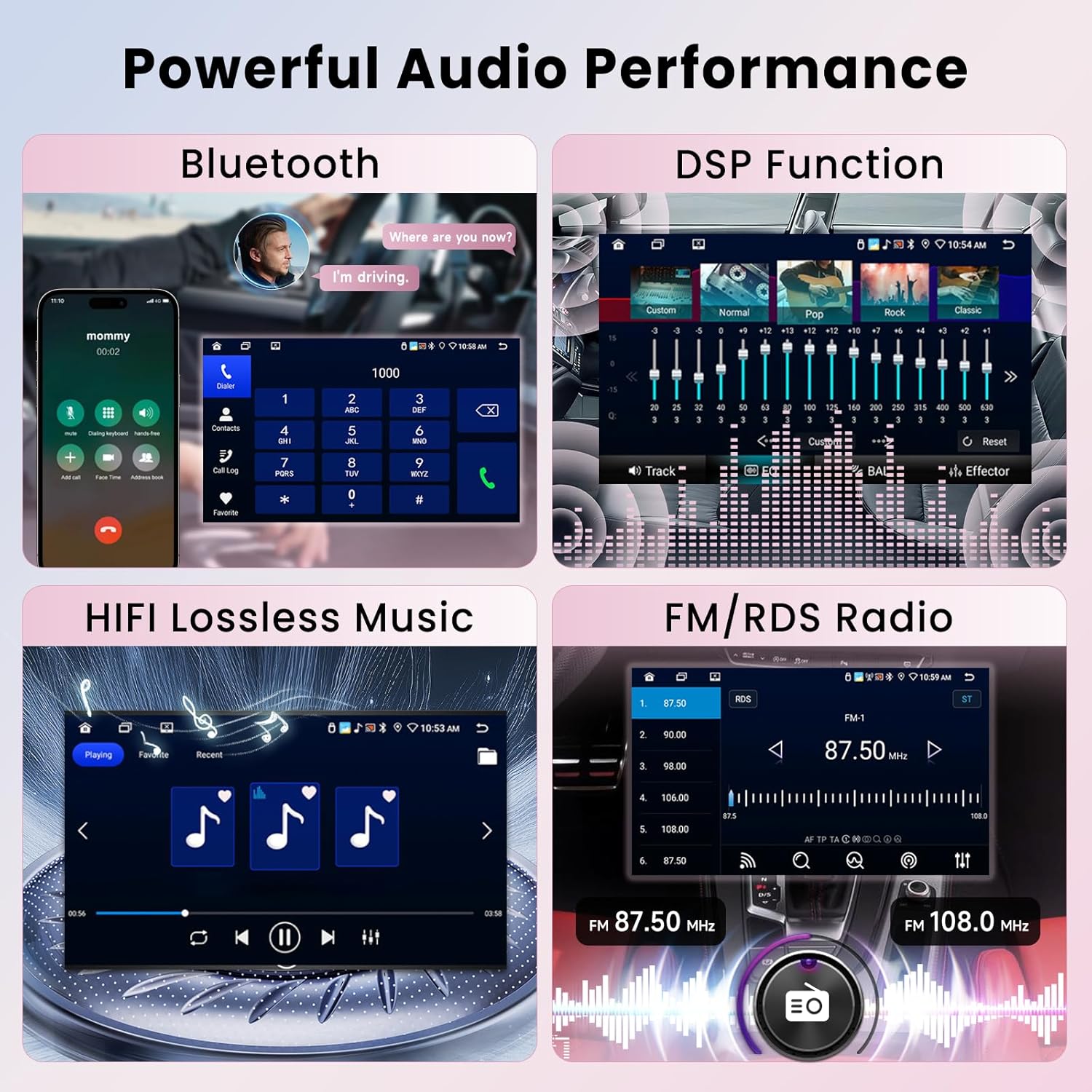
Image: Hodozzy car stereo's powerful audio performance features. This image demonstrates the comprehensive audio capabilities, including Bluetooth, DSP, HIFI, and FM/RDS radio functionality.
- DSP: Access the DSP settings from the audio menu to customize equalizer presets, balance, fader, and other sound effects.
- FM/RDS Radio: Select the 'Radio' app to tune into FM stations. RDS (Radio Data System) provides station information and traffic announcements where available.
6.7 Bluetooth Connectivity
Connect your smartphone via Bluetooth for hands-free calling and audio streaming.
- Go to the 'Bluetooth' settings on the car stereo.
- Enable Bluetooth on your phone and search for available devices.
- Select the car stereo from your phone's list and confirm pairing.
6.8 WiFi Connection
Connect to a Wi-Fi network (e.g., mobile hotspot) to access online features, download apps, and browse the internet.

Image: Hodozzy car stereo WiFi connection options. This image illustrates the unit's support for both 2.4 GHz and 5 GHz Wi-Fi networks, enabling internet access and app downloads.
- Navigate to 'Settings' > 'Network & Internet' > 'Wi-Fi'.
- Select your desired network and enter the password if required.
6.9 360° Panoramic View & Backup Camera
The unit supports a backup camera and can integrate with an optional 360° panoramic view system for enhanced parking and maneuvering safety.

Image: Hodozzy car stereo with reversing video, Steering Wheel Control (SWC), and 360-degree panoramic view support. This graphic shows the integration of a backup camera display and compatibility with a 360-degree panoramic camera system.
- When the vehicle is shifted into reverse, the backup camera view will automatically display on the screen.
- If a 360° panoramic system is installed, access its dedicated application for a comprehensive view around your vehicle.
6.10 Steering Wheel Control (SWC)
The unit supports retaining your factory steering wheel controls. This allows you to control basic functions like volume, track skipping, and mode switching without taking your hands off the wheel.
- After installation, navigate to the 'Steering Wheel Control' settings in the unit's menu.
- Follow the on-screen instructions to program the buttons to their corresponding functions.
6.11 Personalized Features (Split Screen, UI Themes)
Customize your user experience with split-screen functionality and various UI themes.
- Split Screen: To activate split screen, long-press an app icon or use the dedicated split-screen button (if available) to run two applications simultaneously.
- UI Themes: Explore the 'Settings' menu for 'Themes' or 'Display' options to change the user interface appearance.
7. Maintenance
- Cleaning: Use a soft, dry cloth to clean the screen and unit. For stubborn marks, slightly dampen the cloth with water. Avoid harsh chemicals or abrasive materials.
- Software Updates: Periodically check for software updates through the unit's settings or the manufacturer's website to ensure optimal performance and access to new features.
- Avoid Liquids: Do not spill liquids on the unit.
8. Troubleshooting
| Problem | Possible Cause | Solution |
|---|---|---|
| No power | Incorrect wiring; Blown fuse; Vehicle battery issue. | Check power connections (ACC, B+); Inspect fuses; Verify vehicle battery. |
| No sound | Speaker wires disconnected; Volume too low; Mute activated; DSP settings. | Check speaker connections; Increase volume; Deactivate mute; Adjust DSP settings. |
| GPS signal lost/weak | GPS antenna improperly installed or obstructed. | Ensure GPS antenna has a clear view of the sky and is securely connected. |
| Bluetooth connection issues | Bluetooth not enabled; Device not paired; Interference. | Ensure Bluetooth is on for both devices; Re-pair the device; Move away from other wireless devices. |
| CarPlay/Android Auto not connecting | Wi-Fi/Bluetooth off; Phone compatibility; App issues. | Ensure Wi-Fi and Bluetooth are active on phone; Check phone compatibility; Restart phone and stereo. |
| Backup camera not displaying | Camera wiring incorrect; Trigger wire not connected. | Verify camera power and video connections; Ensure reversing trigger wire is correctly connected to the reverse light. |
| Screen frozen/unresponsive | Software glitch; System overload. | Perform a soft reset (locate reset button, usually a small pinhole); If persistent, disconnect power for a few minutes. |
9. Specifications
| Feature | Detail |
|---|---|
| Model | 10 Inch 6G+128G |
| Operating System | Android 15 |
| Processor | 8-Core |
| RAM | 6GB |
| ROM | 128GB |
| Display Size | 10 Inches |
| Display Type | IPS Touch Screen |
| Connectivity | Bluetooth, WiFi (2.4G/5G), GPS |
| Special Features | Wireless Android Auto, Wireless Apple CarPlay, Built-In Bluetooth, DSP, 360° Panoramic View Support, Steering Wheel Control |
| Compatible Devices | Smartphone, Tablet, External Camera, Speaker, Amplifier |
| Audio Output Mode | Stereo, Surround |
| Output Power | 45 Watts |
| Item Weight | 3.12 pounds |
| Package Dimensions | 13.82 x 8.23 x 3.39 inches |
10. Warranty Information
This Hodozzy car stereo unit typically comes with a limited warranty of 2 years from the date of purchase. The warranty covers manufacturing defects and malfunctions under normal use. It does not cover damage caused by improper installation, misuse, accidents, or unauthorized modifications.
For specific warranty terms and conditions, please refer to the warranty card included in your package or contact Hodozzy customer support.
11. Customer Support
If you encounter any issues not covered in this manual or require further assistance, please contact Hodozzy customer support. Have your product model and purchase information ready when contacting support.
You can typically find contact information on the Hodozzy official website or through your purchase platform.


