
1. Introduction
This manual provides essential information for the installation, operation, and maintenance of your PNY NVIDIA GeForce RTX 5050 Dual Fan Graphics Card. This graphics card features the NVIDIA Blackwell architecture, including 4th-gen Ray Tracing Cores and 5th-gen Tensor Cores, enabling advanced AI capabilities and enhanced performance. It also incorporates DLSS technology for improved frame rates and image quality, and Reflex technologies for reduced system latency.
2. Safety Information
Please read and follow these safety guidelines to prevent damage to the product or injury to yourself:
- Always disconnect the power supply from your computer before installing or removing any components.
- Wear an anti-static wrist strap or frequently touch a grounded metal object to discharge static electricity, which can damage electronic components.
- Handle the graphics card by its edges to avoid touching sensitive components.
- Ensure proper ventilation within your PC case to prevent overheating.
- Keep the graphics card away from liquids and excessive moisture.
3. Package Contents
Verify that all items are present in your package:
- PNY GeForce RTX™ 5050 8GB Dual Fan GPU DLSS 4 Graphics Card
- NVIDIA App (software download information)
4. Product Overview
The PNY NVIDIA GeForce RTX 5050 is a compact dual-fan graphics card designed for efficient cooling and performance. It features a 2-slot design, making it suitable for Small Form Factor (SFF) PCs.

Figure 4.1: Front view of the PNY GeForce RTX 5050 graphics card, showing the dual fans and heatsink.

Figure 4.2: Top view of the PNY GeForce RTX 5050 graphics card, displaying the 'PNY GEFORCE RTX 5050' branding.

Figure 4.3: Rear view of the PNY GeForce RTX 5050 graphics card, showing the DisplayPort and HDMI output ports.
4.1. Dimensions and Form Factor
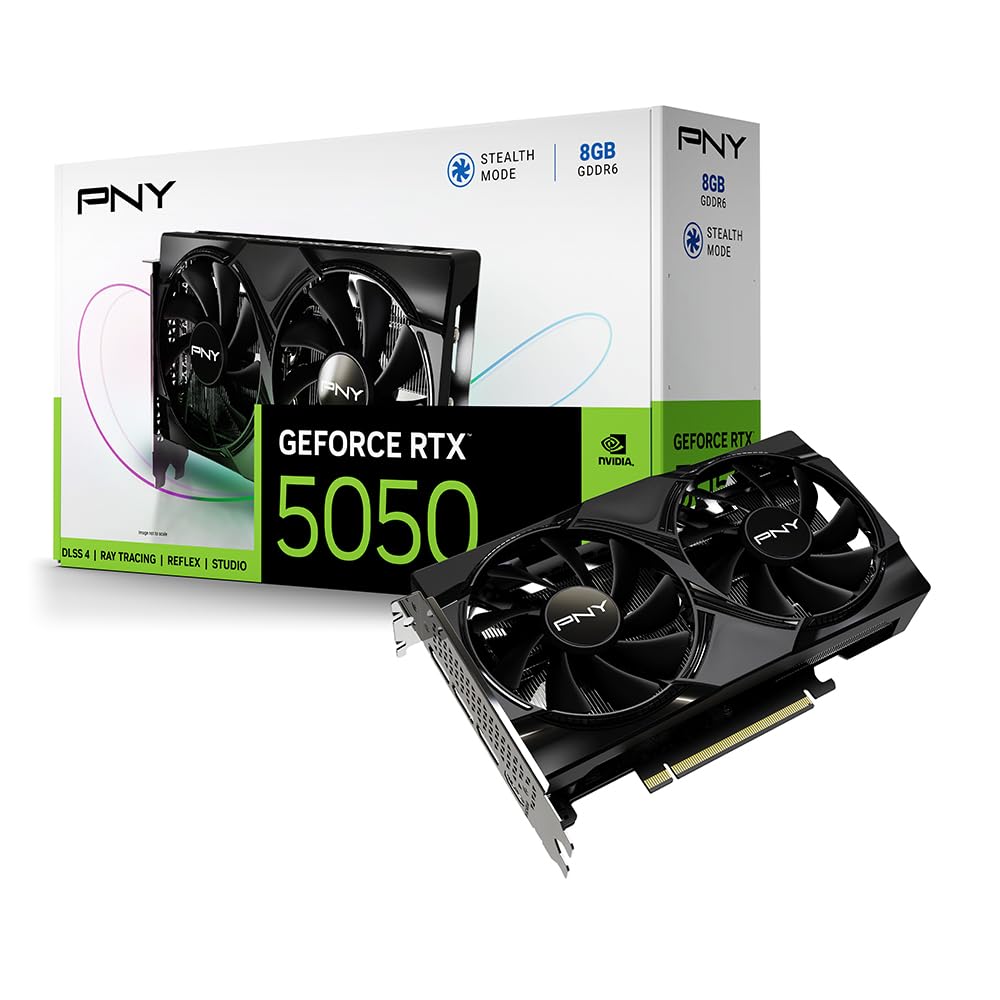
Figure 4.4: Diagram illustrating the dimensions of the PNY GeForce RTX 5050 graphics card, highlighting its compact 2-slot design suitable for SFF PCs.
The card measures approximately 200.0mm (7.88 inches) in length, 120.0mm (4.73 inches) in width, and 39.8mm (1.57 inches) in height. Its compact 2-slot design ensures compatibility with Small Form Factor (SFF) PC cases.
4.2. Advanced Cooling Technology

Figure 4.5: Illustration detailing the advanced cooling features of the PNY GeForce RTX 5050, including the open aluminum backplate, stealth mode, ultra-dense heat fins, and improved axial fans.
The graphics card incorporates advanced cooling features:
- Open Aluminum Backplate: Improves ventilation for better performance and stability.
- Stealth Mode: Fans stop operating when the GPU temperature falls below 50°C, reducing noise during light loads.
- Ultra-dense Heat Fins: Maximizes heat dissipation from the GPU.
- Improved Axial-Fans: Redesigned blades push up to 15% more airflow for enhanced cooling efficiency.
5. Setup and Installation
5.1. System Requirements
Before installation, ensure your system meets the following minimum requirements:
- PCI Express-compliant motherboard with one dual-width x16 graphics slot.
- Minimum 450W or greater system power supply (with one 8-pin PCIe power connector, if required by your specific model).
- Microsoft Windows 10/11 64-bit operating system.
- 8GB system memory (RAM) or more.
5.2. Physical Installation
Follow these steps to install your graphics card:
- Prepare Your System: Power off your computer and disconnect all power cables. Open your computer case.
- Locate PCIe Slot: Identify an available PCI Express x16 slot on your motherboard.
- Remove Slot Covers: Remove the two expansion slot covers from the back of your PC case corresponding to the chosen PCIe slot.
- Insert Graphics Card: Carefully align the graphics card with the PCIe slot and press down firmly until it is securely seated. A click may be heard.
- Secure Card: Fasten the graphics card to the PC case using the screws from the removed slot covers.
- Connect Power (if applicable): If your graphics card requires external power, connect the 8-pin PCIe power connector from your power supply to the graphics card.
- Close Case: Close your computer case and reconnect all power and display cables.
- Connect Display: Connect your monitor(s) to the DisplayPort or HDMI outputs on the graphics card.
5.3. Driver Installation
After physical installation, you must install the graphics drivers:
- Power On: Turn on your computer. It may boot into a basic display mode.
- Download Drivers: Visit the official NVIDIA website (www.nvidia.com/drivers) or the PNY support page to download the latest drivers for your GeForce RTX 5050 graphics card.
- Install Drivers: Run the downloaded driver installer and follow the on-screen instructions. A system restart may be required.
6. Operating Instructions
6.1. Basic Operation
Once drivers are installed, your operating system should automatically detect and utilize the graphics card. You can verify its status in your system's Device Manager (Windows) under 'Display adapters'.
6.2. Software Utilities (NVIDIA App / VelocityX)
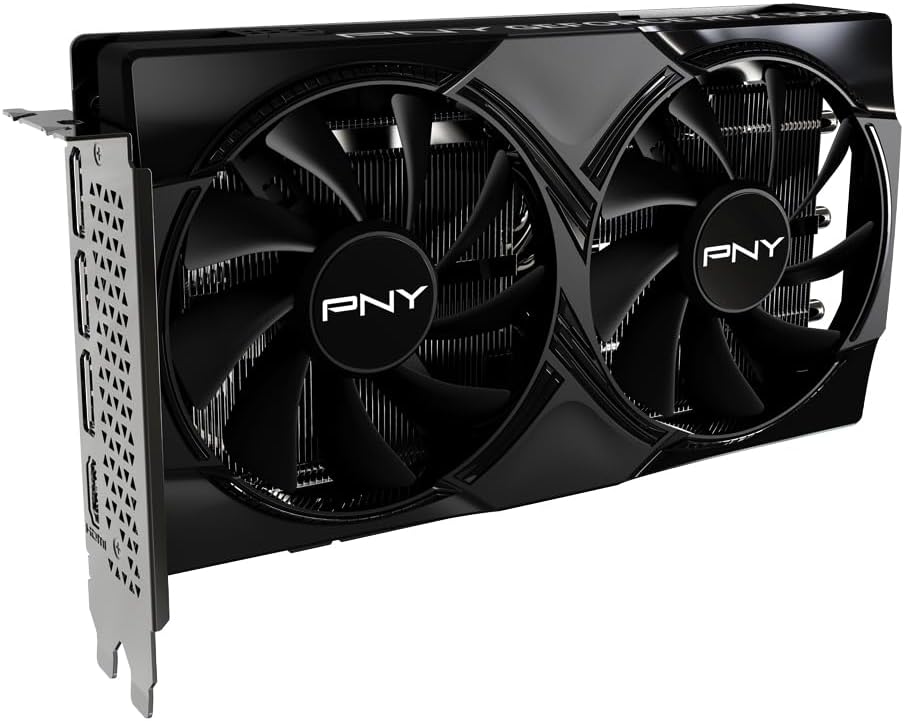
Figure 6.1: Screenshot of the VelocityX software interface, showing options for tuning overclocks, controlling fan behavior, and monitoring performance.
The NVIDIA App provides a centralized platform for managing your NVIDIA GPU settings, optimizing game settings, and accessing features like DLSS and NVIDIA Reflex. PNY also offers the VelocityX software, which allows you to:
- Tune overclocks for enhanced performance.
- Control fan behavior and monitor GPU temperature.
- Monitor various performance metrics.
- Create and switch between quick-swap profiles for different applications or games.
Download the NVIDIA App and PNY VelocityX from their respective official websites for full functionality.
6.3. Display Configuration
You can configure display settings, including resolution, refresh rate, and multiple monitor setups, through your operating system's display settings or the NVIDIA Control Panel (accessible after driver installation).
7. Maintenance
7.1. Cleaning
Regular cleaning helps maintain optimal performance and longevity:
- Dust Removal: Periodically use compressed air to gently remove dust from the fans and heatsink fins. Ensure the PC is powered off and unplugged before cleaning.
- Exterior Cleaning: Wipe the exterior of the card with a soft, dry, anti-static cloth. Avoid using liquid cleaners.
7.2. Driver Updates
Keep your graphics drivers updated to ensure compatibility with the latest games and applications, benefit from performance improvements, and receive security patches. Check the NVIDIA website regularly for new driver releases.
8. Troubleshooting
If you encounter issues, refer to the following common problems and solutions:
| Problem | Possible Solution |
|---|---|
| No display on monitor. |
|
| Drivers fail to install or crash. |
|
| Poor performance in games/applications. |
|
| Fans are not spinning. |
|
9. Specifications
Detailed technical specifications for the PNY NVIDIA GeForce RTX 5050 Dual Fan Graphics Card:
| Feature | Specification |
|---|---|
| Model Number | VCG50508DFXPB1 |
| Graphics Coprocessor | NVIDIA GeForce RTX 5050 |
| Chipset Brand | NVIDIA |
| Graphics Card Ram Size | 8 GB GDDR6 |
| Memory Speed | 2317 MHz |
| GPU Clock Speed | 2317 MHz |
| Max Screen Resolution | 7680x4320 |
| Video Output Interface | DisplayPort, HDMI |
| Product Dimensions (LxWxH) | 12.94 x 5.39 x 0.04 inches (328.7 x 136.9 x 1.0 mm) |
| Item Weight | 1.7 pounds (0.77 kg) |
| Color | Black |
| Architecture | NVIDIA Blackwell Architecture |
| Slot Size | 2-Slot |
| PCIe Interface | PCIe 5.0 |
10. Warranty and Support
For warranty information, technical support, and customer service, please visit the official PNY website or contact their customer support directly. Keep your proof of purchase for warranty claims.
PNY Official Website: www.pny.com


