
1. Introduction
The celonix TicKnot ODV-GBS-C Mini Video Converter is designed to bridge the gap between classic gaming consoles and modern display technology. It accepts various analog video inputs, including RGBS, YPbPr, and VGA, and converts them to digital HDMI or analog VGA outputs, supporting resolutions up to 1080p. This device ensures your retro gaming experience is preserved with enhanced clarity and minimal latency on contemporary televisions and monitors.
2. Package Contents
- TicKnot ODV-GBS-C Mini Video Converter Unit
- IR Remote Control
- 5V/2A Power Adapter (Type-C)
- User Manual (this document)
3. Product Overview
The ODV-GBS-C Mini features a compact design with multiple input and output options, an OLED display for status, and control knobs for direct adjustments. It also supports Wi-Fi for web UI control and includes an IR remote for convenience.

Image: Front view of the TicKnot ODV-GBS-C Mini Video Converter, highlighting its input (YPbPr, SCART, RGBS, VGA) and output (RGBS/YPbPr, HDMI, VGA) capabilities, along with the included remote control and key features like TV Line, Knob Control, WiFi Control, Remote Control, Sharpness Setting, and RGB Color Adjustment.
Key Features:
- Versatile Input Support: Accepts RGBS (SCART), YPbPr (Component), and VGA signals.
- Dual Output Options: Provides HDMI and VGA outputs, supporting up to 1080p.
- CRT Compatibility: Offers authentic 240p analog output (RGBS/YPbPr via Saturn interface) and 15 kHz over VGA (manual enable).
- Image Enhancement: Features Image Sharpness Enhancement and TV LINE scanlines for a classic aesthetic.
- Low Latency: Near-zero-delay 240p/480i switching with dynamic de-interlacing.
- Flexible Control: Manage settings via Wi-Fi web UI, IR remote, or onboard knobs.
- Audio Integration: Separate audio input and output for external sound systems.
4. Setup Instructions
4.1 Connecting Input Sources
The ODV-GBS-C Mini supports multiple input types. Choose the appropriate port for your retro console or device.
- SCART Input: Connect your console's SCART cable to the SCART IN port on the converter.
- YPbPr (Component) Input: Connect the red, green, and blue component video cables to the YPbPr ports. Ensure audio (red/white RCA) is connected to the corresponding audio input ports.
- RGBS Input: Connect RGBS signals via the appropriate input, often through the SCART port or dedicated RGBS connectors if available.
- VGA Input: Connect a VGA source to the VGA IN port.
4.2 Connecting Output Displays
The converter offers both digital and analog output options.
- HDMI Output: Connect an HDMI cable from the HDMI OUT port on the converter to an HDMI input on your modern TV or monitor.
- VGA Output: Connect a VGA cable from the VGA OUT port on the converter to a VGA input on your display.
4.3 Power Connection
Connect the provided 5V/2A power adapter to the Type-C power input port on the converter. Ensure the power adapter is plugged into a wall outlet.
4.4 Audio Connections
For audio, connect your source's audio cables (typically red/white RCA) to the AUX IN ports on the converter. If you wish to output audio to external speakers or headphones, use the AUX OUT ports.

Image: A detailed diagram illustrating various input connections (SCART, YPbPr from consoles like PS2, N64, Dreamcast, Saturn) to the GBS-C Mini, and output connections (HDMI to modern TVs, VGA to CRT monitors or PC monitors). It shows the flow of signals from retro consoles to different display types.

Image: Top-down and side views of the TicKnot ODV-GBS-C Mini Video Converter, clearly labeling all input and output ports including SCART, VGA IN, VGA OUT, HDMI OUT, YPbPr (R/G/B), AUX IN/OUT, Type-C for firmware updates, and 2A DC5V power input. Also shows the ON/OFF switch and compatibility mode switch.
5. Operating Instructions
5.1 Powering On and Input Selection
After connecting all cables, turn on the converter using the ON/OFF switch. The OLED display will show the current status. Use the input selection knob or the remote control to cycle through available input sources (SCART, YPbPr, VGA).
5.2 Using the Remote Control
The included IR remote control provides convenient access to various settings and functions.
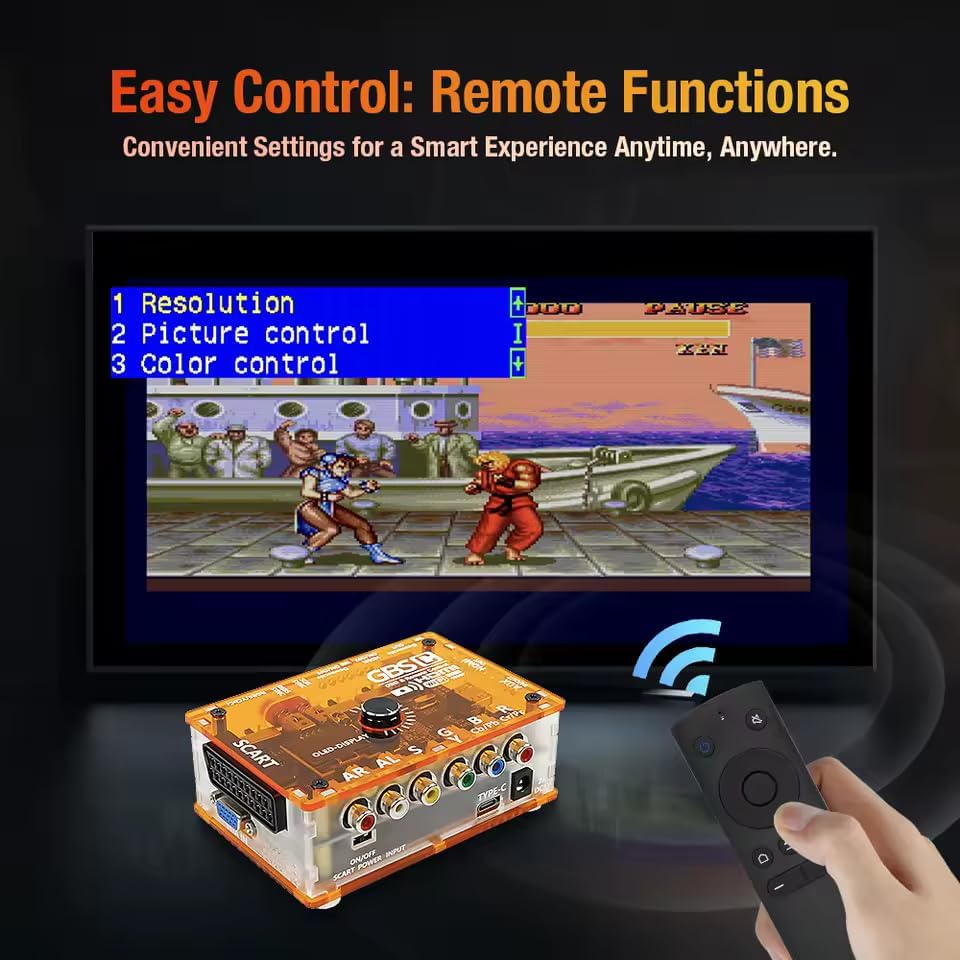
Image: The TicKnot ODV-GBS-C Mini Video Converter with its remote control, demonstrating the on-screen display (OSD) menu on a connected television. The OSD shows options for Resolution, Picture control, and Color control, indicating easy remote access to settings.
- Power Button: Turns the device on or off.
- Navigation Buttons: Use the directional pad to navigate through on-screen menus.
- OK/Enter Button: Confirms selections.
- Volume Buttons (+/-): Adjusts audio output volume.
- Menu Button: Accesses the main settings menu.
5.3 Wi-Fi Web UI Control
For advanced settings and firmware updates, the converter can be accessed via a web interface over Wi-Fi. Connect your computer or mobile device to the converter's Wi-Fi network (SSID and password typically displayed on the OLED screen or in initial setup). Then, open a web browser and navigate to the IP address provided to access the control panel.
5.4 Adjusting Image Settings
The converter offers several options to fine-tune your video output.
- Resolution: Select your desired output resolution (e.g., 480p, 720p, 1080p) via the remote or web UI.
- Image Sharpness Enhancement: Enable or disable this feature to adjust the clarity of the image. This can be particularly useful for older games.
- TV LINE Scanlines: Apply scanline effects to replicate the look of a classic CRT television.
- RGB Color Adjustment: Use the physical R/G/B knobs on the unit or the digital controls via remote/web UI to fine-tune color balance.
- CRT Compatibility Mode: For authentic retro display, enable 240p analog output or 15 kHz over VGA as needed. Refer to the web UI for specific settings.
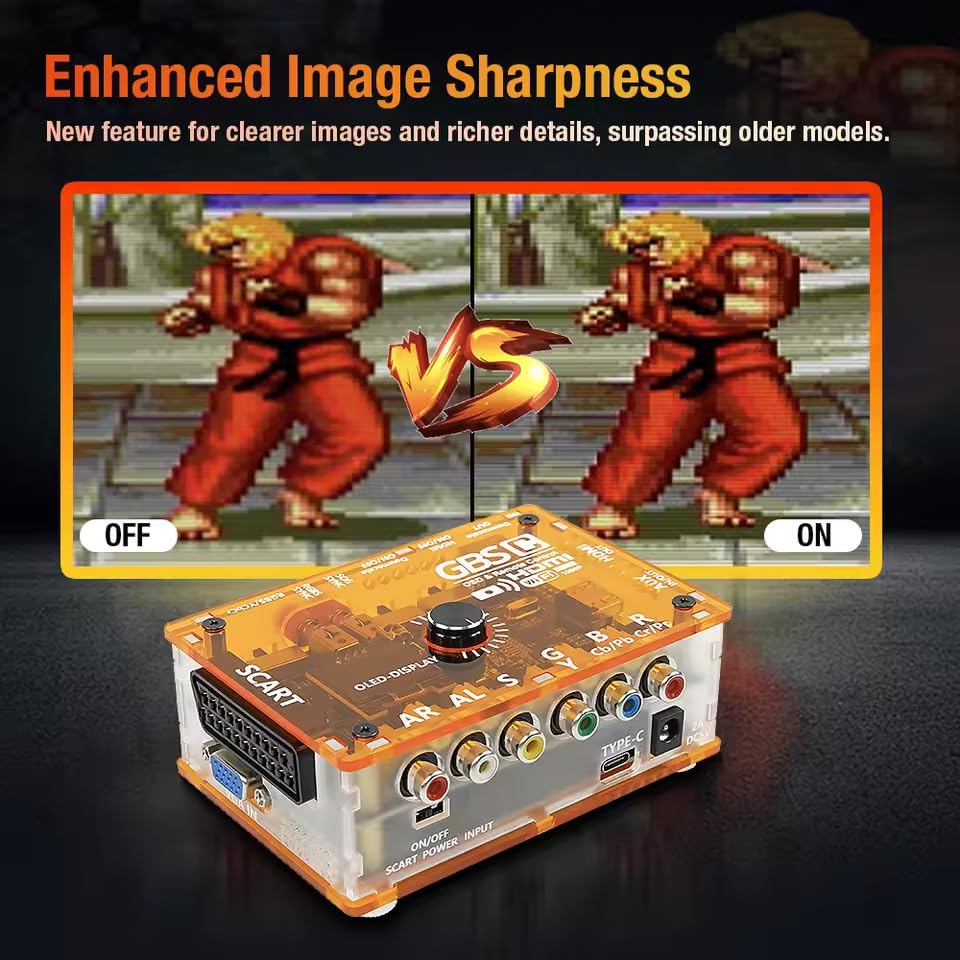
Image: A side-by-side comparison demonstrating the 'Enhanced Image Sharpness' feature of the GBS-C Mini. The left side shows the image with sharpness enhancement 'OFF', appearing softer, while the right side shows it 'ON', with noticeably clearer details and richer colors.
6. Maintenance
To ensure the longevity and optimal performance of your TicKnot ODV-GBS-C Mini Video Converter, follow these maintenance guidelines:
- Cleaning: Use a soft, dry cloth to clean the exterior of the unit. Avoid abrasive cleaners or solvents.
- Ventilation: Ensure the unit is placed in a well-ventilated area to prevent overheating. Do not block any ventilation openings.
- Storage: When not in use for extended periods, store the converter in a cool, dry place away from direct sunlight and extreme temperatures.
- Power: Always use the provided 5V/2A power adapter. Disconnect power during electrical storms or when not in use.
7. Troubleshooting
7.1 No Video Output
- Check Connections: Ensure all video cables (input and output) are securely connected.
- Input Selection: Verify that the correct input source is selected on the converter.
- Display Input: Confirm your TV/monitor is set to the correct HDMI or VGA input.
- Power: Ensure the converter is powered on and the power adapter is functioning.
- Resolution Compatibility: Try a lower output resolution if your display is not showing an image.
7.2 No Audio Output
- Audio Cables: Check that audio input and output cables are correctly connected.
- Volume: Ensure the volume on the converter, your display, and any external audio system is not muted or set too low.
- Source Audio: Verify that your source device is outputting audio.
7.3 Image Quality Issues (Flickering, Distortion)
- Cable Quality: Use high-quality, shielded cables for both input and output.
- Power Supply: Ensure the power supply is stable and providing sufficient current (5V/2A).
- Settings: Adjust sharpness, color, and scanline settings via the remote or web UI.
- Compatibility Mode: If using CRT compatibility, ensure settings are correct for your display.
7.4 Remote Control Not Responding
- Batteries: Replace the batteries in the remote control.
- Line of Sight: Ensure there is a clear line of sight between the remote and the converter's IR receiver.
8. Specifications
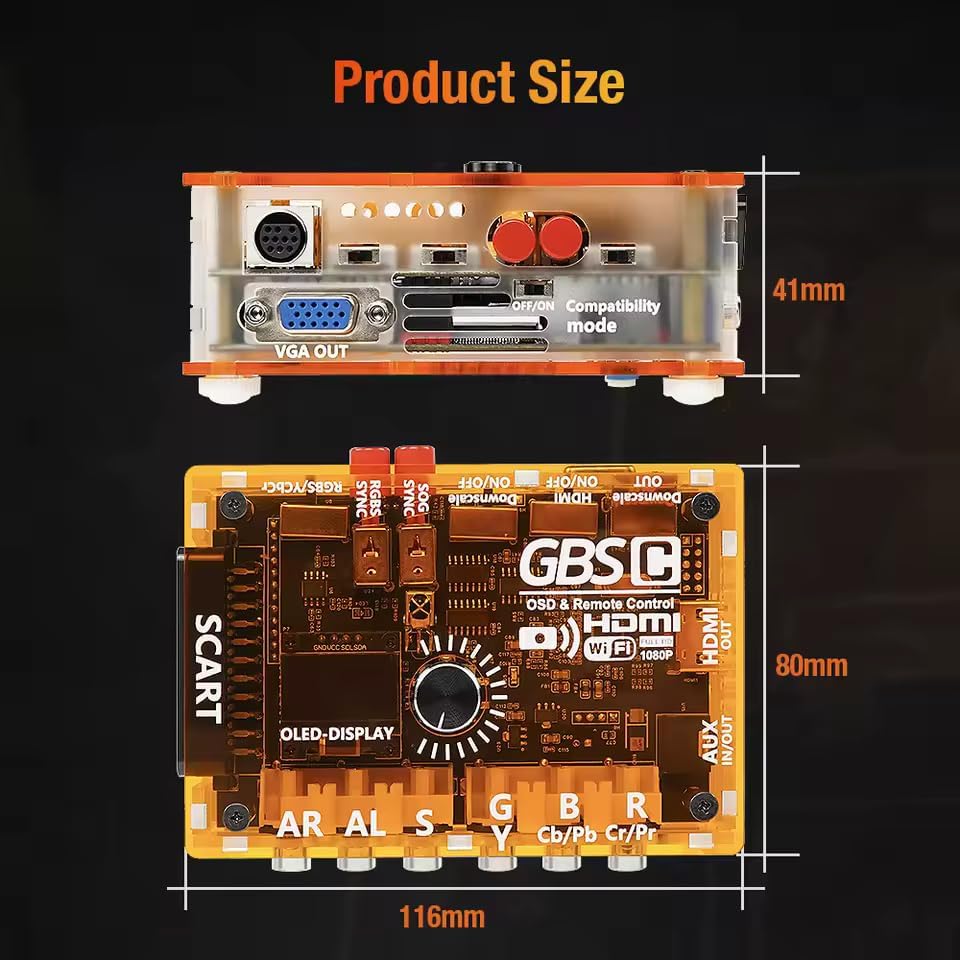
Image: Technical drawing showing the dimensions of the TicKnot ODV-GBS-C Mini Video Converter. The unit measures approximately 116mm in length, 80mm in width, and 41mm in height.
| Feature | Detail |
|---|---|
| Brand | celonix |
| Model | ODV-GBS-C |
| Input Interfaces | RGBS (SCART), YPbPr (Component), VGA |
| Output Interfaces | HDMI, VGA |
| Maximum Output Resolution | 1080p |
| Minimum Supply Voltage | 5 Volts (DC) |
| Maximum Supply Voltage | 5 Volts (DC) |
| Power Requirement | 5V/2A (Type-C) |
| Number of Channels | 2 (Audio) |
| Compatible Devices | Desktop, Television (Retro Gaming Consoles) |
| Dimensions (Approx.) | 116mm x 80mm x 41mm |
| UPC | 739503716643 |
9. Warranty Information
This product does not come with a manufacturer's warranty. Please refer to your retailer's return policy for any issues or concerns regarding your purchase.
10. Support
For further assistance or technical inquiries, please contact your point of purchase or refer to the celonix official website for potential support resources.