
1. Product Overview
The VCHOO SL02 Keyless Entry Door Lock Set offers advanced security and convenience for your home or office. This smart lock integrates multiple unlocking methods including Wi-Fi app control, keypad codes, one-time codes, and physical keys. Designed for easy installation and robust performance, it enhances your property's security with smart features.

Image: VCHOO SL02 Keyless Entry Door Lock Set highlighting its key features and components.
2. Package Contents
Verify all components are present before beginning installation.

Image: All components included in the VCHOO SL02 Keyless Entry Door Lock Set package.
- Deadbolt Front Lock (x1)
- Deadbolt Rear Lock (x1)
- Door Handle Front/Rear Lock (x1)
- Door Knob (x2)
- Key (x5)
- Lock Latch (x2)
- Screw Accessories Package (x2)
- Hole Opening Diagram (x1)
- Installation Tutorial Card (x2)
- Instructions (x1)
3. Specifications
| Brand | VCHOO |
| Model Name | SL02 |
| Lock Type | Combination Lock, Deadbolt, Keypad |
| Material | Zinc |
| Item Dimensions (L x W x H) | 2.8 x 2.3 x 5.8 inches |
| Item Weight | 3.36 Pounds |
| Special Features | App Control, WiFi Smart Door Lock, Type C Charge, Auto Lock, One Time Codes, Anti Peeping Password, Low Battery Warning, Easy Install, IP54 |
| Power Source | 4 AA Batteries (not included) |
| Connectivity Protocol | APP (Wi-Fi) |
4. Installation Guide
Follow these steps carefully to install your VCHOO SL02 Keyless Entry Door Lock Set.
4.1 Pre-installation Checks
Ensure your door is compatible with the lock's dimensions and specifications.

Image: Door compatibility and measurement guide for VCHOO SL02 installation.
- Door Thickness: Compatible with doors between 1.31" and 2.16" (33mm-55mm).
- Backset: Adjustable for 2-3/8" or 2-3/4" (60mm or 70mm).
- Bore Hole Diameter: 2-1/8" (54mm).
- Ensure your door has a standard latch hole (chiseled or not chiseled) and is a single cylinder type. Mortise, integrated, or rim cylinder doors are not compatible.
4.2 Lock Installation Steps
Refer to the following video for a detailed installation guide:
Video: VCHOO SL02 Smart Door Lock Installation Guide. This video demonstrates the complete installation process for the smart door lock, including preparing the door, installing the latch, mounting the exterior and interior units, connecting wiring, and securing the components.
- Install the Latch: Ensure the latch is correctly oriented for your door's opening direction. The 'UP' icon on the latch should face upwards. Secure it with screws.
- Install the Front Lock: Carefully route the power cord through the bottom of the door panel. Insert the latch bolt vertically through the lock core.
- Install the Rear Lock: Thread the wires through the square hole in the lower right corner of the rear lock panel. Insert the silver long screw through the hole in the backplate and tighten it to secure the lock.
- Connect Power Cord and Install Battery Cover: Connect the power cord to the terminals on the rear host motherboard. Ensure the rear panel is in the unlocked state and insert the latch bolt through the knob hole. Tighten the short screws to secure the battery cover.
- Install Batteries and Test Direction: Insert 4 AA batteries (not included) into the battery compartment. The lock will automatically test the door opening direction.
- Install Door Knobs: For the knob version, follow the specific knob installation video.
Video: VCHOO SL02 Keyless Entry Door Lock Knob Installation. This video provides specific instructions for installing the door knobs for the VCHOO SL02 lock set.
5. Initial Setup & Programming
Configure your lock settings and add user access.
5.1 Administrator Password Setup
Set up the primary administrator password for your lock.
Video: VCHOO SL02 Registration & Delete User. This video guides you through registering new users and deleting existing ones, including setting administrator passwords.
5.2 System Settings (Volume, Language, Door Direction, Auto-Lock, Factory Reset)
Adjust various system parameters for optimal use.
Video: VCHOO SL02 NEW System Setup. This video covers initial system setup, including volume, language, door opening direction, auto-locking, and factory reset procedures.
- Volume Setting: Adjust the lock's audio feedback level.
- Language Setting: Select your preferred language for voice prompts.
- Door Opening Direction: Configure the lock to recognize left or right-hand door opening.
- Auto-Lock: Enable or disable automatic locking after a set time (10-30 seconds).
- Factory Reset: Restore the lock to its original factory settings.
6. App Control & Features
Manage your lock remotely and access advanced features via the Smart Life app.

Image: Built-in Wi-Fi connectivity for remote control via the Smart Life app.
Video: VCHOO SL02 WIFI App Connection and Usage. This video demonstrates how to connect the lock to the Smart Life app and utilize its features.
- Wi-Fi Connection: No bridge is required. Press the doorbell button to activate the lock's Wi-Fi mode for easy pairing with the Smart Life app.
- Remote Control: Lock and unlock your door from anywhere, anytime.
- User Management: Add, modify, or delete user codes and access rights.
- One-Time Passwords: Generate temporary codes for visitors, maintenance workers, or pet sitters.
- Access Logs: View comprehensive records of lock activity.
- Notifications: Receive alerts for low battery and other events.
7. Operating Instructions
Learn how to use the various unlocking methods and security features.
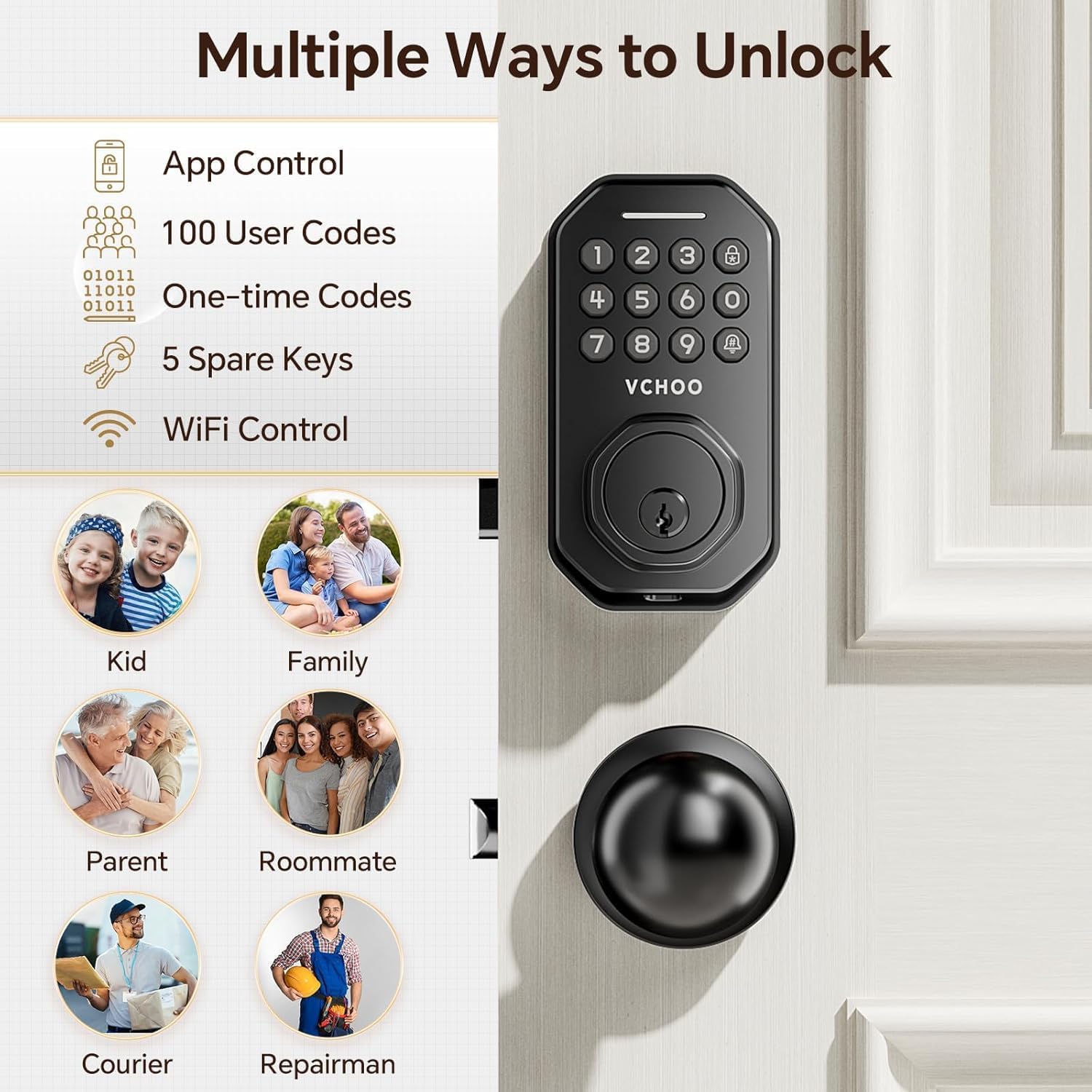
Image: Multiple ways to unlock the VCHOO SL02 smart door lock.
7.1 Keypad Unlocking
- User Codes: Enter your programmed 6-digit user code followed by '#'.
- One-Time Codes: Use temporary codes generated via the app for single access.
- Anti-Peeping Password: Enter random digits before or after your actual code to prevent others from guessing it.

Image: Anti-peep keypad feature for enhanced security.
7.2 Physical Key Unlocking
Use the provided physical keys as a traditional backup unlocking method.

Image: Using physical keys for unlocking.
7.3 Auto-Lock and One-Touch Lock
The lock offers convenient automatic and manual locking options.

Image: Keyless entry features: Auto-Lock and One-Touch Lock.
- Auto-Lock: The lock can be set to automatically lock after 10-30 seconds.
- One-Touch Lock: Press the lock button on the keypad for instant locking.
8. Maintenance & Care
Proper maintenance ensures the longevity and optimal performance of your lock.
- Cleaning: Use a soft, dry cloth to clean the lock's surface. Avoid abrasive cleaners or solvents.
- Battery Replacement: Replace all four AA batteries when the low battery alert appears.
- Emergency Power: In case of complete battery drain, use a Type-C cable to provide emergency power for unlocking.
- Weather Protection: The lock is IP54 rated, providing protection against dust and splashing water.

Image: Battery features including replaceable batteries, low battery alert, and Type-C emergency charging port.
9. Troubleshooting
If you encounter issues, refer to these common solutions.
- Lock not responding: Check battery levels and replace if necessary. Ensure the lock is properly installed and all connections are secure.
- Keypad not lighting up: This usually indicates low battery. Use the Type-C emergency charging port or replace batteries.
- App connection issues: Ensure your phone's Wi-Fi, Bluetooth, and location services are enabled. Verify the lock is within range of a 2.4GHz Wi-Fi network. Try restarting the app and the lock.
- Incorrect door opening direction: Re-run the door opening direction setting in the system settings.
- Forgotten password: Use the physical key to unlock and reset the administrator password via the app or perform a factory reset.
10. Warranty & Support
VCHOO products come with a standard manufacturer's warranty. For detailed warranty information, product support, or technical assistance, please refer to the contact information provided in your purchase documentation or visit the official VCHOO website. Keep your purchase receipt for warranty claims.


