1. Introduction
This manual provides instructions for the Rapoo V700DIY-98 Wireless Mechanical Keyboard. It covers setup, operation, maintenance, troubleshooting, and product specifications. Please read this manual thoroughly before using the keyboard to ensure proper function and longevity.
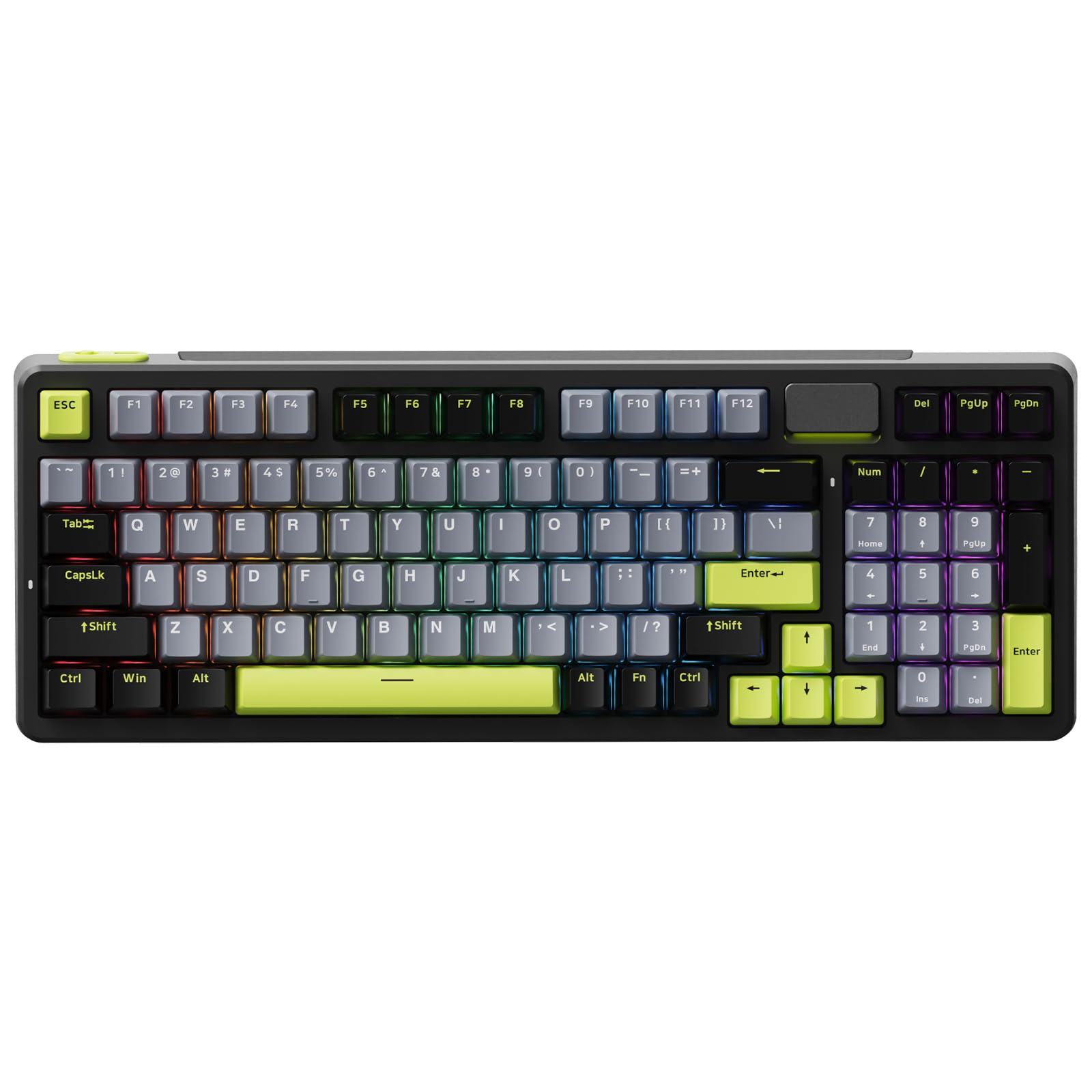
Image: The Rapoo V700DIY-98 Wireless Mechanical Keyboard in black.
2. Package Contents
Verify that all items are present in the package:
- 1 x Rapoo V700DIY-98 Mechanical Keyboard
- 1 x USB-C to USB-A Cable
- 1 x User Guide (this document)
3. Setup
3.1 Initial Charging
Before first use, connect the keyboard to a USB power source using the provided USB-C to USB-A cable. The keyboard features a built-in 4000mAh battery. A full charge ensures extended wireless operation.

Image: Illustration of the keyboard's internal 4000mAh battery.
3.2 Connecting the Keyboard
The V700DIY-98 supports three connection modes: Wired (USB-C), 2.4GHz Wireless, and Bluetooth 5.0.

Image: The keyboard connected to multiple devices via wired, 2.4GHz, and Bluetooth modes.
3.2.1 Wired Connection
- Connect the USB-C end of the cable to the keyboard.
- Connect the USB-A end of the cable to your computer's USB port.
- The keyboard will automatically switch to wired mode.
3.2.2 2.4GHz Wireless Connection
- Locate the 2.4GHz USB receiver, typically stored in a compartment on the keyboard.
- Plug the USB receiver into an available USB port on your computer.
- Switch the keyboard's mode selector to 2.4GHz. The keyboard should connect automatically.
3.2.3 Bluetooth Connection
The keyboard supports connecting up to 3 Bluetooth devices.
- Switch the keyboard's mode selector to Bluetooth.
- Press and hold Fn + 1, Fn + 2, or Fn + 3 for 3 seconds to enter pairing mode for the desired channel. The indicator light will flash rapidly.
- On your device (PC, laptop, tablet, or mobile), search for Bluetooth devices and select "Rapoo V700DIY-98" (or similar name) to pair.
- Once paired, the indicator light will stop flashing.
4. Operating Instructions
4.1 Switching Connectivity Modes
Use the mode selector switch on the keyboard to switch between Wired, 2.4GHz, and Bluetooth modes. For Bluetooth, press Fn + 1/2/3 to switch between paired devices.
4.2 Key Functions and Hotkeys
The keyboard includes FN media hotkeys for quick access to various functions:
- Fn + F1: Compute
- Fn + F2: Calculator
- Fn + F3: Mailbox
- Fn + F4: Homepage
- Fn + F5: Search
- Fn + F6: Media Player
- Fn + F7: Previous Track
- Fn + F8: Next Track
- Fn + F9: Play/Pause
- Fn + F10: Volume Down
- Fn + F11: Volume Up
- Fn + F12: Mute
- Fn + Win: Windows Key Lock

Image: A visual guide to the FN media hotkeys and their functions.
4.3 RGB Lighting Control
The keyboard features 16.8 million per-key RGB backlighting with various customization options.
- Fn + Page Up/Down: Switch between preset backlight modes.
- Fn + ↑ / ↓: Adjust backlight brightness.
- Fn + ← / →: Adjust backlight speed.
- Fn + Del: Switch side lightbar effects (fixed/breathing).
- Fn + Esc (short press): Backlight on/off.
- Fn + Esc (long press over 3 seconds): Restore default settings.
More advanced settings and customization can be accessed via the Rapoo driver software, available on the official Rapoo website for Windows and Mac OS.

Image: Screenshot of the keyboard's RGB customization software interface.

Image: Diagram illustrating keyboard shortcuts for RGB mode switching.
4.4 Hot-Swappable Switches
The V700DIY-98 features hot-swappable sockets, allowing users to change switches without soldering. It is compatible with standard 3-pin/5-pin mechanical switches.

Image: The keyboard with keycaps and switches removed, highlighting the hot-swappable design.
4.5 Speed Silver Linear Switches
The keyboard is equipped with pre-lubed linear Speed Silver switches. These switches offer a low spring resistance and a fast actuation point, designed for quick and direct key triggers.

Image: An exploded view illustrating the components of a Speed Silver linear switch.
4.6 Gasket Structure and Sound Profile
The keyboard features a gasket-mounted design with a 7-layer switch-dampening pad structure. This design absorbs pinging noises and echoes, contributing to improved keystroke acoustics and a consistent sound profile.

Image: An exploded diagram showing the multi-layer gasket structure of the keyboard.
4.7 Full NKRO Anti-Ghosting
The keyboard supports Full N-Key Rollover (NKRO) and anti-ghosting, allowing an unlimited number of keys to be registered simultaneously. This ensures accurate input, even during rapid or complex key presses.

Image: The keyboard in an active use scenario, demonstrating its anti-ghosting feature.
4.8 Doubleshot PBT Keycaps
The keycaps are made from Doubleshot PBT material, which offers resistance to fading and wear, contributing to long-lasting durability and a consistent texture.

Image: A close-up view of the Doubleshot PBT keycaps, highlighting their construction.
5. Maintenance
5.1 Cleaning the Keyboard
To clean the keyboard, disconnect it from all power sources. Use a soft, dry cloth to wipe the surface. For deeper cleaning, keycaps can be removed using a keycap puller. Use compressed air to clear debris from under the keycaps.
5.2 Replacing Keycaps and Switches
Due to the hot-swappable design, switches can be replaced without soldering. Use a switch puller to carefully remove switches. Ensure replacement switches are compatible (3-pin or 5-pin).
6. Troubleshooting
- Keyboard not responding: Ensure the keyboard is charged. Check the connection mode (wired, 2.4GHz, or Bluetooth) and ensure it matches your device. For 2.4GHz, verify the receiver is properly inserted. For Bluetooth, re-pair the device if necessary.
- Wireless connectivity issues (keyboard only works when plugged in): This may indicate a battery issue or a problem with the wireless module. Ensure the keyboard is fully charged. If the issue persists, contact support.
- RGB lighting not working or incorrect: Check the RGB lighting shortcuts (Fn + Page Up/Down, Fn + ↑/↓, Fn + ←/→, Fn + Del). If using software, ensure it is installed correctly and updated. Try resetting the keyboard to default settings (Fn + Esc, long press).
- Keys not registering: Ensure the keyboard is clean and free of debris. If a specific key is not working, consider replacing the switch if you have spare hot-swappable switches.
7. Specifications
| Feature | Detail |
|---|---|
| Brand | Rapoo |
| Model Number | V700DIY-98 |
| Connectivity Technology | Bluetooth 5.0, 2.4GHz Wireless, USB-C Wired |
| Keyboard Description | Wireless Mechanical Gaming Keyboard |
| Switch Type | Linear |
| Mechanical Keyboard Switch Model | Speed Silver |
| Special Features | Backlit, Customizable Display Keys, Hot-Swappable, Hotkeys and Media Keys, Rechargeable |
| Color | Black |
| Keyboard Backlighting | RGB (16.8M Per-Key) |
| Number of Keys | 97 |
| Battery Capacity | 4000mAh |
| Product Dimensions (L x W x H) | 15.27" x 5.63" x 1.65" (38.8cm x 14.3cm x 4.2cm) |
| Item Weight | 1030 Grams |
| Compatible Devices | Gaming Console, Laptop, PC, Tablet |
| Minimum Required OS | Windows 11 |

Image: Dimensions comparison between the V700DIY-75 and V700DIY-98 keyboard models.
8. Warranty Information
The Rapoo V700DIY-98 Wireless Mechanical Keyboard comes with a 1-year warranty from the date of purchase. This warranty covers manufacturing defects. For warranty claims or service, please retain your proof of purchase and contact Rapoo customer support.
9. Support
For further assistance, technical support, or to download the latest driver software, please visit the official Rapoo website: