
Rapoo V700DIY-75
Rapoo V700DIY-75 Wireless Mechanical Keyboard User Manual
Model: V700DIY-75
Introduction
This manual provides detailed instructions for the Rapoo V700DIY-75 Wireless Mechanical Keyboard. It covers setup, operation, maintenance, and troubleshooting to ensure optimal performance and user experience. The V700DIY-75 is a versatile keyboard featuring tri-mode connectivity, hot-swappable switches, and customizable RGB lighting.
What's in the Box
- 1 x Rapoo V700DIY-75 Mechanical Keyboard
- 1 x USB-C to USB-A Cable
- 1 x User Manual (this document)
Product Overview
The Rapoo V700DIY-75 is a high-performance mechanical keyboard designed for gaming, work, and general use. Key features include:
- Tri-Mode Connection: Supports Bluetooth 5.0 (up to 3 devices), 2.4GHz wireless, and USB wired connectivity for versatile use across multiple devices.
- Hot-Swappable Speed Silver Switches: Pre-lubed linear switches offer fast, direct triggers and are easily replaceable without soldering.
- 16.8 Million Per-Key RGB Backlighting: Customizable individual key backlighting with various effects and color schemes.
- Gasket Structure with Creamy Sound: Features a 7-layer switch-dampening pad structure to absorb noise and improve keystroke acoustics.
- Full NKRO Anti-Ghosting: Ensures all simultaneous key presses are registered accurately, preventing ghosting.
- Doubleshot PBT Keycaps: Durable, fade-resistant keycaps provide a premium feel and long-lasting performance.
- FN Media Hotkeys: Dedicated function keys for quick control of volume, media playback, lighting, and Windows lock.

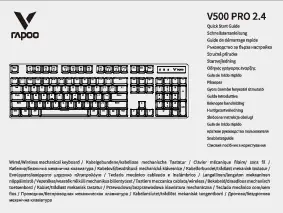
Image: The Rapoo V700DIY-75 Wireless Mechanical Keyboard in blue, showcasing its compact layout and RGB lighting.
Setup Instructions
1. Charging the Keyboard
Before initial use, ensure the keyboard is fully charged. Connect the provided USB-C to USB-A cable to the keyboard's USB-C port and the other end to a powered USB port on your computer or a USB wall adapter. The keyboard features a 4000mAh battery.

Image: Illustration of the keyboard's internal battery, indicating a 4000mAh capacity.
2. Connecting the Keyboard
The V700DIY-75 supports three connection modes: Bluetooth 5.0, 2.4GHz wireless, and USB wired.
2.1. USB Wired Connection
- Connect the USB-C end of the cable to the keyboard and the USB-A end to your computer.
- The keyboard will automatically be detected and ready for use.
2.2. 2.4GHz Wireless Connection
- Locate the 2.4GHz USB receiver, typically stored in a compartment on the keyboard.
- Plug the USB receiver into an available USB port on your computer.
- Turn on the keyboard. It should automatically connect to the receiver.

Image: The keyboard's adjustable feet and a compartment for the 2.4GHz USB receiver.
2.3. Bluetooth 5.0 Connection
The keyboard can connect to up to three Bluetooth devices.
- Ensure Bluetooth is enabled on your device (PC, laptop, tablet, mobile).
- On the keyboard, switch to Bluetooth mode.
- Press and hold the designated Bluetooth pairing key (refer to keyboard layout for specific key, often Fn + 1, 2, or 3) until the indicator light flashes, indicating pairing mode.
- On your device, search for Bluetooth devices and select "Rapoo V700DIY-75" to connect.
- Repeat for additional Bluetooth devices, using different Bluetooth channels (e.g., Fn+2, Fn+3).

Image: The keyboard connected to a monitor, tablet, and smartphone, illustrating its tri-mode connectivity.
Operating Instructions
1. FN Media Hotkeys
The keyboard features FN (Function) keys that, when pressed in combination with other keys, provide quick access to media controls and system functions.
| Key Combination | Function |
|---|---|
| Fn + F1 | Compute |
| Fn + F2 | Calculator |
| Fn + F3 | Mailbox |
| Fn + F4 | Homepage |
| Fn + F5 | Search |
| Fn + F6 | Media Player |
| Fn + F7 | Previous Track |
| Fn + F8 | Next Track |
| Fn + F9 | Play/Pause |
| Fn + F10 | Volume Up |
| Fn + F11 | Volume Down |
| Fn + F12 | Mute |
| Fn + Win | Windows Key Lock |

Image: A visual representation of the FN key combinations and their corresponding functions.
2. RGB Lighting Control
The V700DIY-75 features customizable 16.8 million per-key RGB backlighting. You can adjust lighting modes, brightness, and speed using key combinations or dedicated software.
- Fn + Page Up/Down: Switch between different backlit modes.
- Fn + ESC: Short press to toggle backlight on/off. Long press (over 3 seconds) to restore default settings.
- Fn + ↑ / ↓: Adjust backlight brightness.
- Fn + ← / →: Adjust backlight speed.
- Fn + \: Switch side lightbar modes.
- Fn + Del: Switch side lightbar effects (fixed/breathing).
For more advanced customization and settings, download the driver software from the official Rapoo website (available for Windows and Mac OS).

Image: Screenshot of the keyboard's RGB customization software, showing various lighting effects and color options.
3. Hot-Swappable Switches
The V700DIY-75 features hot-swappable switches, allowing you to change mechanical switches without soldering. This keyboard is compatible with standard 3-pin/5-pin switches.
- Carefully remove the keycap using a keycap puller.
- Use a switch puller to gently extract the switch from the PCB.
- Align the pins of the new switch with the holes on the PCB and press firmly until it clicks into place. Ensure pins are not bent.
- Replace the keycap.

Image: An exploded view of the keyboard showing various keycaps and switches, highlighting the hot-swappable feature.
Maintenance
Regular maintenance helps prolong the life and performance of your keyboard.
- Cleaning Keycaps: Use a keycap puller to remove keycaps. Clean them with a mild soap solution and a soft cloth, then dry thoroughly before reattaching.
- Cleaning the Keyboard Base: Use compressed air to remove dust and debris from between switches. Wipe the surface with a slightly damp, lint-free cloth. Avoid excessive moisture.
- Switch Maintenance: If switches feel inconsistent, they can be replaced using the hot-swap feature. Ensure replacement switches are compatible.
- Storage: When not in use for extended periods, store the keyboard in a dry, dust-free environment.
Troubleshooting
Keyboard Not Responding
- Check Connection: Ensure the USB cable is securely connected, or the 2.4GHz receiver is properly inserted, or Bluetooth is paired correctly.
- Battery Level: Charge the keyboard fully. A low battery can cause connectivity issues.
- Switch Modes: Ensure the keyboard is in the correct mode (wired, 2.4GHz, or Bluetooth) for your connection type.
- Restart Device: Try restarting your computer or device.
RGB Lighting Not Working or Incorrect
- Brightness Adjustment: Use Fn + ↑ to increase brightness.
- Lighting Mode: Cycle through lighting modes using Fn + Page Up/Down.
- Reset Settings: Long press Fn + ESC (over 3 seconds) to restore default lighting settings.
- Software: Ensure the Rapoo driver software is installed and updated for full control.
Keys Not Registering or Double-Typing
- Check Switches: A faulty switch might be the cause. Utilize the hot-swappable feature to replace the problematic switch.
- Clean Under Keycaps: Remove the keycap and check for any debris obstructing the switch mechanism.
Specifications
| Feature | Detail |
|---|---|
| Brand | Rapoo |
| Model Number | V700DIY-75 |
| Connectivity Technology | Bluetooth 5.0, 2.4G Wireless, USB-C Wired |
| Keyboard Description | Wireless Mechanical Gaming Keyboard |
| Switch Type | Linear (Speed Silver) |
| Number of Keys | 79 |
| Keyboard Layout | QWERTY |
| Backlighting | 16.8M Per-Key RGB |
| Anti-Ghosting | Full NKRO |
| Keycaps | Doubleshot PBT |
| Power Source | Battery Powered (4000mAh) |
| Product Dimensions (L x W x H) | 12.83" x 5.63" x 1.65" (32.6cm x 14.3cm x 4.2cm) |
| Item Weight | 850 g |
| Compatible Devices | Gaming Console, Laptop, PC, Tablet |
| Compatible OS Family | Windows (Minimum Windows 11) |

Image: Diagram showing the dimensions of the V700DIY-75 keyboard (12.83in / 32.6cm length).
Warranty and Support
The Rapoo V700DIY-75 Wireless Mechanical Keyboard comes with a 1-year warranty from the date of purchase, covering manufacturing defects.
For technical support, warranty claims, or further assistance, please contact Rapoo customer service through their official website or the contact information provided with your purchase documentation.
Please retain your proof of purchase for warranty purposes.
Related documentsV700DIY-75



Ask a question about this manual
Ask about setup, troubleshooting, compatibility, parts, safety, or missing instructions. Manuals+ will review the question and use this page’s manual context to help answer it.