
Introduction
This manual provides comprehensive instructions for the installation, operation, and maintenance of your Fenvi FU-AX900BT Wi-Fi 6 USB Adapter with Bluetooth 5.2. Please read this manual carefully before using the device to ensure proper functionality and to maximize its performance. The FU-AX900BT is designed to provide high-speed Wi-Fi 6 (802.11ax) connectivity and Bluetooth 5.2 capabilities to your desktop or laptop computer.

Image 1: Fenvi FU-AX900BT Wi-Fi 6 USB Adapter. This image shows the compact USB adapter with its high-gain external antenna attached, ready for connection to a computer's USB port.
Package Contents
Verify that all items are present in the package:
- Fenvi FU-AX900BT Wireless USB Adapter
- Instruction Manual (this document)
Key Features
The Fenvi FU-AX900BT offers the following key features:
- High-Gain External Antenna: Provides stronger signal reception and extended range, beneficial for systems located further from the router or in environments with obstacles.
- 2-in-1 Combo: Integrates both Wi-Fi 6 (802.11ax) AX900 and Bluetooth 5.2 connectivity.
- Dual-Band Speeds: Supports up to 600 Mbps on the 5 GHz band and 287 Mbps on the 2.4 GHz band for efficient data transfer.
- MU-MIMO and OFDMA: Enhances network efficiency and performance, especially in busy network environments with multiple devices.
- WPA3 Security: Provides advanced encryption for secure wireless connections.
- USB 3.0 Interface: Ensures high throughput for optimal Wi-Fi and Bluetooth performance.
- Wide Compatibility: Compatible with Windows 11 and Windows 10 operating systems.

Image 2: Overview of Fenvi FU-AX900BT features. This graphic highlights Wi-Fi 6 (802.11ax) upgrade, dual-band speeds (900 Mbps total), high-gain antenna, 3-year warranty, Bluetooth 5.3 (note: product description states 5.2), WPA3 security, and OFDMA technology.

Image 3: Wi-Fi 6 Performance with OFDMA and MU-MIMO. This illustration compares Wi-Fi 5 and Wi-Fi 6 data transmission, showing how OFDMA and MU-MIMO improve efficiency by allowing multiple devices to communicate simultaneously without waiting.
System Requirements
- Operating System: Windows 11 or Windows 10 (64-bit recommended).
- USB Port: Available USB 3.0 port (backward compatible with USB 2.0, but USB 3.0 is recommended for optimal performance).
- Processor: Intel Core i3 / AMD Ryzen 3 or higher recommended.
- RAM: 4GB or more.
Setup Instructions
1. Physical Installation
- Unpack the Adapter: Carefully remove the Fenvi FU-AX900BT USB adapter from its packaging.
- Identify a USB 3.0 Port: Locate an available USB 3.0 port on your desktop or laptop computer. USB 3.0 ports are typically blue internally or marked with a "SS" (SuperSpeed) symbol.
- Insert the Adapter: Gently insert the FU-AX900BT adapter into the chosen USB 3.0 port. Ensure it is fully seated.
- Adjust the Antenna: Position the high-gain external antenna for optimal signal reception. The antenna can typically be rotated 180 degrees and tilted 90 degrees to find the best orientation.

Image 4: Antenna Benefits and Adjustment. This image illustrates the benefits of the external antenna, including stronger signal, wider coverage, faster data transfer, and better penetration, along with showing its multi-directional adjustment capabilities (180° rotation, 90° tilt).
2. Driver Installation
For Windows 11/10, the operating system may automatically detect and install the necessary drivers. If automatic installation does not occur or if you experience issues, manual driver installation is required.
- Check Device Manager:
- Right-click on the Start button and select "Device Manager".
- Look for "Network adapters" and "Bluetooth" sections. If you see an unrecognized device or a device with a yellow exclamation mark, drivers need to be installed.
- Download Drivers: Visit the official Fenvi support website (refer to the product packaging or Fenvi's main website for the exact URL) and download the latest drivers for the FU-AX900BT model.
- Install Drivers:
- Extract the downloaded driver file (if it's a compressed archive).
- Run the setup executable (e.g., "setup.exe" or "install.exe") and follow the on-screen instructions.
- Restart your computer if prompted.
- Verify Installation: After restarting, check Device Manager again. The Fenvi FU-AX900BT should now appear correctly under "Network adapters" and "Bluetooth".
Operating Instructions
1. Connecting to Wi-Fi
- Access Network Settings: Click on the Wi-Fi icon in the system tray (usually in the bottom-right corner of your screen).
- Select Your Network: A list of available Wi-Fi networks will appear. Select your desired network (SSID).
- Enter Password: If prompted, enter the Wi-Fi password (security key) for your network.
- Connect: Click "Connect". Your computer should now be connected to the Wi-Fi network.
2. Pairing Bluetooth Devices
The FU-AX900BT supports Bluetooth 5.2, allowing you to connect various Bluetooth peripherals.
- Enable Bluetooth:
- Go to Settings > Bluetooth & devices (Windows 11) or Settings > Devices > Bluetooth & other devices (Windows 10).
- Ensure Bluetooth is turned "On".
- Put Device in Pairing Mode: Refer to your Bluetooth device's manual to put it into pairing mode. This usually involves holding a button until an indicator light flashes.
- Add Device:
- In Windows Bluetooth settings, click "Add device" or "Add Bluetooth or other device".
- Select "Bluetooth" from the options.
- Your computer will scan for nearby Bluetooth devices. Select your device from the list.
- Complete Pairing: Follow any on-screen prompts or enter a PIN if required by your device. Once paired, the device will appear in your list of connected Bluetooth devices.

Image 5: Bluetooth 5.3 Connectivity. This graphic illustrates the Fenvi adapter connecting to various Bluetooth devices such as headphones, mobile phones, gaming consoles, and wireless mice, highlighting improved connection stability over longer distances.
Maintenance
- Keep Clean: Periodically clean the adapter with a soft, dry cloth. Avoid using liquid cleaners or solvents.
- Avoid Obstructions: Ensure the antenna is not obstructed by other objects to maintain optimal signal strength.
- Firm Connection: Ensure the adapter is always firmly seated in the USB port.
- Software Updates: Regularly check the Fenvi official website for updated drivers to ensure compatibility and performance improvements.
Troubleshooting
| Problem | Possible Solution |
|---|---|
| No Wi-Fi connection or slow speeds. |
|
| Bluetooth devices cannot pair or connect. |
|
| Adapter not recognized by the computer. |
|
Specifications
| Model | FU-AX900BT |
| Brand | Fenvi |
| Wi-Fi Standard | IEEE 802.11ax (Wi-Fi 6) |
| Bluetooth Version | 5.2 |
| Interface | USB 3.0 |
| Data Transfer Rate (Wi-Fi) | Up to 600 Mbps (5 GHz), Up to 287 Mbps (2.4 GHz) |
| Security | WPA3 |
| Features | MU-MIMO, OFDMA, High-Gain External Antenna |
| OS Compatibility | Windows 11, Windows 10 |
| Product Dimensions | 10 x 2 x 2 cm |
| Item Weight | 60 g |
| Country of Origin | China |
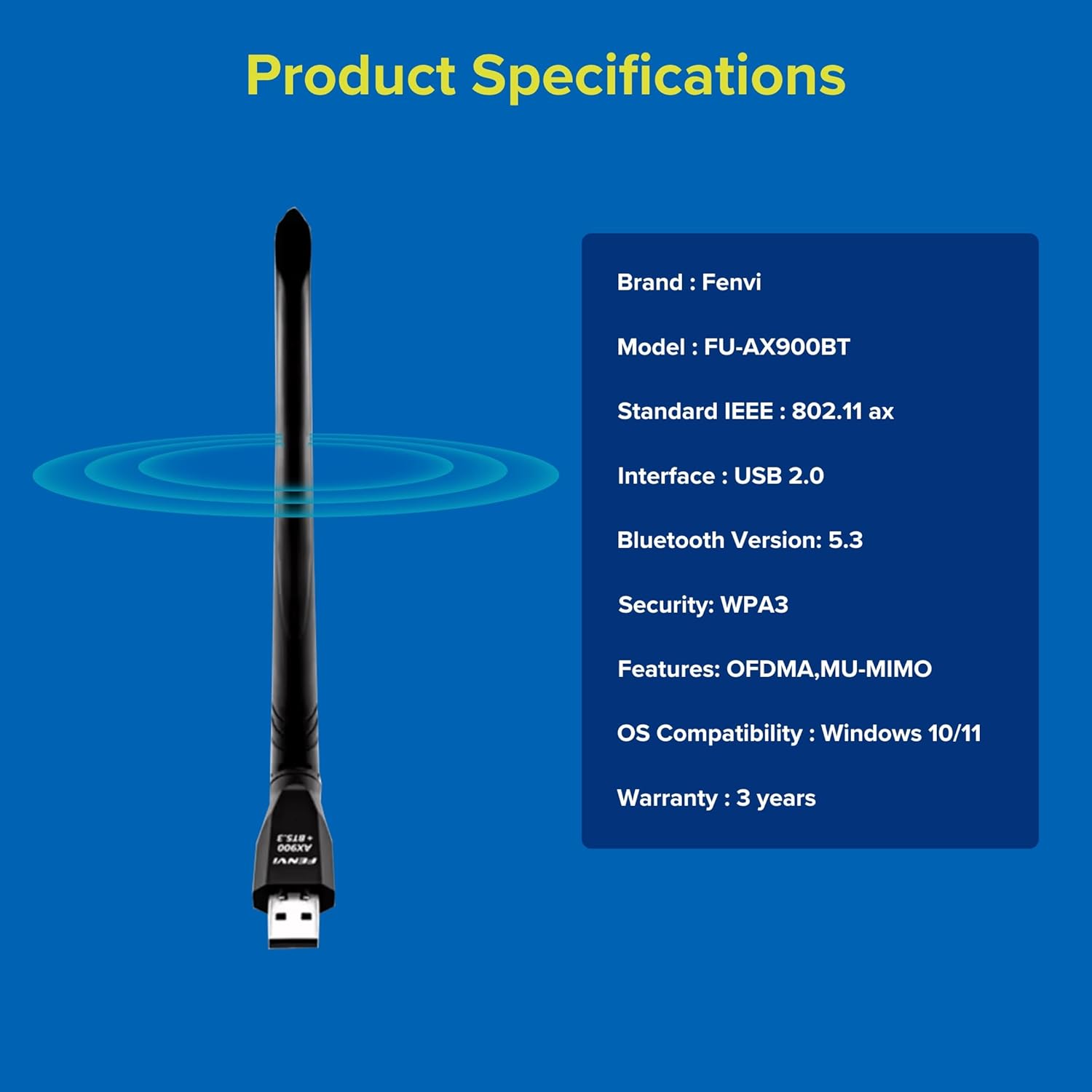
Image 6: Fenvi FU-AX900BT Product Specifications. This graphic summarizes key specifications such as brand, model, Wi-Fi standard, interface, Bluetooth version, security, features, OS compatibility, and warranty.
Warranty and Support
The Fenvi FU-AX900BT comes with a 3-Year India Warranty. For technical support, warranty claims, or further assistance, please contact Fenvi customer support through their official website or the retailer where the product was purchased.
Please retain your purchase receipt as proof of purchase for warranty purposes.


