
1. Overview
The PlayStation 5 Disc Edition Console (Slim) model CFI-2100 offers a new generation of gaming experiences. It features an ultra-high speed SSD for lightning-fast loading, deeper immersion with haptic feedback, adaptive triggers, and 3D Audio technology. This console is designed to deliver stunning graphics and supports a back catalog of compatible PS4 games.
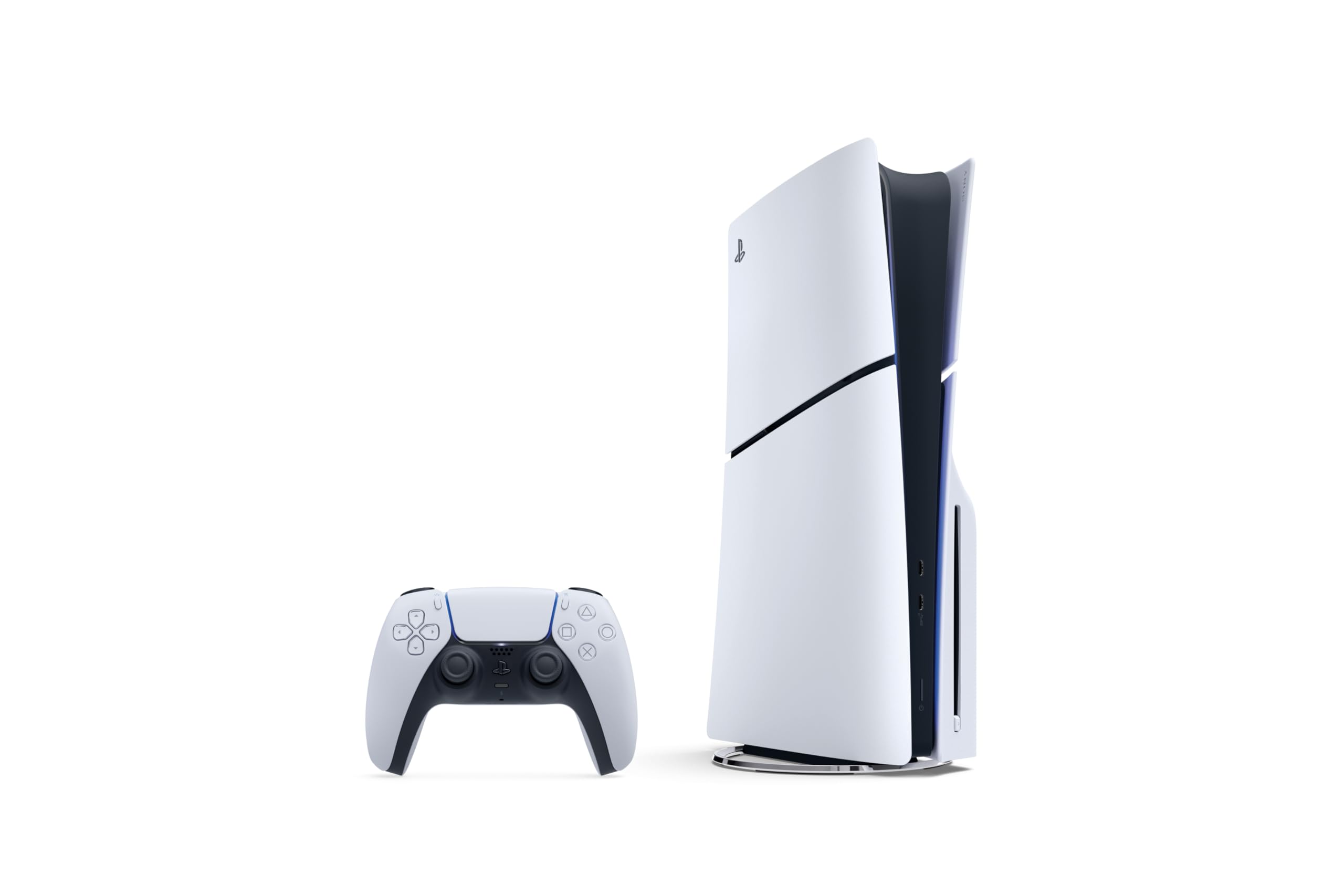
Image: The PlayStation 5 Disc Edition Console (Slim) shown horizontally with a DualSense wireless controller.
2. Setup
Before you begin, ensure you have all components included with your PlayStation 5 console:
- PlayStation 5 Console (1TB SSD, Disc Drive)
- Wireless DualSense Controller
- 2 Horizontal Stand Feet
- HDMI Cable
- AC Power Cord
- USB Cable
- Printed Materials
- Astro's Playroom (pre-installed game)
A vertical stand is sold separately if you prefer that orientation.
2.1 Connecting Your Console
- Place the Console: Position your PS5 console horizontally using the included stand feet on a stable surface near your TV. Ensure adequate ventilation around the console.
- Connect HDMI Cable: Connect one end of the HDMI cable to the HDMI OUT port on the back of your PS5 console and the other end to the HDMI input on your TV.
- Connect Power Cord: Plug the AC power cord into the AC IN connector on the back of your PS5 console, then plug the other end into a wall outlet.
- Connect Controller: Use the USB cable to connect your DualSense wireless controller to a USB port on the console. This will pair the controller and charge it.
- Power On: Press the power button on the console or the PS button on your controller to turn on the system.
An internet connection is required to pair the Disc Drive and PS5 console upon initial setup and for system software updates.

Image: Front view of the PS5 Disc Edition (Slim) showing the disc drive slot and USB ports.

Image: Side view of the PS5 Disc Edition (Slim), highlighting its compact and sleek design.
3. Operating Instructions
3.1 Power On/Off
- To Power On: Press the power button on the console or the PS button on a paired DualSense controller.
- To Power Off: From the control center, select Power > Turn Off PS5. You can also press and hold the power button on the console until it beeps twice.
- Rest Mode: From the control center, select Power > Enter Rest Mode. In Rest Mode, the console can charge controllers, download updates, and keep games suspended.
3.2 Inserting and Ejecting Discs
- To Insert a Disc: Hold the disc with the label side facing up (when the console is horizontal with the disc drive on the left) and gently slide it into the disc slot until it is pulled in automatically.
- To Eject a Disc: Press the eject button located next to the disc slot.
3.3 Controller Usage
The DualSense wireless controller provides an immersive gaming experience. Ensure your controller is charged by connecting it to the console with the USB cable. For optimal 3D audio, connect compatible headphones to the controller or use built-in TV speakers with appropriate settings.
4. Key Features
- Ultra-High Speed SSD: Maximize your play sessions with near-instant load times for installed PS5 games, allowing creators to design games in ways never before possible.
- 1TB of Storage: Keep your favorite games ready and waiting for you to jump in and play with ample storage capacity.
- Ray Tracing: Immerse yourself in worlds with a new level of realism as rays of light are individually simulated, creating true-to-life shadows and reflections in supported PS5 games.
- Haptic Feedback: Discover a deeper gaming experience with responsive vibrations that react to your in-game choices and simulate environmental factors.
- Adaptive Triggers: Experience dynamic resistance that mimics the tension of interactions with in-game gear and environments, such as drawing a bowstring or firing a weapon.
- 3D Audio: Enjoy immersive soundscapes where audio seems to come from every direction, enhancing your perception of in-game environments. (Requires compatible headphones or TV speakers with system software update).
- Backwards Compatibility: Play a vast catalog of supported PS4 games directly on your PS5 console.

Image: Icons representing key PS5 features including Ray Tracing, Ultra-high Speed SSD, 4K Gaming, 3D Audio, Haptic Feedback, and Adaptive Triggers.
4.1 Feature Videos
Video: A short overview of the PS5 Disc Edition, highlighting its flexibility and value for gamers who appreciate physical media and next-gen performance.
Video: Demonstrates the backwards compatibility of the PS5 Disc Edition, showing how PS4 games can be played and often benefit from improved performance on the new console.
5. Maintenance
Proper maintenance ensures the longevity and optimal performance of your PlayStation 5 console.
- Cleaning: Regularly wipe the console and controller with a soft, dry cloth. Avoid using liquid cleaners or abrasive materials. Ensure ventilation ports are free from dust and obstructions.
- Software Updates: Keep your console's system software updated to the latest version. Updates often include performance improvements, new features, and security enhancements. The console can download updates in Rest Mode if configured.
- Storage Management: Monitor your 1TB SSD storage. Delete unused games or media to free up space for new content.
6. Troubleshooting
If you encounter issues with your PlayStation 5 console, try the following basic troubleshooting steps:
- No Power: Check that the AC power cord is securely connected to both the console and a working wall outlet. Try a different outlet.
- No Display: Ensure the HDMI cable is firmly connected to both the console and your TV. Try a different HDMI port on your TV or a different HDMI cable. Verify your TV is set to the correct HDMI input.
- Controller Not Responding: Ensure the controller is charged. Connect it to the console with the USB cable to re-pair it. If issues persist, try resetting the controller using the small reset button on its back.
- Disc Read Errors: Ensure the disc is clean and free of scratches. Reinsert the disc. If the problem continues, try a different game disc to determine if the issue is with the console or the disc itself.
- System Freezes/Crashes: Restart the console. Ensure your system software is up to date.
For more detailed troubleshooting or persistent issues, please refer to the official PlayStation support website.
7. Specifications
| Feature | Detail |
|---|---|
| Model Number | CFI-2100 |
| Storage | 1TB SSD |
| Disc Drive | Included |
| Dimensions (Product) | 17 x 14 x 6.6 inches |
| Weight (Item) | 9.48 pounds |
| Manufacturer | Sony Interactive Entertainment |
| Release Date | October 30, 2025 |
| Batteries | 1 Lithium Ion battery required (included) |
8. Warranty and Support
This PlayStation 5 console is manufactured by Sony Interactive Entertainment. For warranty information, technical support, and additional resources, please visit the official PlayStation support website. Keep your proof of purchase for warranty claims.
Official PlayStation Support: www.playstation.com/support/