1. Introduction
The KINGBOLEN S6 Elite is an advanced bidirectional OBD2 diagnostic scan tool designed for comprehensive vehicle system analysis. This manual provides detailed instructions for setup, operation, maintenance, and troubleshooting to ensure optimal performance and accurate diagnostics.
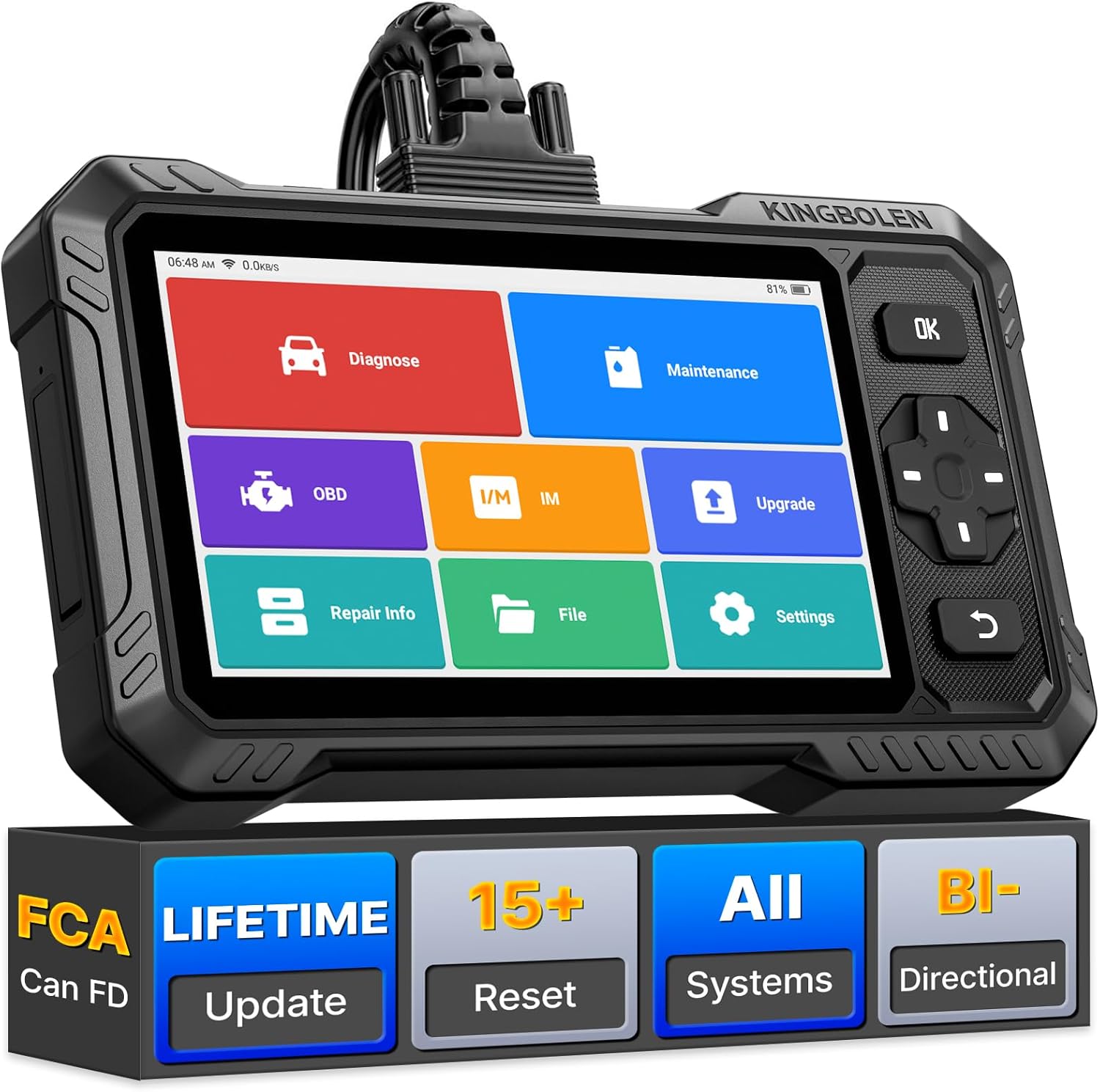
Image 1.1: The KINGBOLEN S6 Elite OBD2 Scanner, showcasing its display and robust design.
2. Product Overview
2.1 What's in the Box
- S6 Elite Tablet
- Diagnostic Connection Cable
- Type-C Cable
- Product User Manual
- Outer Box
2.2 Hardware Configuration
The S6 Elite is equipped with robust hardware for efficient operation:
- Operating System: Android 8.1
- Processor: Quad-Core 1.8GHz CPU
- Memory: 2GB RAM + 32GB ROM
- Display: 6.2-inch HD Touchscreen (1024 x 600 Resolution)
- Battery: 4150mAh / 3.8V Rechargeable Lithium-Ion
- Connectivity: 2.4GHz Wi-Fi

Image 2.1: Visual representation of the S6 Elite's hardware specifications, including CPU, screen size, battery, and memory.
3. Key Features
The KINGBOLEN S6 Elite offers a comprehensive suite of diagnostic capabilities:
3.1 Full System Diagnosis
Access and diagnose all available vehicle systems, including Engine, ABS, Airbags (SRS), Transmission (TCM), Electronic Parking Brake (EPB), Tire Pressure Monitoring System (TPMS), Steering Angle Sensor (SAS), Air Conditioning (A/C), Battery Management System (BMS), and more. This tool reads and clears diagnostic trouble codes (DTCs), displays live data streams, and performs various system resets.

Image 3.1: Illustration of the S6 Elite's full system diagnostic coverage, showing various vehicle systems it can access.
3.2 Bidirectional Control (Active Test)
Perform active tests to command vehicle components directly from the scanner. This function allows you to verify component functionality without disassembly, such as activating fuel pumps, cycling A/C clutches, testing window motors, or operating wipers. This helps in quickly pinpointing faulty components.

Image 3.2: Examples of bidirectional control tests, including fuel pump activation, window operation, and headlight tests.
3.3 15+ Reset Functions
The S6 Elite supports over 15 essential maintenance reset functions, including:
- Oil Reset
- ABS Bleeding
- Brake Reset
- Gear Learning
- Injector Coding
- TPMS Reset
- BMS/Battery Match
- SAS Reset (Steering Angle Sensor)
- Throttle Match (ETS)
- DPF Regeneration
- AdBlue Reset
- ECU Reset
- A/F Calibration
- Airbag Reset
- Adaption
Note: The availability of specific reset functions may vary by vehicle make, model, and year.
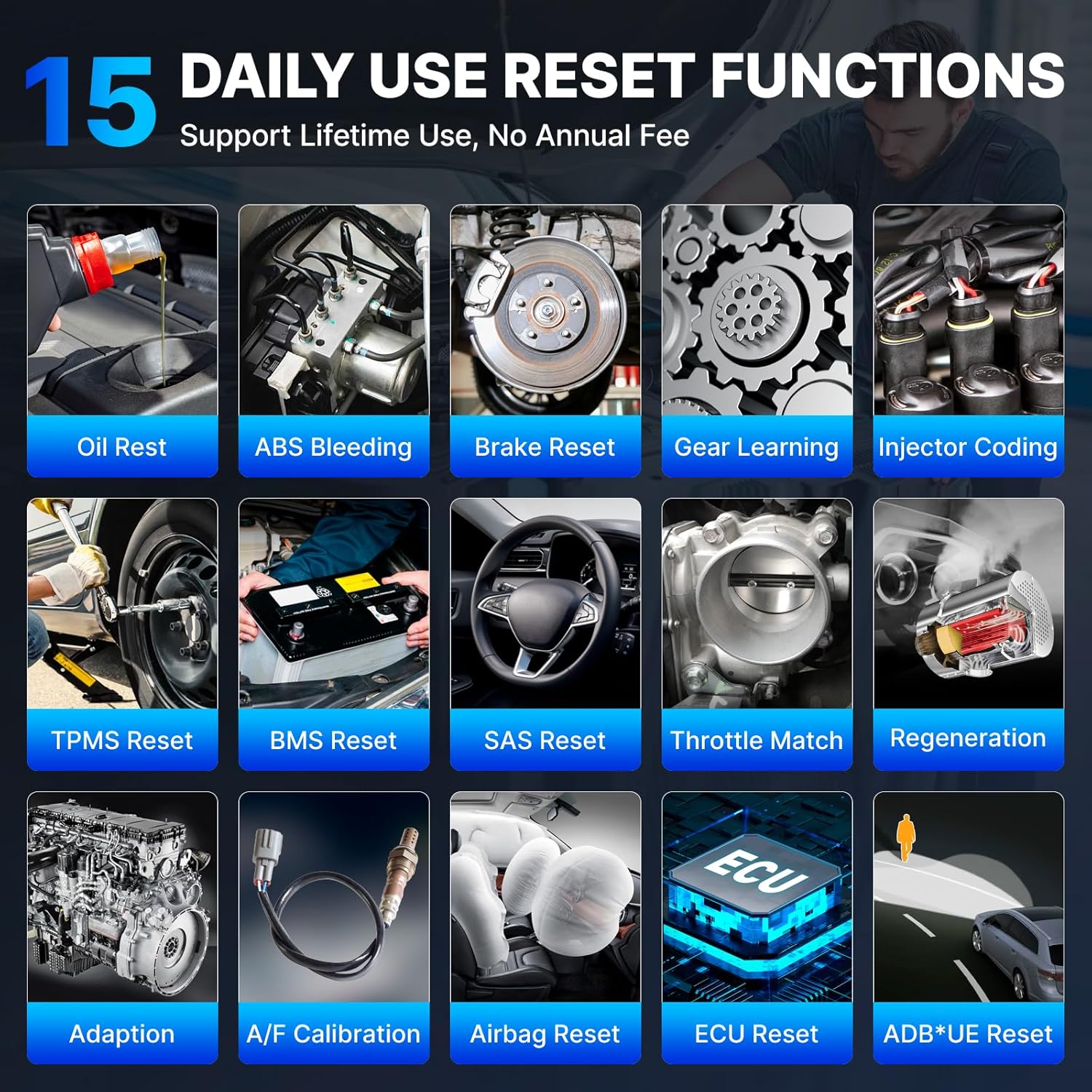
Image 3.3: Icons representing various reset functions available on the S6 Elite, such as Oil Reset, ABS Bleeding, and TPMS Reset.
3.4 CAN FD Protocol & FCA AutoAuth
The S6 Elite supports modern vehicle communication protocols:
- CAN FD Protocol: Compatible with newer GM vehicles (2019 and later), providing high-speed diagnostic communication without the need for an additional adapter.
- FCA AutoAuth: Allows access to the Security Gateway Module (SGW) on FCA vehicles (Chrysler, Dodge, Jeep, Alfa Romeo, Fiat, etc.) manufactured after 2017. A separate AutoAuth account purchase is required for this feature.

Image 3.4: Visual explanation of CAN FD protocol and FCA AutoAuth capabilities, showing the scanner connected to a vehicle.
3.5 Lifetime Software Updates
The device includes lifetime software updates via Wi-Fi, ensuring compatibility with new vehicle models and diagnostic features without recurring subscription fees.
3.6 Wide Vehicle Coverage & Multi-Language Support
The S6 Elite supports over 100 car brands and 10,000+ car models (after 1996) from America, Europe, and Asia. It also supports 28 languages, providing a versatile tool for a global user base.

Image 3.5: A chart detailing supported car brands by region (America, Europe, Asia) and a list of 28 supported languages.
3.7 Versatile Diagnostic Functions
Additional features enhance the diagnostic process:
- 4-in-1 Data Stream Graphing: Displays real-time data from multiple sensors simultaneously for easy comparison and analysis.
- Data Record and Playback: Records live data for later review and analysis.
- Auto VIN: Automatically identifies vehicle information for quick diagnostics (may not work on all vehicles).
- DTC Library and Code Search: Provides definitions for diagnostic trouble codes and links to online resources for repair tips.
- Diagnostic Report Share & Print: Generates professional diagnostic reports that can be shared via Bluetooth or email, or printed for records.
- Online Service: Provides quick support for technical issues.
- Full OBDII 10 Modes: Supports all 10 OBDII test modes for comprehensive emissions-related diagnostics.

Image 3.6: Icons representing various versatile functions like Lifetime Update, 4-in-1 Data Graph, Auto VIN, Online Feedback, Report Sharing, Google Code Search, DTC Lookup, and 28 Languages.
4. Setup and First Use
4.1 Powering On
- Ensure the S6 Elite is sufficiently charged or connected to a power source via the Type-C cable.
- Press and hold the power button located on the device until the screen illuminates.
4.2 Initial Configuration
- Upon first boot, follow the on-screen prompts to select your preferred language.
- Connect the device to a Wi-Fi network to enable software updates and online features. Navigate to Settings > Wi-Fi and select your network.
- Register your device if prompted, following the instructions provided on the screen.
4.3 Connecting to a Vehicle
- Locate the vehicle's OBDII port, typically under the dashboard on the driver's side.
- Connect the diagnostic connection cable to the S6 Elite and then to the vehicle's OBDII port.
- Turn the vehicle's ignition to the 'ON' position (engine off).
- The S6 Elite will automatically establish communication with the vehicle.
5. Operating Instructions
5.1 Navigating the Interface
The S6 Elite features an intuitive touchscreen interface. Use touch gestures to navigate menus and select functions. Physical buttons are also available for 'OK', 'Back', and directional control.
5.2 Performing a Full System Scan
- From the main menu, select 'Diagnose'.
- The system will attempt to automatically identify the vehicle via Auto VIN. If unsuccessful, you may need to manually select the vehicle make, model, and year.
- Choose 'Health Report' or 'Full System Scan' to initiate a comprehensive diagnostic scan of all accessible modules.
- Review the scan results, which will display any detected DTCs and system statuses.
5.3 Using Bidirectional Control (Active Test)
- After selecting 'Diagnose' and identifying the vehicle, navigate to the 'Active Test' or 'Bidirectional Control' section.
- Select the specific component or system you wish to test (e.g., 'Fuel Pump Test', 'Window Up/Down').
- Follow the on-screen instructions to activate or control the component. Observe the component's response to verify its functionality.
5.4 Executing Reset Functions
- From the main menu, select 'Maintenance'.
- Choose the desired reset function (e.g., 'Oil Reset', 'ABS Bleeding').
- Follow the specific on-screen instructions for the selected function. Ensure all prerequisites (e.g., engine off, ignition on) are met before proceeding.
5.5 Viewing Live Data
- During diagnosis, select 'Live Data' from the menu.
- Choose the parameters you wish to monitor.
- Data can be displayed in numerical, graph, or combined formats. Use the 4-in-1 graphing feature for simultaneous comparison of multiple data streams.
5.6 Generating and Sharing Reports
- After completing a diagnostic scan, a health report can be generated.
- Select the 'Share' or 'Print' option from the report screen.
- Reports can be sent via email, Bluetooth, or printed using a compatible printer.
6. Maintenance and Updates
6.1 Software Updates
To ensure your S6 Elite has the latest vehicle coverage and features, regularly check for software updates:
- Ensure the device is connected to a stable Wi-Fi network.
- From the main menu, select 'Upgrade'.
- The system will check for available updates. Follow the on-screen prompts to download and install any new software.
6.2 Device Care
- Keep the device clean by wiping it with a soft, dry cloth. Avoid using abrasive cleaners or solvents.
- Store the device in a cool, dry place away from direct sunlight and extreme temperatures.
- Protect the screen from scratches by using a screen protector if available.
6.3 Battery Maintenance
- Charge the battery regularly, even if the device is not in frequent use, to prolong its lifespan.
- Avoid fully discharging the battery frequently.
7. Troubleshooting
This section addresses common issues you might encounter:
| Problem | Possible Cause | Solution |
|---|---|---|
| Device does not power on. | Low battery; faulty power button. | Charge the device for at least 30 minutes. If still unresponsive, contact support. |
| Unable to connect to vehicle. | Loose OBDII connection; vehicle ignition off; incompatible vehicle. | Ensure cable is securely connected. Turn ignition to 'ON'. Verify vehicle compatibility. |
| Software update fails. | Unstable Wi-Fi connection; insufficient storage. | Ensure strong Wi-Fi signal. Clear unnecessary files to free up storage. Try again. |
| Auto VIN does not work. | Vehicle not supported for Auto VIN; communication issue. | Manually select vehicle information. Check OBDII connection. |
8. Specifications
| Specification | Detail |
|---|---|
| Brand | KINGBOLEN |
| Model | S6 Elite |
| Operating System | Android 8.1 |
| Processor | Quad-Core 1.8GHz |
| RAM | 2GB |
| Storage | 32GB |
| Display | 6.2-inch Touchscreen (1024 x 600 Resolution) |
| Battery | 4150mAh / 3.8V Lithium Ion |
| Connectivity | 2.4GHz Wi-Fi |
| Item Weight | 2.2 pounds |
| Package Dimensions | 10.16 x 6.34 x 2.83 inches |
| Automotive Fit Type | Universal Fit |
9. Support
For technical assistance or inquiries, please utilize the online service feature on your device or visit the official KINGBOLEN website for support resources.


