
1. Introduction
This manual provides essential information for setting up, operating, maintaining, and troubleshooting your Jumper 17.6 Inch Laptop EZbook P1. Please read this guide thoroughly to ensure optimal performance and longevity of your device.

The Jumper 17.6 Inch Laptop EZbook P1, featuring a large display and full-size keyboard.
2. Getting Started
2.1 Unboxing and Package Contents
Carefully remove all items from the packaging. The box should contain the following:
- Jumper 17.6 Inch Laptop EZbook P1
- Power Adapter/Charger
- User Manual (this document)
Official Jumper Technology unboxing video for the EZbook P1 laptop, demonstrating package contents and initial handling.

Image showing the laptop, charger, and user manual as typically included in the package.
2.2 Initial Power On and Charging
Before first use, it is recommended to fully charge your laptop. Connect the power adapter to the DC-in port on the laptop and then to a power outlet. The charging indicator light will illuminate.

The laptop connected to its charger, illustrating the charging process and battery capacity.
2.3 Operating System and Software Activation
Your Jumper EZbook P1 comes with Windows 11 pre-installed. Follow the on-screen prompts to complete the initial setup, including language selection, network connection, and user account creation. A 12-month subscription to Office 365 is also included; activate it during the setup process or via the pre-installed Office application.

Visual representation of Office 365 being included with the laptop, highlighting key applications.
3. Operating Instructions
3.1 Display Features
The laptop features a 17.6-inch Full HD (1920x1200) IPS display with 100% sRGB color accuracy, providing clear visuals and vibrant colors. The IPS technology ensures wide viewing angles.
Official Jumper Technology video showcasing the large 17.6-inch display and its visual capabilities.
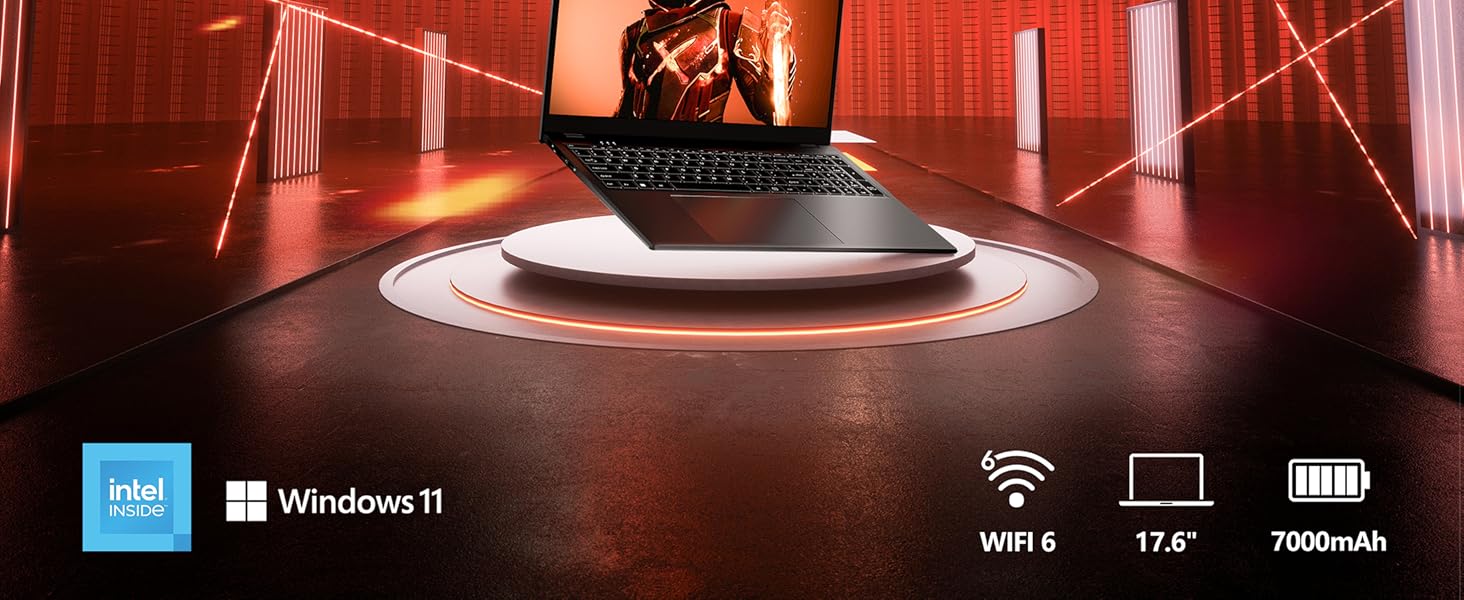
Image highlighting the 17.6-inch display with 1920x1200 resolution and brilliant vision.
The display also features an anti-glare coating for improved eye comfort during extended use.

Illustration of the anti-glare screen technology, designed to reduce reflections and eye strain.
3.2 Keyboard and Touchpad
The laptop is equipped with a full-size keyboard, including a dedicated numeric keypad for efficient data entry. The keyboard is backlit, allowing for comfortable typing in low-light conditions. To toggle the keyboard backlight, press Fn + F5.

The laptop's backlit keyboard with a dedicated numeric keypad and webcam privacy shield.

Instructions for activating the keyboard backlight using the Fn + F5 key combination.
The large touchpad provides precise and smooth navigation for an enhanced user experience.
3.3 Connectivity
The EZbook P1 offers comprehensive connectivity options:
- Ports: 1x Type-C (full-featured), 1x HDMI, 3x USB 3.0, 1x Micro TF slot, 1x 3.5mm headphone jack, 1x DC fast-charging port.
- Wireless: Dual-band Wi-Fi 6 (2.4G/5G) and Bluetooth 5.2.

Detailed view of the laptop's various ports, including USB, HDMI, Type-C, and Micro TF card slot.

Illustration of Wi-Fi 6 capabilities, emphasizing faster speeds and lower latency.

Diagram explaining the features of Bluetooth 5.2, including extended range and multi-device connectivity.

The full-featured USB-C port supports fast charging, video output, and high-speed data transfer.

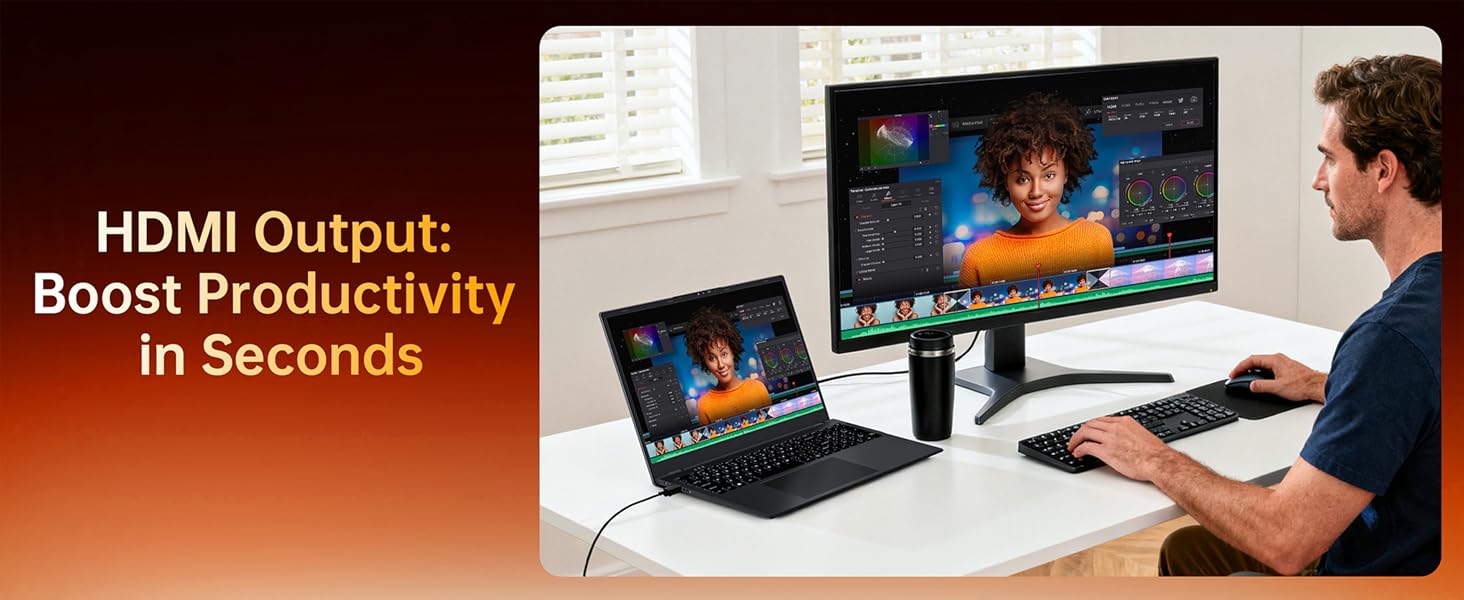
Using the HDMI output to connect to an external monitor for increased productivity.
3.4 Audio and Camera
Experience clear audio with the integrated dual stereo speakers. The laptop also includes an integrated webcam with a physical slide cover for privacy.

Visual representation of the laptop's stereo speakers for immersive audio.

The integrated webcam features a physical slide cover for enhanced privacy and security.
4. Performance and Storage
4.1 Processor and Memory
The Jumper EZbook P1 is powered by an Intel N5095 Quad-Core processor, paired with 16GB of DDR4 RAM, providing efficient performance for multitasking, productivity, and entertainment.

Visual representation of the Intel N5095 CPU, 16GB DDR4 RAM, and 1TB SSD + 128GB eMMC storage configuration.
4.2 Storage
The laptop includes 1TB SSD and 128GB eMMC storage, offering ample space for your files, applications, and media. The storage is expandable, allowing for future upgrades if needed.

Comparison illustrating the significant storage and RAM capacity of this laptop (16GB RAM, 1TB SSD + 128GB eMMC).
5. Power Management
5.1 Battery
The laptop is equipped with a 7000mAh (38Wh) battery, providing up to 8 hours of usage for daily tasks. It supports fast charging to minimize downtime.
The 7000mAh battery offers portable power, with charging options including DC cable and USB-C Power Delivery.
6. Maintenance and Upgrades
6.1 Thermal Management
The laptop incorporates built-in fan technology for optimal thermal management, ensuring stable performance even during prolonged use.
6.2 Storage Expansion
The laptop's design allows for potential storage expansion via dedicated SSD and DDR4 slots, providing flexibility for future upgrades.
The underside of the laptop, indicating the SSD and DDR4 upgrade slots for potential future expansion.
7. Troubleshooting
7.1 Slow Performance
If you experience slow performance, ensure all Windows updates are installed. Close unnecessary applications running in the background. Regularly clear temporary files and perform system maintenance.
7.2 Keyboard Backlight Not Working
If the keyboard backlight is not functioning, ensure it is enabled. Press the Fn + F5 key combination to toggle the backlight on or off.
8. Specifications
8.1 Technical Specifications
| Feature | Specification |
|---|---|
| Standing Screen Display Size | 17.6 Inches |
| Max Screen Resolution | 1920x1200 Pixels |
| Processor | Intel N5095 (2.9 GHz Celeron) |
| RAM | 16GB DDR4 SDRAM |
| Hard Drive | 1152 GB SSD (1TB SSD + 128GB eMMC) |
| Graphics Coprocessor | UHD Graphics 450MHz (Integrated) |
| Operating System | Windows 11 |
| Wireless Type | 2.4 GHz Radio Frequency, 5 GHz Radio Frequency (Wi-Fi 6) |
| Bluetooth | Bluetooth 5.2 |
| USB 3.0 Ports | 3 |
| Average Battery Life | 8 Hours (7000mAh / 38Wh) |
| Item Weight | 4.84 pounds |
| Product Dimensions | 15.51 x 11.1 x 0.8 inches |
| Special Features | Anti Glare Coating, Backlit Keyboard, HD Audio, Lightweight, Office 365 1-Year |
9. Warranty and Support
9.1 Warranty Information
Jumper laptops come with a one-year warranty from the date of purchase. Please retain your proof of purchase for warranty claims.
9.2 Customer Support
For any product-related issues or support, please contact Jumper customer service:
- Via Amazon: Log in to your Amazon buyer account, find your order, and click "Get Product Support" or "Get Help."
- Email: service@jumper-customersupport.com
Support is available to assist you within 24 hours.
Contact information for Jumper customer support, including Amazon order support and direct email.