
Introduction
This manual provides detailed instructions for the operation and maintenance of your ZAQE M505 MP3 Player. Please read this manual thoroughly before using the device to ensure proper function and to maximize your user experience. Keep this manual for future reference.
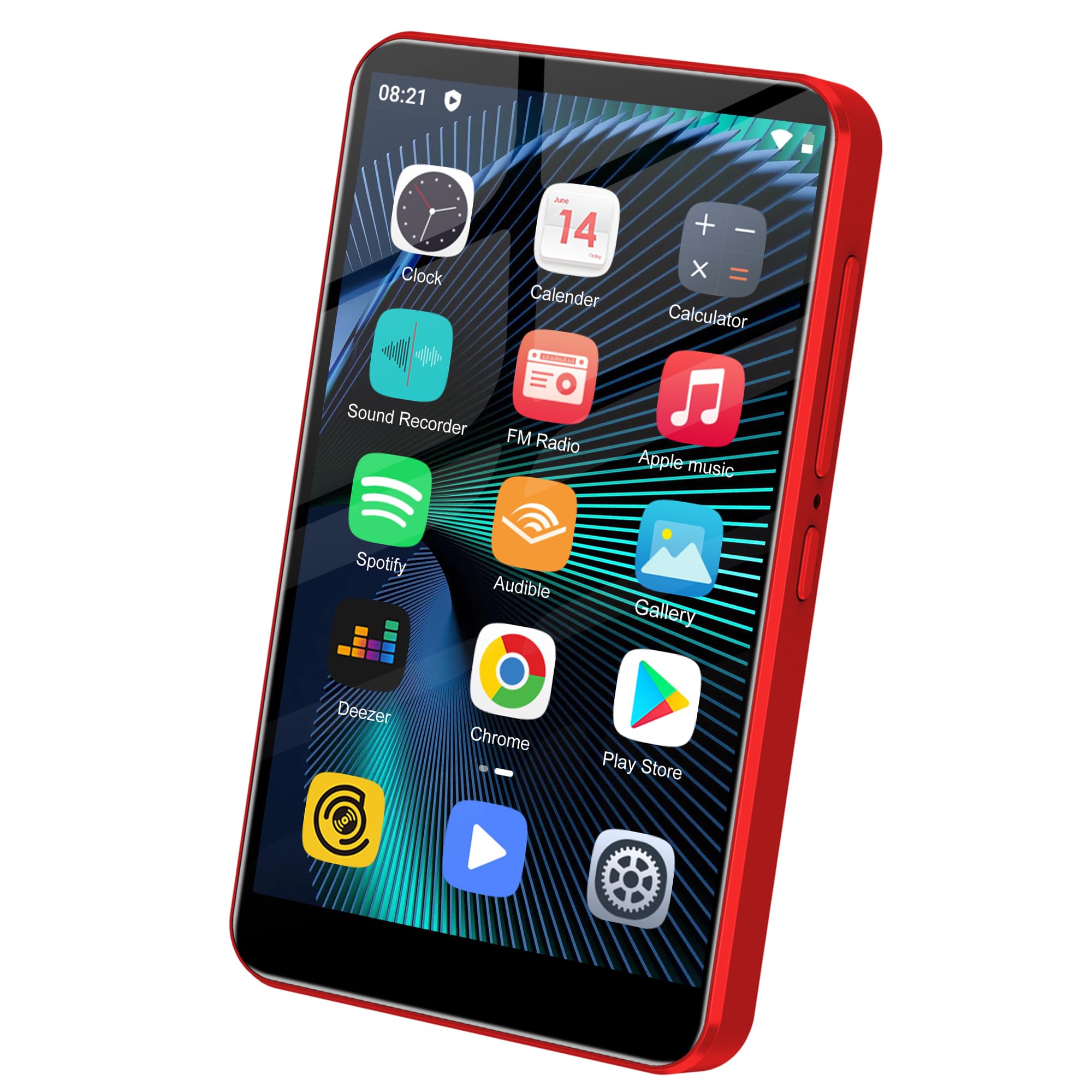
Image: Front view of the ZAQE M505 MP3 Player, showcasing its 4-inch touch screen.
What's in the Box
Upon unpacking, please verify that all the following items are included:
- ZAQE M505 MP3 Player
- USB Cable (Type-C)
- User Manual
- 128GB Memory Card (pre-installed or included separately)
Product Overview
Familiarize yourself with the device's physical components.

Image: The ZAQE M505 MP3 Player displaying its Android interface with various pre-installed applications.
Key Features:
- 4-inch IPS Touch Screen
- Android OS
- Bluetooth Connectivity
- Wi-Fi Connectivity
- FM Radio
- Voice Recorder
- USB-C Port
- 3.5mm Audio Jack
- SD Card Slot (up to 1TB support)
Setup
1. Charging the Device
Before first use, fully charge the MP3 player. Connect the provided USB-C cable to the device's USB-C port and the other end to a compatible USB power adapter (not included) or a computer's USB port.

Image: The ZAQE M505 MP3 Player being charged via its USB Type-C port, highlighting its 2000mAh battery capacity.
2. Power On/Off
- To Power On: Press and hold the Power button (usually on the side) until the screen illuminates.
- To Power Off: Press and hold the Power button, then select "Power Off" from the options that appear on the screen.
3. Memory Card Installation and Formatting
The device supports up to 1TB expandable storage via an SD card slot. A 128GB memory card is included.
- Locate the SD card slot on the device.
- Insert the memory card into the slot until it clicks into place.
- Important: Format the memory card before first use. Navigate to Settings > Storage > SD Card and select the option to format. Ensure you select the "Portable" option when prompted to copy songs from your computer to the card.

Image: The ZAQE M505 MP3 Player with an SD card being inserted, illustrating its expandable storage capability up to 1TB.
4. Initial Setup (Wi-Fi and Google Account)
Upon first power-on, follow the on-screen prompts to complete the initial setup, including connecting to a Wi-Fi network and optionally logging into your Google account to access the Google Play Store.
Operating Instructions
1. Basic Navigation (Touch Screen)
The device features a 4-inch IPS touchscreen for navigation. Swipe, tap, and pinch to interact with the interface, similar to a smartphone.

Image: A hand interacting with the responsive 4-inch full touch screen of the ZAQE M505 MP3 Player.
2. Music Playback
The integrated music player supports MP3, OGG, FLAC, AAC, WAV, WMA, APE formats. You can also use preloaded apps like Spotify or download others from the Google Play Store.
- Local Music: Open the "Music" app. Your music library can be classified by Track Name, Performer, etc. You can create custom playlists and choose playback styles (Random Play, Full List Repeat, Single Track Loop, Ordered Playback).
- Streaming Apps: Open preloaded apps like Spotify or download others. Ensure you are connected to Wi-Fi for streaming.

Image: The ZAQE M505 MP3 Player showing its music playback interface, emphasizing HiFi sound quality and various playback options.
3. Video Playback
The built-in video player supports 720P and 1080P HD videos in formats including RM, RMVB, FLV, MP4, DAT, MKV, MPG, MOV, TS.
- Open the "Video" app or a third-party video player.
- Select the video file you wish to play.

Image: The ZAQE M505 MP3 Player displaying a video, highlighting its powerful 8-core CPU and support for 1080P HD video playback.
4. Bluetooth Connectivity
Connect to Bluetooth headphones, speakers, or other compatible devices for wireless audio.
- Go to Settings > Connected devices > Bluetooth.
- Turn Bluetooth on.
- Ensure your Bluetooth accessory is in pairing mode.
- Select your accessory from the list of available devices to pair.

Image: The ZAQE M505 MP3 Player next to wireless earbuds, demonstrating its Bluetooth compatibility for stable and fast connections.
5. Wi-Fi Connectivity
Connect to Wi-Fi networks to access online content, download apps, and stream media.
- Go to Settings > Network & internet > Wi-Fi.
- Turn Wi-Fi on.
- Select your desired network from the list and enter the password if required.
6. FM Radio
The device includes a built-in FM radio (87.5-108MHz).
- Connect wired headphones (not included) to the 3.5mm audio jack; they act as the antenna.
- Open the "FM Radio" app.
- Scan for available stations or manually tune to a frequency.

Image: The ZAQE M505 MP3 Player displaying its FM radio interface, tuned to a frequency.
7. Voice Recorder
Use the integrated voice recorder for notes, lectures, or capturing ideas.
- Open the "Sound Recorder" app.
- Tap the record button to start and stop recording.
- Recordings are saved internally and can be managed within the app.
8. App Management (Google Play Store)
The device comes with preloaded apps like Spotify, Pandora, Audible, and Kindle. You can install, update, or uninstall other applications via the Google Play Store.
- Ensure you are connected to Wi-Fi and logged into your Google account.
- Open the "Play Store" app.
- Search for apps, download, and install them as needed.

Image: The ZAQE M505 MP3 Player showcasing its home screen with various popular applications, including Spotify, Audible, and Google Play Store.
Maintenance
1. Cleaning
Use a soft, dry, lint-free cloth to clean the device. Avoid using abrasive cleaners or solvents, which can damage the screen and finish.
2. Software Updates
Periodically check for software updates to ensure optimal performance and access to new features. Go to Settings > System > Advanced > System update.
3. Battery Care
To prolong battery life, avoid exposing the device to extreme temperatures. Charge the device regularly, but avoid leaving it fully charged or fully discharged for extended periods.

Image: The ZAQE M505 MP3 Player illustrating its 2000mAh battery capacity, indicating long battery life.
Troubleshooting
| Problem | Possible Solution |
|---|---|
| Device does not power on. | Ensure the device is charged. Connect to a power source and try again. If unresponsive, perform a hard reset by holding the power button for 10-15 seconds. |
| Cannot connect to Wi-Fi. | Check if Wi-Fi is enabled in settings. Verify the Wi-Fi password. Restart the device and your router. |
| Bluetooth device not pairing. | Ensure Bluetooth is enabled on both devices and the accessory is in pairing mode. Move closer to the accessory. Restart both devices. |
| Music/Video files not playing. | Verify the file format is supported (MP3, FLAC, MP4, etc.). Ensure files are not corrupted. Check if the memory card is properly inserted and formatted. |
| Device is slow or unresponsive. | Close unnecessary background applications. Clear cache for frequently used apps. Restart the device. Consider a factory reset if issues persist (backup data first). |
Specifications
- Model Name: M505
- Brand: ZAQE
- Screen Size: 4 Inches
- Display Technology: IPS
- Memory Storage Capacity: 144 GB (16GB internal + 128GB SD card)
- Expandable Storage: Up to 1TB via SD Card
- Connectivity Technology: Aux, Bluetooth, USB (Type-C), Wi-Fi
- Special Features: Video Playback, FM Radio, Voice Recorder, Touch Screen, Bluetooth
- Supported Audio Formats: MP3, OGG, FLAC, AAC, WAV, WMA, APE
- Supported Video Formats: RM, RMVB, FLV, MP4, DAT, MKV, MPG, MOV, TS (720P/1080P HD)
- Battery Average Life: 16 Hours (playback dependent)
- Operating System: Android OS
- Processor: Octa-core
- RAM: 2GB
Important Notes
- This player is not compatible with Mac or iTunes for direct synchronization. Files must be transferred manually.
- Compatibility with all in-car Bluetooth systems cannot be guaranteed.
- Always format the memory card before its initial use in the device.
- When copying songs from your computer to the memory card, ensure you select the "Portable" option.
Support
For further assistance or technical support, please refer to the manufacturer's official website or contact their customer service. Contact information is typically found on the product packaging or the manufacturer's website.


