
1. Introduction
This manual provides detailed instructions for the Newmen GM104 Wired Gaming Keyboard and Mouse Combo. It covers essential information regarding product features, setup procedures, operational guidelines, maintenance tips, troubleshooting common issues, and product specifications. Please read this manual thoroughly before using the product to ensure optimal performance and longevity.
2. Product Features
- Wired Gaming Keyboard and Mouse Combo: Designed for gaming and suitable for office and home use. Includes a 104-key membrane keyboard and a gaming mouse.
- LED Backlit: Both the keyboard and mouse feature RGB backlighting. The keyboard offers switchable backlight effects, colors, adjustable brightness, and speed. The mouse has 7-color cyclical breathing lighting.
- Professional Software Support: The keyboard supports professional driver software for backlight customization, key settings, and macro recording. (Note: The mouse does not support driver software.)
- 104 Keys & 26-Key Anti-Ghosting: Full-size keyboard with standard US QWERTY layout, 12 multimedia function keys, and a number pad. The 26-key anti-ghosting ensures accurate and fast registration of multiple key presses.
- Mechanical Feel & Ergonomic Design: The keyboard provides a tactile typing experience similar to mechanical keyboards. It features an ergonomic design with adjustable foot stands for comfort during extended use.
- Wired Gaming Mouse: Features a 6-button layout and 4-level DPI adjustment (1200/1800/2400/3600) for various scenarios.
3. Package Contents
Please verify that all items are present in the package:
- Newmen GM104 Wired Gaming Keyboard
- Newmen Wired Gaming Mouse
- User Manual (this document)
4. Setup
Follow these steps to set up your Newmen GM104 Keyboard and Mouse Combo:
- Connect the Keyboard: Locate an available USB port on your computer. Plug the USB connector of the Newmen GM104 keyboard into the USB port.
- Connect the Mouse: Locate another available USB port on your computer. Plug the USB connector of the Newmen gaming mouse into the USB port.
- System Recognition: Your computer should automatically detect and install the necessary drivers for both the keyboard and mouse. This is a plug-and-play process.
- Verify Functionality: Once connected, test the keyboard and mouse to ensure they are working correctly. The backlights should illuminate.

Image: The Newmen GM104 keyboard and mouse combo connected to a desktop computer, illustrating a typical setup.
5. Operating Instructions
5.1 Keyboard Functions
- Standard Typing: Use the QWERTY layout for standard text input.
- Multimedia Keys: The keyboard includes 12 multimedia function keys (F1-F12) which can be accessed by pressing the Fn key in combination with the respective F-key. These keys control media playback, volume, and other system functions.
- Anti-Ghosting: The 26-key anti-ghosting feature ensures that multiple simultaneous key presses are registered accurately, which is beneficial for gaming.
Keyboard Backlight Control
The keyboard features customizable RGB backlighting. Use the following controls:
- Turn On/Off Backlight: Refer to the keyboard's specific key combination (often Fn + a designated key like Scroll Lock or a light icon key).
- Switch Backlight Effect: Cycle through various lighting modes (e.g., breathing, static, wave) using a dedicated key combination.
- Switch Backlight Color: Change the color scheme of the backlight.
- Adjust Backlight Brightness: Increase or decrease the intensity of the backlight.
- Adjust Backlight Speed: Modify the speed of dynamic lighting effects.
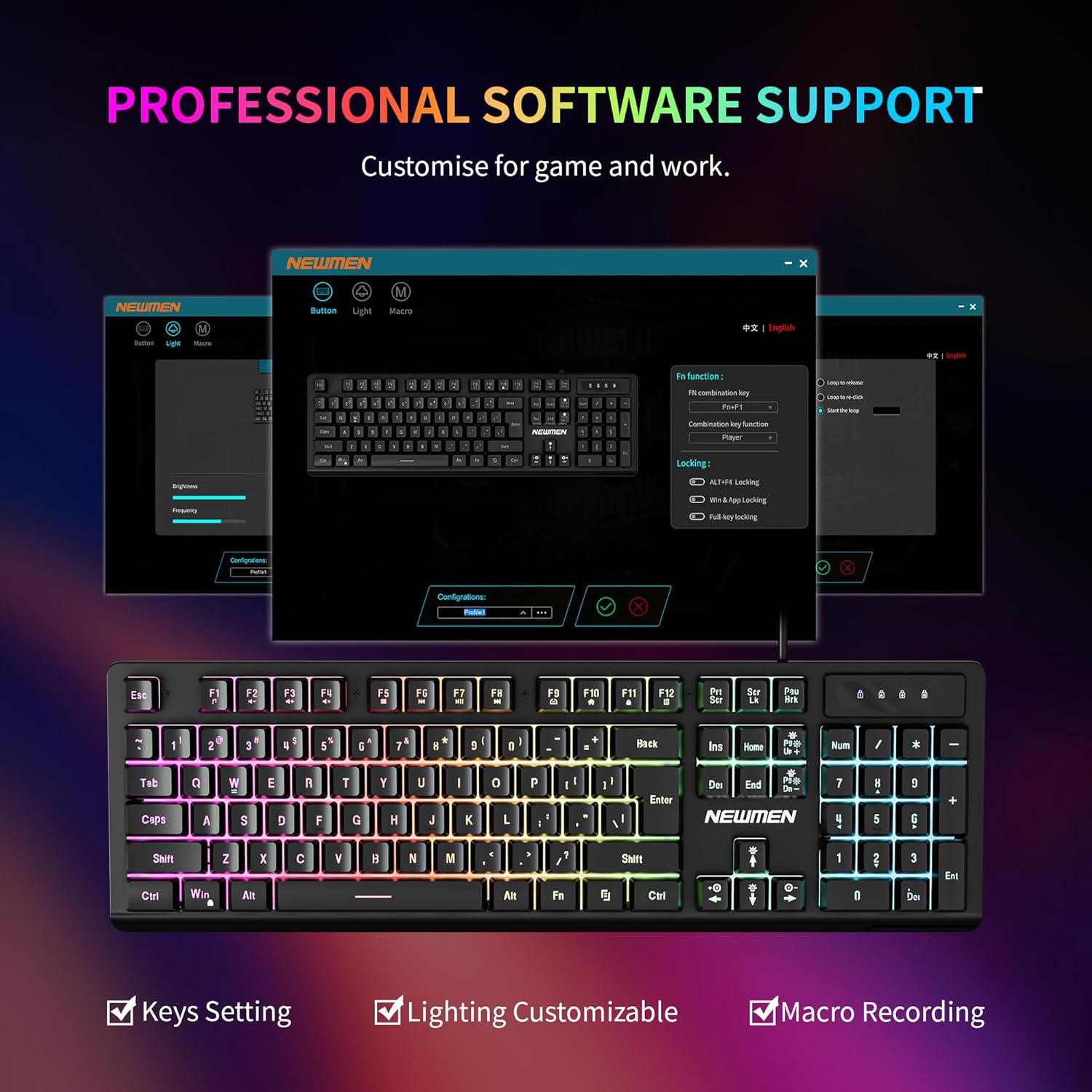
Image: The Newmen GM104 keyboard displaying its RGB backlighting, with icons indicating controls for turning on/off, switching effects, changing colors, and adjusting brightness and speed.
Professional Software Customization
The keyboard supports professional driver software for advanced customization. This software allows you to:
- Customize Backlight: Fine-tune lighting effects and colors beyond onboard controls.
- Key Settings: Remap keys or assign specific functions.
- Macro Recording: Create and assign macros for complex command sequences.
The software is compatible with Windows and Mac systems. Please visit the official Newmen website to download the latest driver software.

Image: A visual representation of the Newmen GM104 keyboard's customization software interface, showing options for key settings, lighting, and macro recording.
5.2 Mouse Functions
- 6-Button Layout: The mouse features Left Button, Right Button, Scroll Wheel, DPI Button, Forward Button, and Backward Button.
- DPI Adjustment: Press the DPI button to cycle through 4 adjustable DPI levels: 1200, 1800, 2400, and 3600. This allows you to adjust cursor sensitivity to suit different tasks or games.
- 7-Color Breathing Lighting: The mouse features a continuous cycle of 7 breathing colors, enhancing the aesthetic.

Image: The Newmen gaming mouse with its six buttons clearly labeled and an illustration of the four adjustable DPI levels (1200, 1800, 2400, 3600).
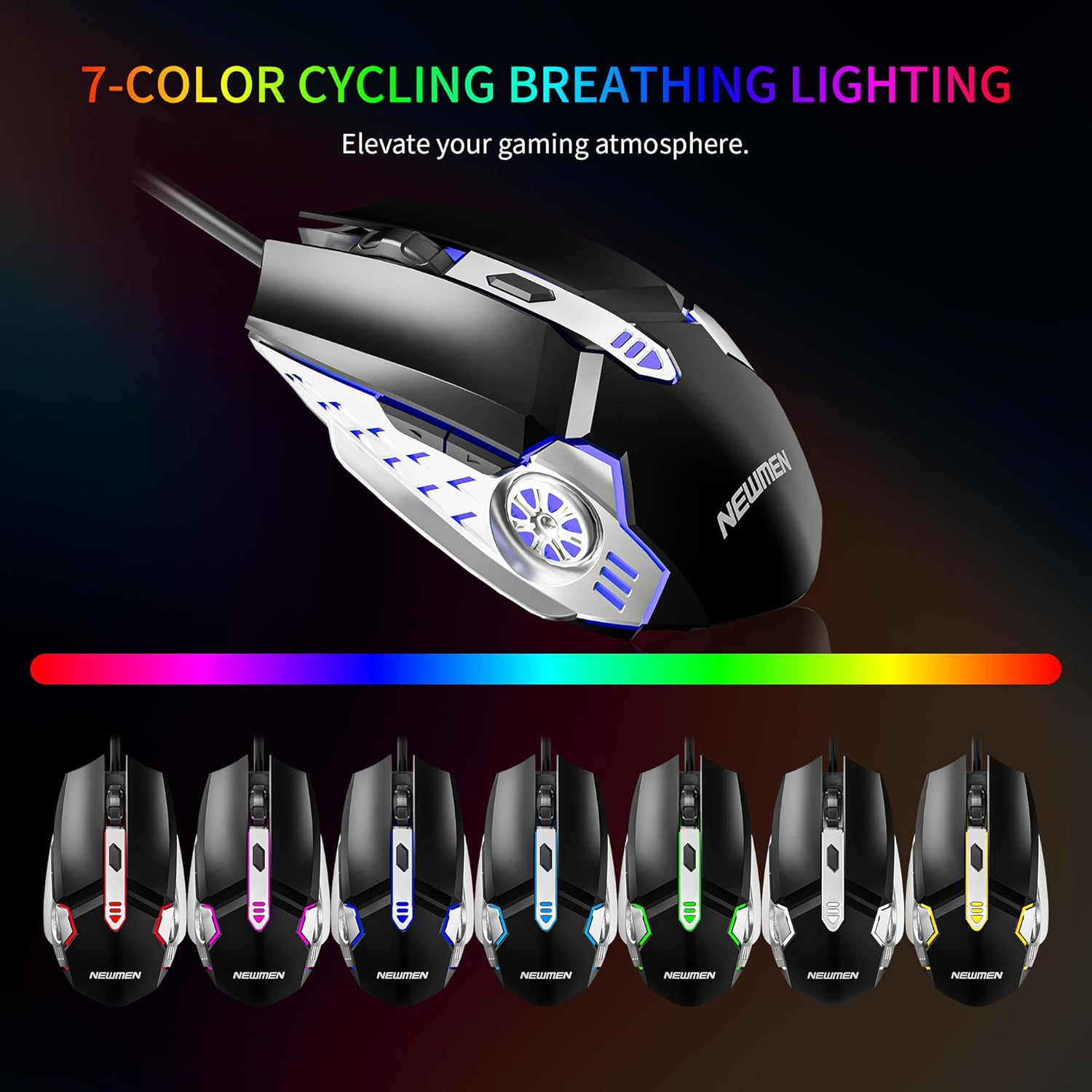
Image: The Newmen gaming mouse showcasing its 7-color cyclical breathing lighting effect, with a spectrum of colors illustrated below.
6. Maintenance
Proper maintenance ensures the longevity and performance of your keyboard and mouse combo.
- Cleaning: Use a soft, dry cloth to wipe down the surfaces of the keyboard and mouse. For stubborn dirt, slightly dampen the cloth with water or a mild cleaning solution. Avoid excessive moisture.
- Dust Removal: Use compressed air to remove dust and debris from between the keyboard keys and around the mouse sensor.
- Avoid Liquids: Do not spill liquids on the keyboard or mouse. If a spill occurs, immediately disconnect the device and allow it to dry completely before reconnecting.
- Storage: Store the devices in a cool, dry place away from direct sunlight and extreme temperatures when not in use for extended periods.
7. Troubleshooting
If you encounter issues with your Newmen GM104 combo, refer to the following troubleshooting steps:
- Device Not Recognized:
- Ensure the USB cables are securely plugged into your computer's USB ports.
- Try plugging the devices into different USB ports.
- Restart your computer.
- Check your computer's Device Manager (Windows) or System Information (Mac) to see if the devices are listed.
- Backlight Not Working:
- Ensure the backlight is turned on using the designated key combination (e.g., Fn + Scroll Lock).
- Adjust the brightness settings.
- If using the software, ensure backlight settings are correctly configured.
- Keys or Mouse Buttons Unresponsive:
- Clean the affected keys or buttons to remove any debris.
- Test the devices on another computer to rule out a system-specific issue.
- Mouse Cursor Jumps or is Inaccurate:
- Clean the mouse sensor on the underside of the mouse.
- Ensure you are using the mouse on a suitable surface (e.g., a mouse pad).
- Adjust the DPI settings using the DPI button on the mouse.
8. Specifications
| Feature | Description |
|---|---|
| Brand | Newmen |
| Model | GM104 |
| Connectivity Technology | USB Wired |
| Keyboard Layout | US QWERTY, 104 Keys |
| Keyboard Anti-Ghosting | 26-Key Anti-Ghosting |
| Keyboard Backlighting | RGB |
| Mouse Buttons | 6 Buttons |
| Mouse DPI Levels | 1200/1800/2400/3600 |
| Mouse Backlighting | 7-Color Cyclical Breathing |
| Compatible Devices | Laptop, Personal Computer (Windows, Mac) |
| Power Source | Corded Electric |
9. Warranty and Support
9.1 Warranty Information
The Newmen GM104 Wired Gaming Keyboard and Mouse Combo comes with a 12-month warranty from the date of purchase. This warranty covers manufacturing defects and malfunctions under normal use. It does not cover damage caused by misuse, accidents, unauthorized modifications, or external factors.
9.2 Customer Support
For technical assistance, warranty claims, or any questions regarding your Newmen GM104 product, please contact Newmen customer support. Refer to the product packaging or the official Newmen website for the most current contact information.


