
1. Introduction
This manual provides detailed instructions for the setup, operation, and maintenance of your Gloryang 668BT Thermal Label Printer. Please read this manual thoroughly before using the printer to ensure proper function and to maximize its lifespan. The Gloryang 668BT is designed for efficient and reliable label printing, suitable for various applications including shipping and product labeling.
2. Package Contents
Verify that all items listed below are included in your package. If any items are missing or damaged, please contact customer support.
- Gloryang 668BT Thermal Label Printer
- Fan-fold Thermal Labels (550 count)
- Power Adapter
- USB Cable for Windows
- USB Cable for Mac
- APP Guide Card
- User Manual

This image details the complete package contents for the Gloryang 668BT printer. It includes the printer unit, a stack of fan-fold labels, an APP Guide Card, a User Manual, a Power Adapter, a USB cable for Windows, and a USB cable for Mac.
3. Setup
3.1 Loading Labels
- Ensure the printer is powered off.
- Open the top cover of the printer.
- Place the fan-fold labels into the label compartment, ensuring the printing side faces upwards and the labels feed smoothly into the printer mechanism.
- Adjust the label guides to fit the width of your labels snugly, without creasing them.
- Close the top cover.

This image illustrates the Gloryang 668BT thermal label printer in operation, showing a shipping label being printed. A smartphone is connected, indicating mobile printing capabilities. A stack of 4x6 inch thermal labels is also visible, ready for use. Example tracking number: 1Z81RW830373586843.
3.2 Connecting the Printer
The Gloryang 668BT printer supports both USB and Bluetooth connectivity.
- USB Connection: Connect one end of the provided USB cable to the printer and the other end to your computer (Windows or Mac).
- Bluetooth Connection: Power on the printer. On your mobile device (iOS, Android, iPad), enable Bluetooth and search for available devices. Select 'Gloryang 668BT' to pair. Note: Bluetooth connection is not supported for Mac or Chromebook devices.

This image demonstrates the connectivity options for the Gloryang 668BT printer, including Bluetooth for mobile devices (iOS, Android, iPad) and USB cable for computers (Windows). It specifies that Bluetooth connectivity is not available for Mac or Chromebook systems. Example tracking number: 1Z81RW830373586843.
3.3 Driver and App Installation
For computer printing, install the appropriate driver for your operating system (Windows or Mac) from the official Gloryang website or the provided installation media. For mobile printing, download the dedicated Gloryang printing application from your device's app store (e.g., Apple App Store, Google Play Store) as indicated on the APP Guide Card.
4. Operating Instructions
4.1 Printing from Mobile Devices
- Ensure the printer is powered on and connected via Bluetooth to your mobile device.
- Open the Gloryang printing application.
- Select the document or image you wish to print.
- Adjust print settings such as label size and orientation within the app.
- Initiate the print command.
4.2 Printing from Computers
- Ensure the printer is powered on and connected via USB to your computer.
- Open the document or label file you wish to print (e.g., PDF, image file).
- Go to 'File' > 'Print' or use the print shortcut (Ctrl+P for Windows, Cmd+P for Mac).
- Select 'Gloryang 668BT' as your printer.
- Adjust print settings, including paper size (e.g., 4x6 inches), orientation, and density, in the printer preferences.
- Click 'Print'.
4.3 Supported Label Types
The Gloryang 668BT printer is compatible with various thermal label types, including standard shipping labels, product labels, and other specialized thermal labels. The labels are designed for strong adhesion and water resistance, ensuring durability.

This image illustrates the versatility of the Gloryang 668BT printer, capable of printing various types of labels, including standard shipping labels, round product labels for items like perfume bottles, and rectangular labels for food containers.

This image emphasizes the quality of the thermal labels compatible with the Gloryang 668BT printer, showcasing their strong adhesive backing and water-resistant properties, ensuring durability and secure attachment.
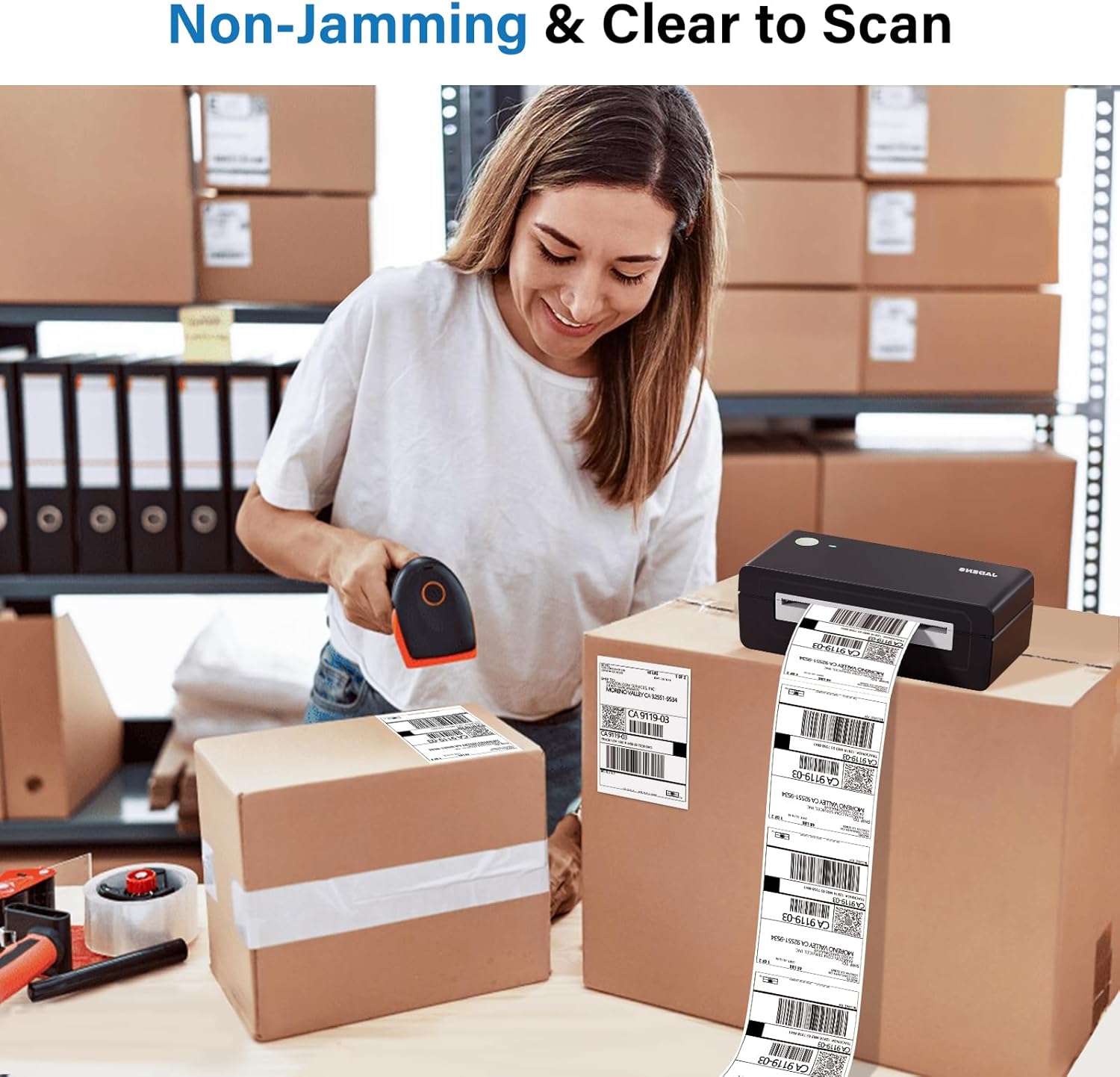
This image demonstrates the reliable performance of the Gloryang 668BT printer, highlighting its non-jamming mechanism and the clarity of the printed labels, which are easily scannable.

This image illustrates the convenience of the thermal labels, featuring a perforated line that allows for easy and clean tearing after printing, enhancing efficiency. Example address part: 420925519534. Example tracking number: 1Z81RW830373586843.

This image displays a stack of 500 4" x 6" fanfold thermal shipping labels, emphasizing their standard size and the fanfold design which facilitates easy tearing and continuous feeding.
5. Maintenance
Regular maintenance ensures optimal performance and extends the life of your printer.
- Cleaning the Print Head: Use an alcohol swab or a specialized print head cleaning pen to gently wipe the print head. Ensure the printer is off and cooled down before cleaning.
- Cleaning the Platen Roller: Use an alcohol swab to clean the rubber platen roller. Rotate the roller manually to clean the entire surface.
- Exterior Cleaning: Wipe the exterior of the printer with a soft, damp cloth. Avoid using harsh chemicals or abrasive cleaners.
- Dust Removal: Periodically use compressed air to remove dust and debris from inside the label compartment.
6. Troubleshooting
Refer to the table below for common issues and their solutions.
| Problem | Possible Cause | Solution |
|---|---|---|
| Printer not responding | Power issue, loose cable, driver error | Check power connection. Reconnect USB/Bluetooth. Reinstall printer driver. |
| Poor print quality | Dirty print head, incorrect label type, low print density | Clean print head. Ensure thermal labels are used. Adjust print density in settings. |
| Labels not feeding | Labels incorrectly loaded, label jam, empty roll | Reload labels correctly. Clear any jammed labels. Replace with new labels. |
| Bluetooth connection fails | Device incompatibility, Bluetooth off, pairing issue | Verify device compatibility (Mac/Chromebook not supported). Ensure Bluetooth is enabled. Re-pair the device. |
7. Specifications
Key technical specifications for the Gloryang 668BT Thermal Label Printer.
| Feature | Detail |
|---|---|
| Model | 668BT |
| Printing Technology | Direct Thermal |
| Connectivity | USB, Bluetooth |
| Supported OS | Windows, iOS, Android, iPad (Bluetooth not for Mac/Chromebook) |
| Label Width | Variable (commonly 4x6 inches) |
| Dimensions | Approx. 7.28" L x 3.15" W x 2.36" H |
| Weight | Approx. 1.06 lbs (0.48 KG) |

This image highlights the compact and lightweight design of the Gloryang 668BT printer, making it suitable for on-the-go printing. It displays the printer's dimensions (7.28" x 2.36" x 3.15") and weight (1.06 lbs / 0.48 kg) in comparison to a standard desktop printer.
8. Warranty and Support
The Gloryang 668BT Thermal Label Printer comes with a standard manufacturer's warranty. For specific warranty terms and conditions, please refer to the warranty card included in your package or visit the official Gloryang website.
For technical support, troubleshooting assistance, or any inquiries regarding your product, please contact Gloryang customer service through the contact information provided in your user manual or on the official Gloryang website. Please have your model number (668BT) and purchase details ready when contacting support.
