
1. Introduction
This manual provides detailed instructions for the installation, operation, and maintenance of your Inefala Android Car Radio. Please read this manual thoroughly before using the product to ensure proper functionality and safety. This device features a 7-inch HD touchscreen, Wireless CarPlay/Android Auto, GPS navigation, Wi-Fi connectivity, Bluetooth 5.0, and FM/RDS radio.
2. Product Overview and Features
The Inefala Android Car Radio is designed to enhance your in-car entertainment and navigation experience. Key features include:
- 7-inch HD Touchscreen: A responsive, scratch-resistant 2.5D tempered glass display with 1024*600 resolution.
- Wireless CarPlay & Android Auto: Seamless integration with your smartphone for navigation, calls, messages, and music.
- Mirror Link: Display your phone's screen directly on the car radio.
- GPS Navigation: Built-in GPS chip supports both online and offline navigation.
- Wi-Fi Connectivity: Access online maps, download apps, and browse the internet.
- Bluetooth 5.0: For hands-free calling and wireless audio streaming with an external microphone for clear audio.
- FM/RDS Radio: High-quality radio tuner with automatic channel search and station presets.
- EQ Audio Customization: Personalize sound effects with various equalizer presets (Pop, Rock, User Defined).
- Split Screen Functionality: Run two applications simultaneously, such as navigation and music.
- Customizable UI Themes: Choose from multiple desktop themes.

Image: The Inefala Android Car Radio displaying the CarPlay interface in a vehicle dashboard.
3. Package Contents
Please verify that all items are present in the package:
- 1 x Android Car Radio
- 1 x Power Cable
- 1 x RCA Cable
- 2 x USB Cable
- 1 x Rear Camera Input Cable
- 1 x GPS Antenna
- 1 x User Manual
- 2 x Metal frame
- 4 x Screws
- 1 x Backup Camera
- 1 x MIC (External Microphone)
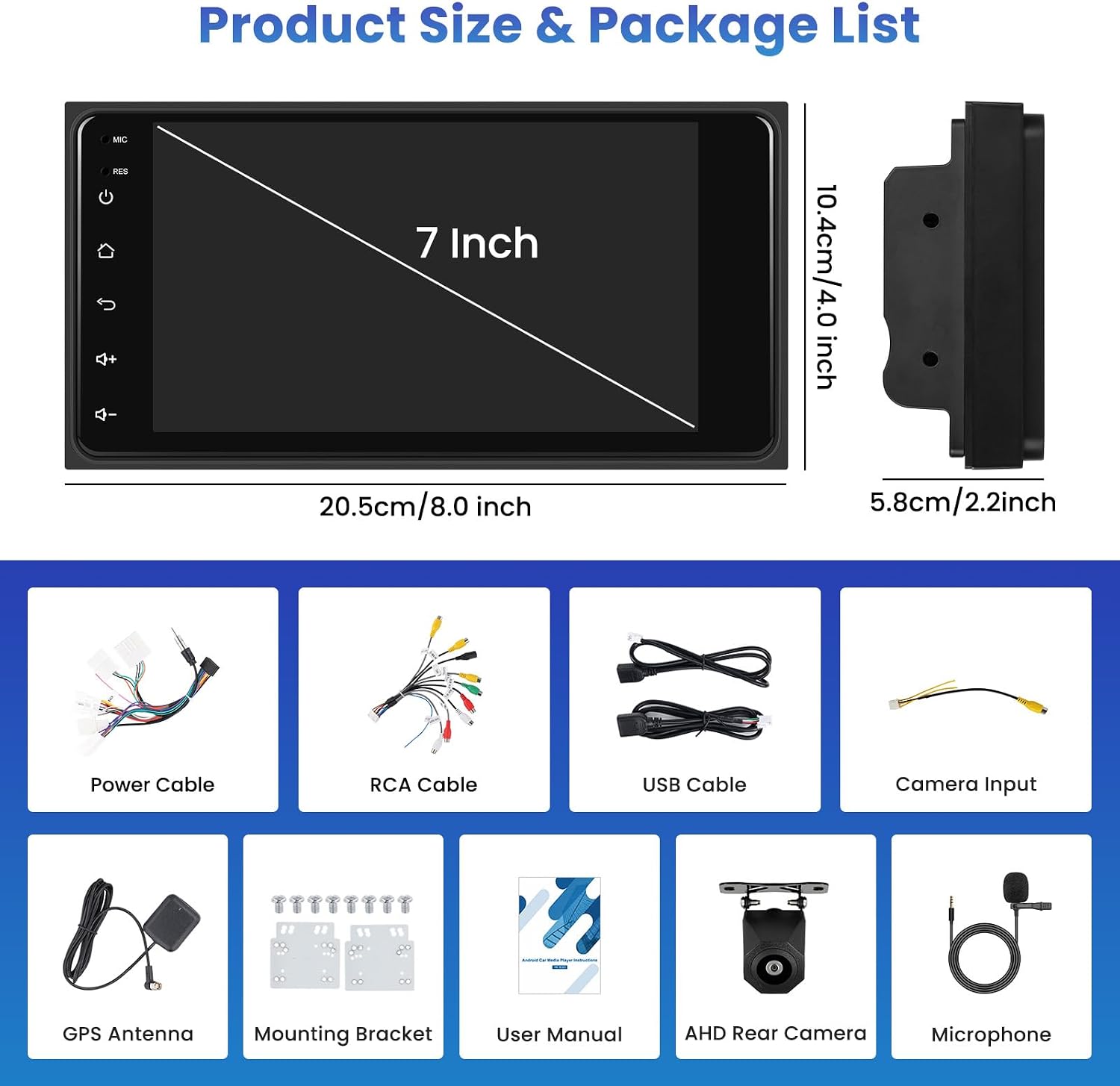
Image: Visual representation of the product size and included accessories.
4. Setup and Installation
4.1 Vehicle Compatibility
This car radio is compatible with various Toyota models. Please ensure your vehicle's dashboard matches the examples provided. It is important to note that this unit is not compatible with JBL sound systems.
- Toyota RAV4 (2001-2008)
- Toyota 4Runner (2002-2009)
- Toyota Camry (2002-2006)
- Toyota Tundra (2003-2006)
- Toyota Sequoia (2003-2007)
- Toyota Fortuner (2008-2011)
- Toyota FJ Cruiser (2003-2010)
- Toyota Hilux (2001-2011)
- Toyota Prado (1996-2009)
- Toyota Alphard (2008-2015)
- Toyota Terios (2006-2010)
- Toyota Echo (2000-2005)
- Toyota Land Cruiser 100 (1998-2007)

Image: Examples of compatible Toyota vehicle dashboards before and after installation.
4.2 Wiring Diagram
Refer to the following diagram for proper connection of all cables. Ensure all connections are secure before powering on the unit.

Image: Stereo wiring diagram illustrating connections for power, RCA, USB, GPS antenna, and camera input.
4.3 Backup Camera Connection
Follow these steps to connect the included backup camera:
Video: Demonstration of how to connect the included backup camera to the car radio unit. This video guides you through the wiring process for the camera.
4.4 Steering Wheel Control (SWC) Setup
To enable steering wheel controls, you will need to perform a button learning process through the unit's settings. This allows the car radio to recognize and respond to your vehicle's steering wheel buttons.
- Navigate to Settings > Car Settings > Factory.
- Enter the password (usually 000000).
- Select Physical Learning or SWC Learning.
- Follow the on-screen prompts to assign functions to each steering wheel button.
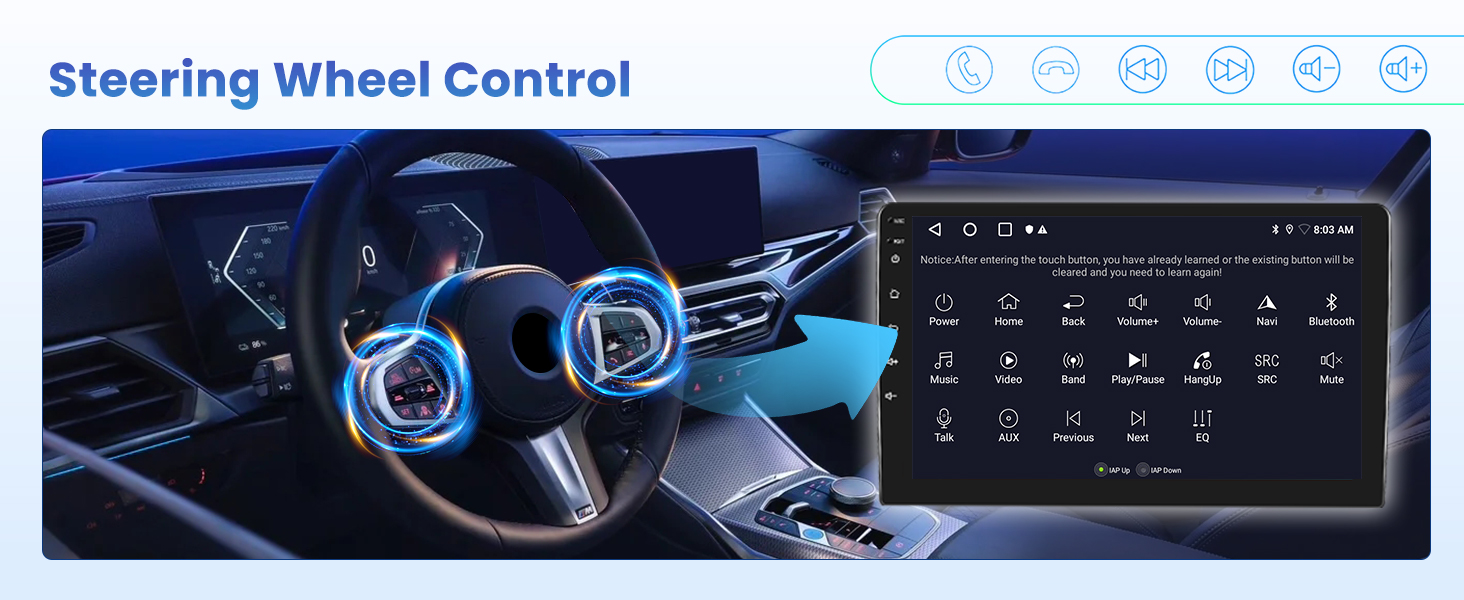
Image: Illustration of the steering wheel control learning process on the car radio display.
5. Operating Instructions
5.1 Wireless CarPlay / Android Auto & Mirror Link
Connect your smartphone wirelessly to access navigation, make calls, send messages, and play music directly from your phone on the car radio display. Mirror Link allows you to cast your phone's screen to the unit.
Video: Demonstration of connecting and using Wireless CarPlay, Android Auto, and Mirror Link features.
- Wireless Connection: Ensure your phone's Bluetooth and Wi-Fi are enabled. Follow the on-screen instructions on the car radio to pair your device.
- Mirror Link: For some devices, a USB connection may also be required in addition to Wi-Fi.

Image: Wireless CarPlay and Android Auto functionality with various applications.
5.2 GPS Navigation
The unit supports both online and offline navigation. For offline navigation, ensure maps are downloaded to the device. For online navigation, connect to Wi-Fi.
- Offline Navigation: Ideal for areas with no signal, tunnels, or remote locations.
- Online Navigation: Provides real-time traffic updates and points of interest. Requires Wi-Fi connection.

Image: GPS navigation in action, showing a route on the display.
5.3 Wi-Fi Connectivity & App Downloads
Connect the car radio to a Wi-Fi hotspot (e.g., from your smartphone) to access online features and download applications from the app store.
- Go to Settings > Network & Internet > Wi-Fi.
- Select your desired Wi-Fi network and enter the password.
- Once connected, you can use online navigation, stream media, and download apps.

Image: Wi-Fi connectivity enabling access to various online applications.
5.4 Bluetooth 5.0
Pair your phone via Bluetooth for hands-free calling and music streaming. The external microphone ensures clear call quality.
- Enable Bluetooth on your phone and the car radio.
- Search for available devices on the car radio and select your phone.
- Confirm the pairing code on both devices.

Image: Bluetooth hands-free calling and music playback interface.
5.5 FM/RDS Radio
Access your favorite radio stations with the built-in FM/RDS tuner.
- Select the 'Radio' application from the main menu.
- Use the scan function to find available stations or manually tune to a frequency.
- Save frequently used stations as presets.

Image: FM/RDS radio interface with frequency and preset options.
5.6 EQ Audio Settings
Customize your audio experience using the equalizer settings.
- Access the 'EQ' or 'Sound Settings' application.
- Choose from predefined modes like Pop, Rock, or create your own custom profile.

Image: Equalizer settings for personalized audio output.
5.7 Split Screen Functionality
The split-screen feature allows you to use two applications simultaneously, such as navigation and music playback.
- Open the first application.
- Long-press the recent apps button or follow specific UI gestures to activate split-screen mode.
- Select the second application to display alongside the first.
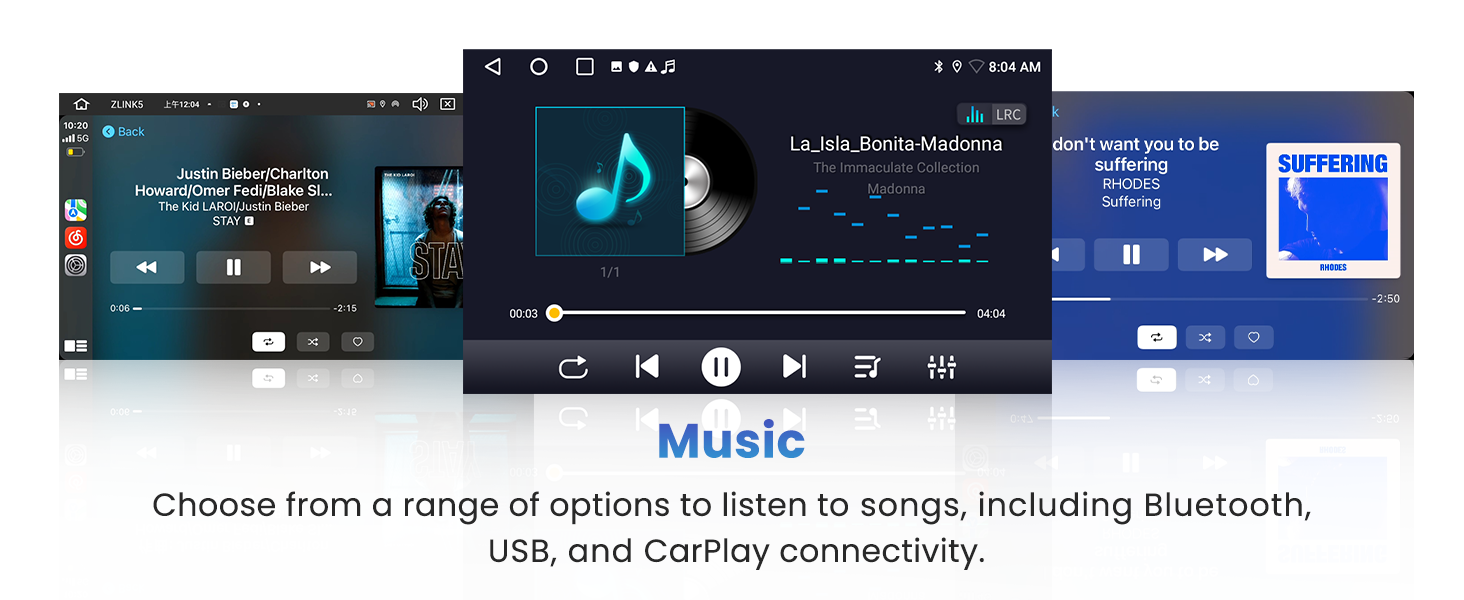
Image: Split-screen mode displaying two applications concurrently.
5.8 General Function Operation
For a comprehensive overview of the unit's functions and operations, refer to the following video demonstration:
Video: A detailed demonstration of various functions and operations of the Inefala Android Car Radio.
6. Maintenance
- Cleaning the Screen: Use a soft, lint-free cloth to clean the touchscreen. Do not use abrasive cleaners or solvents.
- Software Updates: Periodically check for software updates through the system settings to ensure optimal performance and access to new features.
- Environmental Conditions: Avoid exposing the unit to extreme temperatures, direct sunlight for prolonged periods, or excessive moisture.
7. Troubleshooting
If you encounter any issues, please refer to the following common troubleshooting steps:
- No Power: Check all power connections and ensure the vehicle's ignition is on. Verify fuses are intact.
- No Sound: Check volume settings, audio source selection, and speaker connections. Ensure the mute function is not active.
- GPS Signal Issues: Ensure the GPS antenna is properly installed and has a clear view of the sky.
- Bluetooth Pairing Failure: Ensure both devices are in pairing mode and within range. Try restarting both the car radio and your phone.
- Touchscreen Unresponsive: Try restarting the unit. If the issue persists, a factory reset might be necessary (note: this will erase all user data).
- Backup Camera Not Displaying: Verify the camera's power and video signal connections. Ensure the reverse gear signal wire is correctly connected.
For persistent issues, please contact customer support.
8. Specifications
| Feature | Specification |
|---|---|
| Brand | Inefala |
| Model Number | Inefala-A4123H6MI260US |
| Screen Size | 7 inches |
| Display Resolution | 1024*600 |
| Connectivity Technology | Bluetooth, USB, Wi-Fi |
| Controller Type | Android, iOS (via CarPlay/Android Auto) |
| Special Features | EQ, Bluetooth, FM/RDS Radio, GPS Navigation, WiFi Connection, SWC & Backup Camera, Touchscreen, Wireless Carplay Android Auto & Mirror Link |
| Compatible Devices | Smartphone |
| Audio Output Mode | Stereo |
| Surround Sound Channel Configuration | 5.1 |
| Output Power | 45 watts (per channel) |
| Number of Channels | 4 |
| Supported Internet Services | Browser, Google TV, Netflix, Prime Video, YouTube (via Wi-Fi) |
| Control Method | Touch, Voice |
| Item Weight | 2.5 pounds |
| Item Dimensions (D x W x H) | 1.8"D x 8"W x 4"H |
9. Warranty and Support
Your Inefala Android Car Radio comes with a 24-month quality assurance warranty from the date of purchase. We are committed to handling all quality issues within this period.
For any questions, technical assistance, or warranty claims, please contact Inefala-US customer support. We aim to respond to all inquiries within 24 hours.
- Email Support: inefalatech@163.com
- Return Policy: 30 days free return.

Image: Customer support contact information and warranty details.