
Introduction
This manual provides detailed instructions for the AHENOD G18-160GB Android 13 MP3 Player. This device features an Android 13 operating system, an 8-core MTK chip, a 4.02-inch IPS HD touch screen, Bluetooth 5.0, and Wi-Fi connectivity. It comes with 160GB of storage (32GB ROM + 128GB TF card) and supports up to 512GB memory cards, allowing for extensive music and video storage. Please read this manual thoroughly to ensure proper use and maintenance of your device.
Product Overview and Components
The AHENOD G18-160GB MP3 Player is a compact and versatile multimedia device. Below is an image of the device and a list of included components.

Figure 1: Front view of the AHENOD G18-160GB MP3 Player, showcasing its 4.02-inch IPS HD touch screen.
Included Components:
- 1 x AHENOD G18-160GB MP3 Player
- 1 x 128GB SD card
- 1 x User Manual
- 1 x Type-C USB Cable
- 1 x Earphone
- 1 x Silicone Case
- 1 x Protective Film
Setup
1. Charging the Device
Before initial use, fully charge the MP3 player. Connect the provided Type-C USB cable to the device's charging port and a compatible USB power adapter (not included) or a computer's USB port. The device has a built-in 2000mAh Li-ion battery.

Figure 2: Illustration of the device's 2000mAh battery, indicating approximately 25 hours of music playback or 5 hours of video playback on a full charge.
2. Power On/Off
- To Power On: Press and hold the power button located on the side of the device until the screen illuminates.
- To Power Off: Press and hold the power button, then select "Power Off" from the on-screen options.
3. Initial Setup and Wi-Fi Connection
Upon first power-on, follow the on-screen prompts to complete the initial Android 13 setup. This includes selecting your language, connecting to a Wi-Fi network, and setting up a Google account if desired. A Wi-Fi connection is necessary for accessing online services and the Google Play Store.

Figure 3: The device running Android 13 OS, showing various pre-installed and downloadable applications.
4. Storage Management
The device comes with 32GB of internal storage (ROM) and a 128GB TF card, totaling 160GB. It supports expandable storage up to 512GB via a microSD card. To insert a microSD card, locate the card slot on the side of the device and gently push the card in until it clicks into place.
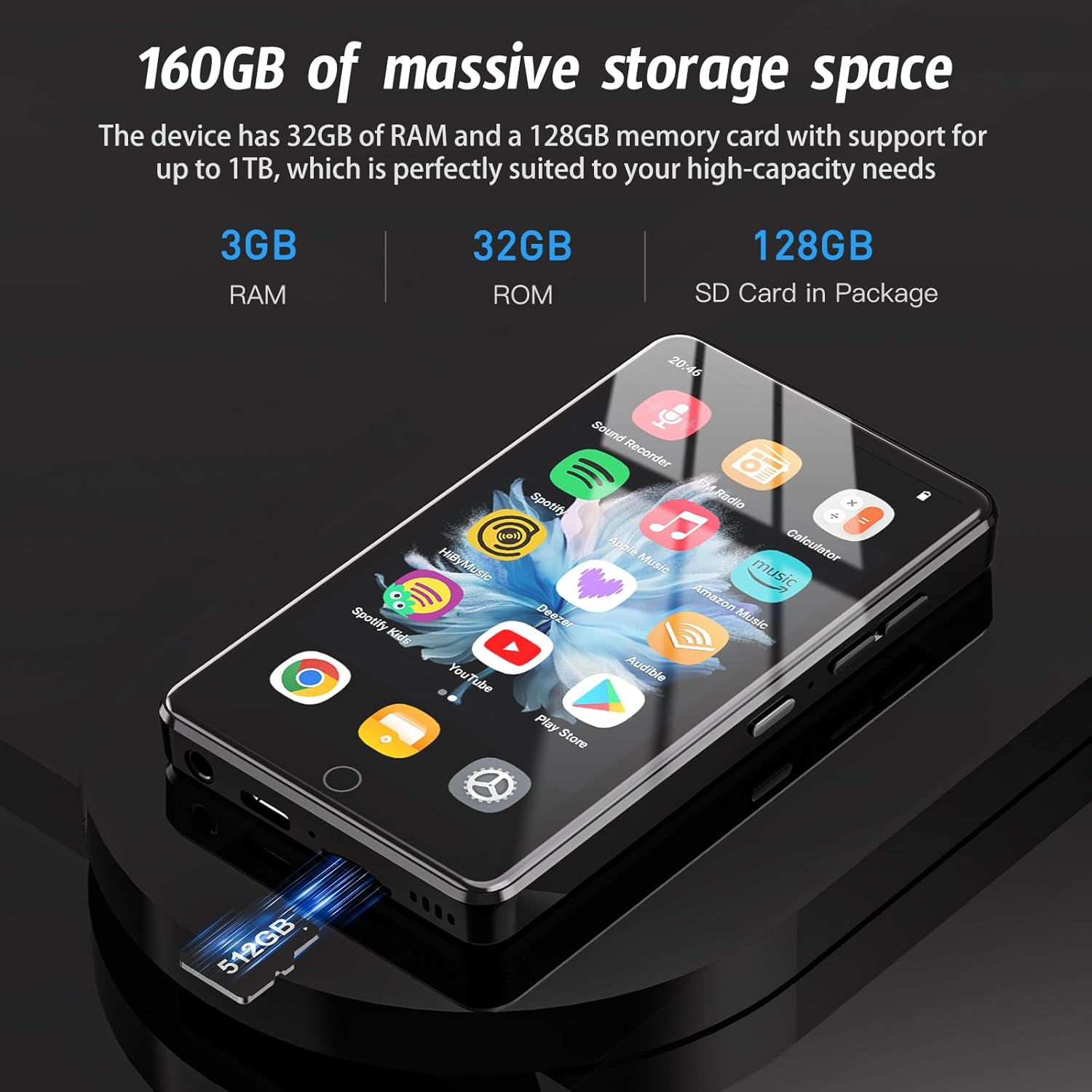
Figure 4: The MP3 player with a microSD card inserted, illustrating its expandable storage capability.
5. App Installation and Management
The device has the Google Play Store pre-installed, allowing you to download and install various applications. You can also uninstall apps to free up memory.
- To Install Apps: Open the "Play Store" app, search for your desired application, and tap "Install".
- To Uninstall Apps: Press and hold the app icon on the home screen or app drawer, then drag it to the "Uninstall" option that appears, or go to Settings > Apps > Select App > Uninstall.

Figure 5: Visual guide for uninstalling an application from the device.
6. Parental Controls
For family use, Google Family Link can be configured to supervise the device remotely, manage screen time, and add restrictions to Google services and content on Google Play. Access this feature through the device settings or by downloading the Family Link app on a parent's device.

Figure 6: Screenshot of the parental controls setup interface, detailing options for supervision and content restrictions.
Operating Instructions
1. Touch Screen Navigation
The 4.02-inch IPS HD touch screen allows for intuitive navigation. Use gestures such as tapping, swiping, and pinching to interact with the interface and applications.
2. Music Playback
The device supports various audio formats including MP3, WAV, APE, FLAC, AAC, OGG, and WMA. Use the pre-installed music player application to manage and play your audio files.
- Loading Music: Transfer music files from your computer to the device's internal storage or microSD card. The music app can scan for new music with a single click.
- Playback Modes: The music player offers sequential play, list loop, shuffle all, and loop single options.
- Equalizer: Adjust audio settings using the built-in equalizer for a customized listening experience.

Figure 7: The music player interface displaying various playback options such as sequential play, list loop, shuffle, and loop single.
3. Video Playback
The device supports 1080P video resolution and various video formats including AVI, MKV, RMVB, MP4, MPG, and MOV. Transfer video files to the device and use a compatible video player app for playback.

Figure 8: The device screen displaying a high-definition video, highlighting its 1080P resolution and IPS touch screen capabilities.
4. Bluetooth Connection
The device is equipped with Bluetooth 5.0, allowing stable connections to various Bluetooth devices such as headphones, speakers, and car stereos.
- Go to Settings > Connected devices > Bluetooth.
- Turn on Bluetooth.
- Ensure your Bluetooth accessory is in pairing mode.
- Select your accessory from the list of available devices to pair.

Figure 9: The device connected via Bluetooth 5.0 to wireless earbuds, demonstrating its stable and compatible wireless connection.
5. Sound Recorder
The device includes a sound recorder application for capturing audio. Open the "Sound Recorder" app from the app drawer to start, pause, and save recordings.

Figure 10: The sound recorder application interface, showing recording in progress with audio waveform.
Maintenance
1. Cleaning
To clean the device, use a soft, lint-free cloth. For the screen, a screen cleaner specifically designed for electronic displays can be used. Avoid using harsh chemicals or abrasive materials that could damage the screen or casing.
2. Storage Management
Regularly check the device's storage space. Uninstall unused applications and delete unnecessary files to maintain optimal performance. You can view storage usage in Settings > Storage.
3. Battery Care
To prolong battery life, avoid exposing the device to extreme temperatures. Charge the device regularly, but avoid leaving it fully charged or fully discharged for extended periods. The device offers approximately 25 hours of continuous music playback or 5 hours of video playback on a full charge.
Troubleshooting
Device Not Turning On
- Ensure the battery is charged. Connect the device to a power source using the Type-C USB cable and allow it to charge for at least 30 minutes before attempting to power it on again.
- Perform a forced restart by pressing and holding the power button for approximately 10-15 seconds.
Connectivity Issues (Wi-Fi/Bluetooth)
- Wi-Fi: Ensure you are within range of a known Wi-Fi network. Try forgetting the network and reconnecting. Restart your Wi-Fi router if other devices are also experiencing issues.
- Bluetooth: Ensure the Bluetooth accessory is in pairing mode and fully charged. Try unpairing and re-pairing the device. Restart the MP3 player.
Applications Crashing or Freezing
- Close and reopen the application.
- Clear the app's cache and data (Settings > Apps > Select App > Storage > Clear Cache/Clear Data).
- Ensure the app is updated to its latest version via the Google Play Store.
- If the issue persists, consider uninstalling and reinstalling the app.
Device Overheating
It is normal for electronic devices to warm up during extended use or when running demanding applications. However, if the device becomes excessively hot, consider the following:
- Close all background applications.
- Reduce screen brightness.
- Avoid using the device while charging, especially during heavy usage.
- If overheating persists or occurs during light use, discontinue use and contact customer support.
Specifications
| Feature | Detail |
|---|---|
| Model Name | G18-160GB |
| Operating System | Android 13 |
| Processor | MTK 8-core chip |
| RAM | 3GB |
| Internal Storage (ROM) | 32GB |
| Included SD Card | 128GB |
| Total Storage | 160GB |
| Expandable Storage | Up to 512GB (Micro SD) |
| Screen Size | 4.02 Inches |
| Screen Type | IPS HD Touch Screen |
| Video Resolution Support | 1080P |
| Connectivity | Bluetooth 5.0, Wi-Fi (2.4G & 5G) |
| Battery Capacity | 2000mAh Li-ion |
| Music Playback Time | Up to 25 hours |
| Video Playback Time | Up to 5 hours |
| Dimensions | 10.3 x 5.8 x 1.1 cm (4.06 x 2.28 x 0.43 inches) |
| Weight | 95 grams (3.35 ounces) |
| Special Feature | Built-In Speaker |
Warranty and Support
Warranty Information
Please refer to your purchase documentation or the product packaging for specific warranty details and terms. Keep your proof of purchase for warranty claims.
Customer Support
For technical assistance, troubleshooting beyond this manual, or warranty inquiries, please contact AHENOD customer service. Contact information can typically be found on the product packaging, the official AHENOD website, or through your retailer.