
Introduction
Thank you for purchasing the AHENOD G18 Android 13 MP3 Player. This device combines a portable music player with the versatility of the Android operating system, offering access to streaming services, local media playback, and more. This manual provides essential information for setup, operation, maintenance, and troubleshooting to ensure optimal use of your device.

Image: Overview of the AHENOD G18 Android 13 Music Player highlighting key features like WiFi, Bluetooth, Android 13, battery capacity, storage, processor, screen size, and resolution.
What's in the Box
Please check the package contents upon unboxing:
- 1 x AHENOD G18 MP3 Player
- 1 x 64GB SD Card
- 1 x User Manual
- 1 x Type-C USB Cable
- 1 x Earphone
- 1 x Silicone Case
- 1 x Protective Film
Setup
1. Initial Charging
Before first use, fully charge the device. Connect the provided Type-C USB cable to the player and a standard USB power adapter (not included). A full charge typically takes a few hours. Avoid using chargers over 20W to prevent potential issues.
2. Power On/Off
- To Power On: Press and hold the Power button (usually on the side) until the screen lights up.
- To Power Off: Press and hold the Power button, then select 'Power Off' from the options on the screen.
3. Initial Configuration
Upon first power-on, follow the on-screen prompts to set up your device:
- Language Selection: Choose your preferred language.
- Wi-Fi Connection: Connect to a Wi-Fi network to access online features and download apps. Go to Settings > Network & internet > Wi-Fi, select your network, and enter the password.
- Google Account: Sign in with your Google account to access the Google Play Store and other Google services.

Image: The AHENOD G18 MP3 Player showcasing its Android 13 operating system and access to the Google App Store, with various pre-installed and downloadable applications visible.
4. SD Card Installation
The device comes with a 64GB SD card pre-installed. If you wish to expand storage further (up to 512GB), locate the SD card slot (typically on the side) and gently insert a compatible microSD card until it clicks into place. Ensure the device is powered off before inserting or removing the SD card.

Image: The AHENOD G18 MP3 Player demonstrating its expandable storage capability, showing a microSD card being inserted and highlighting its internal memory specifications.
Operating Instructions
1. Basic Navigation
The G18 features a 4.02-inch IPS HD touchscreen. Navigate by tapping, swiping, and pinching gestures similar to a smartphone. Use the back button (if physical) or swipe gestures (if software-based) to return to previous screens.
2. Music Playback
The device supports various audio formats including MP3, WAV, APE, FLAC, and AAC.
- Local Music: Use the pre-installed music player app. It can scan your device and SD card for audio files. You can organize music by album, artist, folder, or create playlists. Playback modes include sequential play, list loop, shuffle all, and loop single.
- Streaming Apps: Access pre-installed apps like Spotify, Apple Music, Amazon Music, HiByMusic, and Deezer. Download additional streaming apps from the Google Play Store.

Image: The AHENOD G18 MP3 Player displaying its music playback interface, illustrating various playback modes and supported audio formats.
3. Video Playback
The 4.02-inch IPS touchscreen supports 1080P video resolution. Compatible video formats include AVI, MKV, RMVB, MP4, MPG, and MOV. Use the pre-installed video player or download a third-party player from the Google Play Store.

Image: The AHENOD G18 MP3 Player showcasing its 1080P HD full touch screen capabilities with a vibrant video display.
4. Bluetooth Connection
The device features Bluetooth 5.0 for stable wireless connections.
- Go to Settings > Connected devices > Bluetooth.
- Toggle Bluetooth ON.
- Ensure your Bluetooth headphones, speakers, or car stereo are in pairing mode.
- Select your device from the list of available devices to pair.
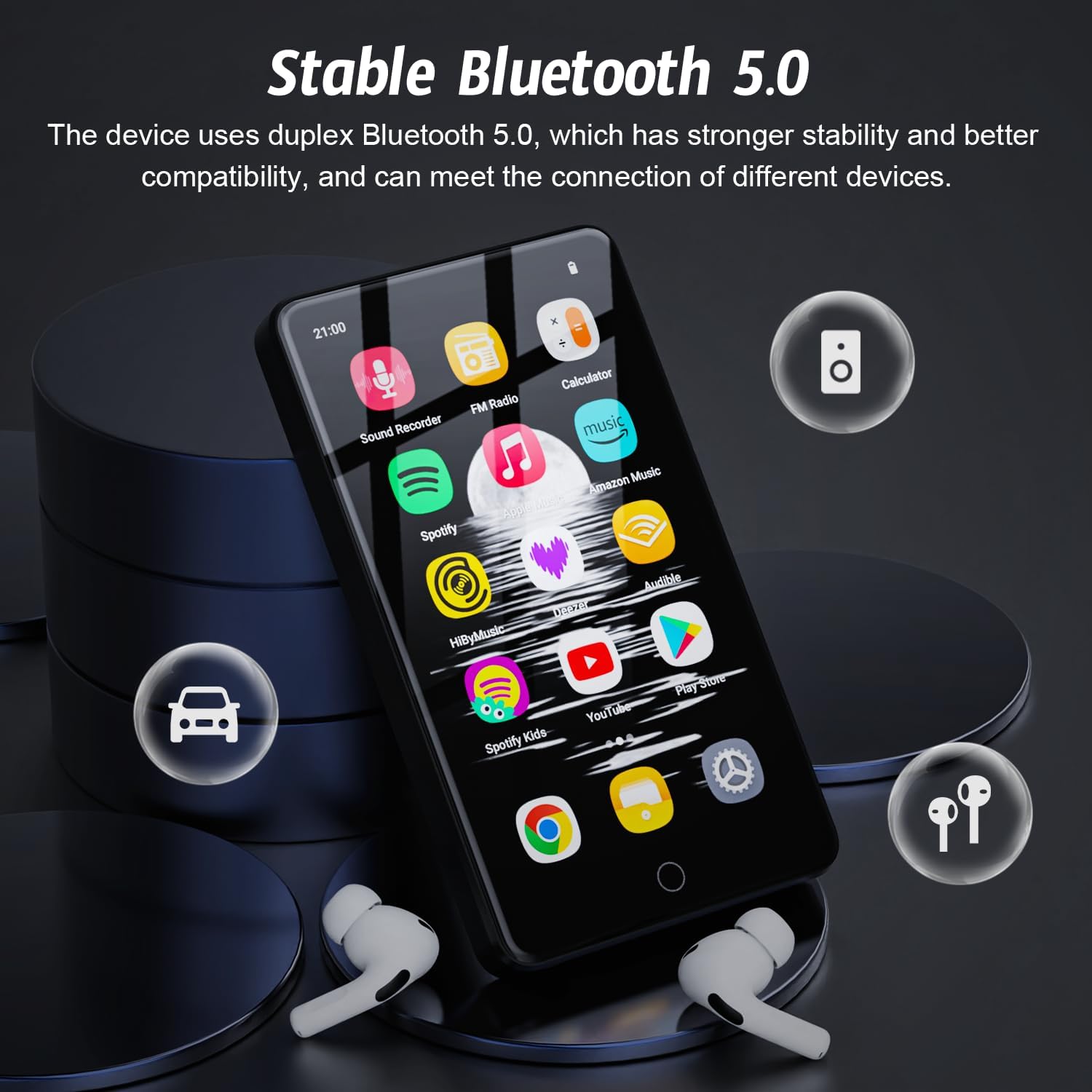
Image: The AHENOD G18 MP3 Player illustrating its stable Bluetooth 5.0 connectivity for pairing with external audio devices.
5. Wi-Fi Connection
To connect to a Wi-Fi network:
- Go to Settings > Network & internet > Wi-Fi.
- Toggle Wi-Fi ON.
- Select your desired network from the list.
- Enter the network password if prompted and tap 'Connect'.
6. App Management
The device allows you to install and uninstall applications from the Google Play Store.
- Installing Apps: Open the 'Play Store' app, search for your desired application, and tap 'Install'.
- Uninstalling Apps: Press and hold the app icon on the home screen or app drawer, then drag it to the 'Uninstall' option that appears, or go to Settings > Apps > See all apps, select the app, and tap 'Uninstall'.

Image: A close-up view of the AHENOD G18 MP3 Player screen illustrating the process of uninstalling an application.
7. Parental Controls
Parents can manage device usage and app access through Google's Family Link. This feature allows you to set passwords, browser access restrictions, and app access permissions.
- Go to Settings > Digital Wellbeing & parental controls > Parental controls.
- Follow the on-screen instructions to set up Family Link and configure desired restrictions.

Image: The AHENOD G18 MP3 Player displaying the setup screen for Google's Family Link parental controls.
Maintenance
1. Cleaning
Use a soft, lint-free cloth to clean the screen and body of the device. Avoid using harsh chemicals or abrasive materials, which can damage the screen or finish.
2. Battery Care
- Avoid extreme temperatures, as they can degrade battery life.
- Do not let the battery completely drain frequently.
- Use the provided Type-C USB cable for charging.

Image: The AHENOD G18 MP3 Player highlighting its 2000mAh battery capacity and estimated usage times for music and video.
3. Software Updates
Periodically check for system updates to ensure optimal performance and security. Go to Settings > System > System update to check for and install available updates.
Troubleshooting
| Problem | Possible Solution |
|---|---|
| Device does not power on. | Ensure the battery is charged. Connect to a power source and try again. If unresponsive, perform a hard reset (refer to device-specific instructions, usually holding power button for 10-15 seconds). |
| Cannot connect to Wi-Fi/Bluetooth. | Ensure Wi-Fi/Bluetooth is enabled in settings. Check if the network/device is discoverable and within range. Restart the player and the other device. Verify Wi-Fi password. |
| Apps are crashing or not responding. | Clear the app's cache (Settings > Apps > [App Name] > Storage & cache > Clear cache). If the issue persists, try uninstalling and reinstalling the app. Ensure sufficient storage space. |
| Device is overheating. | Close background applications. Reduce screen brightness. Avoid using the device while charging, especially during intensive tasks. If overheating persists, discontinue use and contact support. |
| SD card not detected. | Ensure the SD card is correctly inserted. Try reinserting it. Test with another compatible SD card if available. Format the SD card (this will erase all data). |
Specifications
| Feature | Detail |
|---|---|
| Brand | AHENOD |
| Model Name | G18 |
| Operating System | Android 13 |
| Processor | MTK 8-core |
| RAM | 3GB |
| Internal Storage (ROM) | 32GB |
| Included SD Card | 64GB |
| Expandable Storage | Up to 512GB via MicroSD card |
| Screen Size | 4.02 inches |
| Display Technology | IPS HD Touch Screen |
| Video Resolution Support | 1080P |
| Connectivity | Bluetooth 5.0, Wi-Fi (2.4G & 5G) |
| Battery Capacity | 2000mAh Li-ion |
| Battery Life (Music) | Up to 25 hours |
| Battery Life (Video) | Up to 5 hours |
| Supported Audio Formats | MP3, WAV, APE, FLAC, AAC, OGG, WMA |
| Supported Video Formats | AVI, MKV, RMVB, MP4, MPG, MOV |
| Dimensions | 10.3 x 5.8 x 1.1 cm |
| Weight | 95 grams |
Warranty and Support
Warranty Information
The AHENOD G18 MP3 Player comes with a 1-year manufacturer's warranty from the date of purchase. This warranty covers defects in materials and workmanship under normal use. It does not cover damage caused by misuse, accidents, unauthorized modifications, or normal wear and tear.
Customer Support
For technical assistance, warranty claims, or any questions regarding your AHENOD G18 MP3 Player, please contact AHENOD customer support through the retailer where you purchased the product or visit the official AHENOD brand store online. Please have your purchase receipt and product model number (G18) ready when contacting support.