1. Introduction
This manual provides detailed instructions for the installation, operation, and maintenance of your Inefala Android 15 Car Radio. This multimedia system is designed to enhance your driving experience with advanced features such as wireless CarPlay, Android Auto, GPS navigation, Bluetooth connectivity, and a 7-inch touchscreen display. Please read this manual thoroughly before installation and use to ensure proper functionality and safety.
2. Package Contents
Verify that all items listed below are included in your package:
- 1 x Car Multimedia Player
- 1 x Power Cable
- 1 x RCA Input/Output Cable
- 2 x USB Cables
- 1 x CAN Bus Cable + RCA Cable
- 1 x GPS Antenna
- 1 x 4G Module
- 1 x Rear Camera Input Cable
- 1 x User Manual
- 1 x 3.5mm Microphone
- 1 x Antenna Adapter
- 1 x Reversing Camera

3. Compatibility
This Inefala Android 15 Car Radio is specifically designed for the following vehicle models:
- Toyota Corolla E120 (2000-2006)
- Toyota Corolla E130 (2004-2007)
- BYD F3 (2006-2013)
- Toyota Corolla Altis E120 (2000-2006)
Before purchasing and installation, please carefully verify your vehicle's model, year, and the shape of your center console to ensure compatibility. If you are unsure, contact customer support with your vehicle details for assistance.


4. Setup and Installation
4.1 General Installation
Installation of the car radio requires basic automotive electrical knowledge. If you are not confident in performing the installation yourself, it is highly recommended to seek professional assistance to avoid damage to the unit or your vehicle.
- Disconnect Battery: Before starting, disconnect the negative terminal of your vehicle's battery to prevent electrical shorts.
- Remove Old Unit: Carefully remove your existing car radio and dashboard trim.
- Connect Wiring Harness: Connect the provided power cable and other necessary wiring harnesses to the car radio and your vehicle's wiring. Ensure all connections are secure.
- Install GPS Antenna: Mount the GPS antenna in a location with a clear view of the sky, typically on the dashboard or under the windshield.
- Test Functionality: Before fully reassembling the dashboard, reconnect the battery and test the basic functions of the car radio (power, sound, radio, touchscreen).
- Secure Unit: Once tested, secure the car radio into the dashboard and reassemble all trim pieces.
4.2 Reversing Camera Wiring
The included reversing camera provides enhanced safety during parking maneuvers. Follow these steps for proper wiring:
- Connect the camera's video output cable (yellow RCA) to the "CAM IN" input on the car radio.
- Connect the camera's power cable (red wire) to the vehicle's reverse light power supply. This ensures the camera activates when reverse gear is engaged.
- Connect the camera's ground wire (black wire) to a suitable ground point on the vehicle chassis.
- Ensure the white plug from the camera input cable is connected to the car radio for proper Bluetooth and WiFi signal reception.

5. Operating Instructions
5.1 Android 15 System
The car radio operates on Android 15, providing a familiar and intuitive user interface. With 4GB RAM and 64GB storage, it ensures smooth performance for applications and media. The 7-inch InCell touchscreen offers responsive control and vibrant visuals.
5.2 Wireless CarPlay & Android Auto
Connect your smartphone wirelessly to access CarPlay (for iOS devices) or Android Auto (for Android devices). This allows seamless integration of navigation, music, calls, and messaging apps directly on the car radio display, enhancing convenience and safety.

5.3 GPS Navigation
The built-in GPS module provides accurate navigation. You can use both online and offline maps for reliable guidance, even in areas without network coverage. The system supports real-time traffic updates when connected to the internet.
5.4 WiFi Connectivity
Connect the car radio to the internet via a WiFi hotspot from your smartphone or a dedicated car WiFi device. This enables online streaming, web browsing, and easy download of additional applications from the app store.

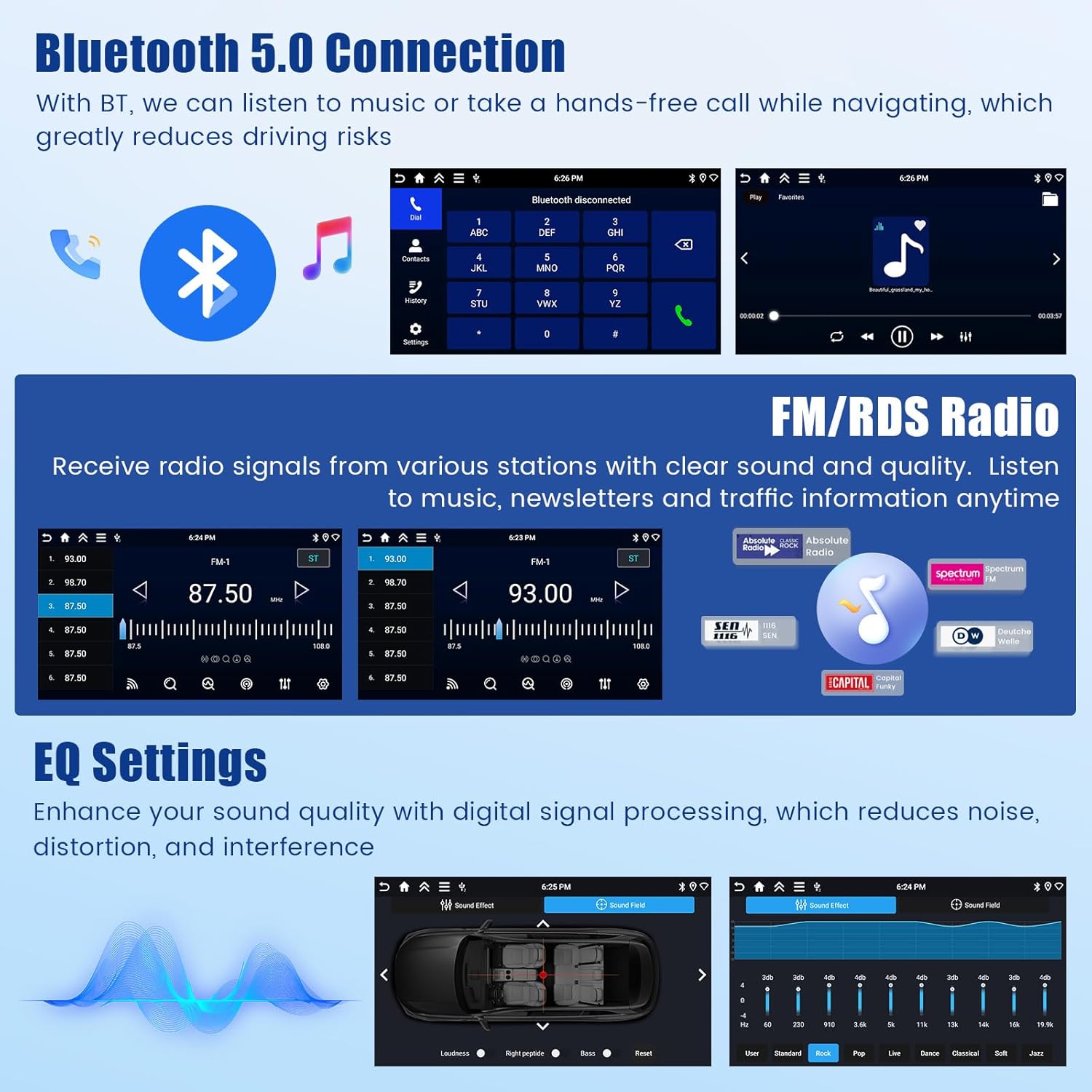
5.5 Bluetooth 5.0
The integrated Bluetooth 5.0 module allows for hands-free calling and wireless music streaming from your paired smartphone. This feature significantly reduces driving distractions.
5.6 FM/RDS Radio
Enjoy your favorite FM radio stations with clear reception. The RDS (Radio Data System) function displays station information, song titles, and traffic announcements where available.
5.7 EQ Settings
Customize your audio experience with the built-in Equalizer (EQ) settings. Adjust various frequency bands to optimize sound quality, reduce distortion, and match your personal preferences.

5.8 Steering Wheel Control (SWC)
The car radio supports your vehicle's existing steering wheel controls. This allows you to manage volume, change tracks, answer calls, and access other functions without taking your hands off the wheel, providing a safer and more convenient driving experience. Ensure proper wiring and configuration during installation.

5.9 Backup Camera Display
When the vehicle is shifted into reverse gear, the car radio automatically displays the feed from the connected reversing camera. This provides a clear view of the area behind your vehicle, making reversing maneuvers easier and safer.
5.10 Split Screen Display
The split-screen function allows you to run two applications simultaneously on the display. For example, you can have navigation open on one side and music playback on the other, enhancing multitasking capabilities.

6. Maintenance
To ensure the longevity and optimal performance of your Inefala Car Radio, follow these maintenance guidelines:
- Cleaning the Screen: Use a soft, lint-free cloth slightly dampened with water or a screen cleaner specifically designed for electronic displays. Avoid abrasive materials or harsh chemicals.
- Software Updates: Periodically check for available software updates through the system settings. Updates can improve performance, add new features, and fix bugs.
- Avoid Extreme Temperatures: Do not expose the unit to extreme heat or cold for extended periods, as this can affect its electronic components.
- Protect from Moisture: Keep the unit dry and away from liquids. In case of accidental spills, immediately power off the unit and allow it to dry completely before use.
- Cable Connections: Periodically check all cable connections to ensure they are secure and free from corrosion.
7. Troubleshooting
If you encounter any issues with your car radio, refer to the following troubleshooting tips:
| Problem | Possible Cause | Solution |
|---|---|---|
| No Power | Loose power connection, blown fuse, vehicle battery issue. | Check power cable connections. Inspect vehicle fuses. Ensure vehicle battery is charged. |
| No Sound | Volume too low, mute activated, speaker wiring issue, incorrect audio source. | Increase volume. Check if mute is active. Verify speaker wiring. Select correct audio source. |
| GPS Not Working | Poor GPS signal, outdated maps, GPS antenna not connected. | Ensure GPS antenna has clear sky view. Update maps. Check GPS antenna connection. |
| Bluetooth Connection Issues | Device not discoverable, incorrect pairing, interference. | Ensure Bluetooth is enabled on both devices. Re-pair devices. Move away from other wireless devices. |
| Touchscreen Unresponsive | System freeze, dirty screen, software issue. | Restart the unit. Clean the screen. If issue persists, perform a factory reset (refer to advanced settings). |
| Reversing Camera Not Displaying | Camera wiring issue, reverse gear not detected, camera malfunction. | Check camera power and video connections. Ensure reverse gear signal is correctly wired. |
If these solutions do not resolve the issue, please contact Inefala customer support for further assistance.
8. Specifications
Key technical specifications for the Inefala Android 15 Car Radio:
- Brand: Inefala
- Model: Inefala-A4399H6-EU60
- Operating System: Android 15
- RAM: 4GB
- Storage: 64GB
- Screen Size: 7 Inches
- Display Resolution: 1280*720P (In-cell Touch Screen)
- Connectivity: Bluetooth 5.0, WiFi, 4G Module
- Special Features: Wireless Apple CarPlay, Android Auto, GPS Navigation, RDS, FM Radio, Steering Wheel Control (SWC), Backup Camera Input, Split Screen Display, EQ Settings
- Audio Output Mode: Stereo
- Speaker Surround Sound Channel Configuration: 4
- Product Dimensions: 6.2 x 21.5 x 11.2 cm (2.44 x 8.46 x 4.41 inches)
- Product Weight: 1.07 kg (2.36 lbs)
- Compatible Devices: Smartphone

9. Warranty and Support
Inefala provides comprehensive customer support for its products. If you have any questions, require technical assistance, or need to address any quality issues, please follow these steps:
- Contact Seller: Navigate to the product page on Amazon.es. Click on the seller name, typically "Inefala EU".
- Send a Message: On the seller's page, look for an option to contact the seller or send a message. Provide details of your issue and your order number for prompt assistance.
Inefala is committed to providing 24/7 technical assistance and guarantees to resolve any quality problems within 24 months from the date of purchase.


