
Introduction
The Armor All Rechargeable Locator Tag is designed to help you keep track of your valuable items. Utilizing both Bluetooth 5.2 for nearby tracking and compatibility with the Apple Find My app for long-range location, these tags provide a reliable solution for finding misplaced belongings. Each tag features a 100dB ring for audible alerts and is conveniently rechargeable via USB-C.
Package Contents
Your Armor All Rechargeable Locator Tag 2-Pack includes the following items:
- 2 x Armor All Rechargeable Locator Tags
- 2 x USB-C Charging Cables
- User Manual (this document)

Image: Two Armor All Rechargeable Locator Tags, showing their compact design and keychain loops.

Image: Retail packaging for the Armor All Smart Locators, showing two tags and compatibility with iPhone & iPad.
Setup
1. Charging the Locator Tag
Before initial use, fully charge your locator tags. Connect the provided USB-C cable to the charging port on the tag and plug the other end into a standard USB power adapter (not included).
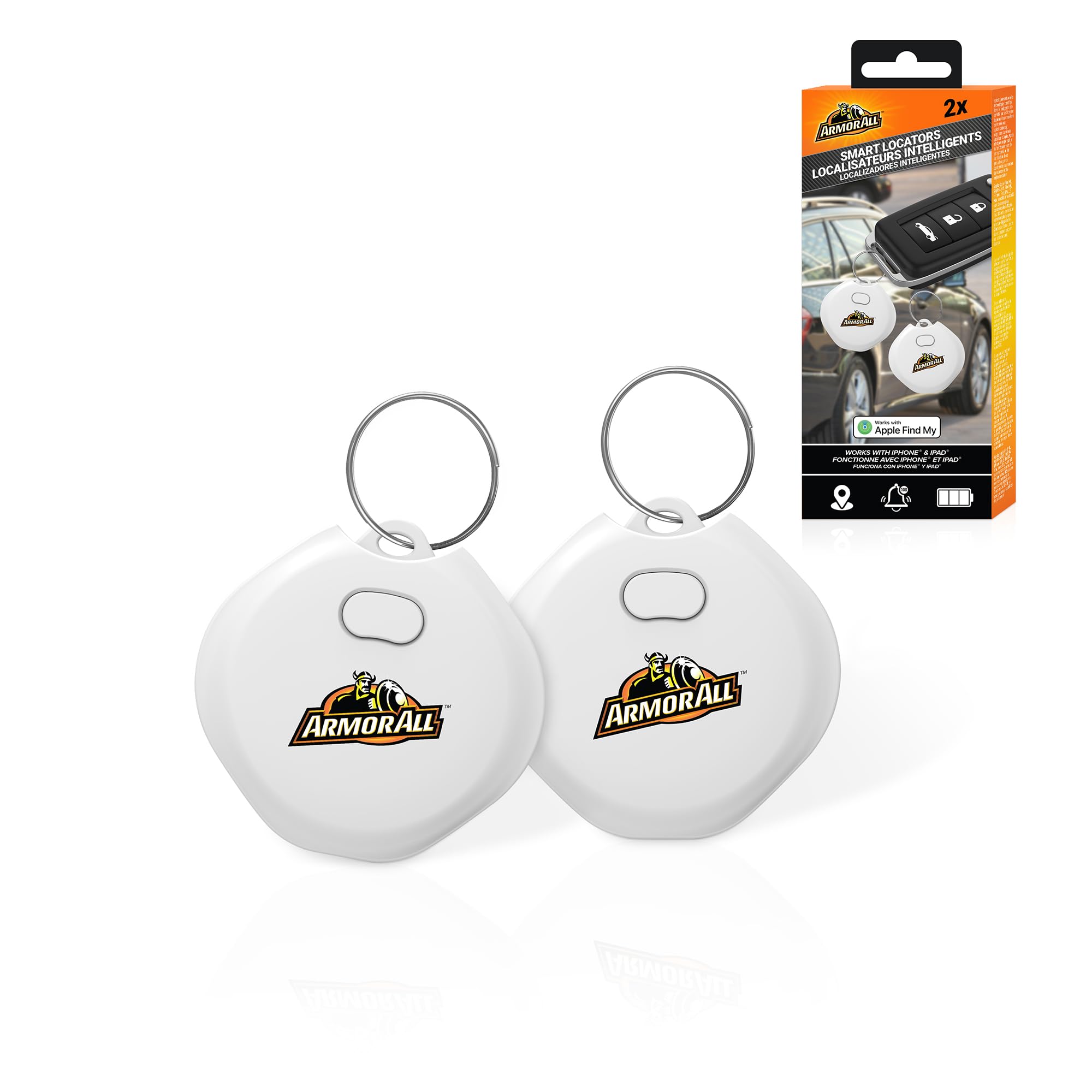
Image: A white Armor All locator tag connected to a USB-C charging cable, indicating its rechargeable feature.
2. Pairing with Apple Find My App (iOS Only)
- Ensure your iPhone or iPad is running the latest iOS version.
- Open the Find My app on your Apple device.
- Navigate to the Items tab.
- Tap the + icon and select Add Other Item.
- Follow the on-screen instructions to pair your Armor All Locator Tag. You may need to press the button on the tag to activate pairing mode.
- Once paired, you can name your tag and assign an emoji to it for easy identification.
Note: These locator tags are designed for use with Apple devices and the Find My network. Android devices are not supported for full functionality.
3. Attaching the Locator Tag
The Armor All Locator Tag features a built-in keychain loop. Attach it securely to items you wish to track, such as keys, bags, wallets, or other personal belongings.

Image: A hand attaching an Armor All locator tag to a car key ring, demonstrating its keychain compatibility.

Image: Two Armor All locator tags shown inside a car, one attached to car keys and another placed in the glove compartment, illustrating multi-item tracking.
Operating Instructions
Locating Your Items
Use the Apple Find My app on your iOS device to locate your Armor All Locator Tags.
- Nearby Tracking (Bluetooth 5.2): When your item is within Bluetooth range, the Find My app will show its proximity. You can tap the "Play Sound" option to make the tag emit a loud 100dB ring, helping you pinpoint its exact location.
- Long-Range Tracking (Apple Find My Network): If your item is out of Bluetooth range, the Find My app will display its last known location on a map. The Apple Find My network, composed of millions of Apple devices, can anonymously detect your tag and securely relay its location to you, even if it's far away.

Image: An iPhone screen showing the Apple Find My app locating a "Locator Tag," positioned next to car keys with an attached Armor All tag, illustrating the tracking function and 100dB alert capability.
Maintenance
Recharging
To ensure continuous tracking, regularly recharge your Armor All Locator Tags. A low battery indicator may appear in the Find My app. Use the provided USB-C cable for charging. The charging time may vary.
Cleaning
Wipe the tags with a soft, dry, or slightly damp cloth. Do not use harsh chemicals or abrasive cleaners, as these can damage the device.
Troubleshooting
| Problem | Possible Solution |
|---|---|
| Tag not appearing in Find My app. |
|
| Cannot hear the 100dB ring. |
|
| Tag location is not updating. |
|
Specifications
- Brand: Armor All
- Control Method: App (Apple Find My)
- Connectivity: Bluetooth 5.2, Apple Find My Network
- Audible Alert: 100dB Ring
- Power Source: Rechargeable (USB-C)
- Compatibility: iOS devices only (iPhone, iPad)
- Number of Items: 2 (in this pack)
- UPC: 805106802356
Warranty and Support
For warranty information and customer support, please refer to the documentation included with your purchase or visit the official Armor All website. Keep your proof of purchase for warranty claims.
For technical assistance or further inquiries, please contact Armor All customer service.