1. Introduction and Overview
The Dell Pro 24 All-in-One QC24251 Desktop Computer is a versatile system designed for various computing needs. It features a 23.8-inch Full HD (1920x1080) IPS multi-touch display, powered by a 14th Generation Intel Core i9-14900K processor with speeds up to 6.0 GHz. This model includes 64GB DDR5 4800MHz RAM and a 512GB PCIe NVMe M.2 Solid State Drive, providing robust performance for demanding tasks. Integrated Intel UHD Graphics, a pop-up Full HD HDR webcam, and High Definition Audio enhance the user experience. The system operates on Windows 11 Pro (64-bit).
This manual provides essential information for setting up, operating, maintaining, and troubleshooting your device to ensure optimal performance and longevity.
2. What's in the Box
Your Dell Pro 24 All-in-One QC24251 package includes the following components:
- Dell Pro 24 All-in-One QC24251 Desktop Computer
- Keyboard
- Mouse
- A/C Adapter
- Quick Setup Guide
3. Setup Instructions
Follow these steps to set up your Dell Pro 24 All-in-One computer:
- Unpacking: Carefully remove all components from the packaging. Ensure no items are missing or damaged.
- Placement: Position the All-in-One on a stable, flat surface with adequate ventilation around the device. Avoid placing it near heat sources or in direct sunlight.
- Connect Peripherals: Connect the included keyboard and mouse to the available USB ports on the rear or side of the computer.
- Power Connection: Connect the A/C adapter cable to the power input port on the back of the computer, then plug the adapter into a functional power outlet.
- Initial Power On: Press the power button, typically located on the side or bottom bezel of the display. The system will boot up and guide you through the initial Windows 11 Pro setup process, including language selection, network connection, and user account creation.

Figure 3.1: Front view of the Dell Pro 24 All-in-One with connected peripherals.
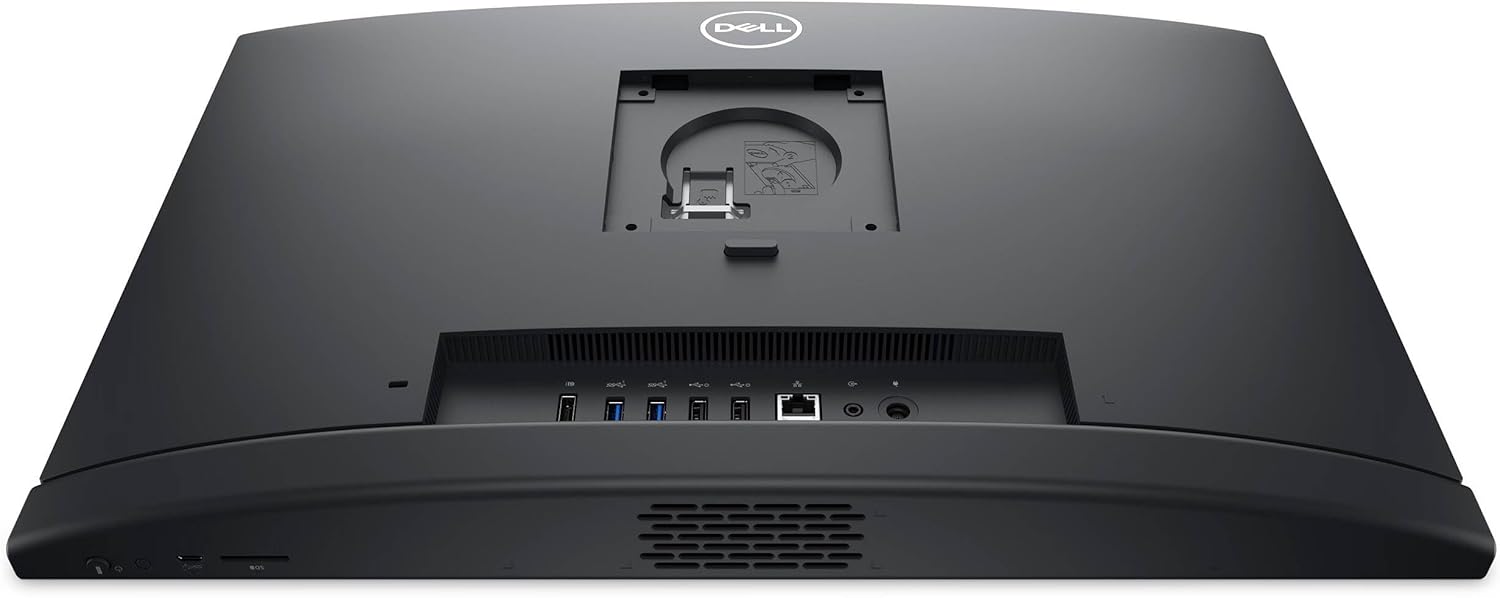
Figure 3.2: Rear view illustrating port locations for connections.
4. Operating Instructions
This section covers basic operation of your Dell All-in-One computer.
4.1. Touchscreen Operation
The 23.8-inch Full HD display supports multi-touch input. Use standard touch gestures for navigation, selection, scrolling, and zooming within applications and the Windows operating system.
4.2. Pop-Up Webcam
The integrated Full HD webcam is designed to pop up from the top bezel when activated by an application (e.g., video conferencing software). It utilizes High Dynamic Range (HDR) technology to automatically adjust clarity for optimal video quality. Ensure no physical obstructions are blocking the webcam's path.
4.3. Audio Features
The computer includes integrated stereo speakers for audio output. For private listening or voice communication, connect a headset with a 3.5mm jack to the side-facing audio port.
4.4. Windows 11 Pro
Your system comes pre-installed with Windows 11 Pro. Familiarize yourself with its features:
- Redesigned Start Menu: Access applications, settings, and files from the centered Start button.
- Snap Layouts and Groups: Efficiently organize multiple windows on your screen for improved multitasking.
- Desktops: Create separate virtual desktops to manage different workflows.
- Microsoft Store: Download and install verified applications.
- Security Features: Benefit from advanced security features like BitLocker disk encryption and TPM 2.0.

Figure 4.1: Side view highlighting accessible ports and the pop-up webcam location.
5. Maintenance
Proper maintenance ensures the longevity and optimal performance of your Dell All-in-One computer.
- Cleaning the Display: Use a soft, lint-free cloth slightly dampened with water or a specialized screen cleaner. Avoid using harsh chemicals, abrasive materials, or direct spraying onto the screen.
- Cleaning the Chassis: Wipe the exterior surfaces with a soft, dry cloth. For stubborn marks, a slightly damp cloth can be used.
- System Updates: Regularly check for and install Windows updates and Dell driver updates. These updates provide security patches, performance improvements, and new features.
- Ventilation: Ensure the ventilation slots on the back and sides of the computer are clear of dust and obstructions. Blocked vents can lead to overheating and reduced performance.
- Data Backup: Periodically back up important data to an external drive or cloud storage to prevent data loss.
6. Troubleshooting
This section addresses common issues you might encounter with your Dell All-in-One computer.
| Issue | Possible Solution |
|---|---|
| Computer does not power on | Verify the power cable is securely connected to both the computer and the power outlet. Ensure the power outlet is functional by testing it with another device. Check the A/C adapter for any damage. |
| Display is blank or no image | Ensure the computer is powered on. If an external monitor is connected, ensure the correct display input is selected on the external monitor. Try restarting the computer. |
| Keyboard or mouse not responding | Try connecting the peripheral to a different USB port. Ensure the peripheral's cables are not damaged. If wireless, check battery levels and ensure proper pairing. Restart the computer. |
| Webcam not activating | Check privacy settings in Windows 11 to ensure applications have permission to access the camera. Ensure no physical obstruction is preventing the webcam from popping up. Restart the application or computer. |
| No audio from speakers | Check the volume settings in Windows and ensure the speakers are not muted. Verify that the correct audio output device is selected in sound settings. Disconnect any headphones if plugged in. |
| System performance is slow | Close unnecessary applications. Check for background processes consuming high resources using Task Manager. Ensure the system has sufficient free storage space. Run system updates and antivirus scans. |
7. Specifications
Detailed technical specifications for the Dell Pro 24 All-in-One QC24251 Desktop Computer:
- Processor: 14th Generation Intel Core i9-14900K (24-Core, 3.20 GHz, up to 6.0 GHz Turbo Boost, 36MB Smart Cache)
- RAM: 64GB DDR5 4800MHz Memory
- Storage: 512GB PCIe NVMe M.2 Solid State Drive
- Display: 23.8" Full HD (1920x1080) IPS Multi-Touch Display
- Graphics: Intel UHD Graphics (Integrated)
- Operating System: Windows 11 Pro (64-bit)
- Webcam: Pop-up Full HD HDR Camera
- Audio: High Definition Audio, Integrated Stereo Speakers
- Wireless Connectivity: 802.11ax Wi-Fi, Bluetooth
- Ports:
- 1x DisplayPort 1.4a
- 1x Headphones/Microphone Combo Jack
- 1x LAN (Gigabit Ethernet)
- 1x USB 3.2 Gen 2 (with PowerShare)
- 2x USB 2.0 (with SmartPower On)
- 2x USB 3.2 Gen 1
- 1x USB-C 3.2 Gen 2
- Security: TPM 2.0 Security Chip
- Dimensions (LxWxH): 21.3 x 2.3 x 13.9 inches
- Item Weight: 12.37 pounds
8. Warranty and Support
Your Dell Pro 24 All-in-One QC24251 Desktop Computer is covered by a 2-Year Warranty provided by Techno Intelligence.
For technical assistance, troubleshooting, or warranty claims, please contact Techno Intelligence directly. Refer to your purchase documentation for specific contact details and support procedures.
Additional resources, drivers, and documentation may be available on the official Dell support website.


