1. Introduction
Welcome to the user manual for your new SGIN 15.6-inch Laptop Computer, Model SGIN-Y101. This guide provides essential information to help you set up, operate, and maintain your device. Please read this manual thoroughly to ensure optimal performance and longevity of your laptop.

Image 1.1: SGIN 15.6-inch Laptop Computer.
2. Package Contents
Upon unpacking, please verify that all items listed below are present:
- SGIN 15.6-inch Laptop Computer
- Power Adapter (Charger)
- User Manual (this document)
3. Product Overview
The SGIN-Y101 laptop is designed for versatile use, featuring a powerful Intel Core i3 processor, ample memory and storage, and a high-definition display. It runs on Windows 11, providing a modern and efficient operating environment.
Key Features:
- Processor: Intel Core i3 CPU (2-core, 4-thread) with speeds up to 3.9GHz for efficient multitasking.
- Memory & Storage: 16GB RAM and 1024GB SSD for quick application loading and smooth operation. Storage is expandable via TF card up to 1TB.
- Display: 15.6-inch Full HD (1920x1080) IPS screen with wide viewing angles and a 180° hinge for flexible use.
- Keyboard: Backlit keyboard for improved visibility in low-light conditions.
- Battery: 53.2WH (7000mAh) rechargeable battery, offering up to 8 hours of usage.
- Connectivity: Equipped with WiFi 6, USB 3.0, HDMI, Micro SD slot, Kensington lock, and a headphone jack. Includes a full-featured Type-C port.
- Operating System: Pre-installed with Windows 11.
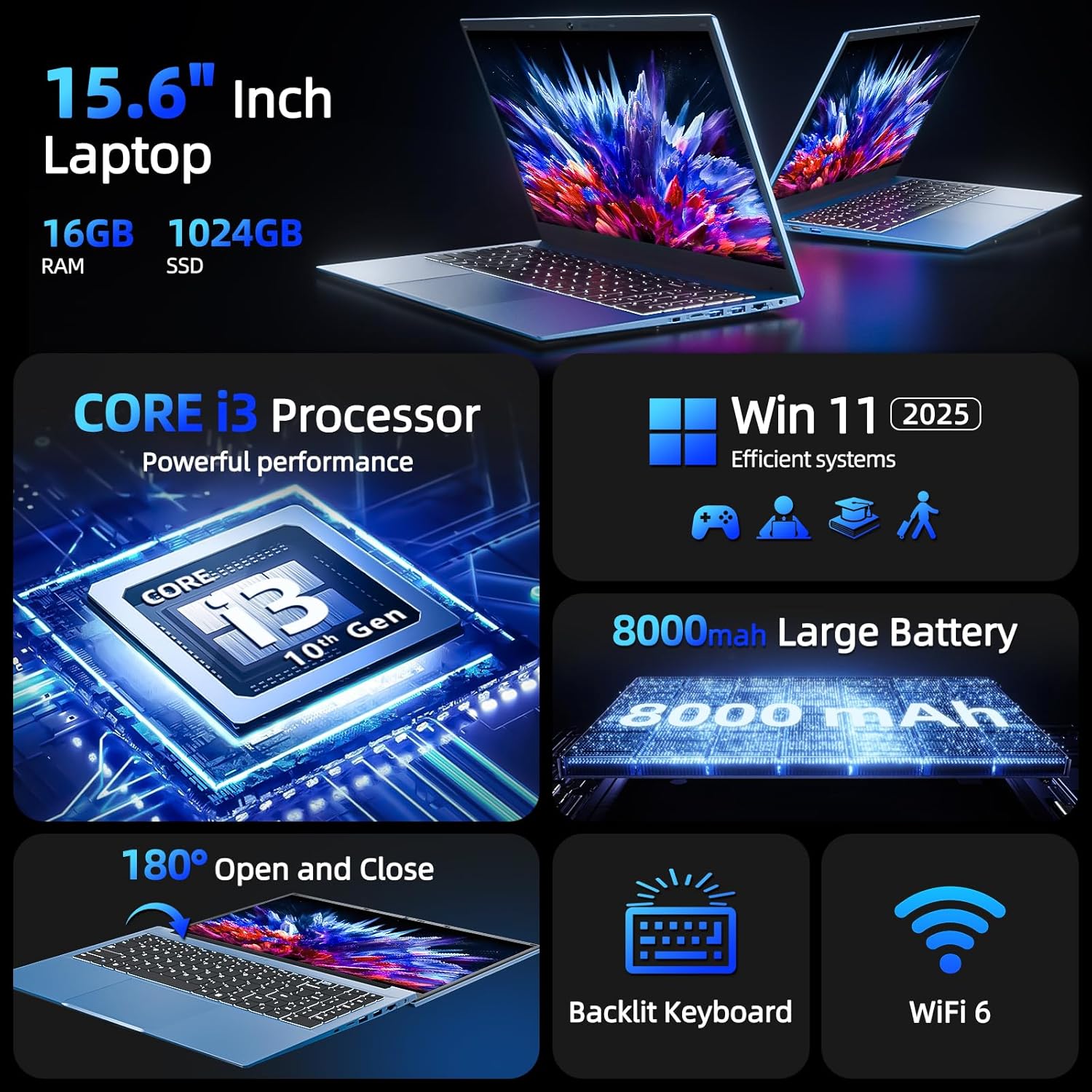
Image 3.1: Overview of SGIN Laptop's key features including CPU, OS, battery, display, keyboard, and WiFi 6.

Image 3.2: Visual representation of the Intel Core i3 CPU performance.
Product Video:
Video 3.1: An overview of the SGIN 15.6-inch Laptop Computer, highlighting its design, wide mousepad, 16GB RAM, 1024GB SSD, Windows 11 operating system, backlit keyboard, 53.2WH battery, 15.6-inch Full HD screen, 180-degree hinge, and various connectivity ports including Type-C, HDMI, and USB.
4. Setup
4.1 Initial Charging
- Connect the power adapter to the charging port on the laptop.
- Plug the power adapter into a wall outlet.
- Allow the laptop to charge for at least 3 hours before initial use, or until the battery indicator shows a full charge.
4.2 First Power-On and Windows 11 Setup
- Open the laptop lid.
- Press the power button located on the keyboard.
- Follow the on-screen instructions to complete the Windows 11 initial setup, including language selection, region, network connection, and user account creation.
4.3 Connecting to Wi-Fi
- During Windows 11 setup, you will be prompted to connect to a Wi-Fi network. Select your desired network from the list.
- Enter the Wi-Fi password if prompted.
- If you skip this step, you can connect later via the Windows Settings menu: Go to Start > Settings > Network & internet > Wi-Fi.
5. Operating Your Laptop
5.1 Keyboard and Touchpad
Your SGIN laptop features a full-size keyboard with a numeric keypad and a large touchpad for navigation.
- Backlit Keyboard: To turn the keyboard backlight on or off, press the Fn key simultaneously with the F5 key.
- Touchpad: Supports multi-touch gestures for scrolling, zooming, and other functions. Refer to Windows 11 settings for customization.

Image 5.1: The backlit keyboard of the SGIN laptop, showing illumination in low-light conditions.
5.2 Display
The 15.6-inch Full HD IPS display offers clear visuals and wide viewing angles. The 180° hinge allows the screen to lay flat, facilitating easy content sharing and collaboration.

Image 5.2: Demonstration of the 180-degree hinge design, allowing the laptop screen to lay completely flat.
5.3 Ports and Connectivity
The laptop provides various ports for connecting peripherals and external devices:
- Left Side: Power input, USB Type-C (full-featured, rechargeable), HDMI, USB 3.0.
- Right Side: Kensington lock slot, Micro SD card slot, 2x USB 3.0, Ethernet (RJ45), 3.5mm Headphone Jack.

Image 5.3: Detailed view of the various ports and interfaces on both sides of the SGIN laptop.
5.4 Webcam Privacy Switch
For enhanced privacy, your laptop includes a physical switch to cover the webcam. Slide the switch to the left to open the camera and to the right to close it.
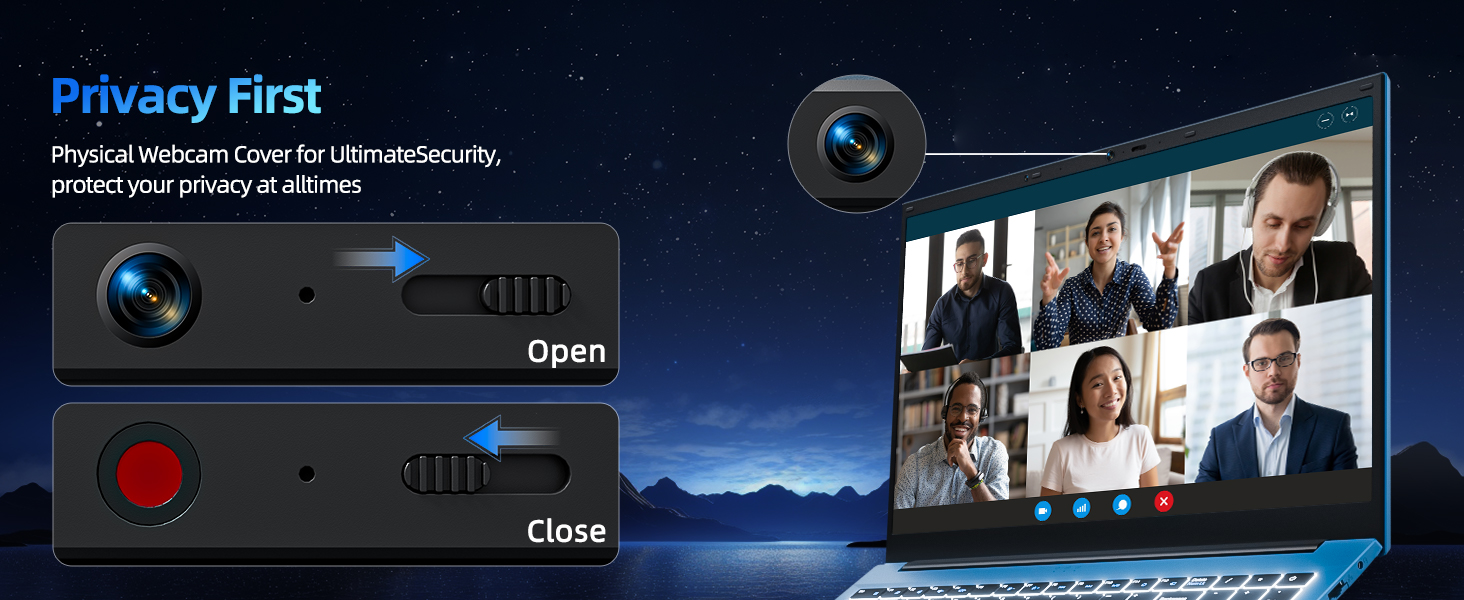
Image 5.4: Illustration of the physical webcam cover for privacy.
6. Maintenance
6.1 Battery Care
- Avoid fully discharging the battery frequently.
- Store the laptop in a cool, dry place when not in use for extended periods.
- For optimal battery health, try to keep the charge level between 20% and 80%.
6.2 Cleaning
- Screen: Use a soft, lint-free cloth slightly dampened with water or a screen cleaner. Avoid harsh chemicals.
- Keyboard & Chassis: Use a soft, dry cloth. A can of compressed air can help remove dust from between keys.
- Ensure the laptop is powered off and unplugged before cleaning.
6.3 Software Updates
Regularly update your Windows 11 operating system and device drivers to ensure security, stability, and optimal performance. Access updates via Start > Settings > Windows Update.
7. Troubleshooting
This section addresses common issues you might encounter with your SGIN laptop.
7.1 Laptop Does Not Power On
- Ensure the power adapter is securely connected to both the laptop and a working power outlet.
- Verify the power outlet is functional by plugging in another device.
- If the battery is completely drained, allow it to charge for at least 30 minutes before attempting to power on again.
7.2 Wi-Fi Connectivity Issues
- Check if Wi-Fi is enabled in Windows Settings (Start > Settings > Network & internet > Wi-Fi).
- Restart your router and modem.
- Ensure you are within range of the Wi-Fi network and have entered the correct password.
7.3 Slow Performance
- Close unnecessary applications running in the background.
- Check for and install any pending Windows updates.
- Ensure your SSD has sufficient free space.
- Run a virus scan to check for malware.
7.4 Keyboard Backlight Not Working
- Press Fn + F5 to toggle the backlight on/off.
- Ensure your laptop's drivers are up to date.
8. Specifications
| Feature | Specification |
|---|---|
| Model Name | SGIN-Y101 |
| Standing Screen Display Size | 15.6 Inches |
| Screen Resolution | 1920 x 1080 pixels (Full HD) |
| Processor | Intel Core i3 (up to 3.9 GHz) |
| RAM | 16 GB DDR3 |
| Hard Drive | 1024 GB SSD |
| Graphics Coprocessor | Integrated |
| Wireless Type | WiFi 6, Bluetooth |
| Number of USB 3.0 Ports | 3 |
| Operating System | Windows 11 |
| Item Weight | 4.99 pounds |
| Product Dimensions | 15.6 x 9 x 0.6 inches |
| Color | Gray |
| Batteries | 1 Lithium Ion battery (included) |
| Special Feature | Memory Card Slot, Backlit Keyboard, 180° Hinge |
9. Warranty and Support
Your SGIN laptop comes with a 1-year protection plan. For any technical assistance, product inquiries, or warranty claims, please contact SGIN customer support. They offer 24/7 instant help to address your concerns.
Please refer to the official SGIN website or the contact information provided with your purchase for the most up-to-date support details.