1. Product Overview
The MALYAN M200 Ultra is a high-speed and precision 3D printer designed for efficient and accurate additive manufacturing. It features advanced functionalities such as automatic leveling, smart vibration compensation, and integrated camera monitoring, making it suitable for users of all skill levels.
Key Features:
- Max 600mm/s High-speed Printing: Experience unparalleled speed and precision with a maximum printing speed of 600mm/s and 20000mm/s² acceleration.
- Print Right Out of the Box: Arrives fully assembled and pre-calibrated, featuring auto bed leveling and intuitive touchscreen controls.
- Smart Camera Monitoring: Monitor prints in real-time with the built-in HD Camera and LED lighting, enabling time-lapse videos and remote adjustments.
- Full-Auto Bed Leveling: Ensures a perfect first layer without manual calibration, optimizing performance for every print.
- Vibration Compensation & Linear Rails: Linear rails minimize vibrations for exceptional stability at high speeds, improving layer alignment and print quality.
2. Setup Guide
2.1 Unboxing and Initial Setup
The MALYAN M200 Ultra is designed for quick setup, arriving largely pre-assembled. Follow these steps to prepare your printer for its first use.
Video: MALYAN M200 Ultra Unbox And Setup. This video demonstrates the unboxing process and initial setup steps for the MALYAN M200 Ultra 3D Printer.
What's in the Box:

Image: What's in the Box. The package includes the M200 Ultra 3D Printer, power cord, a spool of filament (random color), lubricant, nozzle cleaning needle, Teflon tube, screws, filament holder, instruction manual, silicone protective case, hex wrench, nozzle, and scraper blade.
- M200 Ultra 3D Printer
- Power cord
- Filament (Random Color)
- Lubricant
- Nozzle cleaning needle
- Teflon tube
- Screws (x3)
- Filament holder
- Instruction manual
- Silicone protective case
- Hex wrench (x4)
- Nozzle
- Scraper blade
2.2 Filament Loading
Proper filament loading is crucial for successful prints. Ensure the filament is fed smoothly into the extruder.

Image: Filament Loading and Printer Details. This image highlights the multi-color printing capability, which requires proper filament loading into the system.
- Mount the filament spool onto the filament holder.
- Gently feed the filament into the extruder until it catches and begins to feed automatically.
- Confirm filament detection on the touchscreen interface.
2.3 Automatic Calibration
The M200 Ultra features full-auto bed leveling and smart vibration compensation to ensure optimal print quality from the start.

Image: Auto Bed Leveling. The printer automatically scans the print bed to ensure a perfectly flat surface for the first layer, eliminating manual adjustments.
- The printer will automatically perform bed leveling before each print to ensure optimal adhesion and print quality.
- Smart vibration compensation is integrated to maintain stability and reduce artifacts during high-speed printing.
3. Operating Instructions
3.1 User Interface
Navigate the printer's functions using the intuitive touchscreen interface.
Image: Rotary Touchscreen Interface. The printer features a user-friendly rotary touchscreen for easy access to settings, print files, and monitoring options.
3.2 Printing Process
The M200 Ultra is designed for high-speed and precise printing.
Video: MALYAN M200 Ultra High Speed 3D Printer. This video showcases the high-speed printing capabilities of the M200 Ultra, demonstrating its rapid production while maintaining fine details.
- Select your desired print file from the local storage or a connected USB drive.
- Initiate the print. The printer will automatically perform necessary calibrations before starting.
- Monitor the print progress via the touchscreen or remotely using the camera monitoring feature.
3.3 Camera Monitoring
Keep an eye on your prints from anywhere with the integrated HD camera.

Image: Smart Camera Monitoring. The built-in HD camera allows for real-time monitoring of your prints via a mobile web page, enabling remote adjustments and time-lapse video capture.
- Access the camera feed through the printer's IP address on a web browser (computer or mobile).
- Enable time-lapse photography in the camera settings to capture the entire printing process.
3.4 Programmable LED Lighting
Customize the printer's ambiance with programmable LED lights.
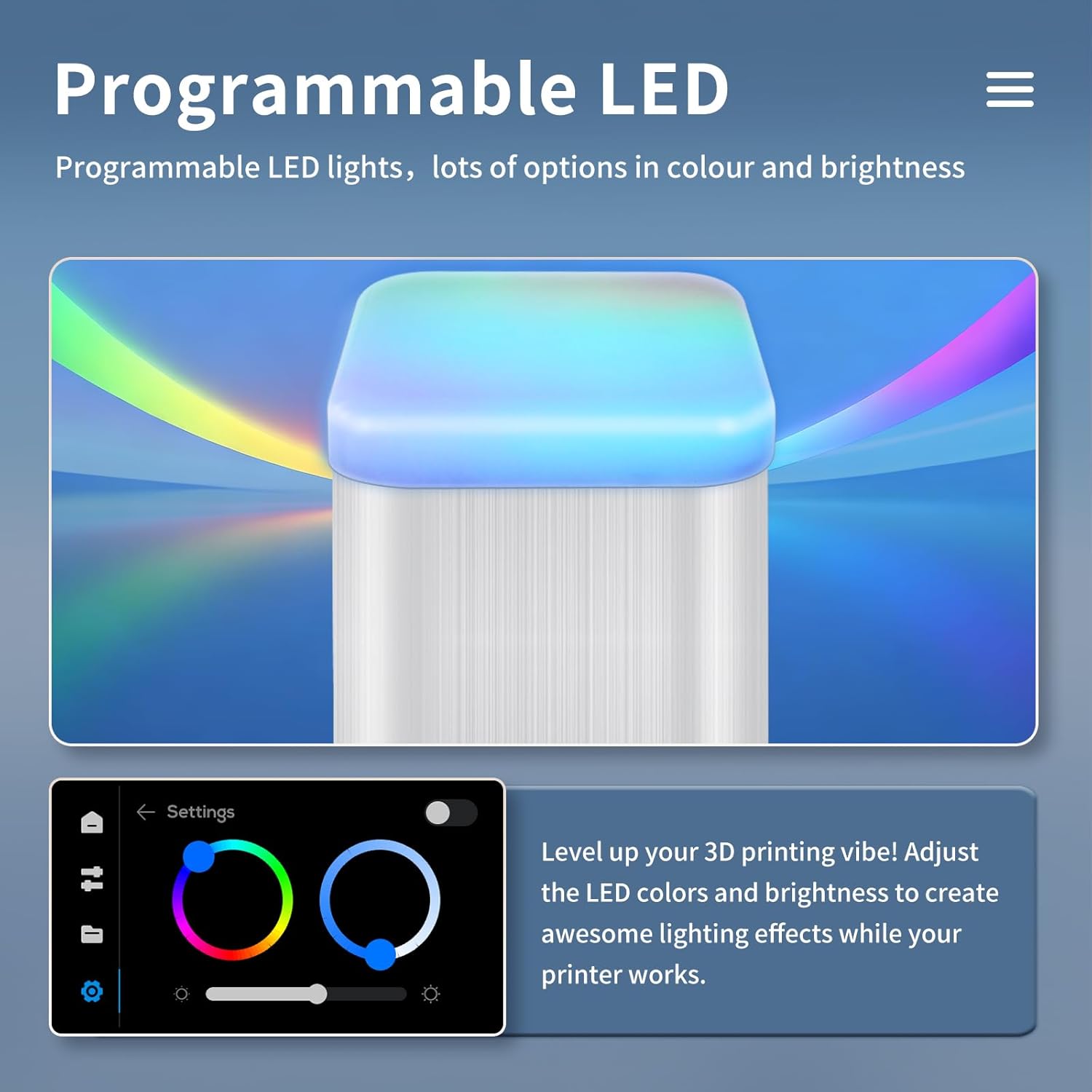
Image: Programmable LED. Adjust the LED colors and brightness through the settings to create desired lighting effects during operation.
- Access LED settings via the touchscreen to adjust color and brightness.
- Enhance visibility of your prints or simply set a preferred aesthetic.
4. Maintenance
4.1 Nozzle Wiper
The integrated nozzle wiper helps maintain print quality by cleaning the extruder nozzle.

Image: Nozzle Wiper. The extruder head automatically triggers a switch to enable self-cleaning, removing residual material from the nozzle for improved print quality.
- The nozzle wiper automatically cleans the extruder head before each print, ensuring optimal material flow.
- Regularly inspect the nozzle wiper for any wear or debris and clean as needed.
4.2 General Cleaning
- Keep the print bed clean from any residue using the provided scraper blade.
- Periodically wipe down the printer's exterior with a soft, dry cloth.
- Ensure the linear rails are free from dust and debris to maintain smooth movement.
5. Troubleshooting
5.1 First Layer Adhesion Issues
- Ensure the print bed is clean and free from oils or dust.
- Verify that auto-leveling has been successfully completed.
- The upgraded plate features a PLA Specific Surface for excellent adhesion; ensure appropriate bed temperature settings for your filament type.
5.2 Print Quality Concerns
- If experiencing layer shifting or poor alignment, check that vibration compensation is active.
- Ensure the linear rails are clean and lubricated for smooth and stable movement.
- Verify filament quality and proper storage to prevent moisture absorption.
5.3 Filament Feeding Problems
- Check for any tangles or knots in the filament spool.
- Use the nozzle cleaning needle to clear any clogs in the extruder.
- Ensure the filament is correctly inserted and detected by the printer's sensor.
6. Specifications
| Specification | Value |
|---|---|
| Product Dimensions | 11.8 x 15.4 x 15.4 inches (11.8"D x 15.4"W x 15.4"H) |
| Item Weight | 14.3 pounds (6.5 Kilograms) |
| Item Model Number | M200 Ultra |
| Brand | MALYAN |
| Manufacturer | MALYAN |
| Material | Metal |
| Color | White |
| Print Size | 180x180x180mm |
7. Warranty and Support
7.1 Warranty Information
For detailed warranty information, please refer to the official MALYAN website or contact customer support. Protection plans are available for purchase separately.
- 3-Year Protection Plan (ASIN: B07P6YX953)
- 4-Year Protection Plan (ASIN: B07PC2L5VM)
7.2 Customer Support
If you encounter any issues or have questions regarding your MALYAN M200 Ultra 3D Printer, please contact MALYAN Official Store customer support. You can find contact details on the official MALYAN website or through your purchase platform.


