
Introduction
This manual provides essential information for the safe and efficient use of your new Lenovo Slim 7 14ILL10 laptop. Please read it thoroughly before operating your device and retain it for future reference.
Setup
Unpacking and Initial Inspection
Carefully remove all components from the packaging. Verify that all items are present:
- Lenovo Slim 7 14ILL10 Laptop
- 65W AC Adapter
- 1 x 32GB USB Drive
- Documentation (this manual)
Inspect the laptop for any physical damage. If any damage is found or components are missing, contact your retailer immediately.
Connecting the Power Adapter
Connect the 65W AC adapter to the laptop's USB-C Thunderbolt 4 port (Power Delivery compatible) and then to a power outlet. It is recommended to fully charge the battery before first use.

Image: Top-down view of the Lenovo Slim 7 14ILL10 laptop with the lid partially open, revealing the keyboard and trackpad. This view highlights the sleek design and port locations on the sides.
Initial Power On and Windows Setup
Press the power button to turn on the laptop. Follow the on-screen instructions to complete the Windows 11 Pro setup process. This includes selecting your region, connecting to a Wi-Fi network, and creating a user account.
Operating Your Laptop
Keyboard and Touchpad
The laptop features a backlit keyboard for comfortable typing in various lighting conditions. The touchpad supports multi-touch gestures for navigation.

Image: Rear view of the Lenovo Slim 7 14ILL10 laptop with the screen open, showcasing the hinge mechanism and the Lenovo branding on the lid.
Touchscreen Display
The 14-inch WUXGA (1920 x 1200) OLED touchscreen supports touch input for intuitive interaction with Windows 11 Pro. It features 600 nits brightness, 100% DCI-P3 color gamut, Eyesafe certification, Dolby Vision, and DisplayHDR True Black 500 for a high-quality visual experience.
Ports and Connectivity
Your laptop is equipped with various ports for connecting external devices:
- 2x USB-C Thunderbolt 4 / USB4 40Gbps: Supports Power Delivery and DisplayPort 1.4.
- 1x USB 3.2 Gen 1 (Always On and 5Gbps): For connecting standard USB devices.
- 1x HDMI v2.1: For connecting to external displays.
- 1x Headphone/Microphone Combo Jack: For audio input and output.
Wireless connectivity includes Intel Wi-Fi 7 BE201 (2x2) and Bluetooth 5.3 for high-speed network access and peripheral connections.

Image: Left side view of the Lenovo Slim 7 14ILL10 laptop, illustrating the placement of ports such as USB-C and the headphone jack.

Image: Right side view of the Lenovo Slim 7 14ILL10 laptop, showing additional ports like USB-A and HDMI.
Webcam
The integrated 5.0MP + IR Camera supports video conferencing and Windows Hello facial recognition for secure login.
Maintenance
Battery Care
The laptop is equipped with a 70Wh Lithium-Ion battery. To maximize battery lifespan:
- Avoid extreme temperatures.
- Do not fully discharge the battery frequently.
- Store the laptop with a partial charge (around 50%) if not used for extended periods.
Cleaning Your Laptop
Use a soft, lint-free cloth slightly dampened with water or a screen cleaner specifically designed for electronics. Avoid harsh chemicals or abrasive materials. Ensure the laptop is powered off and unplugged before cleaning.
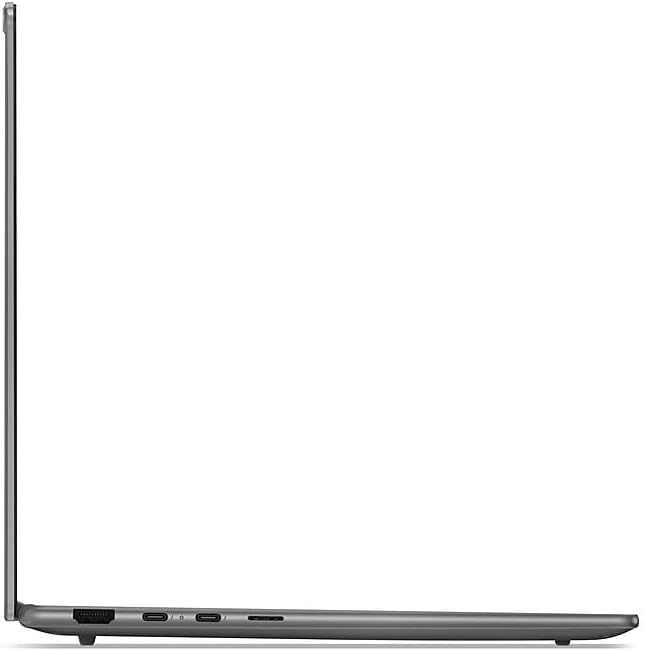
Image: Bottom view of the Lenovo Slim 7 14ILL10 laptop, displaying the ventilation grilles for cooling and rubber feet for stability.
Software Updates
Regularly check for and install operating system updates (Windows Update) and driver updates from the Lenovo support website to ensure optimal performance and security.
Troubleshooting
This section addresses common issues you might encounter. For more complex problems, refer to the Lenovo support website or contact customer service.
No Power / Does Not Turn On
- Ensure the AC adapter is securely connected to both the laptop and a working power outlet.
- Verify the power outlet is functional by plugging in another device.
- Try a different power outlet.
- If the battery is completely drained, allow it to charge for at least 30 minutes before attempting to power on.
Display Issues
- If the screen is blank, try pressing the function key to adjust brightness or toggle the display output (e.g., F7 or F8, refer to keyboard legends).
- Ensure external monitors are properly connected and powered on.
- Restart the laptop.
Connectivity Problems (Wi-Fi/Bluetooth)
- Check if Wi-Fi or Bluetooth is enabled in Windows settings.
- Restart your router/modem for Wi-Fi issues.
- Ensure you are within range of the Wi-Fi network or Bluetooth device.
- Update network drivers from the Lenovo support website.
Specifications
| Feature | Detail |
|---|---|
| Model Name | Slim 7 14ILL10 |
| Model Number | 83MC0005US |
| Processor | Intel Core Ultra 7 258V (8-Core, up to 4.8 GHz) |
| Graphics | Intel Arc Graphics 140V |
| Memory (RAM) | 32GB LPDDR5 8533 MHz |
| Storage | 1TB SSD NVMe M.2 |
| Display | 14" WUXGA (1920 x 1200) OLED Touchscreen, 60Hz, 600 nits, 100% DCI-P3, Eyesafe, Dolby Vision, DisplayHDR True Black 500 |
| Operating System | Windows 11 Pro |
| Keyboard | Backlit Keyboard |
| Webcam | 5.0MP + IR Camera |
| Wireless Connectivity | Intel Wi-Fi 7 BE201 (2x2), Bluetooth 5.3 |
| Ports | 2x USB-C Thunderbolt 4 / USB4 40Gbps, 1x USB 3.2 Gen 1 (Always On), 1x HDMI v2.1, 1x Headphone/Microphone Combo Jack |
| Battery | 70Wh Lithium-Ion (up to 6 hours) |
| Dimensions (L x W x H) | 12.28 x 8.63 x 0.55 inches (31.19 x 21.92 x 1.4 cm) |
| Weight | 2.82 lbs (1.28 kg) |
| Color | Luna Grey |
Warranty Information
Your Lenovo Slim 7 14ILL10 laptop comes with a Limited Warranty. The product description indicates a 12-month warranty period. For detailed terms and conditions, please refer to the official Lenovo warranty documentation included with your purchase or visit the Lenovo support website.
If you require support within the warranty period, please contact the retailer or Lenovo customer service with your proof of purchase.
Support
For technical assistance, driver downloads, and additional resources, please visit the official Lenovo support website. You can find FAQs, troubleshooting guides, and contact information for customer service.
Online Support: support.lenovo.com
When contacting support, please have your laptop's model number (83MC0005US) and serial number ready.


